
Use schedules to run timelines automatically without manual intervention. Scheduling helps you execute timelines at specific times, repeat runs on a defined cadence, and receive notifications when execution completes.
Before you begin
Before creating a schedule, make sure your project contains at least one timeline and that you have permission to create and manage schedules.
Open the Schedule page
Open your project and select Schedule from the Explorer. The Schedule page displays all schedules configured for the project. From this page, you can create schedules, modify existing schedules, trigger manual runs, and review schedule status.
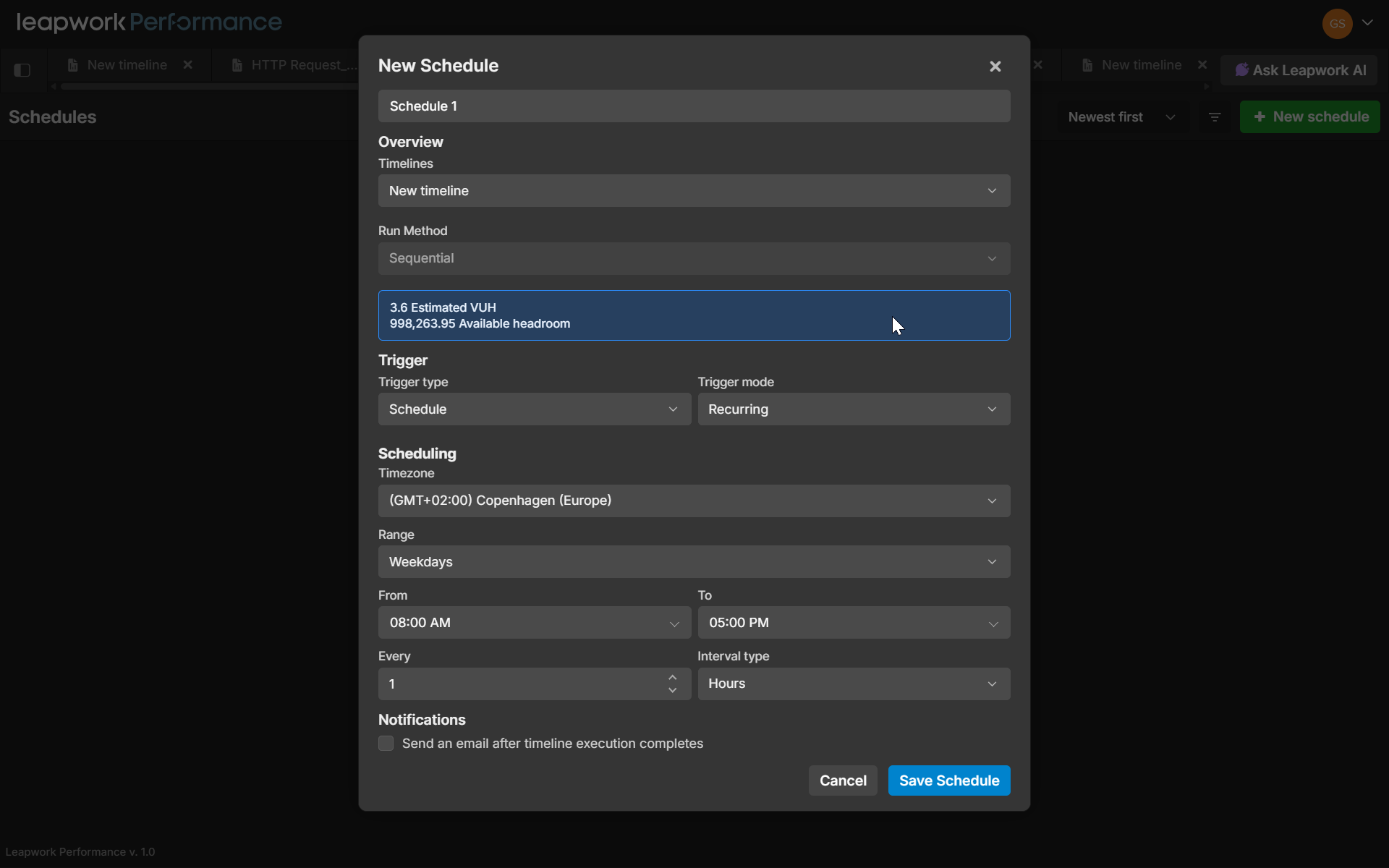
Create a schedule
Create a new schedule and enter a descriptive name that identifies the purpose of the run.
A schedule can operate in one of two modes:
-
On Demand, which allows the schedule to be executed manually when needed.
-
Schedule, which runs automatically according to a defined schedule.
After selecting the trigger mode, choose the timelines that should be included in the schedule. A schedule can contain one or more timelines.
Next, choose how timelines should execute:
-
Sequential execution runs timelines one after another.
-
Parallel execution runs timelines at the same time.
Changes are saved automatically as you configure the schedule.
Configure a one-time schedule
A one-time schedule runs only once. Specify the date, time, and timezone for the execution. When the scheduled time is reached, the selected timelines run automatically and the schedule completes.
Configure a recurring schedule
Recurring schedules run repeatedly according to a defined pattern.Configure the timezone, start time, end time, day scope, and repeat interval.
The day scope determines when the schedule is allowed to run:
-
Every day
-
Weekdays
-
Custom days
Run a schedule manually
Schedules configured as On Demand can be executed manually.
When you trigger a manual run, Leapwork Go starts the selected timelines and opens the corresponding run results.
Monitor scheduled runs
Runs triggered by schedules are identified in Run Results with a schedule indicator. This makes it easier to distinguish scheduled executions from runs that were started manually. Additional schedule information is available from the run details.
Email notifications
Schedules can be configured to send email notifications after execution completes. Notifications provide a summary of the run and help stakeholders monitor execution outcomes without opening the application.
View resource usage estimates
While configuring a schedule, Leapwork Go provides information about expected resource consumption and available capacity. This helps prevent scheduling conflicts and makes it easier to understand the impact of planned executions.
Troubleshooting
A schedule does not run at the expected time
Verify the configured timezone and ensure the schedule is enabled.
Timelines are not running in parallel
Review the schedule configuration and confirm that the execution mode is set to Parallel.
Notification emails are not received
Verify the configured recipient addresses and ensure notifications are enabled for the schedule.