
Bring Your Own Key lets your organization use its own LLM API keys for AI operations in Leapwork Play, instead of relying only on the platform-provided vendors.
When BYOK is active for your org/workspace, the selected key is used for LLM work across assets in that org/workspace. Leapwork still meters usage, but LLM operations are charged at a reduced credit rate.
Who can set this up
-
Only the account owner can add, edit, delete, or activate keys.
-
Once a key is selected, it applies to all assets in that org/workspace.
-
The same account owner can switch the org/workspace back to a default Leapwork-provided LLM vendor at any time.
-
Other users see the active configuration, but cannot change org/workspace LLM settings.
Supported providers
BYOK currently supports:
|
Provider |
Display name in Play |
|---|---|
|
OpenAI |
OpenAI Codex |
|
Anthropic |
Anthropic Claude |
|
|
Google Gemini |
MS Copilot is available as a platform vendor, but it does not support Bring Your Own Key.
You cannot currently choose a specific model name or high/small model tier when configuring a key. Play selects the model for you. Model and tier selection will be available in a future release.
While BYOK is active, Play uses these runtime models:
|
Provider |
Model used for LLM operations |
|---|---|
|
OpenAI |
GPT-5.6 Luna ( |
|
Anthropic |
Claude Opus 4.7 ( |
|
|
Gemini 3.1 Pro ( |
Connection tests use a smaller model for the same provider (GPT-5 mini, Claude Sonnet 4.6, or Gemini Flash).
Credit benefit
With Bring Your Own Key enabled, LLM operations typically cost Less% of the normal credit charge.
That means you keep using Leapwork Play for orchestration, evidence, and workflow control, while reducing credit spend on LLM work by using your own provider billing.
How to set up own LLM key
1. Open the LLM vendor menu and choose + Own Key
In the header, open the LLM provider dropdown. At the bottom of the menu, click + Own Key.

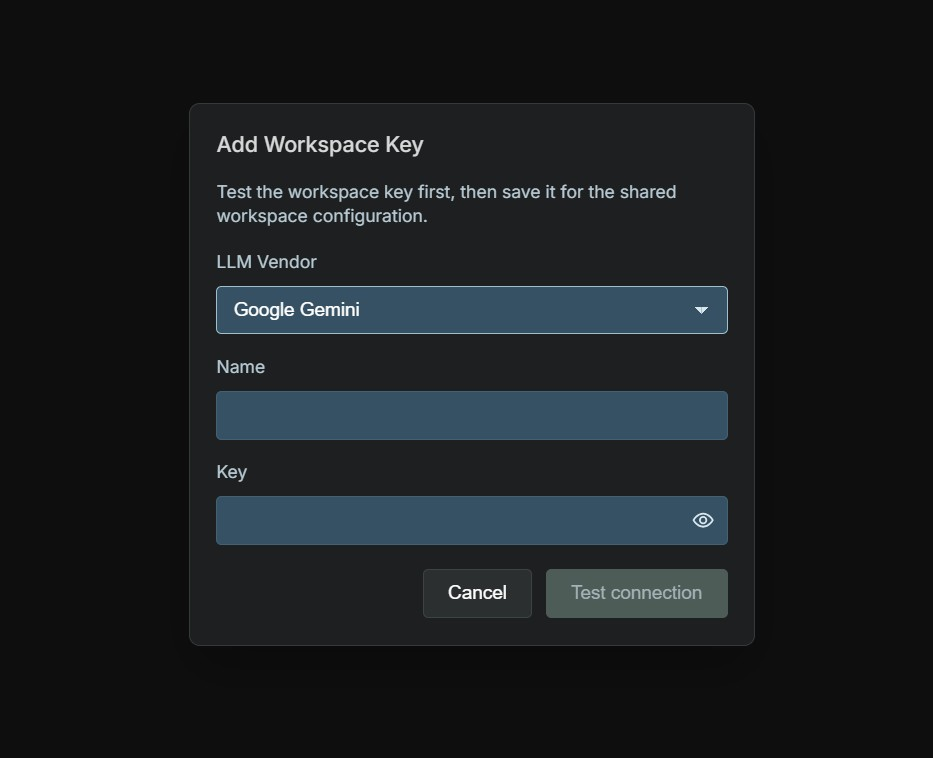
2. Register the key in Configure LLM
In the Configure LLM popup:
-
Select an LLM Vendor (OpenAI Codex, Anthropic Claude, or Google Gemini).
-
Enter a Name for the configuration, for example
Google-Key. -
Paste your provider Key (secret).
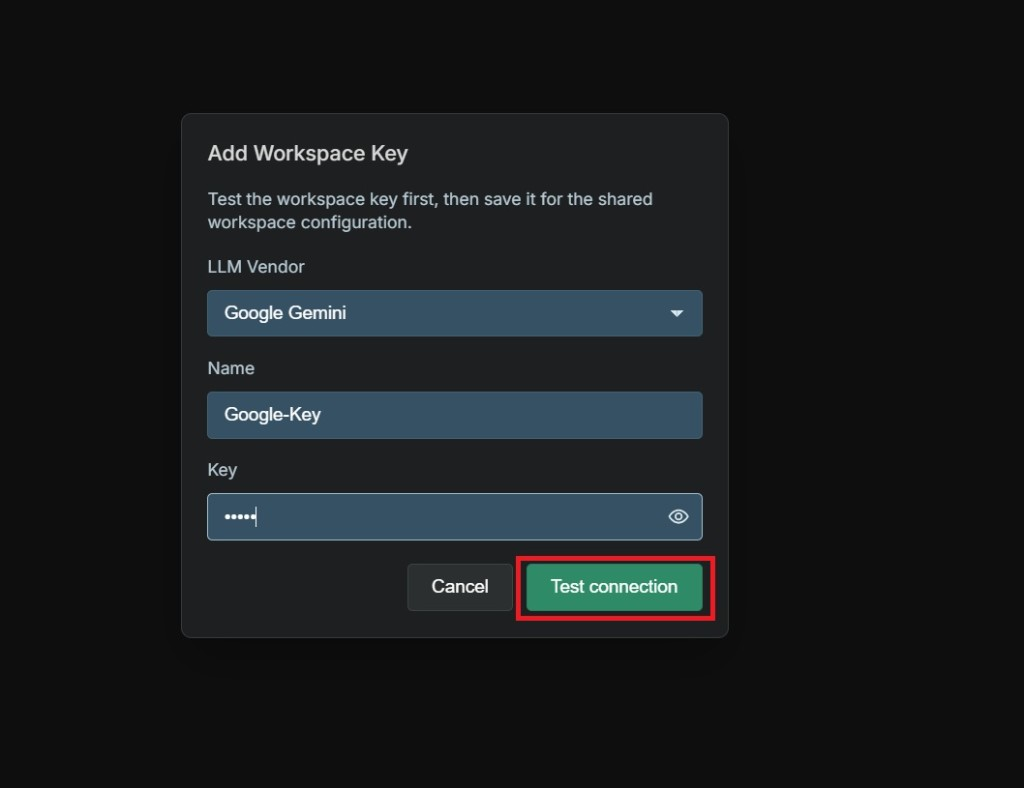
3. Test the connection, then save
Before the key can be saved, click Test connection.
Play validates that the key works with the selected provider. After a successful test, save the configuration so it becomes available to the org/workspace.
4. Select the saved key from the header
Open the LLM provider dropdown again. Your configuration appears under Own Keys. Select it to make it the active org/workspace LLM configuration.
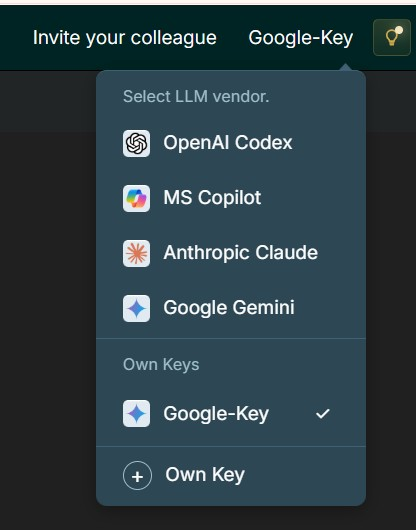
After selection, the header shows your key name (for example Google-Key), and LLM operations for assets in that org/workspace use your key.
Switching back to a platform vendor
If you want to stop using BYOK for the org/workspace:
-
Open the LLM provider dropdown in the header.
-
Select one of the default Leapwork-provided vendors (OpenAI Codex, MS Copilot, Anthropic Claude, or Google Gemini).
Only the account owner can switch between Own Keys and platform vendors. The change applies to the whole org/workspace.
Managing saved keys
Account owners can:
-
Add additional Own Keys for supported providers
-
Edit an existing key configuration
-
Activate a different saved Own Key
-
Delete a saved key after switching away from it (the currently active key cannot be deleted until another mode or key is selected)
Key values are stored securely and shown only as a masked preview after save.
Security guidelines
-
Treat provider API keys like passwords. Never put them in test code, chat messages, or shared documents.
-
Prefer narrowly scoped provider keys when your LLM vendor allows key restrictions.
-
Rotate keys in your provider console if a key may have been exposed, then update the org/workspace configuration in Play.
-
Only share account-owner access with people who should manage billing and LLM routing for the organization.
Troubleshooting
|
Problem |
What to try |
|---|---|
|
+ Own Key is missing |
Confirm Bring Your Own Key is enabled for your plan/org/workspace, and that you are signed in as the account owner. |
|
Test connection stays disabled |
Enter both a configuration name and an API key. |
|
Connection test fails |
Check that the key is valid for the selected provider, has access to the required model, and that the provider account has available quota/billing. |
|
Save is unavailable |
Test the connection successfully first, then save. |
|
Key does not appear under Own Keys |
Refresh the page, confirm you saved successfully, and check that you are in the correct org/workspace. |
|
Other users cannot change the LLM vendor |
Expected behavior. Only the account owner can manage org/workspace BYOK and switch vendors for everyone. |
|
Provider returns rate-limit or quota errors |
Resolve billing/quota in the LLM provider account, then retest the key. |
Tips
-
Use clear configuration names (
Prod-OpenAI,Team-Gemini) so the active key is easy to identify in the header. -
Keep at least one validated fallback key if your organization depends on BYOK for daily automation work.
-
After activating a key, run one lightweight AI action in Play to confirm org/workspace routing looks correct.