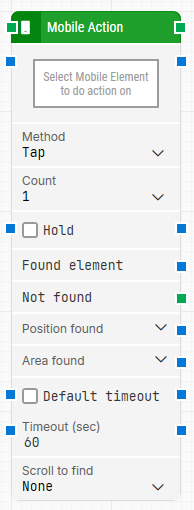
The Mobile Action block performs a gesture on a captured mobile element, such as tap, swipe, spread, or pinch. It is useful when you want to interact with a specific element in the app rather than using screen coordinates.
You can also hold the element (press-and-hold) when performing a tap action.
When fully expanded, the Mobile Action block lists the below properties:
Note: The screenshot on this page uses the Elegance Design, introduced in 2025.3. If you are using an earlier version, your layout may look different.
Quick-start
Drag Mobile Action onto the canvas.
Connect the block in the flow and specify Select Mobile Element to do action on, Method, and any action-specific settings such as Count and Hold. Optionally adjust Default timeout, Timeout (sec), and Scroll to find.
Run the flow when it’s ready.
Building block parameters
Parameters
Block header: The green input connector triggers the block to start executing. The green output connector triggers when the mobile action has been successfully performed. You can rename the block title by double-clicking the header text.
Select Mobile Element to do action on: The mobile element locator the action will be performed on. Capture the locator by clicking the field to open the mobile recorder, or by right-clicking the property and selecting capture options. You can also clear the locator from the same right-click menu.
Method: Select the gesture to perform on the selected mobile element.
Tap: Performs a tap on the element.
Swipe: Performs a swipe gesture on the element.
Spread: Performs a spread (zoom in) gesture on the element.
Pinch: Performs a pinch (zoom out) gesture on the element.
Count: Sets how many times the selected action is performed (for example, how many taps).
Hold: When selected, the block performs the action as a press-and-hold on the element (commonly used with tap actions).
Found element: Returns the element that was found and acted on. This can be reused as a source element in other mobile blocks.
Not found: Triggers if the mobile element is not found before the timeout behavior completes. This is typically used to branch the flow or to explicitly fail a case by connecting it to a Fail block.
Position found: Returns where the element was found as X, Y coordinates. Expand to work with X and Y separately.
Area found: Returns the position and size of the found element as X, Y, Width, Height. Expand to work with the area’s position/size and nested sub-properties separately.
Default timeout: Controls whether the block uses the default timeout from the flow settings or a custom timeout value.
Timeout (sec): Sets the maximum time spent searching for the mobile element before the block gives up and triggers Not found. This field is used when Default timeout is not selected.
Note: All cases have a “global timeout” that can be configured in the Settings panel. This is unrelated to the timeout of a single building block. However, a running case will automatically be cancelled if it runs for longer than the global timeout.
Scroll to find: Controls whether the block should scroll while searching for the mobile element. This can be useful when the element is inside scrollable content.