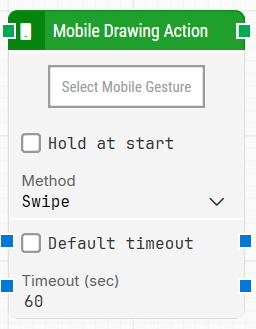
The Mobile Drawing Action block performs a gesture on a mobile device. It is mainly used to draw on the screen for scenarios such as unlocking pattern passwords or drawing shapes/images during a run.
Fully expanded, the Mobile Drawing Action block shows the following properties:
Note: The screenshot on this page uses the Elegance Design, introduced in 2025.3. If you are using an earlier version, your layout may look different.
Quick-start
Drag Mobile Drawing Action onto the canvas.
Connect the block in the flow and, if needed, specify basic parameters such as Select Mobile Gesture, Hold at start, Method, Default timeout, and Timeout (sec).
Run the flow when it’s ready.
Building block parameters
Parameters
Block header: Shows the current title of the Mobile Drawing Action block. You can rename it by double-clicking the header and typing a new title. The green input connector triggers the block when the flow reaches it, and the green output connector triggers when the gesture is performed successfully.
Select Mobile Gesture: Holds the captured mobile gesture that the block will perform on the device. This parameter is mandatory.
Hold at start: When enabled, the gesture begins with a press-and-hold at the starting point before continuing the drawing action.
Method: Defines how the gesture is performed (for example, Swipe), depending on how the gesture should be executed on the device.
Default timeout: Controls whether the block uses a fixed timeout or the flow’s default timeout. If the checkbox is not selected, the timeout is set to 60 seconds unless you change it. If the checkbox is selected, the flow’s Default timeout value is applied.
Timeout (sec): Sets the maximum time the block can spend performing the gesture before timing out. Note that this is separate from the case “global timeout” configured in Settings, which can cancel a run if the overall case exceeds that limit.