The Hover text block searches for a given text on the screen (or within a defined area) using OCR, then moves the mouse pointer to hover where the text is found. Because it uses OCR, searches on a full screen can take several seconds and require more processing than image based blocks.
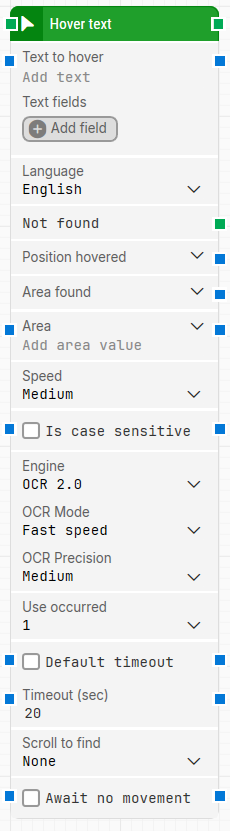
When fully expanded, the Hover text block shows the following properties:
Note: The screenshot on this page uses the Elegance Design, introduced in 2025.3. If you are using an earlier version, your layout may look different.
Quick-start
Drag Hover text onto the canvas.
Connect the block in the flow (green input and output connectors).
Set Text to hover (and Language if needed).
Optionally adjust parameters such as Area, use outputs like Position hovered and Area found, and branch via Not found.
Run the flow when it’s ready.
Building block parameters
Parameters
Block header: Rename the block by double-clicking the title. The green input connector starts the block when the flow reaches it. The green output connector triggers when the hover completes successfully (and if Use occurred is set to iterate all occurrences, it can trigger on each occurrence).
Text to hover: The text to search for and hover over. If the text is found, the mouse pointer hovers in the middle of the matched text. Supports dynamic values via tokens when Text fields are used (right-click and select Insert token).
Text fields: Add fields that can hold dynamic content and be used as tokens in Text to hover.
Language: Select the language used for text recognition.
Not found: Green output connector that triggers if the text is not found before the timeout. Use it to branch the flow or link to a Fail block.
Position hovered: Output with the X,Y screen position where the pointer hovered (0,0 is the top-left). Can be expanded to work with X and Y separately.
Area found: Output with the X,Y,Width,Height area where the text was found (starting from the upper-leftmost pixel). Can be expanded to work with nested position and size values.
Area: The screen area (X,Y,Width,Height) to search in. If not defined, the entire screen is searched.
Speed: Mouse movement speed. Default is Medium.
Is case sensitive: Controls whether OCR matching is case sensitive.
Engine: OCR engine used for text recognition (for example, OCR 2.0).
OCR Mode: OCR processing mode (for example, Fast speed).
OCR Precision: Character-level confidence threshold for matching (for example, Medium).
Use occurred: Select which occurrence to hover if the text appears multiple times. If set to iterate all occurrences, the block can loop through each match.
Default timeout: If enabled, the block uses the default timeout from Flow settings. If disabled, it uses the Timeout (sec) value.
Timeout (sec): Maximum time to search before giving up and triggering Not found. Default is 20 seconds.
Scroll to find: Enables scrolling while searching for the text (for example in scrollable pages). None disables scrolling.
Await no movement: Waits to start searching until the screen has been stable (no movement) for a period of time.