
Press Key

The Press Key building block presses and holds a keyboard key (or key combination) until it is released. This is useful when you need to keep a modifier key pressed during another action, such as holding CTRL while dragging the mouse. The block is typically used together with the Release Key block.

See the Press and hold a key lesson for an example of how this works.

Fully expanded, the Press key block shows the following properties:
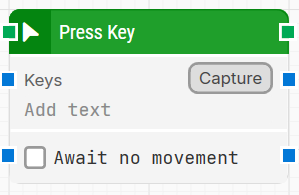
image-20260129-133810.png

Quick-start

  1. Drag Press Key onto the canvas.

  2. Connect the block in the flow and optionally specify the basic parameters required for this block to operate: Keys (use Capture) and, if needed, Await no movement.

  3. Run the flow when it’s ready.

Building block parameters

Parameters
  • Block header: The green input connector triggers the block to start executing and press (and hold) the selected key(s) until released. The green output connector triggers when the key has been pressed. You can rename the block by double-clicking the header text and typing a new title.

  • Keys: Defines a single key or a combination of keys to press and hold. This value can only be entered by clicking Capture.

  • Capture: Captures a key or key combination into Keys. This makes it easier to use special key combinations such as CTRL+C or ENTER.

  • Await no movement: Delays the key press until there has been no movement on the screen for a specified period (for example, two seconds). This is useful when waiting for a screen update (such as a page loading). Regardless of this checkbox, the key press occurs after waiting a maximum of 30 seconds.

  • Await Timeout: Sets the number of seconds the screen must have seen no movement before the block proceeds.

Resources

Topic

Description

Flows FAQ

Common questions about creating, running, and managing flows in Leapwork.

Flows Troubleshooting

Guidelines and solutions for identifying and fixing issues that occur when building or running flows in Leapwork.