The Navigate Web building block navigates to a different web address (URL), refreshes the current page, or uses the browser’s back/forward functions. This block only works with browser windows that were previously opened using the Start Web Browser block. After navigation, the next web building block starts executing on the new page when the client-side DOMReady event is triggered.
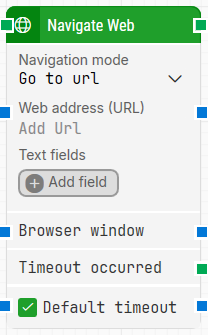
Fully expanded, the Navigate Web block shows the following properties:
Note: The screenshot on this page uses the Elegance Design, introduced in 2025.3. If you are using an earlier version, your layout may look different.
Quick-start
Drag Navigate Web onto the canvas.
Connect the block in the flow and specify the basic parameters required for this block to operate: Navigation mode and Web address (URL). Optionally, you can adjust other parameters if needed.
Run the flow when it’s ready.
Building block parameters
Parameters
Block header: The green input connector triggers the block to start executing. The green output connector triggers when the selected navigation action has been completed. You can rename the block title (“Navigate Web”) by double-clicking it and typing a new title.
Navigation mode: Selects which navigation action to perform on the current browser window:
Go to URL: Navigates to a new URL specified in Web address (URL).
Go back: Navigates back, similar to pressing the browser’s Back button.
Go forward: Navigates forward, similar to pressing the browser’s Forward button.
Refresh page: Refreshes the current page, similar to pressing F5.
New Tab: Opens a new browser tab to the URL specified in Web address (URL).
Web address (URL): The URL to navigate to (used with Go to URL and New Tab). It can include tokens for values provided via Text fields. To insert a token, right-click and select Insert token.
Text fields: Key–value fields that enable the use of external values in Web address (URL). To use a value, right-click the URL field, select Insert token, and insert the field name. Fields can be renamed by double-clicking them, and inserted tokens update their visual appearance accordingly.
Add field: Adds a field that can be inserted as a token into Web address (URL).
Browser window: Makes the block use a specific browser window. Multiple browser windows are not supported by Selenium Grid or external cloud providers such as Sauce Labs and BrowserStack.
Timeout occurred: Triggers if the navigation action is not completed, such as when a URL is not loaded within the configured timeout.
Default timeout: If the checkbox is not selected, the timeout is 10 seconds. If the checkbox is selected, the Default timeout value from the flow settings applies.
Timeout: The maximum time spent performing the navigation action before giving up and triggering Timeout occurred. This is separate from the case global timeout in Settings, which can cancel a run if the whole case exceeds it.