
Network emulation policies simulate different network conditions during timeline execution. By introducing latency, bandwidth constraints, and network variability, you can better understand how applications perform under real-world conditions.
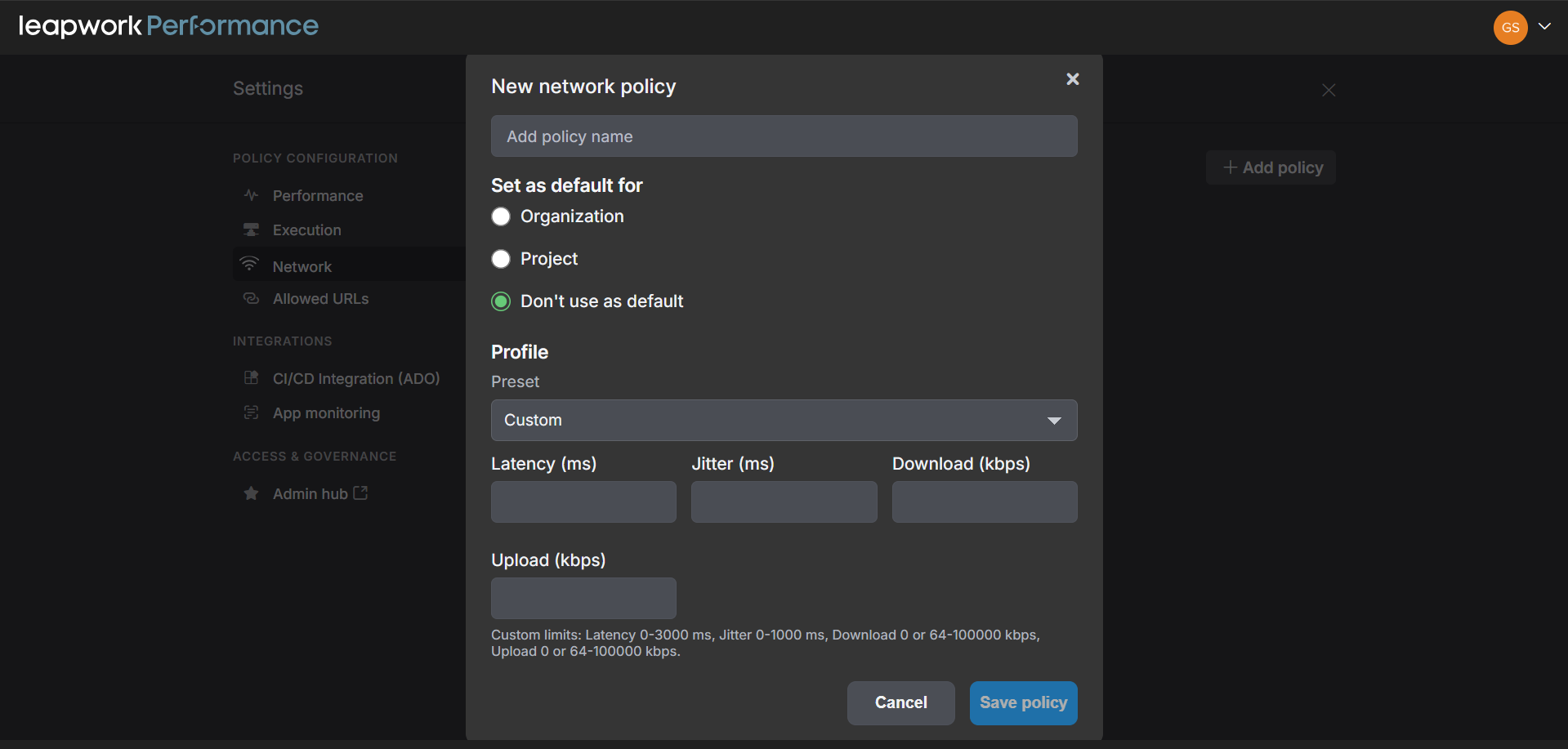
Network policies are managed centrally and applied to timeline tracks.
Before you begin
You must have access to Settings > Network to create and manage network policies.
Create a network policy
Open Settings > Network and create a new policy. You can either select a predefined policy or create a custom configuration.
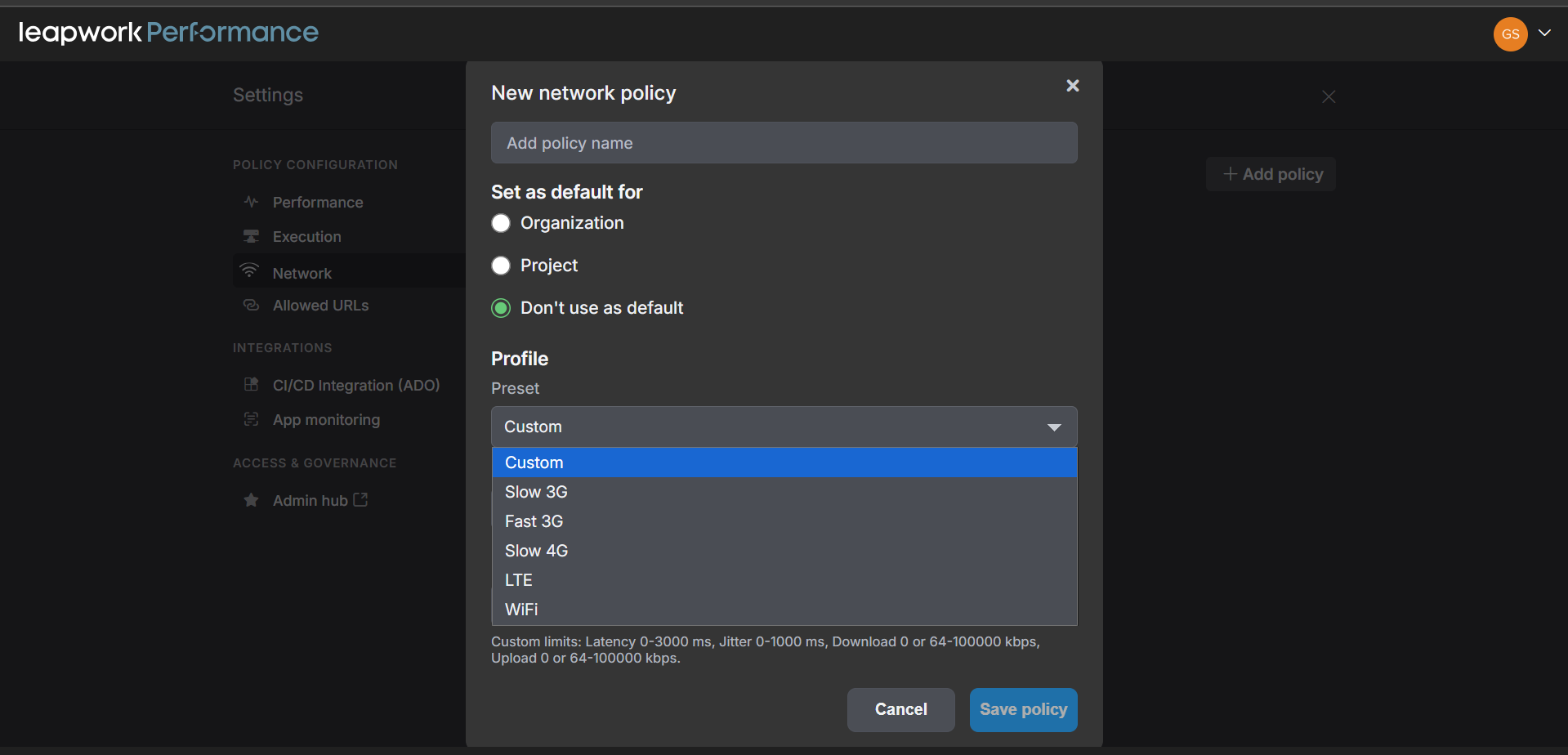
When creating a custom policy, configure the network characteristics that should be applied during execution.
|
Parameter |
Description |
|---|---|
|
Latency |
Simulated network delay |
|
Jitter |
Variation in latency |
|
Download bandwidth |
Maximum download speed |
|
Upload bandwidth |
Maximum upload speed |
Custom values must fall within the limits supported by the platform.
Configure default policies
A network policy can be assigned as an organization default or a project default. Organization defaults apply across projects unless overridden. Project defaults apply within a specific project unless a track explicitly uses a different policy.
Assign a policy to a track
Open the timeline and select the track that should use network emulation. Each track can be configured to:
-
Use the default policy.
-
Disable network emulation.
-
Use a specific network policy.
This allows different tracks within the same timeline to simulate different network conditions.
Verify the applied policy
After a run completes, open Run Results and review the network indicators associated with the timeline. Policy information is included in exported reports, allowing you to understand the conditions under which results were generated.
Modify or remove policies
Policies can be edited at any time from Settings > Network. Changes affect future executions but do not alter historical run results.When a policy is no longer needed, it can be removed.