
Before you can use Performance, there are 3 steps that must be completed before you can get started. You need to:
-
Import and authorize a certificate
-
Check that you can log on to Performance successfully
-
Download and configure a browser proxy extension
Enterprise Login (SSO) Support
We support enterprise login (Single Sign-On) via Microsoft Entra ID (Azure AD) and Google Workspace. This allows your users to securely access the platform using your organization’s existing identity provider.
If your organization uses a different SSO provider, we may still be able to support your setup. Please reach out to your Leapwork Customer Success Manager (CSM) or Leapwork Support to discuss your requirements.
Step 1: Import and authorize a certificate
A certificate must be installed on your machine to access Performance. During Early Access, this certificate is signed by Leapwork. Note that, once Performance is launched in the market, this certificate must be replaced by one signed by your organization.
The required certificate can be downloaded from your user profile within Leapwork Performance. This ensures you always use the latest version.
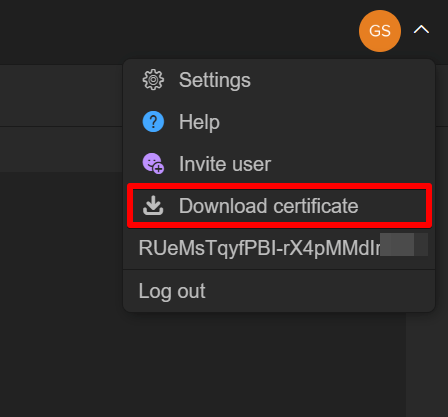
Go to the download location, locate the downloaded file Leapwork-Performance-Certificate
Type Win+S and enter certmgr.msc:
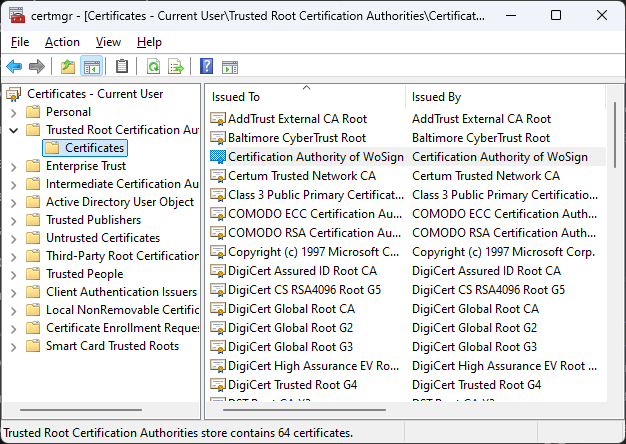
Locate the Certificates folder as above, then right-click on it:
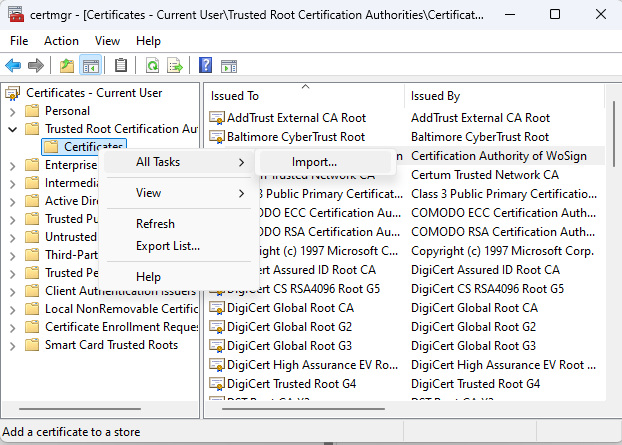
Choose All Tasks > Import and click Import:
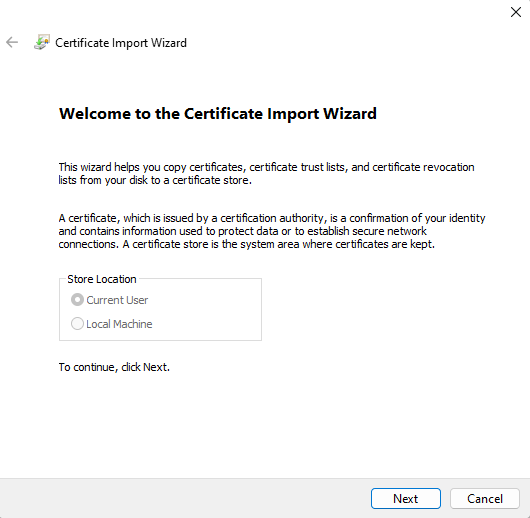
Click Next:
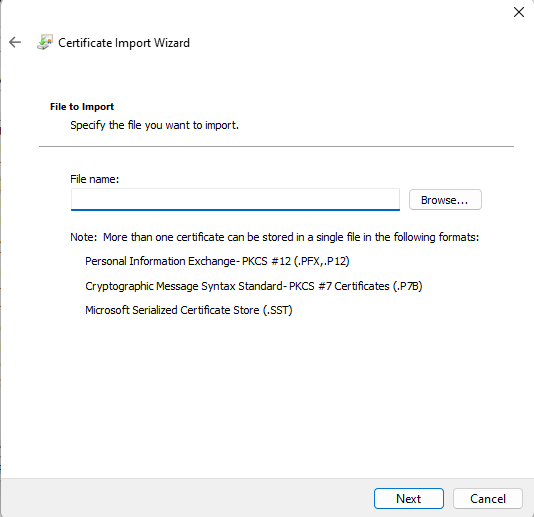
Click Browse to locate and choose the downloaded certificate file, then click Next:
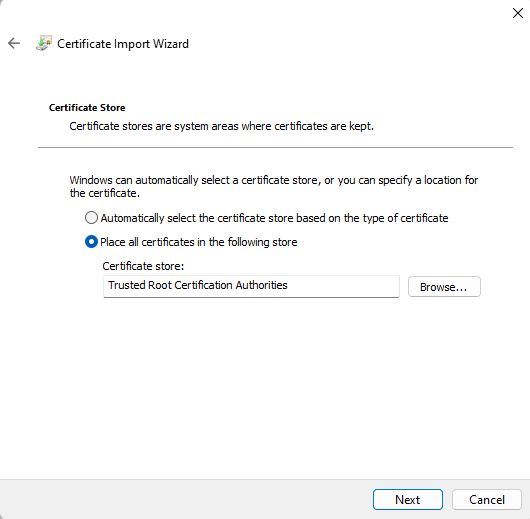
Click Next:
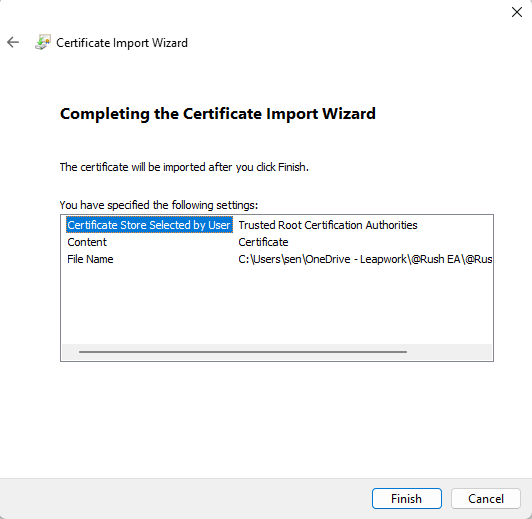
Click Finish. The import will start and prompt for permission; click Yes:
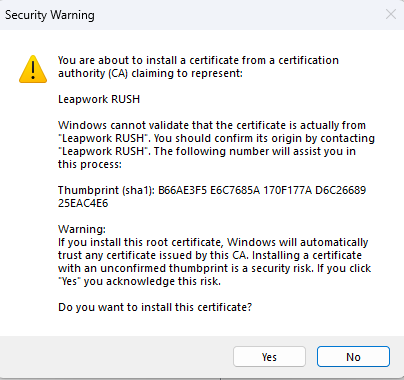
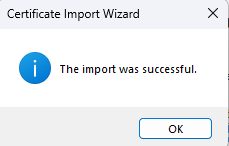
Once successful, the following prompt is shown:
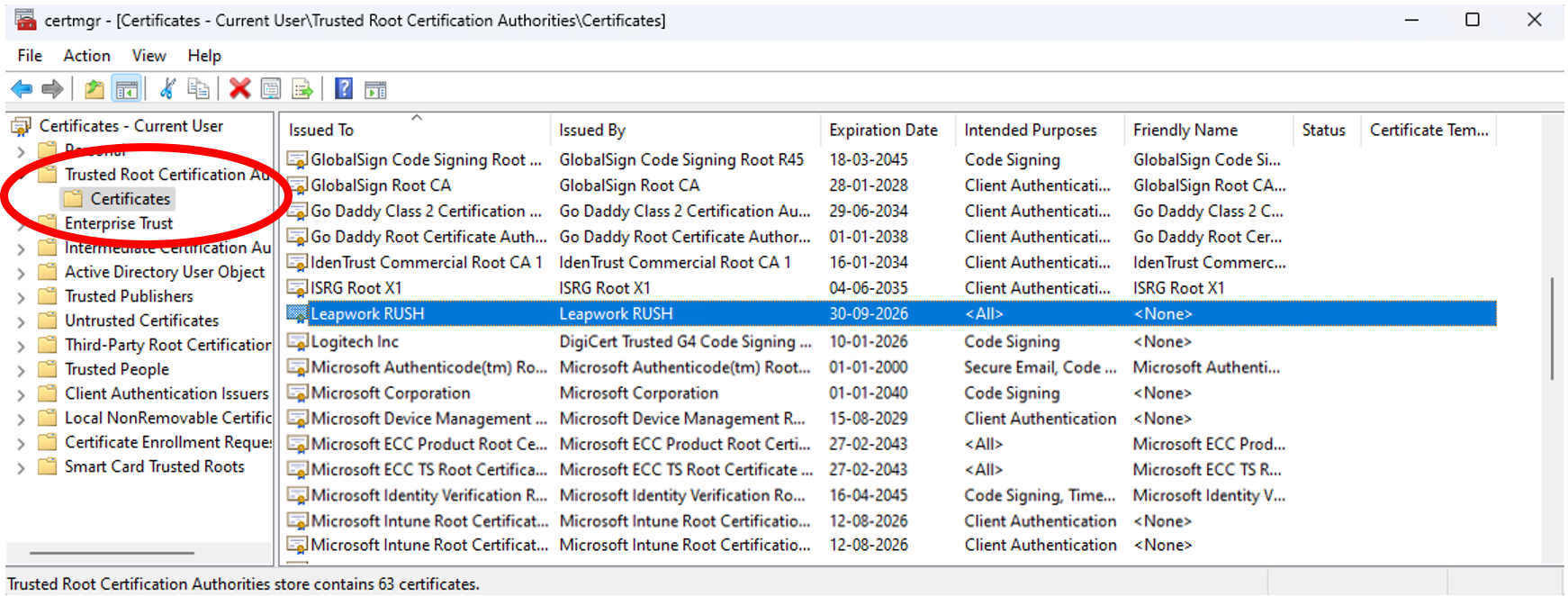
Now, navigate to Trusted Root Certification Authorities > Certificates: Leapwork Performance should be visible similar to below:
Step 2: Log on to Performance
Now go to Leapwork Performance and try to login
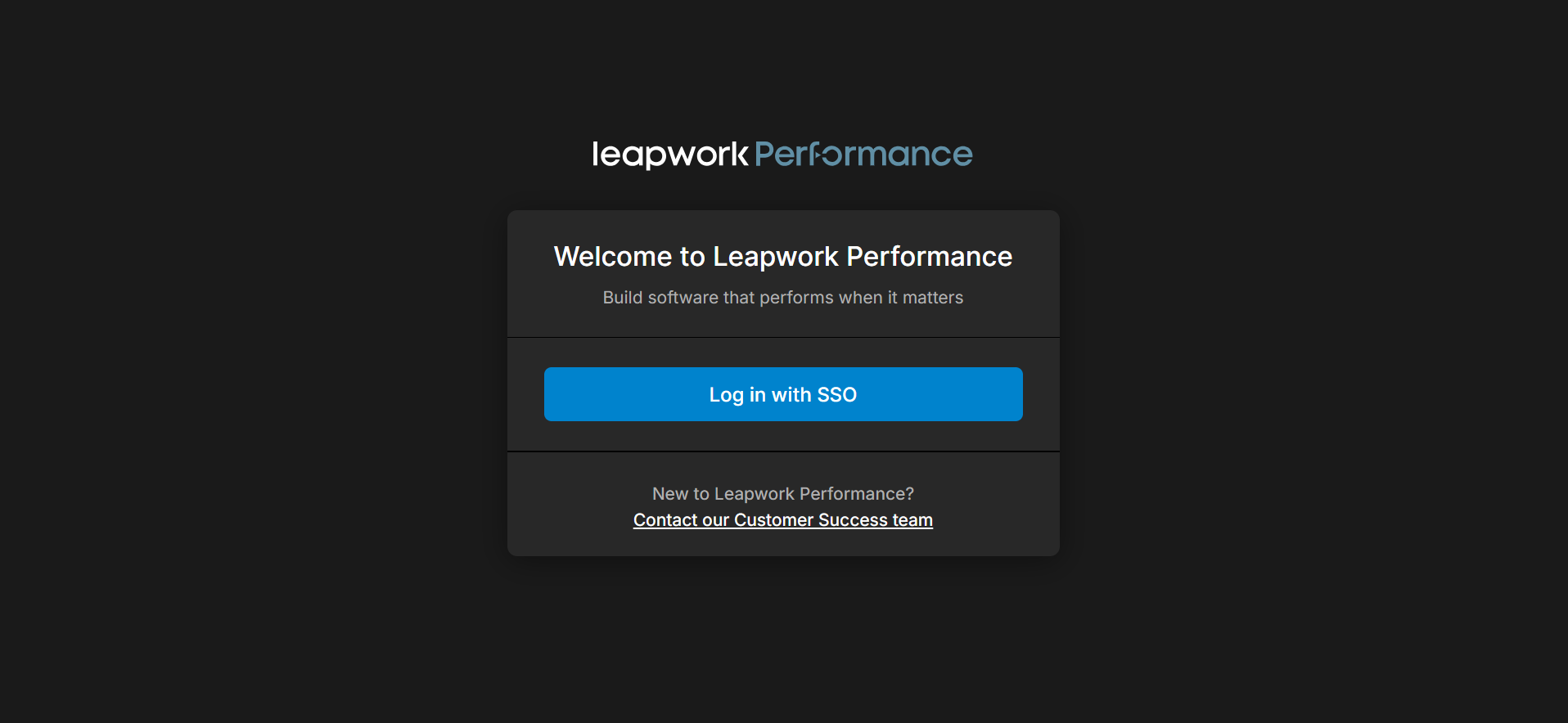
Login is via SSO. If you have the required user privileges on your machine, the window below will show. Click Accept and you should be logged in to Performance.
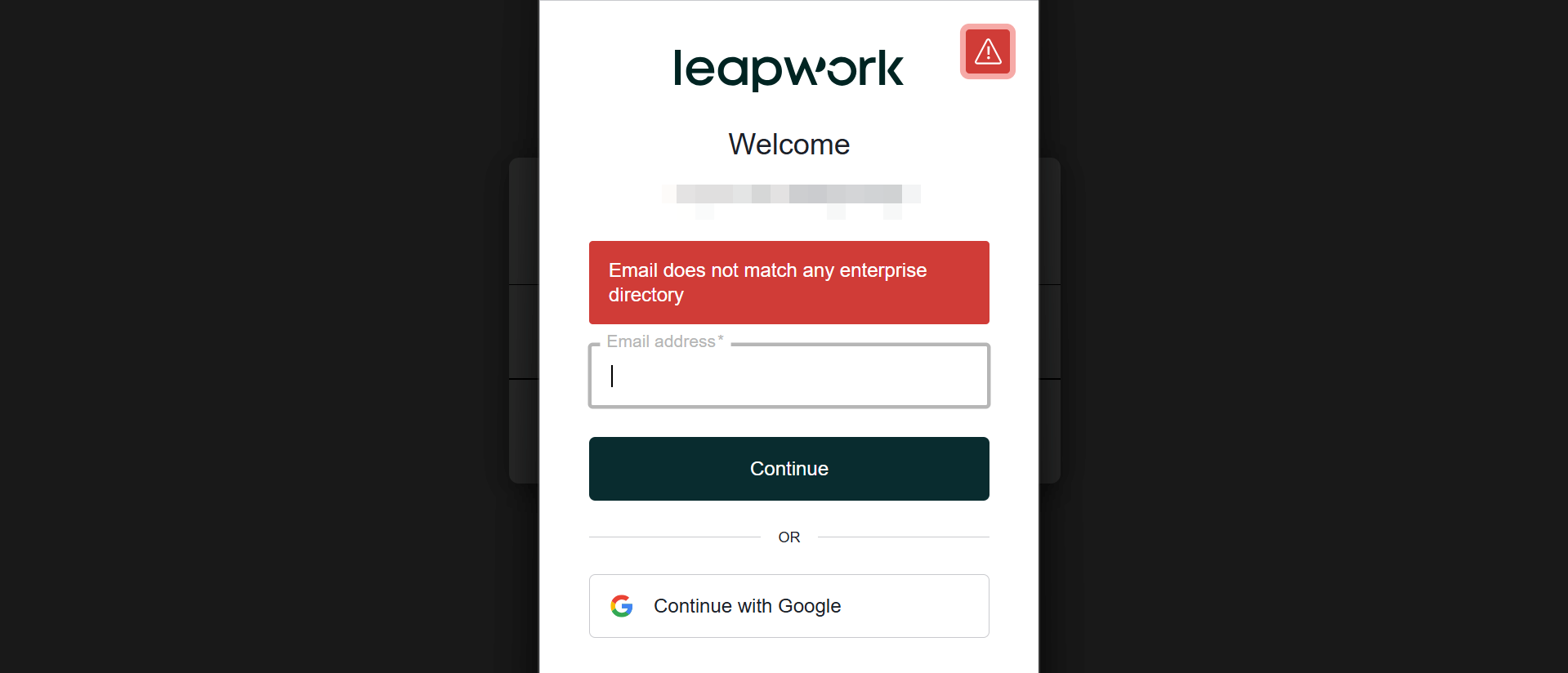
Error: “Email does not match any enterprise directory”
In the event, that your user account is restricted you may see the window below instead:
Once successfully logged in, locate your avatar in the top right corner, and click on it:
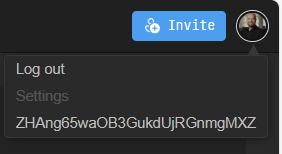
Click on the string, as shown in the above image (Note: The string is unique for each user, so your will not have the same value as the one shown) - this copies the string for later. Note: You can always come back and copy this string again. The string will be needed for the final step, setting up the proxy.
Troubleshooting: Microsoft Entra SSO consent (User.Read)
In this case, you are unable to proceed. Leapwork Performance requires permission to sign in and read your user profile (User.Read), which normally does not require admin consent.
However, your organization’s security policy may prevent users from granting consent to any application even for standard permissions like this one.
If you see this message, please contact your Security or IT team to review the requested permissions and grant admin consent for the application on behalf of the organization.
Step 3: Download and configure a browser proxy extension
Use a browser proxy extension when recording application traffic. The Leapwork Go Recorder Proxy extension is recommended because it combines connection settings, routing rules, recording controls, and action-based request grouping. It supports Chrome and Edge.
Follow Install and configure the Leapwork Go Proxy extension.
Alternative: configure SmartProxy
You can continue to use a general proxy extension such as SmartProxy. Configure the proxy connection separately and manage recording from Leapwork Go. The following instructions apply to SmartProxy.
Install and pin the extension
-
Install SmartProxy from the Chrome Web Store.
-
Click the Extensions (puzzle icon) in Chrome.
-
Locate SmartProxy and click the pin icon so it is always visible.
Open SmartProxy settings
-
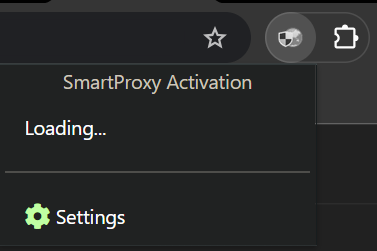
Click the SmartProxy icon in the Chrome toolbar.
-
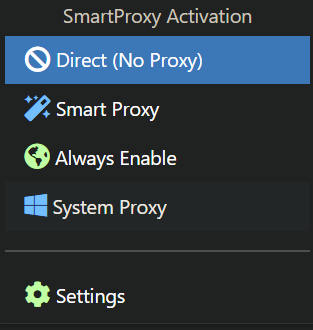
Click the Settings (gear icon).
Add the Leapwork proxy server
-
In the left sidebar, click Proxy Servers (or Proxies).
-
Click Add.
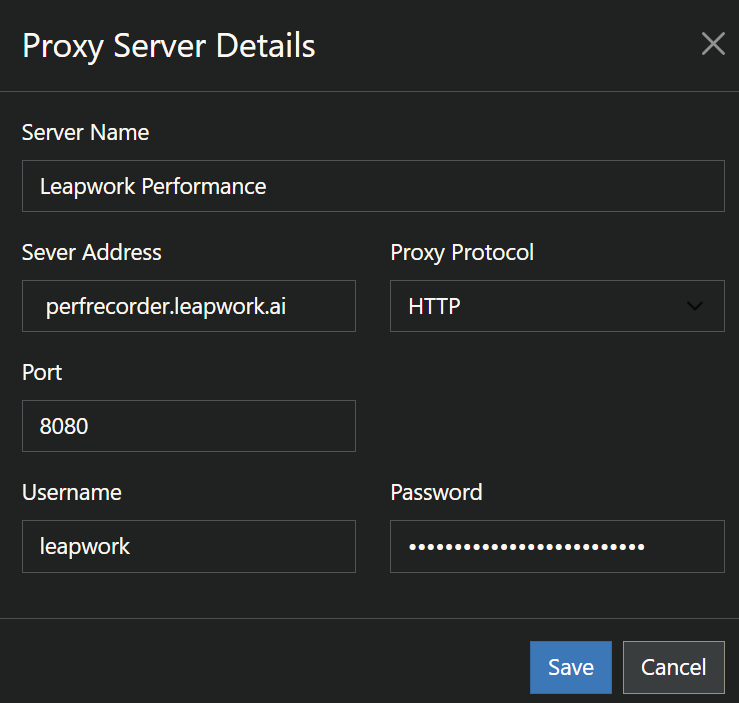
Enter the following details:
-
Name: Performance (or any preferred name)
-
Protocol: HTTP
-
Host / Domain: perfrecorder.leapwork.ai
-
Port: 8080
-
Username: Leave blank (or enter a dummy value such as
leapworkif required by the extension) -
Password: Paste your Leapwork Performance token
-
Click Save
Enable proxy usage (required)
After adding the proxy, you must enable it. Simply adding the proxy is not sufficient.
Recommended method (quick setup)
-
Open the web application you want to record.
-
Click the SmartProxy icon.
-
Under Enable proxy on this domain, select the domain.
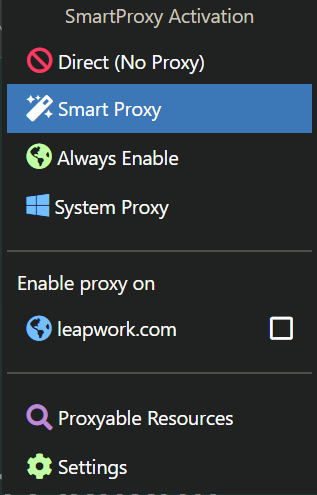
This automatically creates a rule and activates the proxy for that site.
Enable SmartProxy during recording
Before recording:
-
Click the SmartProxy icon.
-
Ensure SmartProxy is enabled.
Use extreme caution once you have turned on the proxy. From now on, all - as in all - traffic on your host is captured and sent to Performance. Make sure you disconnect the proxy after use, especially if this is not a dedicated demo machine.