
The Leapwork Go Recorder Proxy extension connects your browser to the recorder, controls which traffic is captured, and groups requests by user action. The extension supports Google Chrome and Microsoft Edge.
Before you start
-
Sign in to Leapwork Go and have access to the sequence you want to record.
-
Install and trust the recording certificate before recording HTTPS traffic. If you use a custom certificate, see Create a self-signed certificate for recording traffic in Leapwork Go.
-
Have the server address, proxy protocol, port, and your access token available. Copy the access token from your Leapwork Go profile.
-
If your organization restricts browser extensions, ask your administrator to approve the extension.
Download and install the extension
-
Open your profile menu in Leapwork Go and select Proxy extension to download the Recorder Proxy extension ZIP file.
-
Extract the ZIP file into a folder you can keep on your computer.
-
Open Manage extensions in Chrome or Edge.
-
Enable Developer mode.
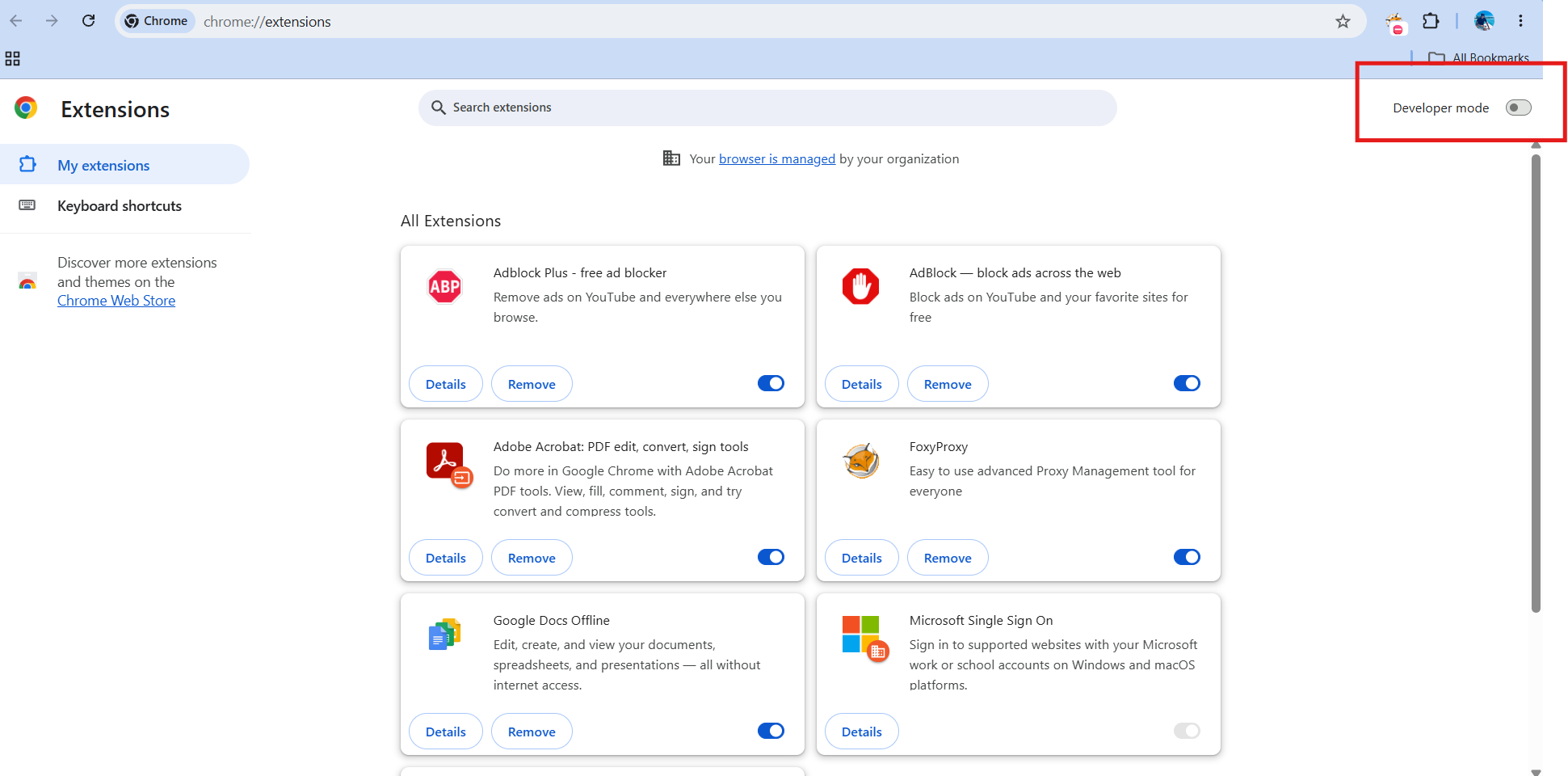
Enable Developer mode in the browser extensions page. -
Select Load unpacked, then select the extracted folder.
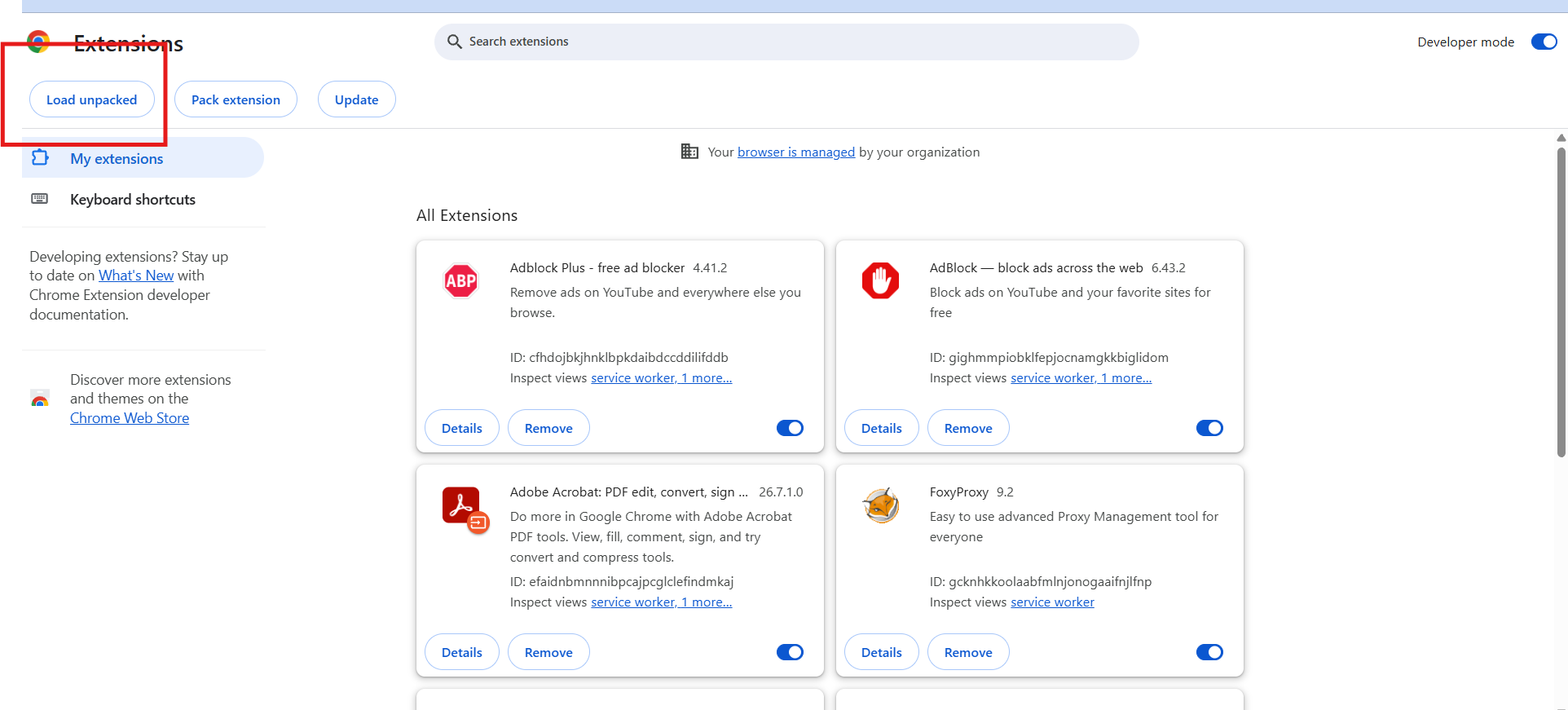
Select Load unpacked to install the extracted extension. -
Confirm that the extension is enabled.
Important: Keep the extracted folder in its original location. The unpacked extension runs from that folder. If you move or delete it, restore the folder or download and extract the ZIP again, then load the extension from its new location.
Configure the connection
-
Open the extension.
-
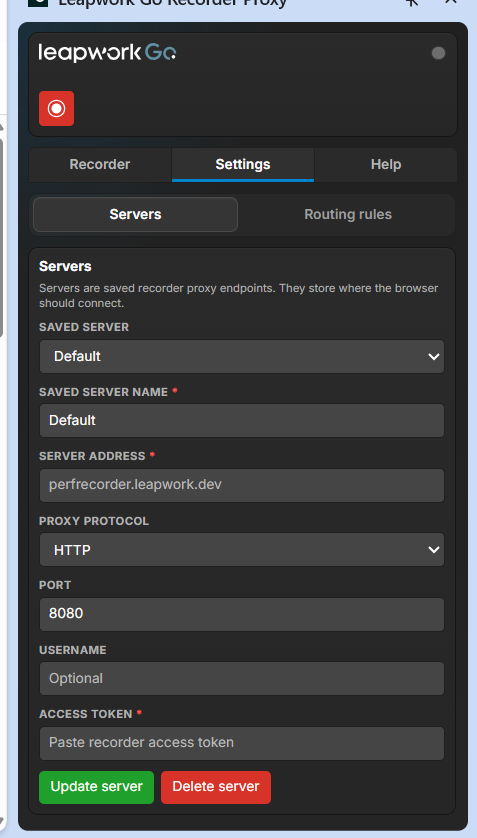
Open Settings > Servers. Under Saved server, select New server to add a server, or select the default server.
-
Enter Server address, Proxy protocol, Port, and Access token for your Leapwork Go environment.
-
On the Recorder tab, select the server and routing profile under Active setup.
Choose which traffic to record
Create a routing rule or use the default rule. Configure Included domains, Included URL patterns, Excluded domains, Excluded URL patterns, and Bypass list as required.
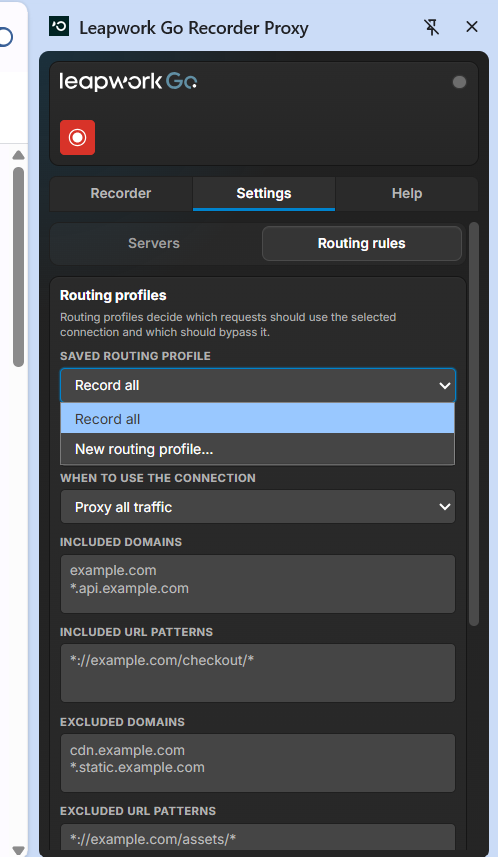
Under When to use the connection, choose a routing mode:
|
Mode |
Behavior |
|---|---|
|
Proxy all traffic |
Routes traffic through the recorder except for bypass matches. Included and excluded rules are not applied in this mode. |
|
Only matching domains and URLs |
Routes matching included domains or URL patterns. Excluded matches, bypass matches, and traffic that does not match an included rule do not create steps. Excluded rules take priority when both include and exclude rules match. |
|
Everything except matching domains and URLs |
Routes traffic except when its domain or URL matches an excluded rule or the bypass list. |
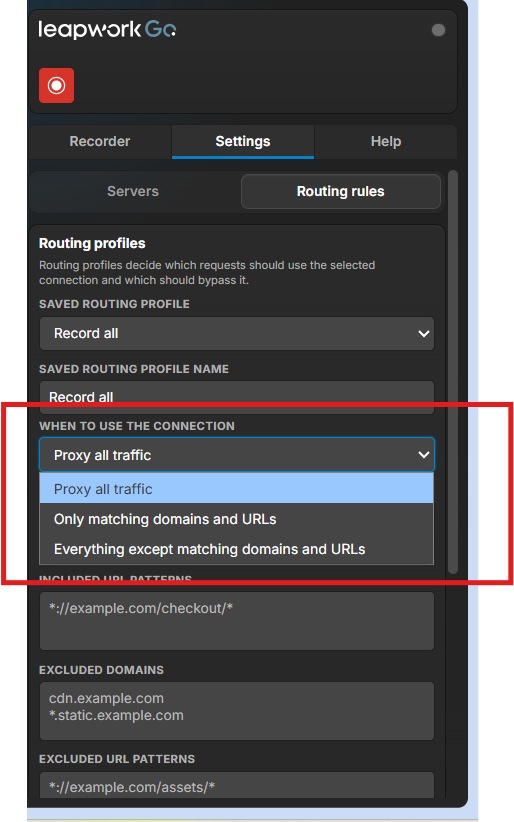
Bypass rules apply in every mode.
A domain rule applies across a site. For example, example.com can match the domain and its subdomains. A URL pattern narrows the match to specific addresses. For example, *://www.example.com/checkout/* matches checkout URLs on www.example.com rather than all pages on that site.
Record and group requests
-
Start recording from your sequence in Leapwork Go.
-
Start the extension with the required connection and routing rule.
-
Perform the actions you want to record in the application.
-
Review the generated groups and steps in the sequence.
Turn on Auto detect from actions to label requests from clicked controls automatically. To set a custom action label, enter a name such as Checkout and select Apply. New requests use that label. Select Clear to remove the current label, or Clear history to remove recent labels.
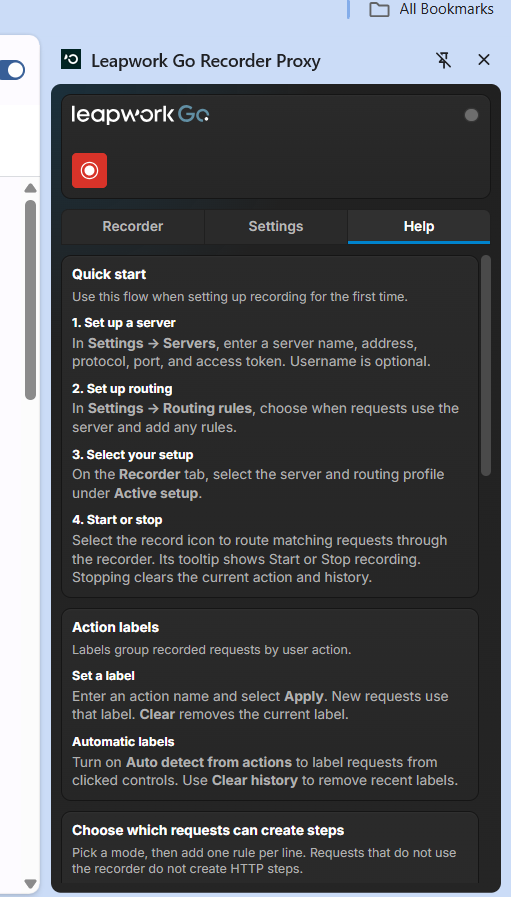
The extension's help section explains its rules and settings.
A general browser proxy extension can still be used instead. Configure its connection separately and manage the recording session in Leapwork Go.