
Building blocks are the core components you use to create automation flows in Leapwork. Each building block represents a step in your automation, for example interacting with an application, reading data, applying logic, handling errors, or controlling execution. By connecting building blocks together, you define the path your flow follows from start to finish.
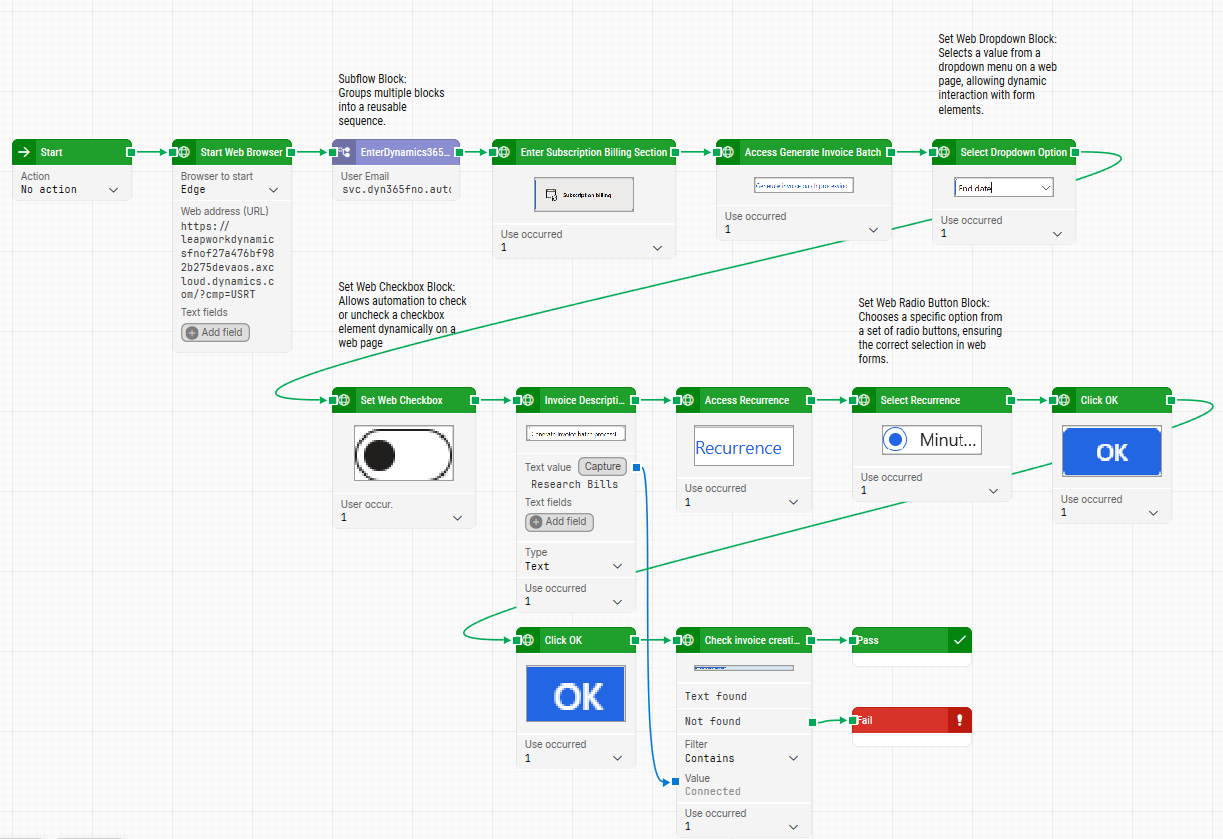
This article explains how to add, find, and connect building blocks while you design a flow in Leapwork Flow.
What building blocks represent
Building blocks are the fundamental units of a Leapwork flow. Each block represents either:
-
An action (for example, interacting with an application, clicking, reading data, calling a system operation)
-
A control step (for example, branching, waiting, looping, stopping the flow, handling errors)
-
A data step (for example, setting values, working with variables, consuming data driven input)
By selecting and connecting building blocks, you define both the behavior of the automation and the path it follows through the flow.
How to add a building block
You can add building blocks in two common ways, depending on where you are in your flow.
Option 1: Add a block from an empty step or the canvas
If you are starting a new flow, or you want to add a step in a blank spot:
-
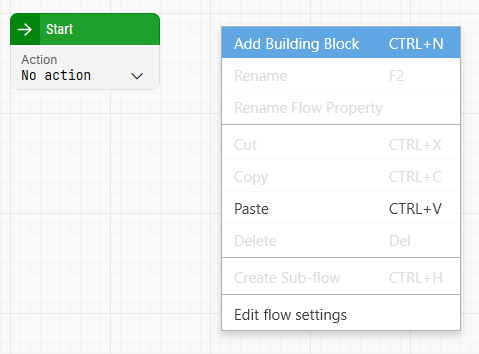
Right click in the flow area (for example on an empty placeholder block).
-
Select Add Building Block (keyboard shortcut: Ctrl+N).
-
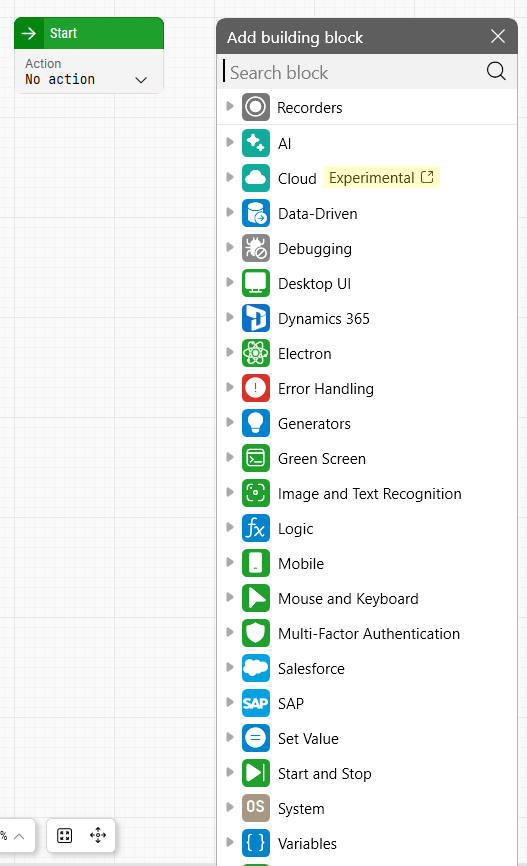
In the Add building block dialog, search or browse to find the block you want.
-
Select the block to add it to the flow.
Option 2: Add a block by dragging from an output
If your flow already contains blocks and you want to continue the sequence:
-
Locate the block you want to extend.
-
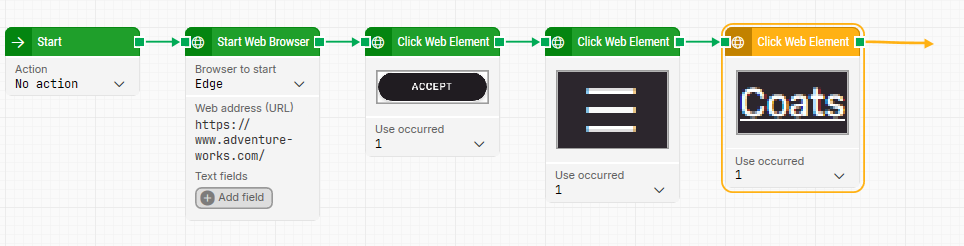
Drag from the block’s output connector (the arrow/connector point).
-
Release to open the Add building block dialog.
-
Pick a block to insert as the next step.
Find the right building block
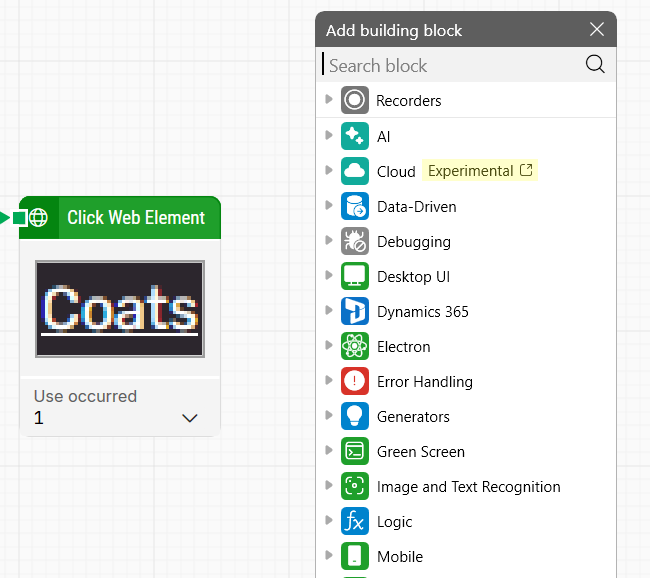
The Add building block dialog is designed to help you quickly locate blocks:
-
Use the Search field to find a block by name or keyword.
-
Browse categories to explore blocks by purpose or technology area.
Categories can include areas such as recorders, AI, cloud, data driven, debugging, desktop UI, specific applications (for example Dynamics 365, Salesforce, SAP), logic, variables, system, start and stop, and more. Some categories may appear or differ depending on what is available in your environment.
If you see labels such as Experimental on a category, treat those blocks as features that may evolve. Use them when they fit your use case and you are comfortable validating behavior in your environment.
Configure a building block with the Inspector panel
After you add a building block to the flow, you configure it by setting its parameters.
-
Click the building block you want to configure.
-
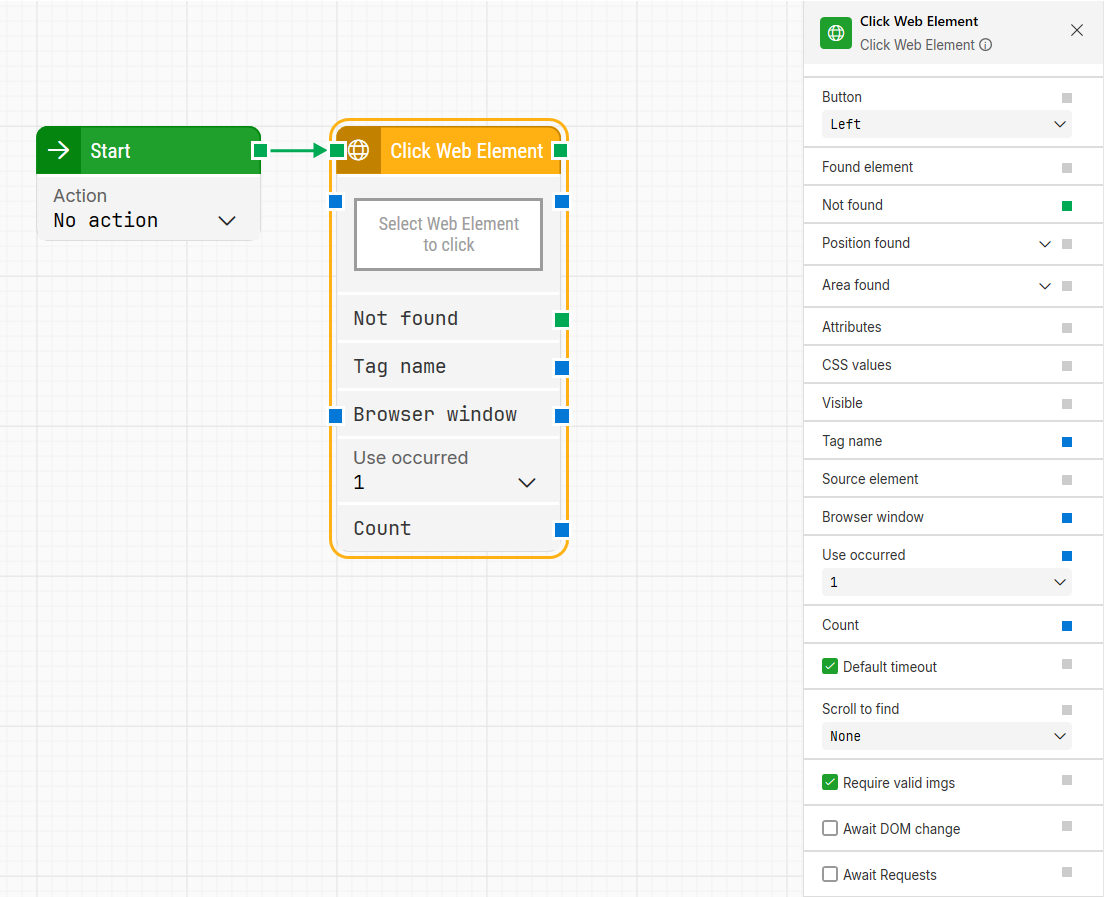
On the right side of the editor, the Inspector panel opens.
-
In the Inspector panel, review the available parameters for that block and set the values you need.
Important: Not all parameters are shown directly on the building block by default. In the Inspector panel, you choose which parameters should be visible on the block itself, including which inputs and outputs you want to expose.
Once selected, those inputs, outputs, or other parameter fields appear on the building block so you can connect and work with them directly in the flow.
Connect building blocks using inputs and outputs
Most blocks have:
-
At least one input, where the flow enters the block
-
At least one output, where the flow continues
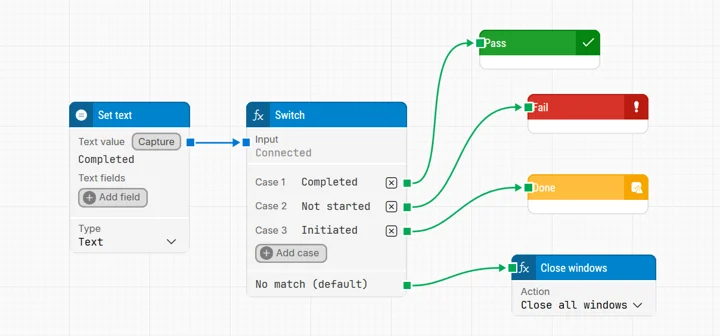
To connect blocks, connect an output from one block to the input of the next block. If a block provides multiple outputs, those outputs can represent different paths, such as conditional branches or different outcomes, depending on the block.