
This guide helps automation engineers choose the right OCR engine and configuration in Leapwork.
1. Engine Comparison
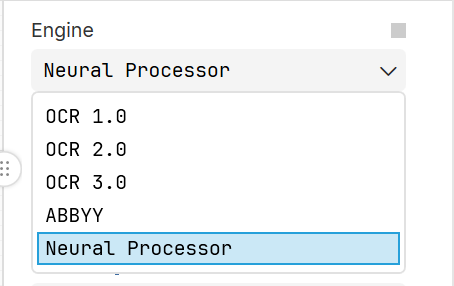
Leapwork provides two OCR engines. OCR 3.0 is fast and works best on clean screens, while the Neural Processor is more advanced and handles complex UI scenarios.
|
Feature |
OCR 3.0 |
Neural Processor |
|
Technology |
Classical computer vision |
Deep learning |
|
Speed |
Fast |
Moderate |
|
Best for |
Clean UI |
Complex UI |
|
Languages |
Leapwork Supported |
Leapwork Supported |
|
Offline |
Yes |
Yes |
|
Processing |
Fixed |
Adaptive |
2. When to Use OCR 3.0
Use OCR 3.0 when your screen is simple, consistent, and high contrast. It is ideal for performance-sensitive automation.
|
Scenario |
Example |
|
Plain UI |
Forms, simple apps |
|
Reports |
PDF preview |
|
Large text |
Readable UI |
|
High volume |
Fast flows |
3. When to Use Neural Processor
Use the Neural Processor when screens are visually complex or OCR 3.0 fails. It provides better accuracy at the cost of speed.
|
Scenario |
Example |
|
Dark UI |
Dashboards |
|
Gradients |
Headers |
|
Dense data |
Tables |
|
Small text |
IDs |
4. Presets Overview
Balanced
Balanced is the default preset and works well for most business applications where text is reasonably sized and clear.
|
Behavior |
Details |
|
Scale |
3x |
|
Retry |
Auto |
|
Filtering |
Clean output |
Tiny UI Text
Use this preset when text is small or tightly packed. It improves detection of short values like IDs or codes.
|
Behavior |
Details |
|
Scale |
5x |
|
Detection |
Sensitive |
|
Confidence |
Lower accepted |
Aggressive Recovery
This preset should be used only when others fail. It maximizes detection but may introduce noise.
|
Behavior |
Details |
|
Scale |
6x |
|
Sensitivity |
High |
|
Output |
May include noise |
5. Scale Setting
Scale determines how much the image is enlarged before OCR processing. Higher scale improves accuracy for small text but reduces performance.
|
Text Size |
Recommended Scale |
|
Large |
2–3 |
|
Normal |
3–4 |
|
Small |
5–6 |
|
Tiny |
7–8 |
6. Decision Guide
Start with OCR 3.0 for simple screens. If results are incomplete, switch to Neural Processor. Choose preset based on text size and UI complexity.
7. Troubleshooting
If OCR results are incorrect, adjust scale, switch presets, or verify language settings.
|
Issue |
Solution |
|
Missing text |
Use Neural Processor |
|
Wrong characters |
Increase scale |
|
Slow performance |
Reduce scale or preset |