The Get Electron Dropdown block fetches the currently selected item from an Electron dropdown element and exposes the selection details (index, text, and value) for use in the rest of the flow. If the dropdown cannot be located within the timeout, you can branch the flow using the Not found connector.
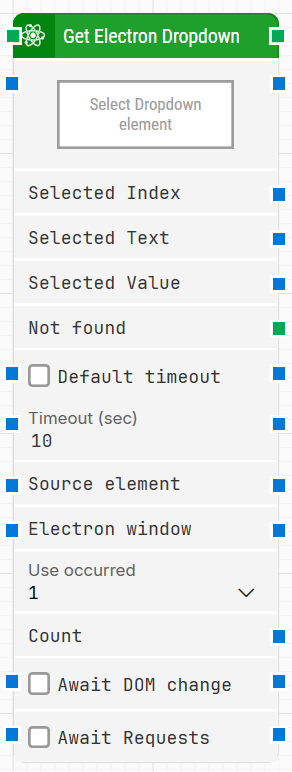
Fully expanded, the Get Electron Dropdown block shows the following properties:
Note: The screenshot on this page uses the Elegance Design, introduced in 2025.3. If you are using an earlier version, your layout may look different.
Quick-start
Drag Get Electron Dropdown onto the canvas.
Connect the block in the flow and specify Select Dropdown element (required). Optionally set Electron window and Use occurrence.
Run the flow when it’s ready.
Building block parameters
Parameters
Block header: The green input connector triggers the block to begin execution. The green output connector is triggered when the dropdown is successfully fetched. You can rename the block by double-clicking the header text and typing a new title.
Select Dropdown element: Required. Contains the locator for the dropdown to fetch. Capture a locator by right-clicking the property and selecting Capture new Electron dropdown. Clear the locator by right-clicking and selecting Clear Electron dropdown.
Selected Index: Outputs the index of the selected element within the dropdown.
Selected Text: Outputs the text of the selected element within the dropdown.
Selected Value: Outputs the value of the selected element within the dropdown.
Not found: Triggers if the Electron element is not found before the timeout. This is typically used to branch the execution flow or explicitly fail a case by linking it to a Fail block.
Default timeout: Controls whether the block uses the default timeout from the flow settings or a custom timeout value.
Timeout (sec): Sets the maximum time spent searching for the Electron element before the block gives up and triggers Not found. This field is used when Default timeout is not selected.
Source element: Limits the dropdown locator to only search within a specified parent element when you choose the Element option, so the locator works only inside that source element.
Electron window: Holds a handle to the Electron window once it is found and focused. Use this when multiple windows are open to direct other Electron blocks to operate in a specific window.
Use occurrence: Selects which occurrence of the Electron element to use if more than one match is found. Select All to iterate through all occurrences.
Count: Provides the total number of found Electron elements that match the locator.
Await DOM change: Delays the search until there have been no DOM changes for a specified period (for example, three seconds). This can help when JavaScript updates are still in progress. Regardless of this setting, the block waits a maximum of 30 seconds before continuing with the search and action.
Await Requests: Delays the search until there have been no active XHR requests for a specified period (for example, three seconds). Regardless of this setting, the block waits a maximum of 30 seconds before continuing with the search and action.