
The Switch block routes your automation based on an Input value. It checks the input against multiple cases and continues through the first case that matches, using the selected Comparison method and Comparison type. If no cases match, the flow continues through No match (default).
Fully expanded, the Switch block shows the following properties:
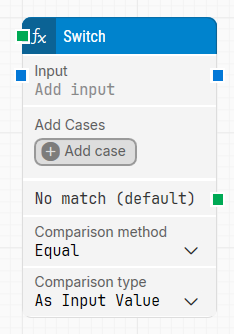
Note: The screenshot on this page uses the Elegance Design, introduced in 2025.3. If you are using an earlier version, your layout may look different.
Quick-start
-
Drag Switch onto the canvas.
-
Connect the block in the flow and optionally specify the basic parameters required for this block to operate, listed by their exact UI labels in one line: Input, Add case, Comparison method, Comparison type.
-
Run the flow when it’s ready.
Building block parameters
Let’s understand this using an example:
Scenario: Routing Actions Based on Text Value
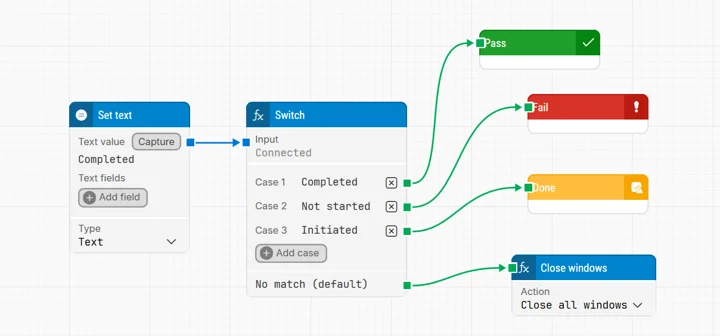
The Set Text block sets the text value to “Completed.” This value is sent into the Switch block as Input. The Switch block checks what the value is:
-
If it is Completed → Case 1 will be executed, leading to run Pass block.
-
If it is Not started → Case 2 will be executed, leading to run Fail block.
-
If it is Initiated → Case 3 will be executed, leading to run Done block.
-
If it is anything else → the flow will go to Close Windows, which means all current windows will be closed.
Since the value is Completed, the flow always goes to the Pass block.
Resources
|
Topic |
Description |
|---|---|
|
Common questions about creating, running, and managing flows in Leapwork. |
|
|
Guidelines and solutions for identifying and fixing issues that occur when building or running flows in Leapwork. |