
The Leapwork Enterprise edition is intended for organizations deploying test automation across multiple teams and the entire enterprise. In this article, you will learn how the Enterprise edition supports large-scale usage and why its database architecture differs from other Leapwork editions.
A key differentiator of the Enterprise edition is its ability to scale in terms of number of users, execution load, and overall system capacity. This enhanced scalability is enabled in part by the use of a more robust database platform.
While the Leapwork Platform edition uses an embedded SQLite database, the Enterprise edition requires Microsoft SQL Server to support higher performance, reliability, and scalability demands. Although the Controller, Flow, and Agent components can technically be installed on the same machine using the same installer, Enterprise deployments typically use separate machines for each component to ensure optimal performance, scalability, and security.
Note:
-
A Microsoft SQL Server license is not included with a Leapwork license.
-
Any SQL Server edition beyond SQL Server Express is supported.
This architecture ensures that the Leapwork Enterprise edition can meet the needs of complex, organization-wide automation initiatives.
Installation Prerequisites and Access Requirements
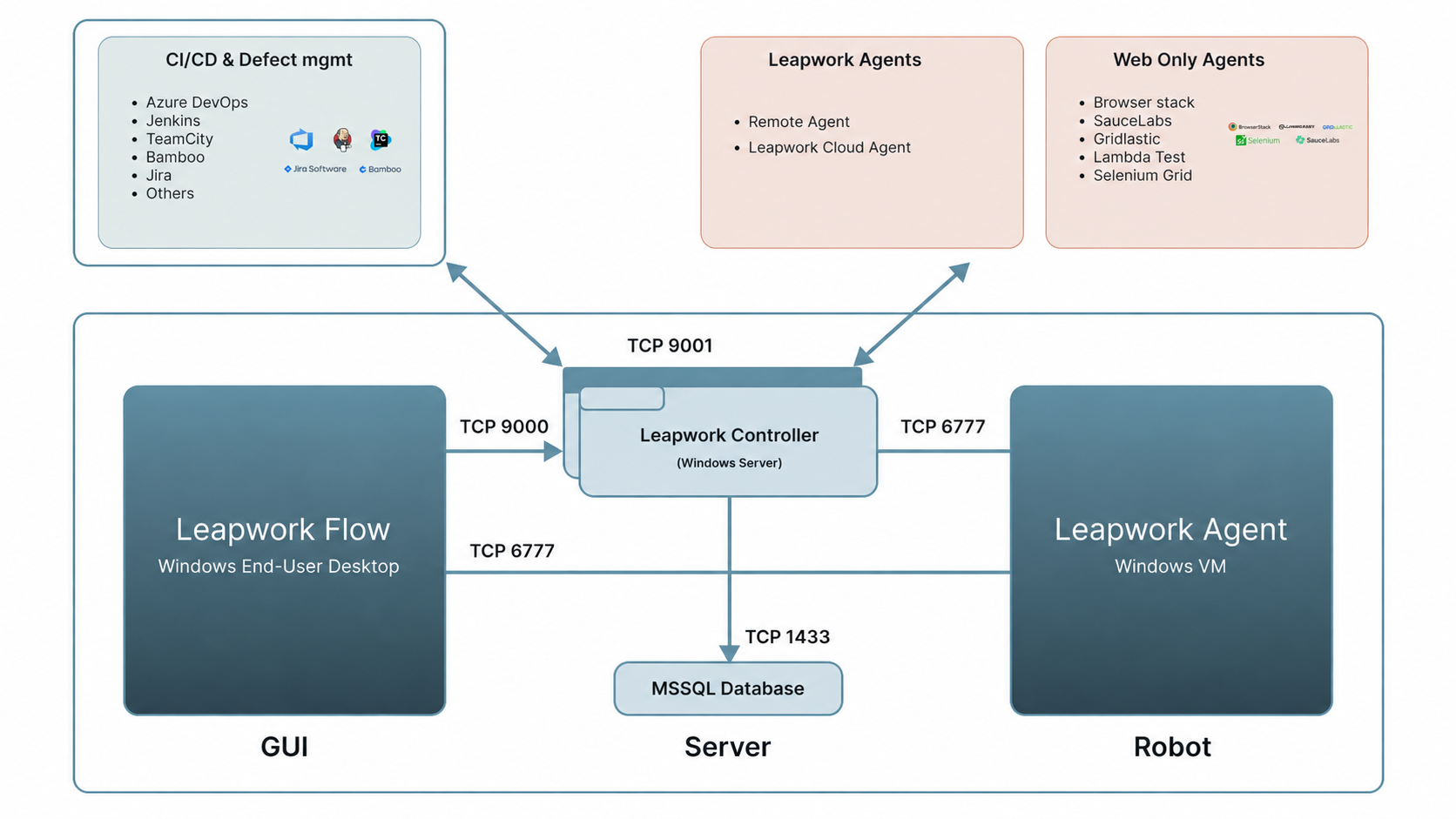
The Leapwork Enterprise installation consists of three main components - Flow, Controller, and Agent deployed on separate machines and connected through defined network ports, as shown in the architecture diagram.
Machine Access and Permissions
-
Ensure local administrator rights are available on all machines hosting Leapwork components:
-
Leapwork Controller (Windows Server)
-
Leapwork Flow (Windows end-user desktop)
-
Leapwork Agent (Windows VM or remote machine)
-
Make sure you have the required hostname/IP addresses and credentials to access all on-premises or remote machines involved in the installation.
The application under test (AUT) must be reachable from the Agent machine, as automation execution takes place on the Agent.
Network Ports and Firewall Configuration
To enable communication between Leapwork components and external integrations, the following ports must be opened:
-
TCP 9000: Used for communication between Leapwork Flow and the Controller.
-
TCP 9001: Used to access the Controller REST API, including integrations with CI/CD and defect management tools such as Azure DevOps, Jenkins, TeamCity, Bamboo, Jira, and others.
-
TCP 6777: Used for communication between the Controller and all Agent machines, including both Leapwork Agents and web-only agents (BrowserStack, Sauce Labs, Gridlastic, LambdaTest, Selenium Grid).
Ensure the Controller machine has a static IP address or a unique, resolvable machine name, as all Flows and Agents connect to it.
SQL Server Configuration
The Leapwork Enterprise Controller requires a Microsoft SQL Server database for storing assets, reports, and configuration data.
-
Install Microsoft SQL Server on a machine accessible from the Controller over the network.
-
Ensure that TCP port 1433 is open for communication between the Controller and the SQL Server.
-
Verify that the Controller can connect to SQL Server using the appropriate authentication method:
-
Windows Authentication (the Windows account must have local administrator rights on the Controller machine)
-
SQL Authentication
-
Install SQL Server Management Flow (SSMS) on the Controller machine to manage and validate database access.
-
Ensure the SQL user or account has the DB Owner role, as required for database creation during the Leapwork installation.
System Configuration Recommendations
For the Enterprise Edition, system requirements can vary significantly depending on your infrastructure. Factors such as network latency, virtual server performance, and disk throughput can affect Leapwork performance.
We therefore recommend an agile approach, starting with one or more environments in real-life conditions and scaling or adjusting them as usage grows during the first 90 days of operation.
Additionally, you can find the required permissions and roles for installing Leapwork on a Windows computer here. In general, please keep in mind:
-
Hardware requirements for Agents depend on the application(s) under test, especially RAM and CPU, which may ultimately drive Agent sizing.
-
More disk space allows you to store more data; otherwise, strict retention policies are required.
-
More CPU cores enable faster processing and improved parallelization.
-
Use high-speed SSDs for intensive read/write patterns and combine them with additional RAM.
The following table shows the suggested operating system and SQL server versions supported for the Enterprise Edition:
|
Operating System Supported |
MS SQL Supported |
|
|
MS SQL Edition Supported - SQL Enterprise (Recommended), SQL Standard. |
Windows core operating systems are not supported.
The following table outlines the recommended hardware configurations for Leapwork Enterprise Edition servers, agents, and the MS SQL Server database.
|
Installation scenario |
Leapwork Server |
Leapwork Agent |
MS SQL Server |
|---|---|---|---|
|
Multiple teams, medium usage
|
|
|
|
|
Multiple teams, high usage
|
|
|
|
|
Department, high usage
|
|
|
|
|
Company or site-wide, high usage
|
|
|
|
The Flow is typically installed on a desktop operating system, which is also the recommended setup for the Agent. When deploying the Agent in a data center, a Windows desktop version may not be available. In these cases, the Agent can run on Windows Server with Desktop Experience enabled. The Server component is installed on a Windows Server
For any configuration-related challenges, please reach out to your Customer Success Manager (CSM).
Getting Ready for Installation
Download Leapwork
-
Download the latest version of Leapwork from the Customer Portal (CP) download page.
-
Keep the downloaded copy of the installer file in all on-prem/remote machines where the Leapwork components installation is to be performed.
.NET Framework
-
Download the latest version of the .NET Framework from the following link. Install it on the on-prem/remote machines where Leapwork components installation is to be performed.
Note: Versions 2025.2 and 2025.3 have different .NET Framework requirements. Make sure to follow the requirements specified in the installer. For more details, see the CP download section.
Leapwork License Credentials
-
Make sure you have credentials to log in to the Leapwork license engine.
-
To activate your license, you must obtain it from the CP.
-
Log in to CP to download your license. A CP account is required to access your license.
-
If you do not have access to the CP, please contact your Customer Success Manager (CSM) to request access or to receive your license.
Installation Guide
To get an overview of the components of the Leapwork Enterprise Automation Platform, see this article.
Prerequisites
-
.NET Framework:
Leapwork uses different .NET versions depending on the product version and components being installed.
-
.NET Framework 4.8 is a prerequisite for Leapwork and comes pre-packaged with Windows. For earlier versions, such as 2025.2, .NET Framework 4.8 may need to be downloaded manually from the Microsoft website if it is not already available on the machine.
-
Starting with version 2025.2, Leapwork automatically installs .NET 6 as part of the installation process when required (for Fusion components only).
-
From version 2025.3 onward, Leapwork automatically installs .NET 8 as part of the installation, removing the need for manual installation of newer .NET versions.
Always follow the installer guidance for your specific Leapwork version to ensure the correct .NET components are installed.
-
You must purchase an MS SQL server and install it on a Machine accessible via your network.
-
SQL Server Management Flow must be installed in the Controller machine to perform the database changes.
-
Please ensure that you have all necessary Permission & Roles in the SQL server to configure a database for Leapwork.
-
Make sure you have credentials to log in to the Leapwork license engine.
-
Download the latest version of Leapwork. MSI file from the CP download page on all machines where it is going to be installed.
Note: The same MSI installer is used to install the Leapwork Controller, Flow, and Agents.
-
Double-click the .msi-file to start the installation.
Installing the 3 components:
While the Controller, Flow, and Agent can technically be installed on the same machine using the same installer, we recommend installing them on separate machines in Enterprise deployments for better performance, scalability, and security.
To learn more about the Leapwork architecture and how its components work together, refer to this article.
Controller Installation
-
Open the MSI file location and double-click the .msi-file to start the installation. The first screen will display the version number.
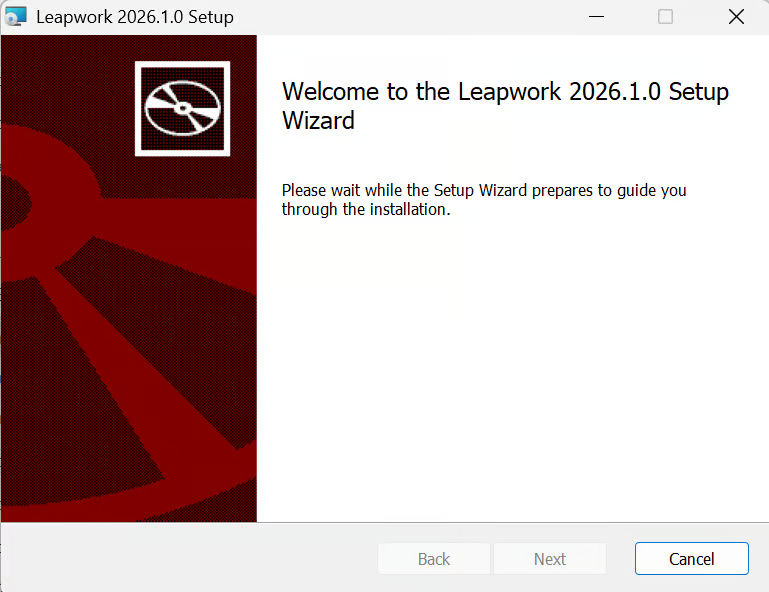
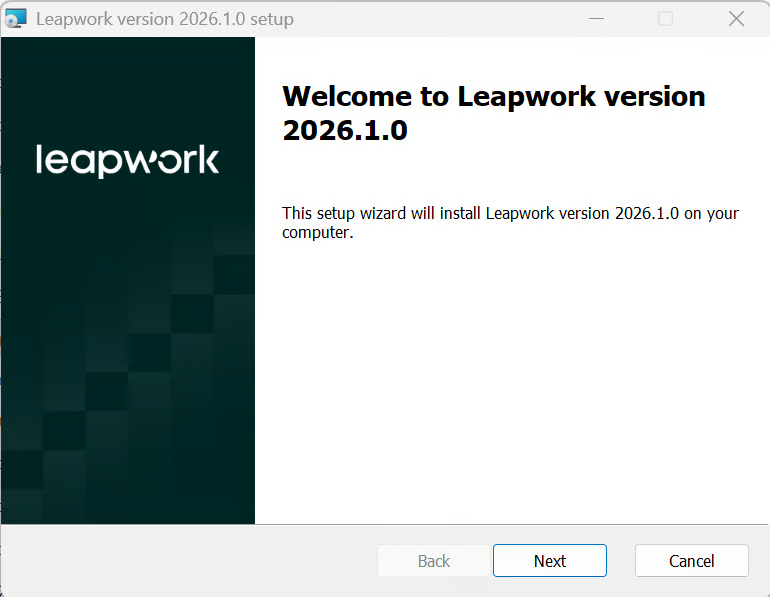
-
Click the Next button to begin the installation.
-
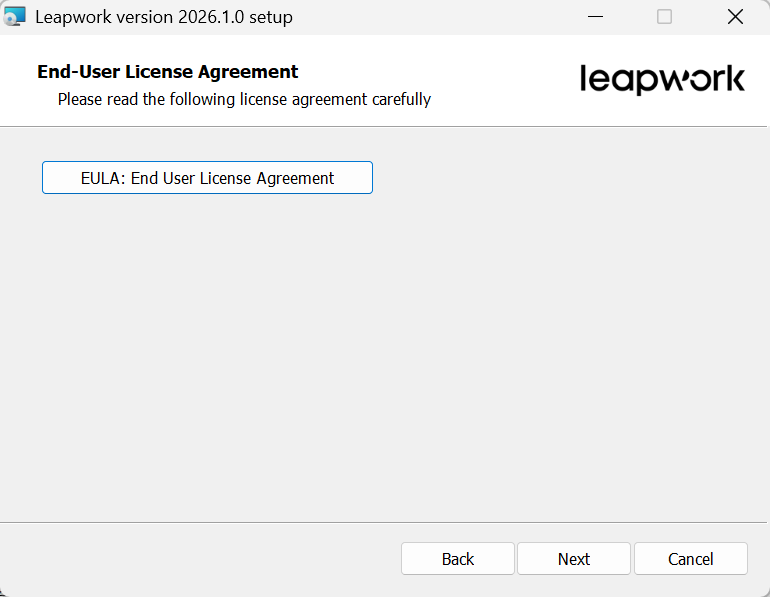
Read the end user agreement tick “I accept the terms in the license agreement” checkbox.
-
Click the Next button if you agree.
-
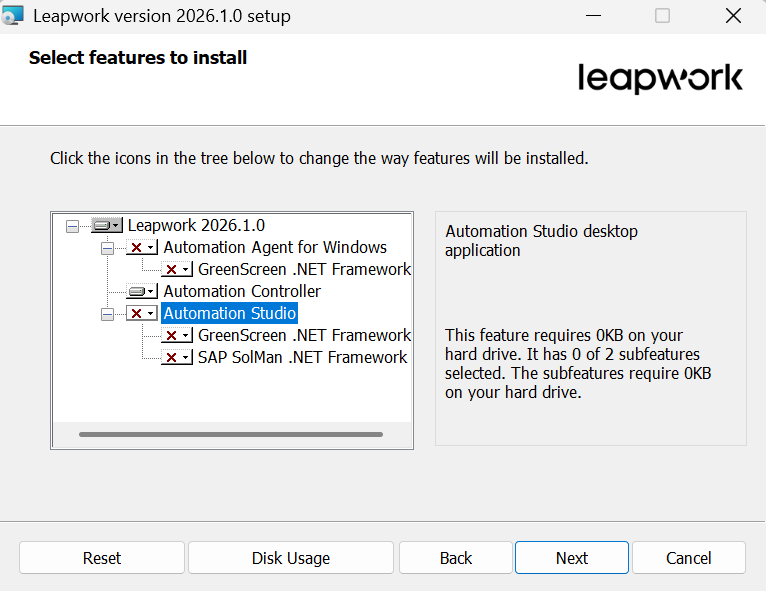
Choose Automation Controller and deselect another two, you can keep studio if you want to keep in controller machine, but we do not recommend having agent installed on controller machine.
-
Click the Next button.
-
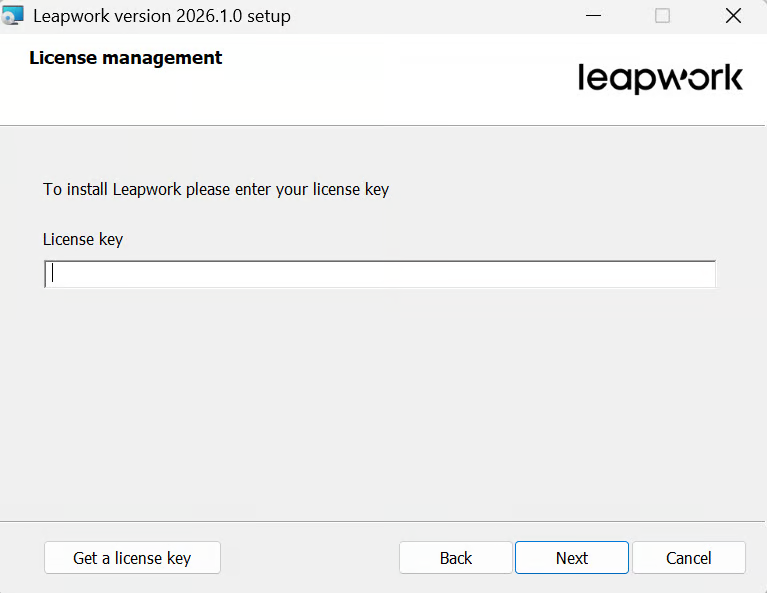
Enter your license key and click Next. To get a license key, click Get a License Key, you’ll be redirected to the Customer Portal.
-
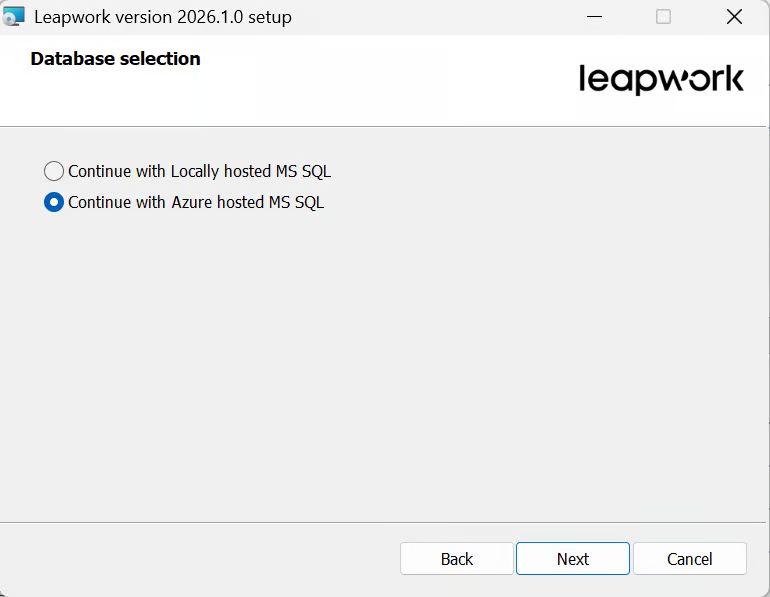
Click Next. The Database Selection page appears.
From the above two options above, choose the option based on the environment where your SQL Server is deployed (for example, on your own server or in the cloud):
-
If SQL server is deployed on-prem; choose the first option (Continue with Locally hosted MS SQL) and click on Next button.
-
If SQL server is hosted on Azure cloud, select the second option (Continue with Azure hosted MS SQL) and click on Next button.
Controller Port
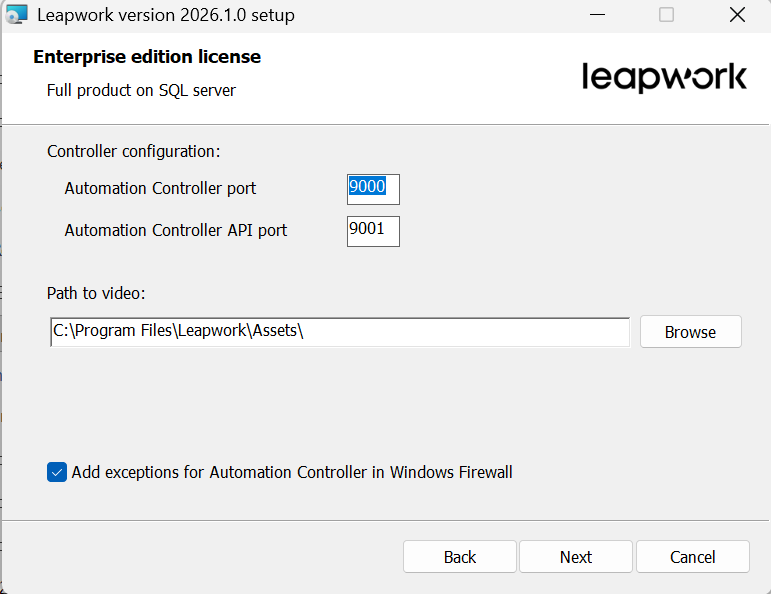
The Flow and the Controller always communicate using internal API calls, and this requires the use of a TCP port. The default is port 9000, which you can change to any other port number that is not in use by other software on your computer.
Controller API Port
For any integration effort, access Leapwork open REST API using the default port number 9001, which you can change to any other port number that is not in use by other software on your computer.
Note: Unless it is necessary for any reason, we do not recommend changing either the Controller or Controller API port numbers.
Path to Videos
This is the path to the file system folder which contains the videos of test results.
-
Select Add exceptions for Automation Controller in Windows Firewall. This will direct the installation process to add a rule to the Windows Firewall to permit all incoming connections to the Controller.
For the Azure hosted SQL server, below information needs to be provided in the screen:
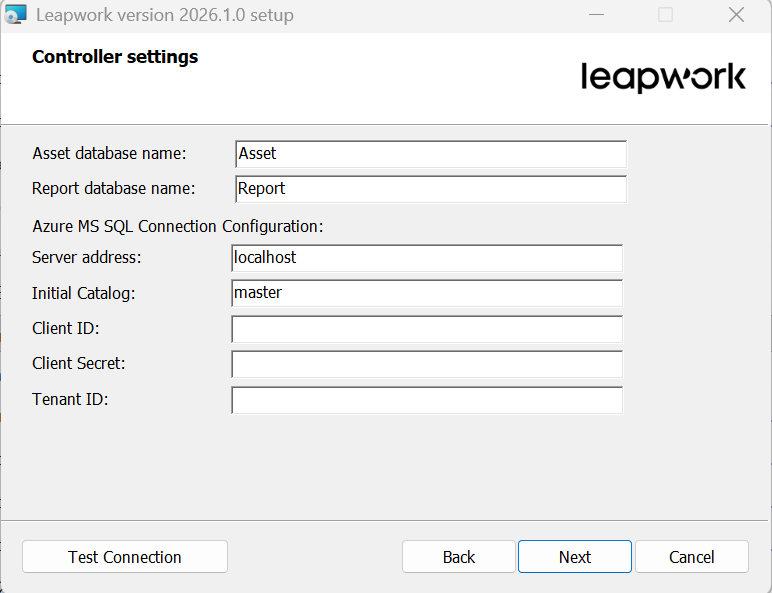
-
Asset Database Name: By default, it is set to "Assets", but you are free to modify it
-
Report Database Name: By default, it is set to "Report", but you are free to modify it
-
Server Address: The user can provide the details of their server address. If it's local then it should be localhost, or you can provide the remote IP address or name of that server
-
Initial Catalog: Provide the Initial Catalog
-
Client ID: Provide your Client ID configured in Azure environment
-
Client Secret: Provide your Client Secret for authentication
-
Tenant ID: Provide your Azure Tenant ID
Note: For getting the details about the Client ID, Client Secret, and Tenant ID, please reach out to your organization's IT admin.
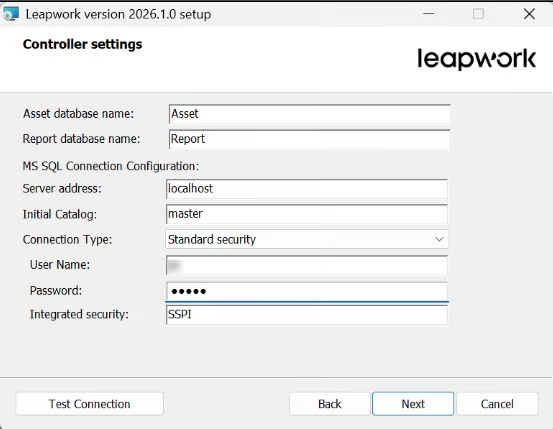
10. Enter information into desired fields and click Next. The SQL server Configuration page appears. The following settings are required to connect Controller with SQL Server.
-
Asset Database Name: By default, it is set to "Assets", but you are free to modify it.
-
Report Database Name: By default, it is set to "Report", but you are free to modify it.
-
Server Address: The user can provide the details of their server address. If it's local then it should be localhost, or you can provide the remote IP address or name of that server.
-
Initial Catalog: Provide the Initial Catalog.
-
Connection Type: Select the desired connection type. (Standard Security for SQL authentication and Trusted Security for Windows authentication).
-
Username: Provide the username of the database.
-
Password: Enter the database password.
-
Integrated Security: You can enter your integrated security. By default, this is set to SSPI.
11. After configuring all settings, click on Test Connection to check everything is correct, if test connection passes, then click Next on the configuration screen.
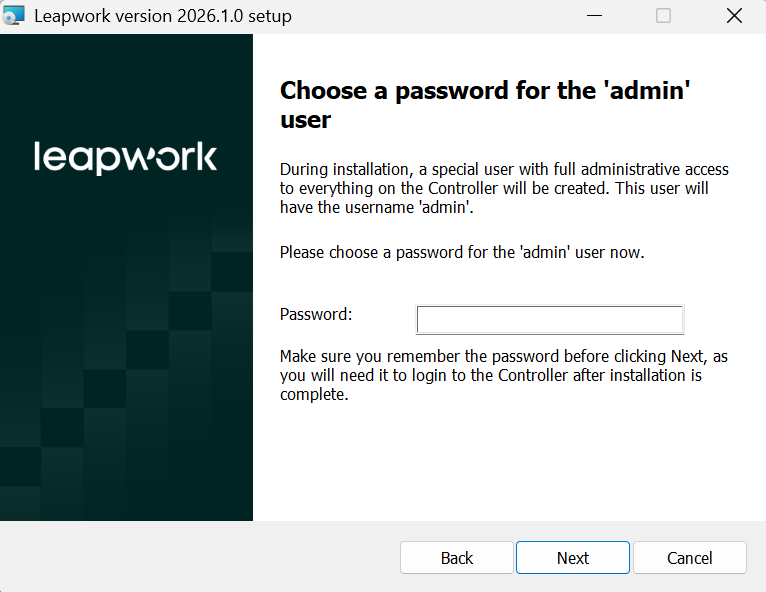
12. Specify a password for the default user (Admin). The Admin user is required for the first login to the Leapwork Flow after installation.
13. Click Next.
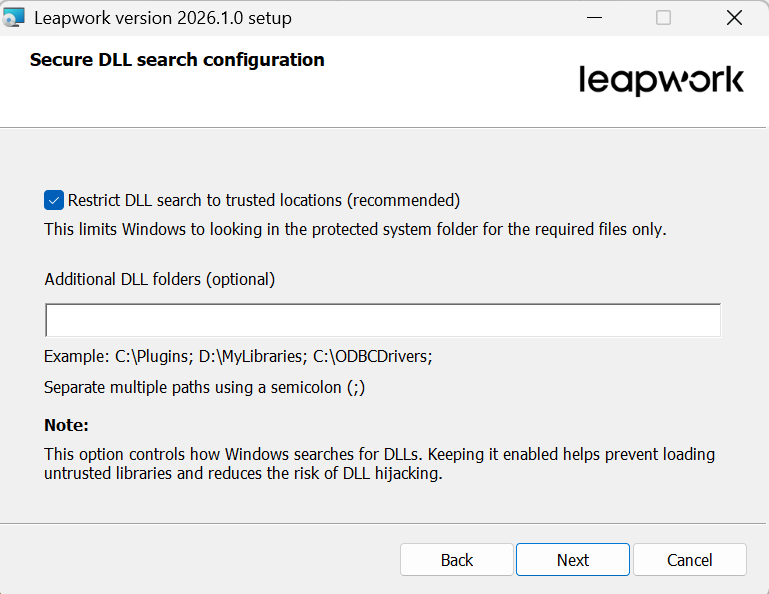
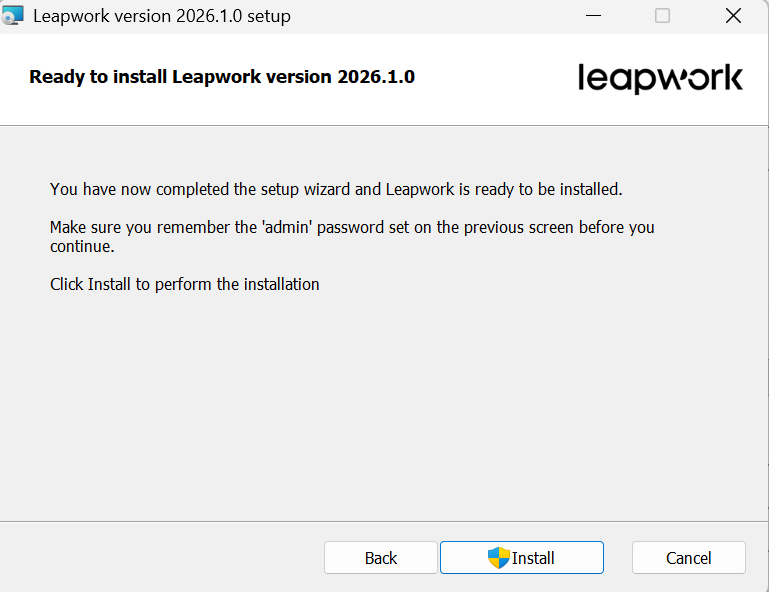
14. Click Install button to complete the installation process.
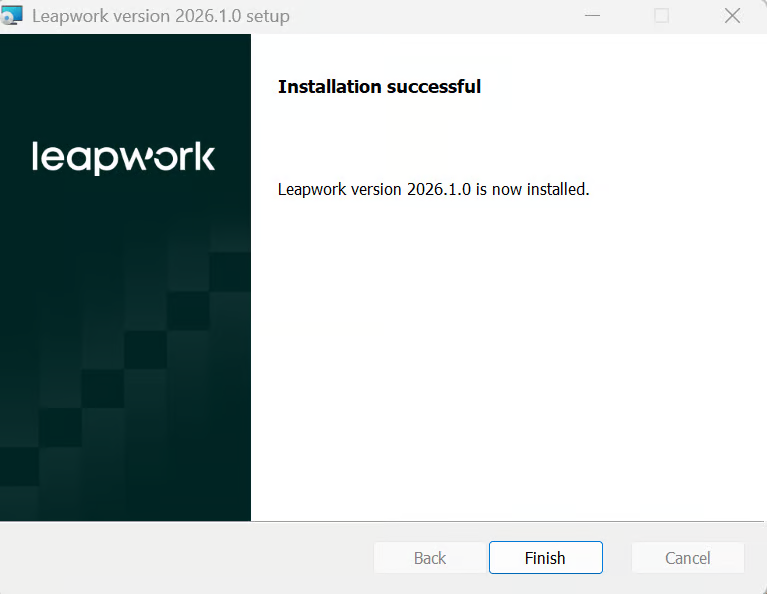
-
Open Leapwork studio.
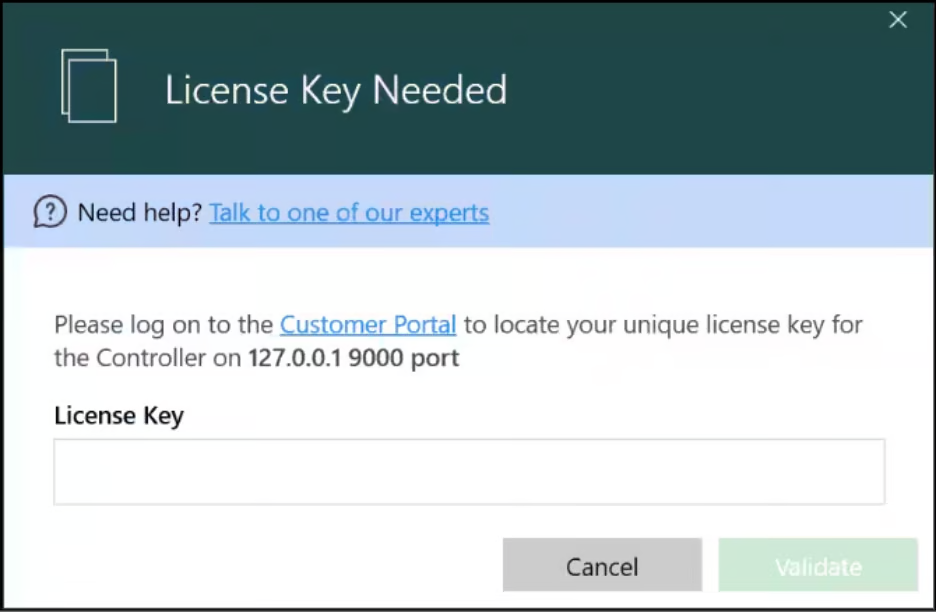
License Activation
To activate your license, you must obtain it from the CP.
-
Log in to the CP account to download your license. The account is required to access your license.
Note: If you do not have access to the CP, please contact your Customer Success Manager (CSM) to request access or to receive your license.
16. Enter your License Key and click the Validate button, your license will be successfully verified, and you can proceed to complete the Enterprise version installation.
Flow Installation
-
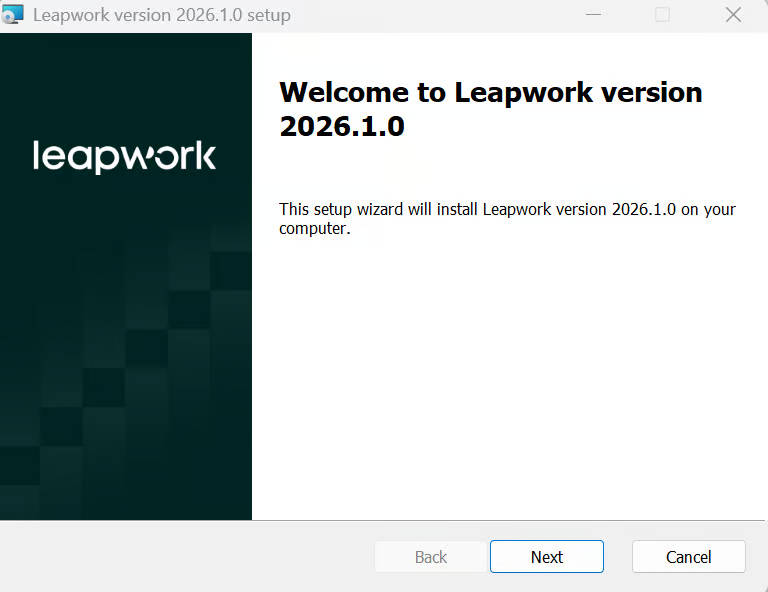
Open the MSI file location and double-click the .msi-file to start the installation. The first screen will display the version number and ensure that the downloaded version fits your computer.
-
Click the Next button to begin the installation.
-
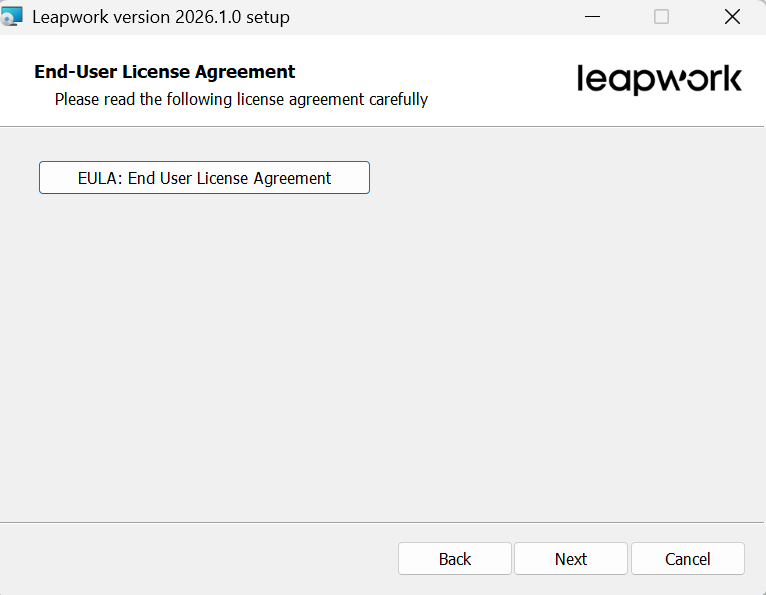
Read the end user agreement by clicking on the EULA tab.
-
Click the Next button if you agree.
-
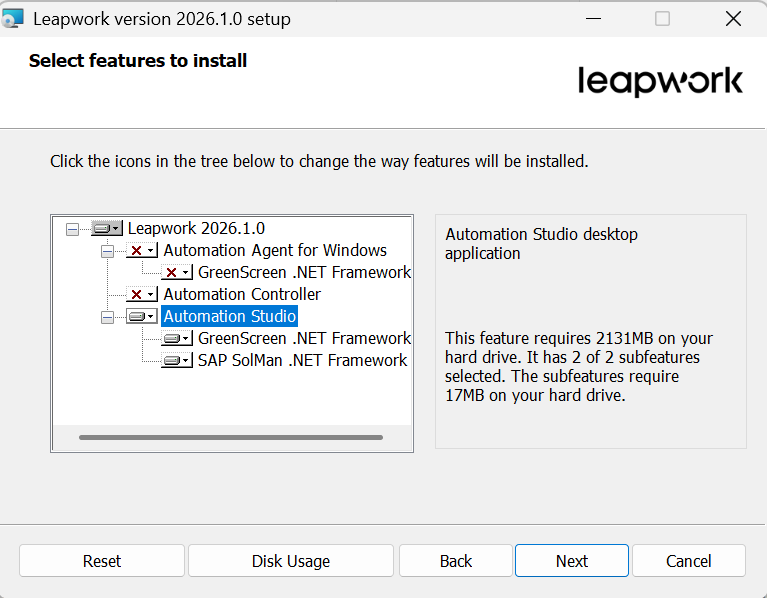
Choose Automation Flow and deselect other two, you can keep Agent if you want to keep in the same machine, but we do not recommend having an agent installed on studio machine.
-
Click the Next button.
-
Click Next button.
-
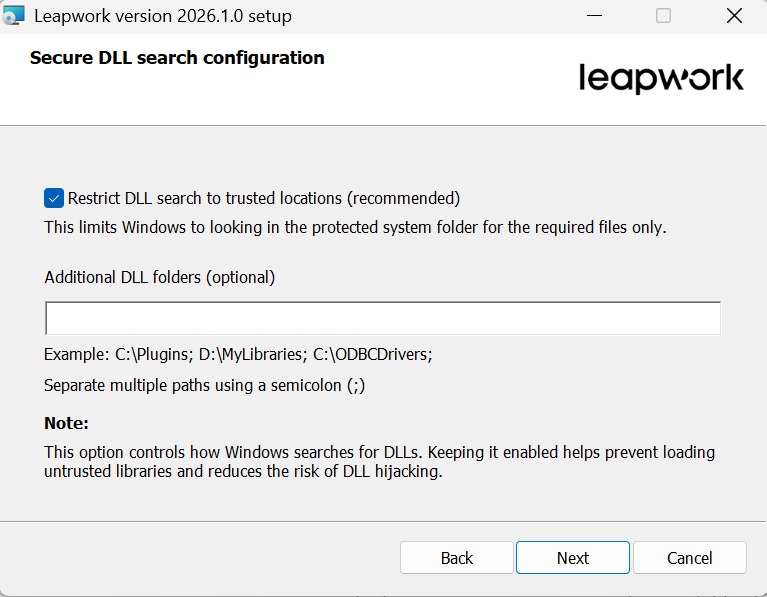
Click Next button.
-
Click the Install button to start the installation process.
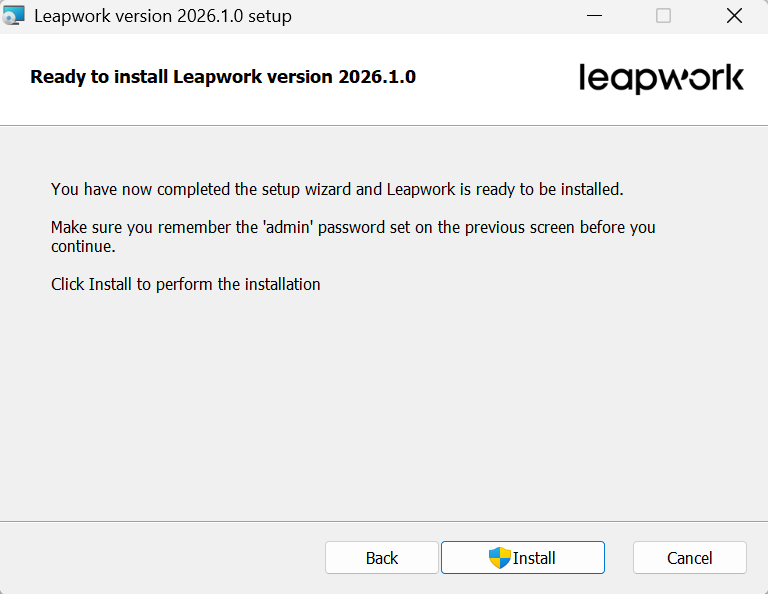
-
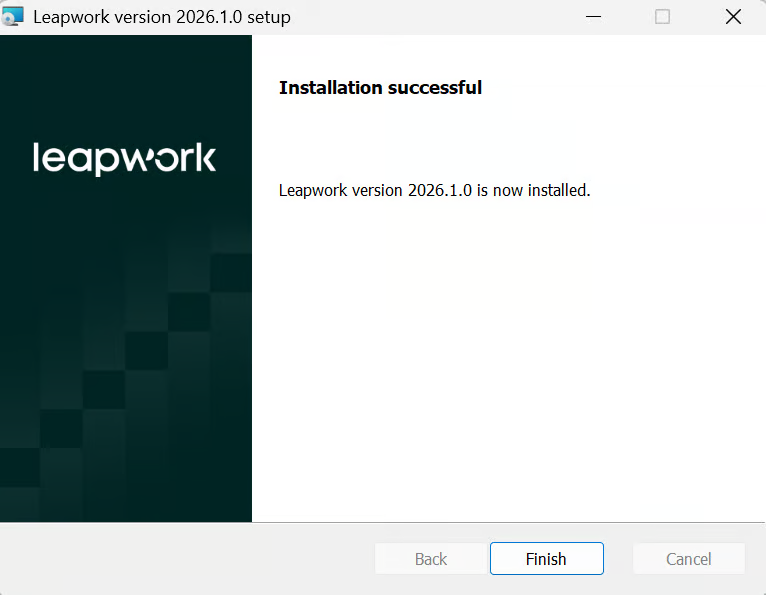
Installation has been completed. Click the Finish button.
Configuring Flow
-
When opening Leapwork studio, Leapwork studio Authentication Window opens:
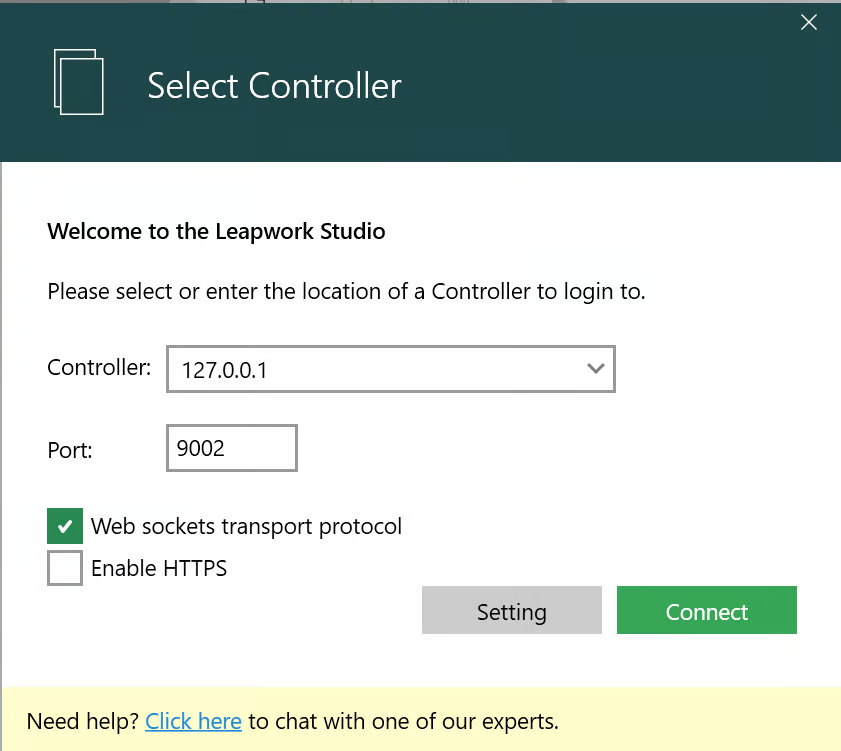
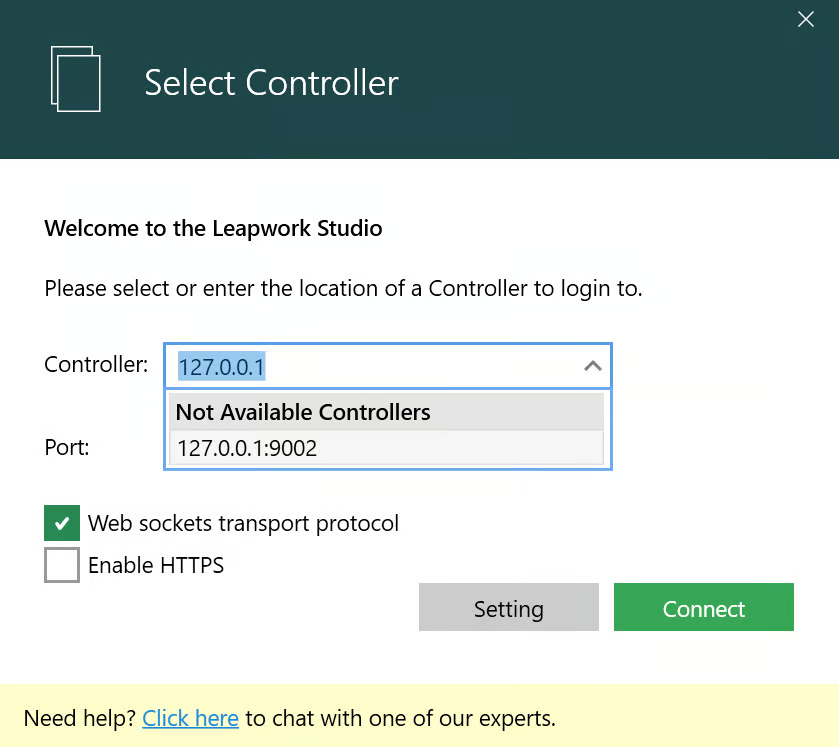
2. Choose a Controller to select the one used in your organization.
Note: If you can’t find the name of the controller by default, then you can type it manually on the same dropdown control.
-
Change the port number of controller if you have changed it during controller installation.
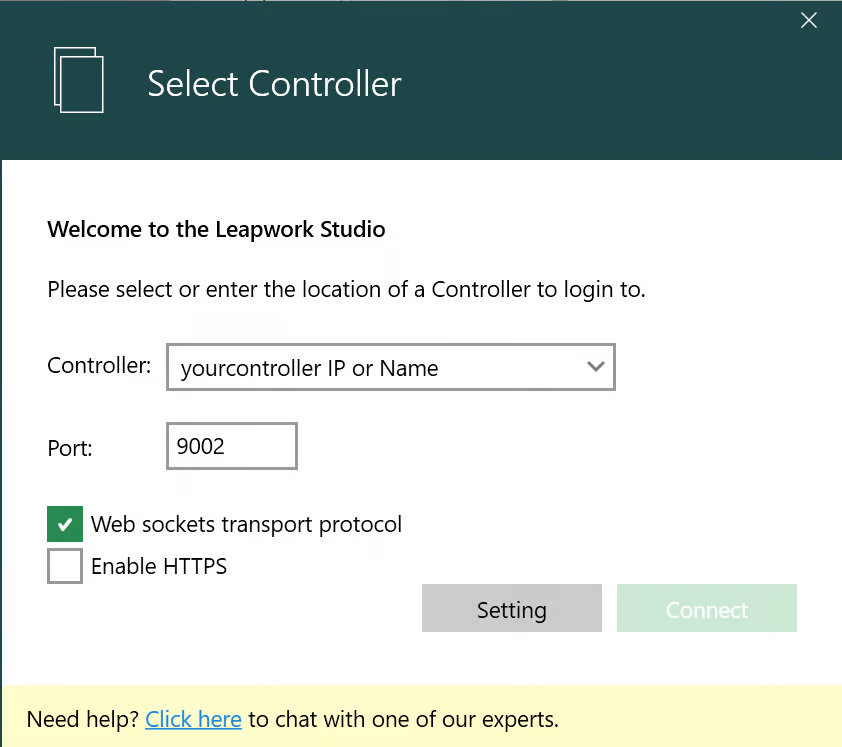
-
Enable the Web sockets transport protocol checkbox to allow faster communication between Flow, Controller, and Agent.
-
Once you are done with all the above settings, click the Connect button.
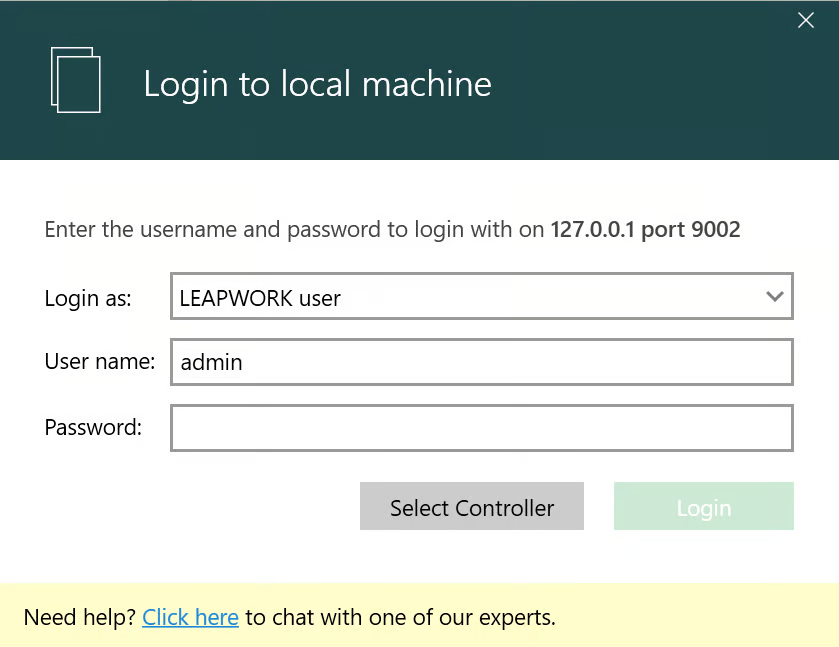
It will return you to the Leapwork Flow Authentication Window. To log into Leapwork for the first time, use your admin credentials in this window.
-
Enter the credentials and press the Login button.
Leapwork Administration
As an admin, you have access to Leapwork Administration, and you can perform actions shown below:
-
Controller Settings: Change controller settings
-
User Management: Add, Remove, Update Leapwork Users
-
Team Management: Add, Remove, Update Leapwork Teams
-
Workflow Settings: Edit Workflow settings
-
API Access Keys: Generate API Keys
-
E-Mail Settings: Update email settings that use to send email from Leapwork
-
Proxy Settings: Update Leapwork proxy settings
-
Default Automation Flow Settings: Update flow settings
-
Capture Settings: Change the way Leapwork captures an object
-
Retention Policies: Add, Remove, Update Leapwork retention policies
-
License Management: License management, Add, Remove, and Update Leapwork licenses
-
Audit Log: Check Audit logs
Agent Installation
-
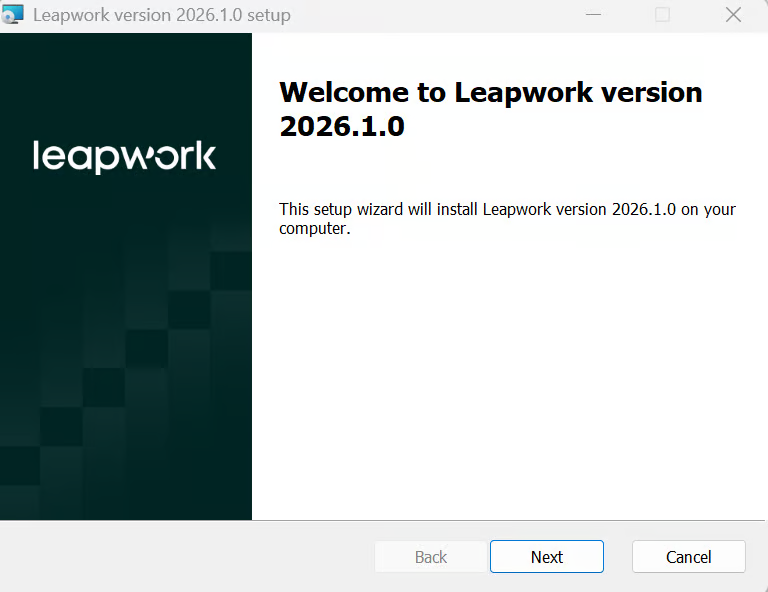
Open the MSI file location and double-click the .msi-file to start the installation. The first screen will display the version number and ensure that the downloaded version fits your computer.
-
Click the Next button to begin the installation.
-
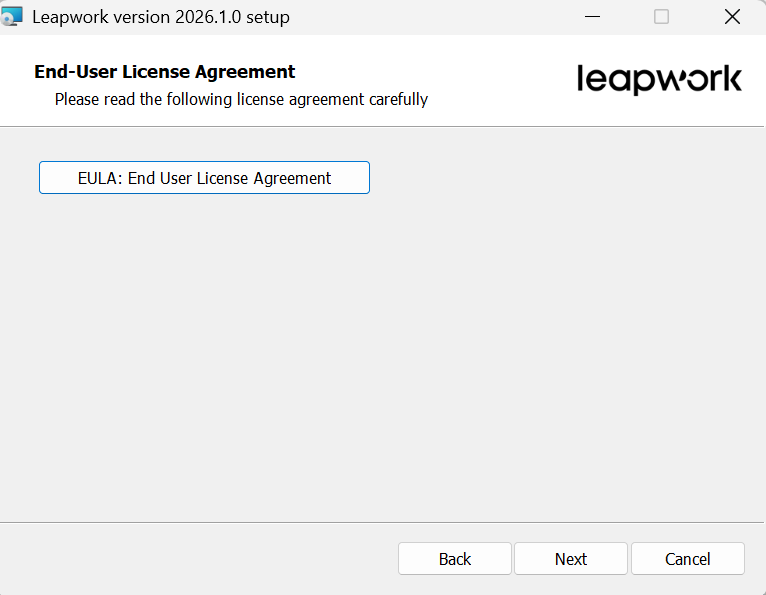
Read the end user agreement tick “I accept the terms in the license agreement” checkbox.
-
Click the Next button if you agree.
-
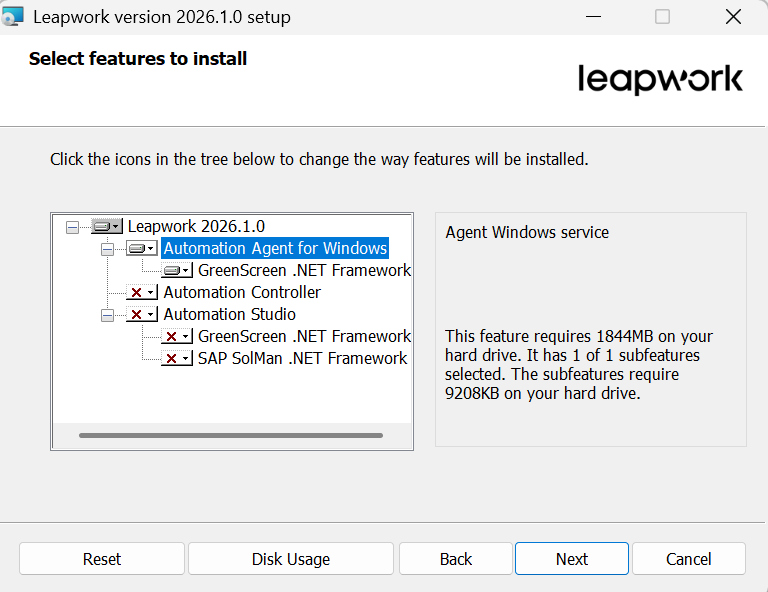
Choose Automation Agent and deselect another two, we do not recommend having Flow or controller installed on Agent machine.
-
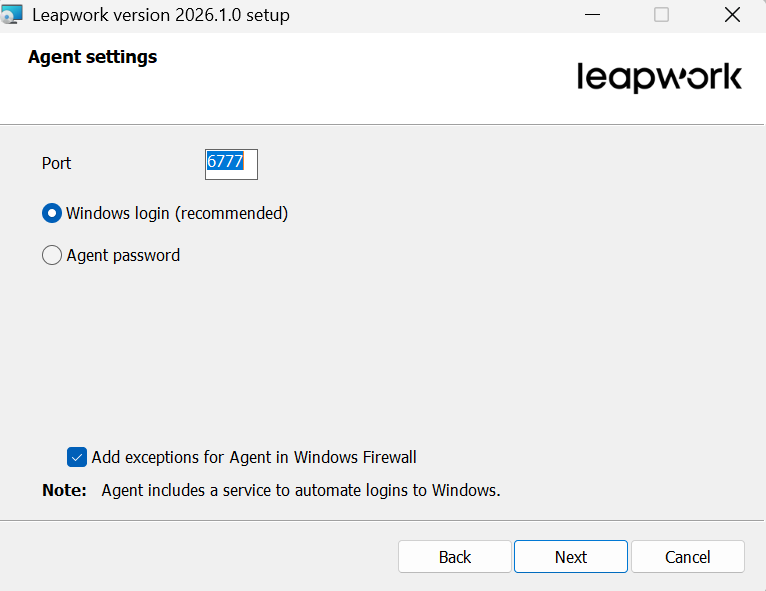
The configuration screen contains several settings that you can modify before completing the installation.
-
Click the Next button after choosing your desired configuration.
-
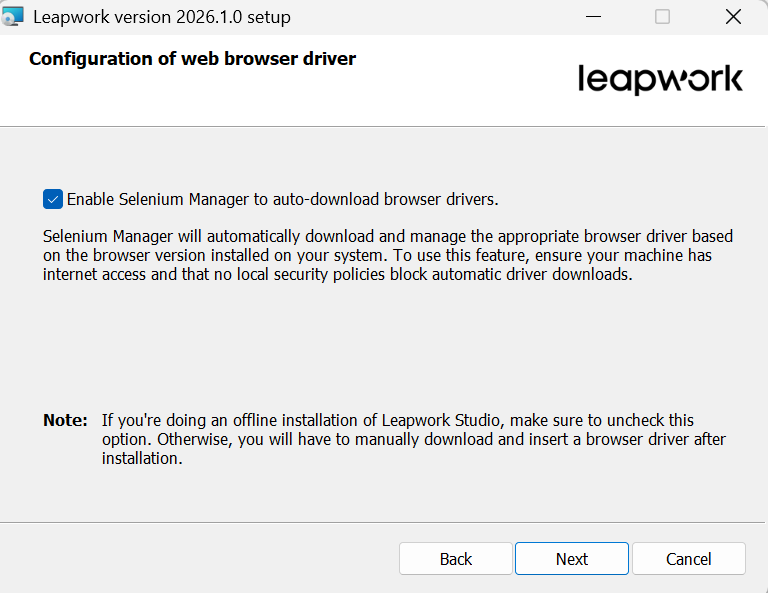
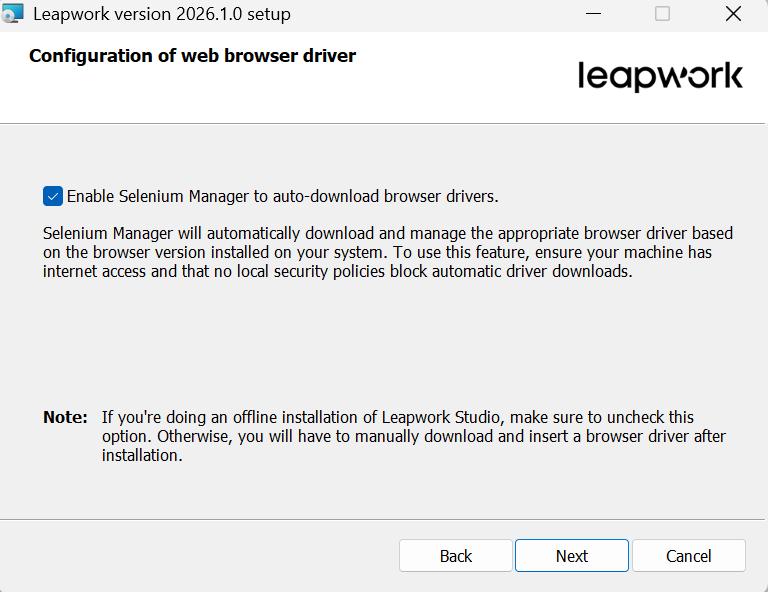
Check Enable Selenium Manager to auto-download browser drivers if you want Leapwork Flow to automatically download the matching browser drivers from the internet during runs. Otherwise, leave it unchecked to use the packaged drivers installed locally, then click the Next button.
-
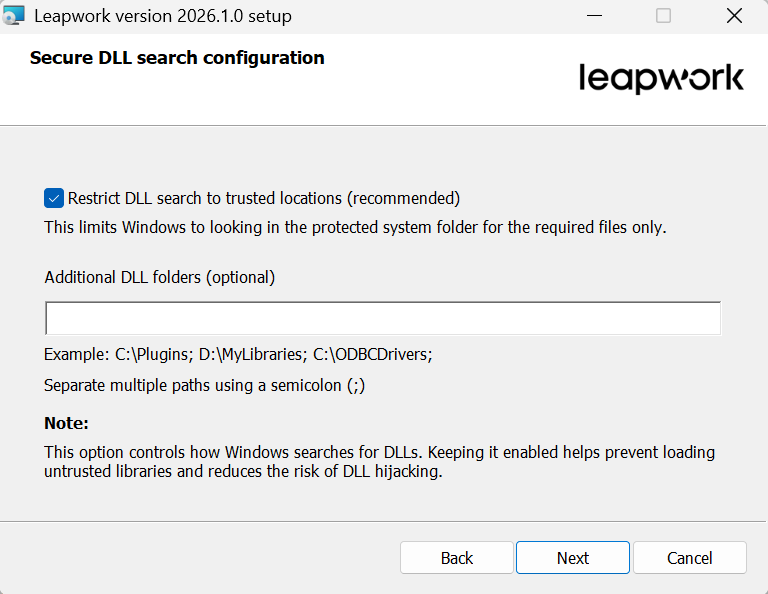
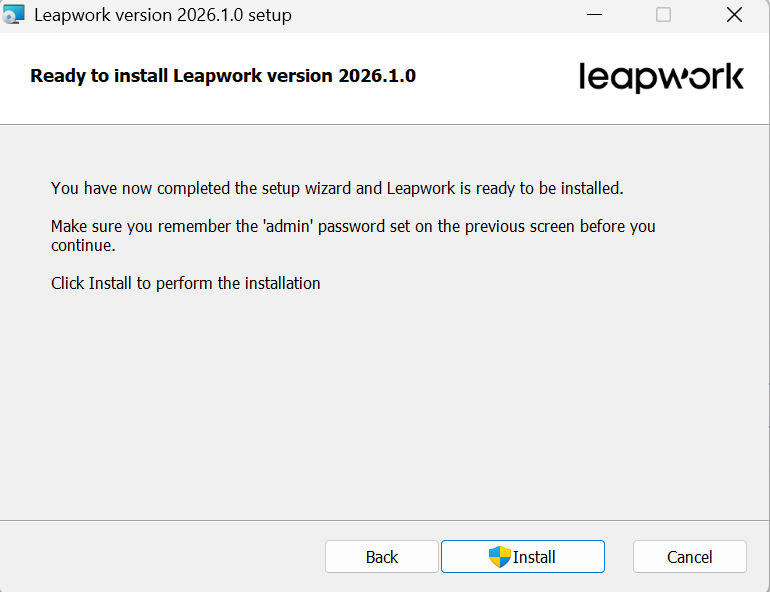
Click the Next button and then press Install to start the installation process.
-
Click the Finish button to complete the installation.
-
To configure the Agent, go to the Flow machine and complete the configuration using Leapwork Flow.
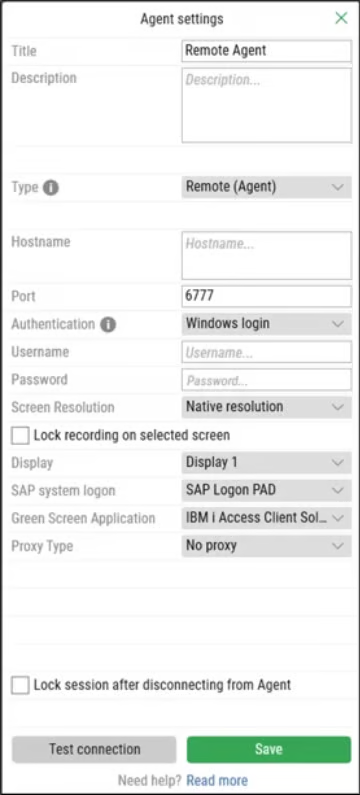
For step-by-step instructions, see the article on configuring an Agent after installation.
For any clarification, please contact on Priority Support