
Leapwork offers the Installation feature on Azure Marketplace.
In this guide, you will learn the step-by-step process for installing Leapwork through the Azure Marketplace.
Objective
The prerequisites for this are listed below:
-
You should have Azure subscription and a valid role to install Leapwork from Azure Marketplace.
-
You should have Leapwork Flow installed on your system.
-
You should have a valid Leapwork license. (Note: Connect with Leapwork account executive to get the license activated.)
Instructions for Installation
To access Leapwork in the Azure Marketplace:
-
Search Leapwork in search field.
-
Select the plan as per your needs and click Create.
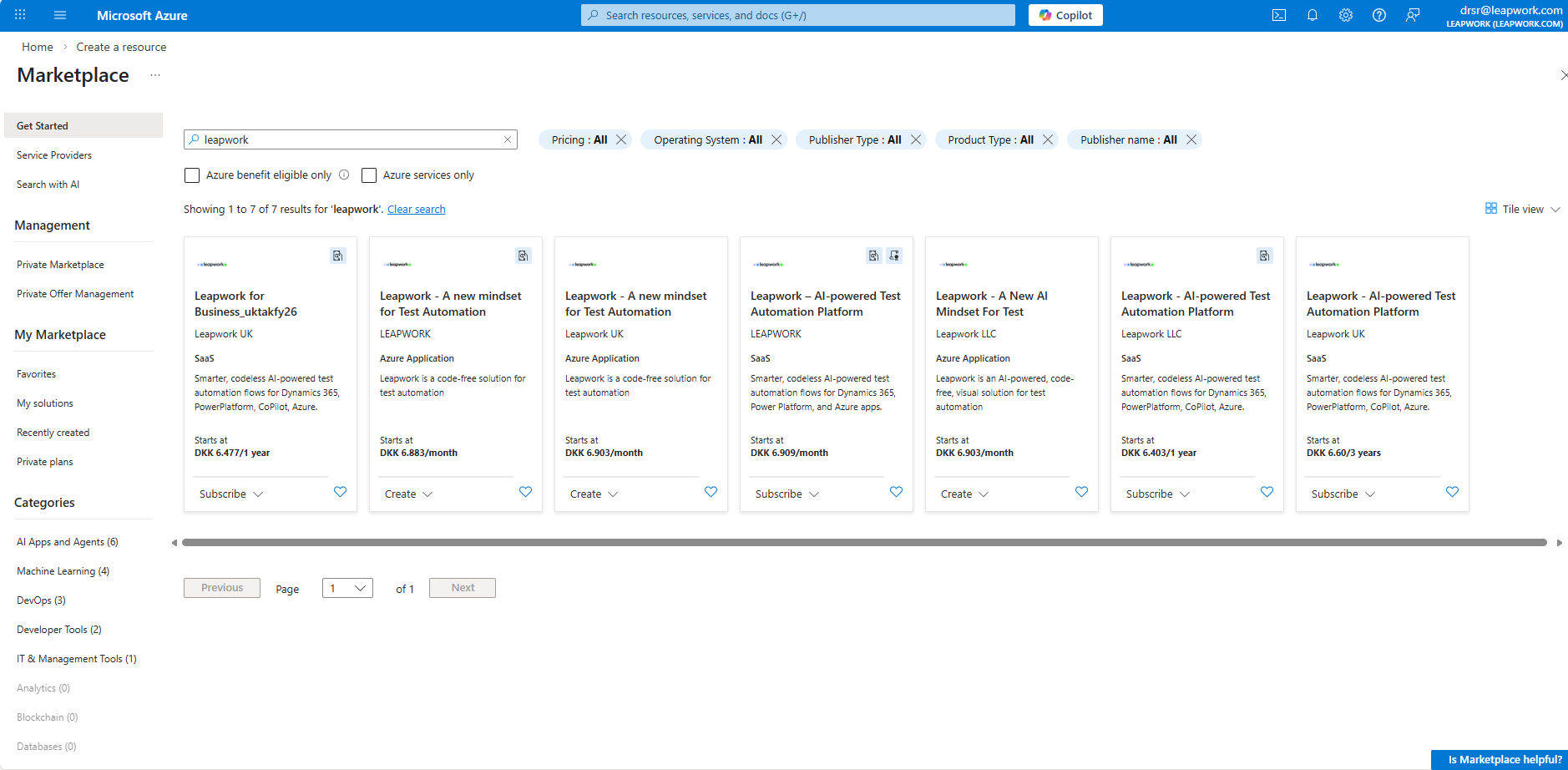
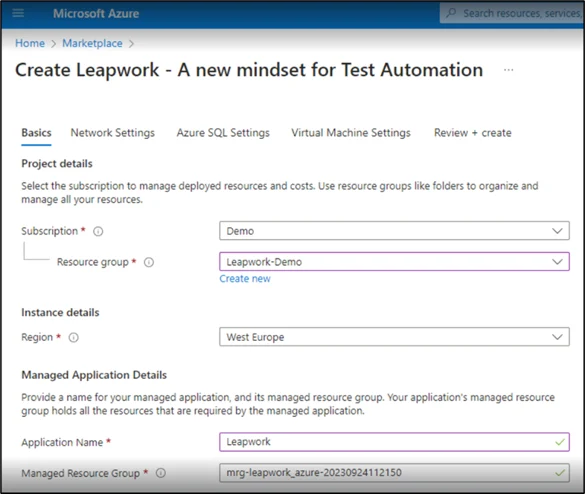
Once you click on Create, the new window opens.
-
Select the Resource group and Application Name from the drop-down list if you want to select from existing list, or you can Enter if you want to Create new.
-
Select your desired Region and Subscription from the drop-down list where you will host the application.
-
Enter Application Name in the given field.
Managed Resource Group is auto-populated field.
-
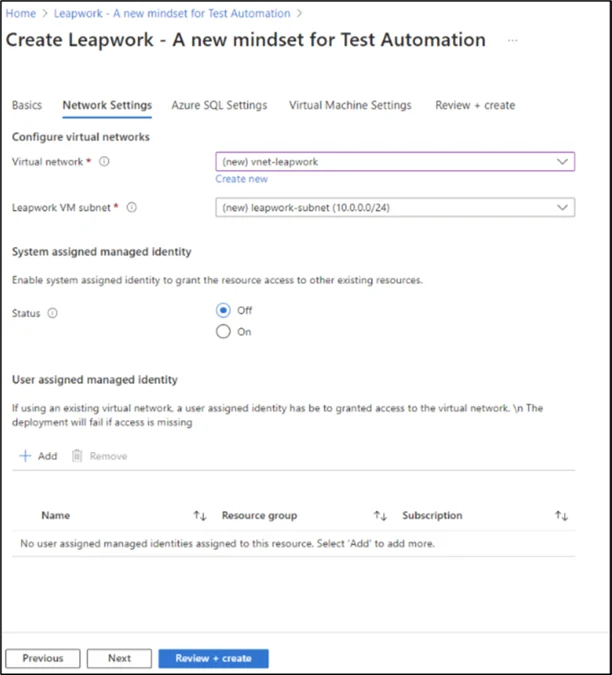
Select the Virtual network and Leapwork VM subnet from the drop-down list or proceed by creating a new vNet and subnet.
-
Click Next.
You can adjust the CIDR of the new vNet by editing the virtual network and subnet settings.
-
Enable system assigned identity to grant the resource access to other existing resources by selecting Status from the radio button.
Note: If you are using an existing vNet, you need to create a managed identity and assign it the contributor role in your subscription.
-
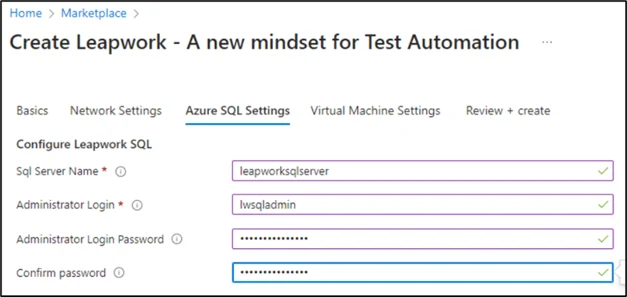
Enter the SQL Server Name, Administrator Login, Administrator Login Password and Confirm password and click Next.
-
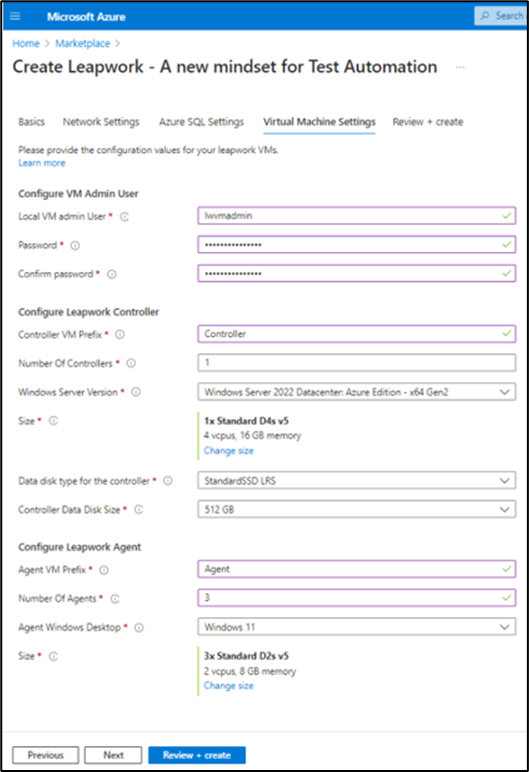
Complete the Virtual Machine Settings (Configuration) as specified below details.
-
Click Next. You can adjust the VM configuration to align with your specific requirements.
-
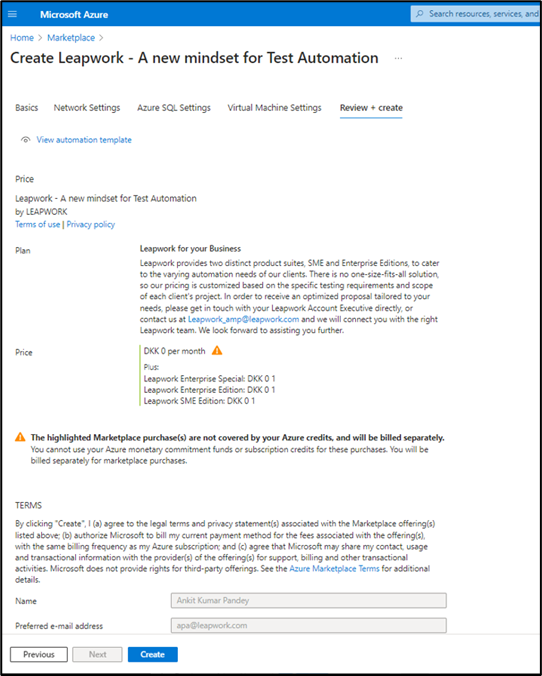
Review the configuration and click on Create. It would take time based on number on Agents used. (Ex: If you have used single agent and controller, it would approximately take 10-15 mins)
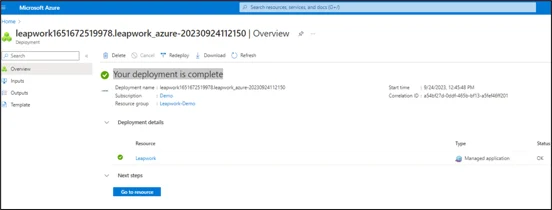
You will receive a deployment successful message once it completes.
-
Click on Go To resource to review the created resources.
-
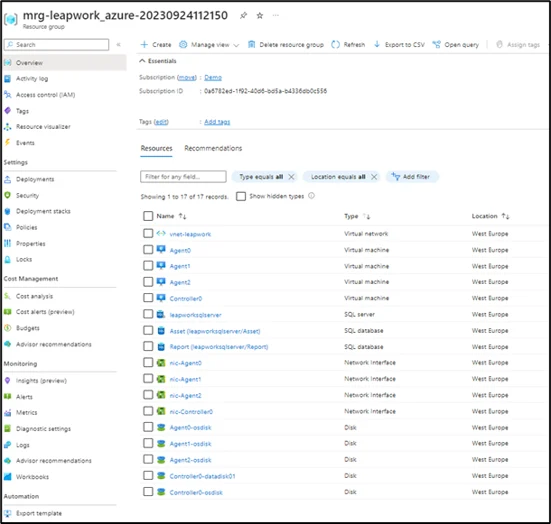
Click on Managed resources to review the created resources as specified below.
Associate Network Security groups with the Subnet to allow Leapwork port access to these VMs. Refer to the Leapwork document Firewall and port settings for Leapwork.
-
Open Leapwork Flow and enter the controller IP to activate the license.
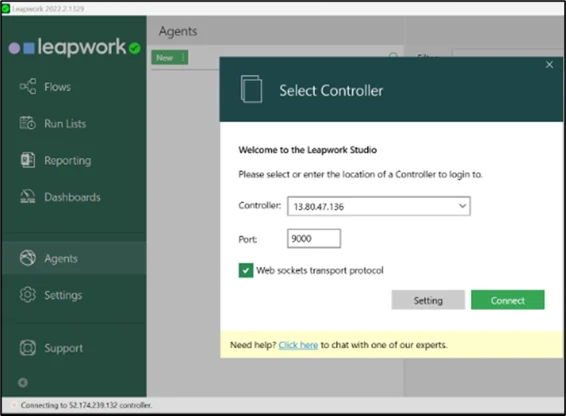
Note: The default username and password to log in to Leapwork is admin. You can change these after logging in.
Leapwork is now deployed in your Azure subscription without a license, as requested.
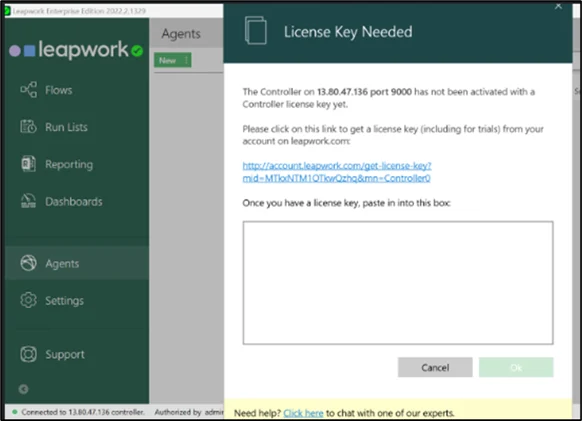
Once the license is activated, you can connect agent to controller and start using Leapwork.