
Overview
Recapture allows users to add or update actions directly from the Fusion Recorder widget without navigating back to Flow.
The primary goal is to reduce debugging friction, accelerate maintenance of recorded flows, and make the recorder more flexible for everyday QA and automation workflows.
When would a user need this?
-
When an action persistently fails in Flow
-
When the Fusion Recorder is unable to capture an element
How to Enable This Feature
To use the Recapture functionality, users must first enable experimental features in the browser.
-
Open the browser console (DevTools).
-
Run the following command:
localStorage.setItem("enableExperimentalFeatures", "true");
window.dispatchEvent(new Event("storage"));
-
Refresh the page if required.
Once enabled, the Recapture and related controls will be available in the Fusion Recorder widget.
Feature Summary
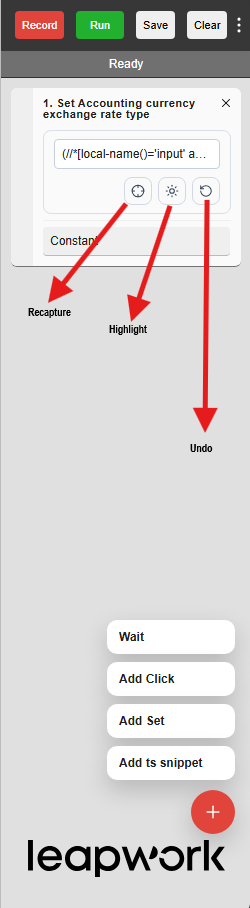
1. Recapture an element in place
Once Recapture mode is activated, the browser enters inspect mode, allowing users to select the element they want to interact with.
2. Highlight the currently captured element
Users can highlight the element using the current locator strategy to verify what is being targeted.
3. Edit locator strategy for recaptured elements
After recapturing, the action block displays an input field with the primary locator strategy.
Users can modify this locator to make it more unique and stable.
4. Revert a recaptured element
Using the Undo button, users can revert the action to its previous state.
5. Cancel recapture
Users can exit inspect mode at any time by pressing the Escape key.
6. Add Action button
The Add Action button allows users to insert the following types of action blocks:
-
Add Click – Placeholder block for click actions
-
Add Set – Placeholder block for setting values on
input,textarea, andselectelements -
Wait Block – Pauses execution for a specified duration (in milliseconds)
-
Add TS Snippet – Executes custom TypeScript or JavaScript code
Note:
Wait and TS Snippet blocks are intended for debugging purposes only and are not persisted to Flow.
6. Enable Trusted Click
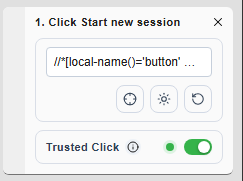
In some scenarios, clicks executed via scripts do not trigger the default behavior in D365.
To handle such cases, users can enable the Trusted Click toggle. This ensures the click behaves like a native user interaction.
This setting can be enabled for specific actions and is saved back to Flow.
End-to-End User Flow
A typical workflow looks like this:
-
The user identifies a failing action in Flow or a scenario where the recorder cannot capture an element.
-
The user enables the feature by setting
enableExperimentalFeaturestotruein local storage. -
The user clicks the Recapture button on an existing action or a placeholder action created via the Add Action button.
-
The browser enters inspect mode, and the user selects the target element.
-
The widget displays the newly captured locator attributes.
-
The user validates the action by clicking the Highlight button to confirm the correct element is targeted.
-
The user optionally refines the locator strategy.
-
The user replays the action to validate the update.
-
The user either saves the change, reverts it, or cancels the recapture flow.
User Value
This feature enhances the Fusion Recorder experience by:
-
Enabling faster correction of broken locators
-
Reducing interruptions during recording and debugging
-
Providing better visibility into locator changes
-
Allowing safer edits with cancel and revert options
-
Supporting quicker validation through instant replay
-
Enabling smoother handoff of updates back to Flow