
The Flow Report is a structured PDF file automatically generated after a successful scheduled run. It walks you through exactly what was executed, which is great for documentation, compliance, or audits.
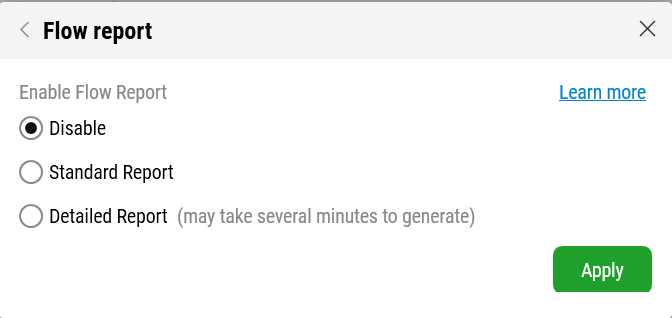
In this article, you’ll learn about the different sections included in the report:
Header Information
The first page acts as a summary sheet for the test run.
This page gives you all the contextual metadata about the run in a clean, digestible format.
Keyframes Section
Starting from page 2, the Flow Report displays a sequence of keyframes, each one representing the execution of a specific building block in the flow.
If a screenshot block is used (e.g., Log Mobile Screenshot, Log Web Screenshot), the report will also display:
-
The captured image
-
The timestamp
-
All relevant metadata and messages
This structure allows teams to reconstruct and verify the execution path, making it highly valuable for traceability and compliance reporting.
Report Naming and Storage
Reports are stored locally in Flow, pulled from the Controller after run completion. You can access them via:
C:\Users\<your-username>\AppData\Local\Temp\LEAPWORK\Studio
Folder structure:
<TeamName>_<RunListName>_<ScheduleName>_<Timestamp>
PDF filename structure:
<FlowName>_<Environment>_<Timestamp>.pdf
The folder may contain multiple PDF reports if the schedule includes multiple flows.
Note: Flow Reports are subject to Flow’s retention policy. If Flow is restarted or retention rules apply, locally stored reports may be removed.
You can always retrieve them again by right clicking the schedule and selecting Open PDF report folder.