
With the Salesforce Fusion Recorder, you can automate Salesforce workflows quickly and intuitively by simply interacting with the live application. As you perform actions inside Salesforce, the recorder silently captures your steps and converts them into Leapwork building blocks, ready for editing, execution, and reuse.
It works only with browser-based platforms like D365 F&O and Salesforce. It does not support desktop apps, remote sessions, or virtual environments (e.g., Citrix or RemoteApp). When using the Fusion Recorder, make sure you open the web version of your system in Microsoft Edge.
Note: The screenshots on this page use the Elegance Design, introduced in 2025.3. If you are using an earlier version, your layout may look different.
Using the Salesforce Fusion Recorder
To launch the Salesforce Fusion Recorder:
-
Right-click anywhere on the design canvas in Flow.
-
Select Start Salesforce Recorder.
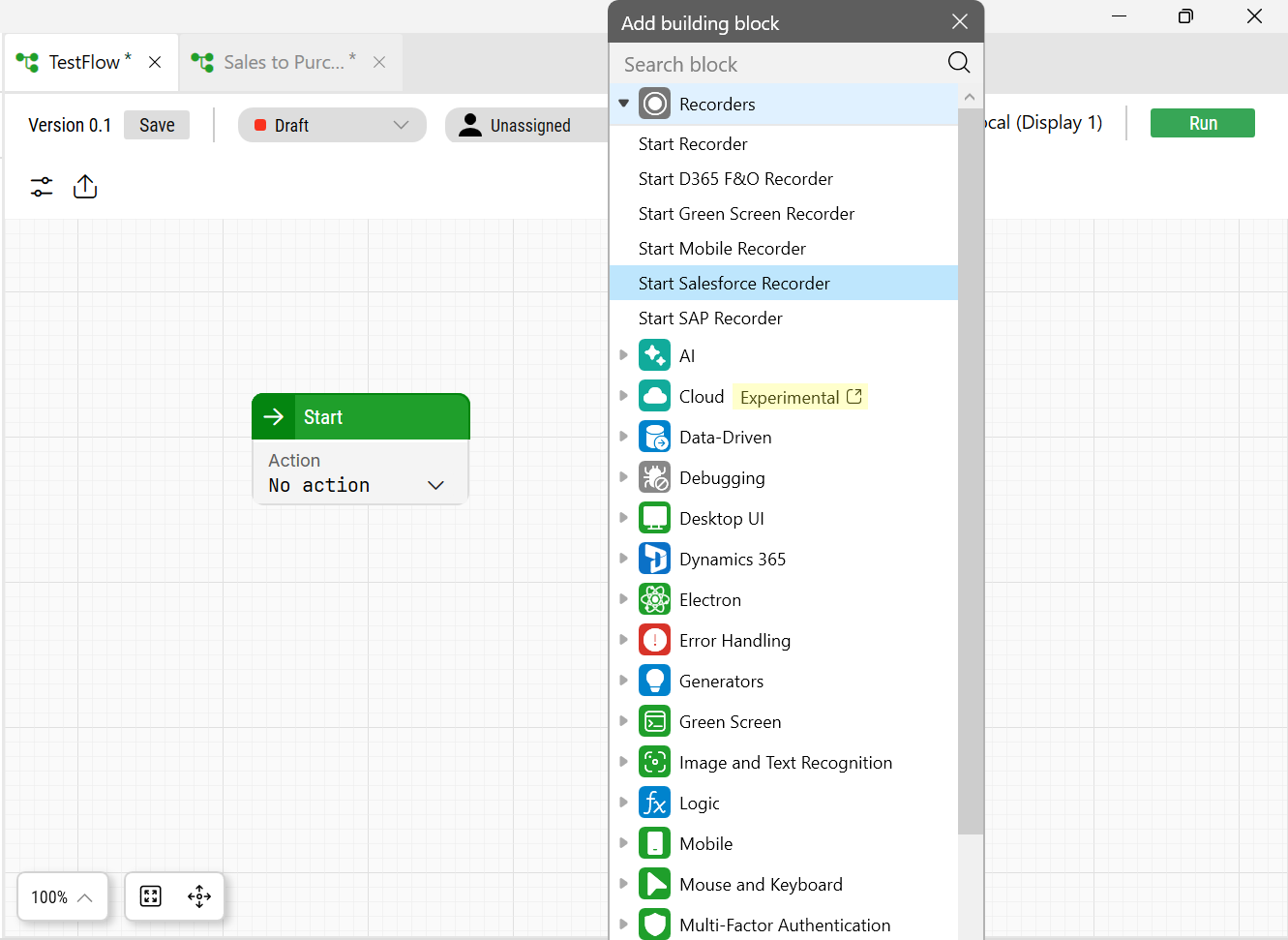
This will open a login modal.
-
Provide the credentials and URL to connect to your Salesforce environment:
-
Browser: Select the browser to use.
-
Web address: Enter the Salesforce login or app URL.
-
Username: Provide your Salesforce login name.
-
Password: Provide your password securely.
3. Click Start.
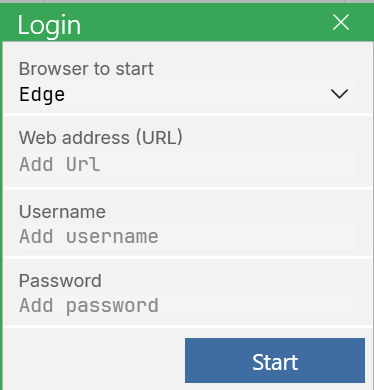
Note: If any information is missing or incorrect, the recorder will display an error or redirect you to complete the login inside Salesforce.
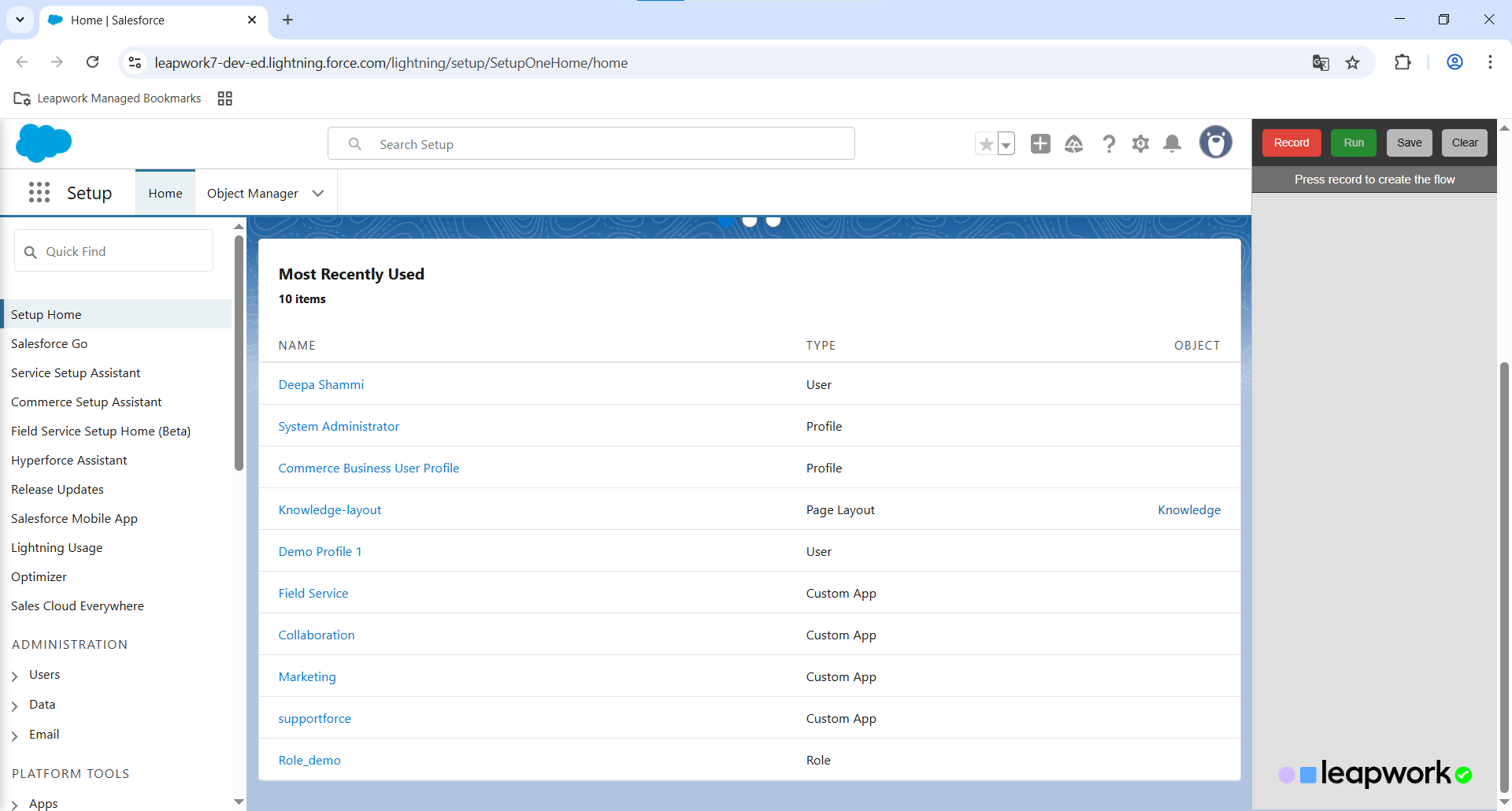
A new browser session is launched successfully, and Salesforce is opened with the recorder attached. If Salesforce is already open, the recorder attaches to that window instead.
The Recorder Widget
Once connected, the Salesforce Fusion Recorder widget appears as an overlay in the browser. It allows you to control and manage the flow recording from within the application.
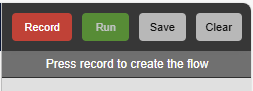
The widget includes:
-
Record / Stop: Start or pause the recording.
-
Run / Cancel: Test the recorded steps live in Salesforce.
-
Save: Save the recorded flow to Leapwork Flow.
-
Clear: Remove all recorded steps and reset the recorder.
As you interact with Salesforce, actions are automatically captured, no manual block insertion or element identification is needed.
Executing actions
Once recording is started, you can begin interacting with the Salesforce interface. The recorder automatically detects and stores each supported action. These include:
-
Click buttons and links
-
Enter text into input fields
-
Select dropdown, radio, or checkbox options
-
Use toggles and combo boxes
Each block includes editable fields where you can refine details such as text input, toggle state, or selected value.
You can make these changes without re-recording the entire flow.
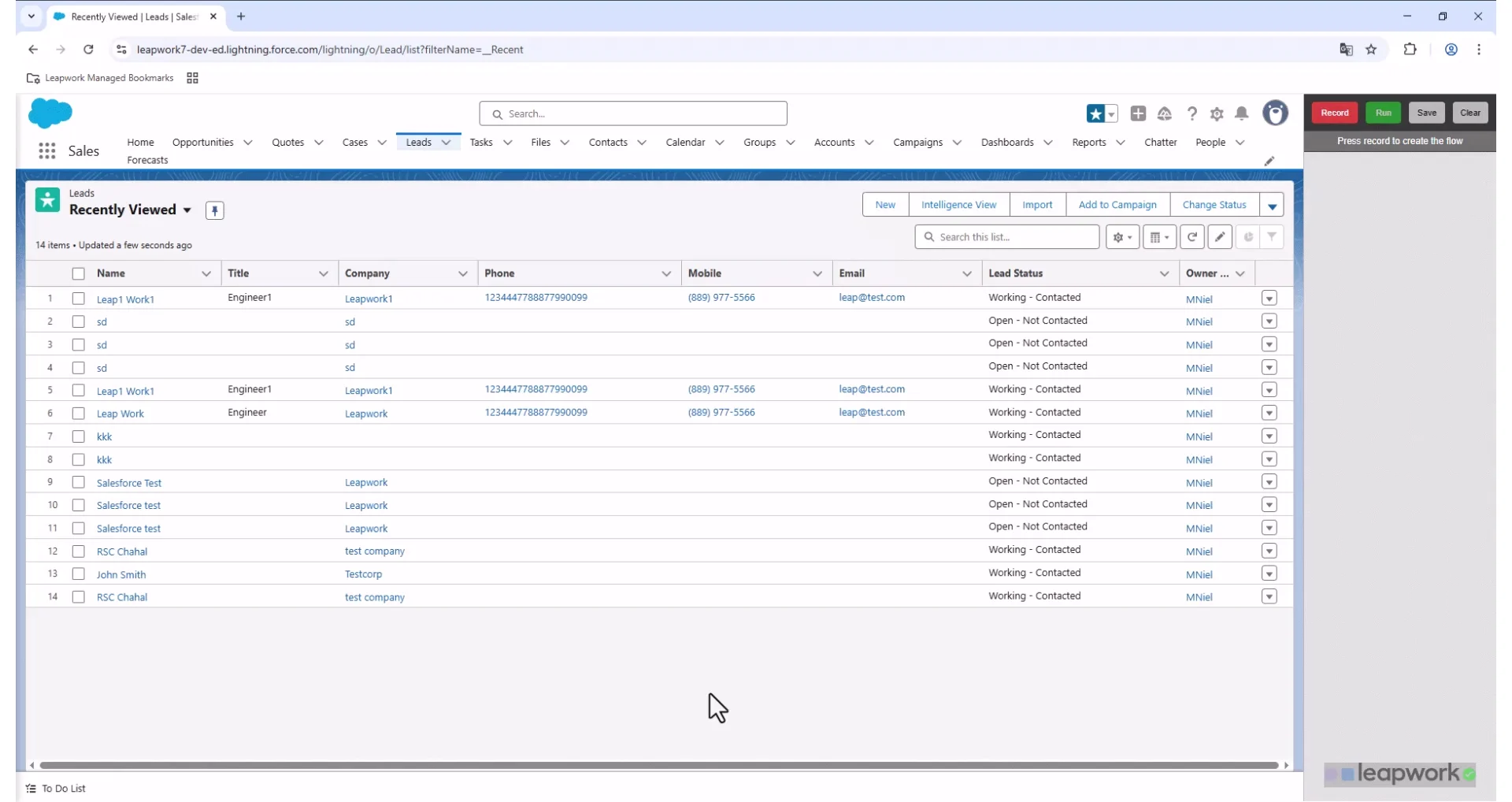
Each action is stored and displayed in the recorder interface with relevant details. For instance, when interacting with a dropdown, available values are retrieved and shown to the user for review and adjustment.
Running the Flow
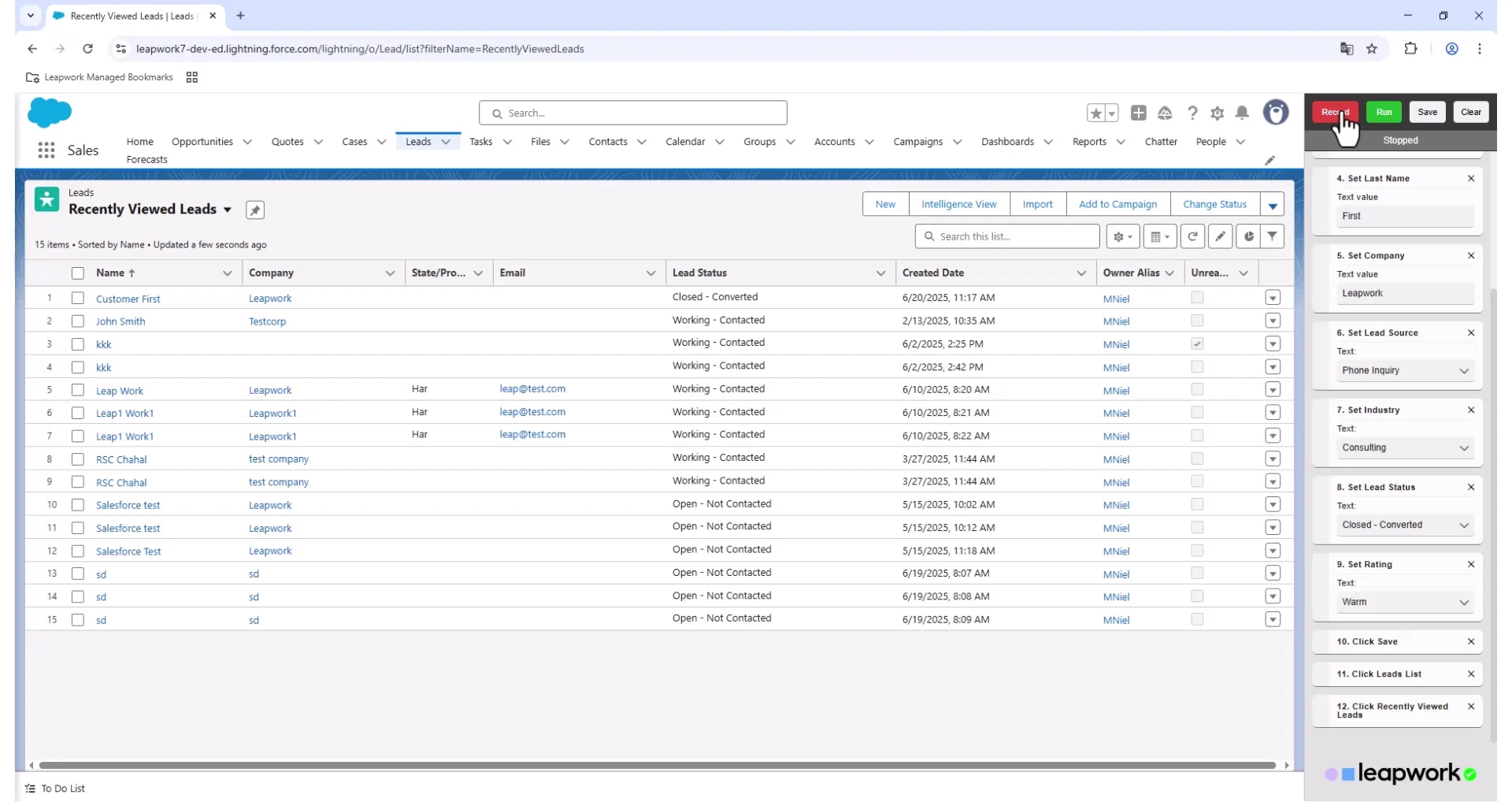
To test the recorded steps before saving, use the Run button in the widget. This feature allows you to:
-
Execute the recorded sequence of actions
-
View the success or failure status
-
Review the total execution time
This validation helps ensure the recorded flow behaves as expected prior to saving.
Saving and Editing in Flow
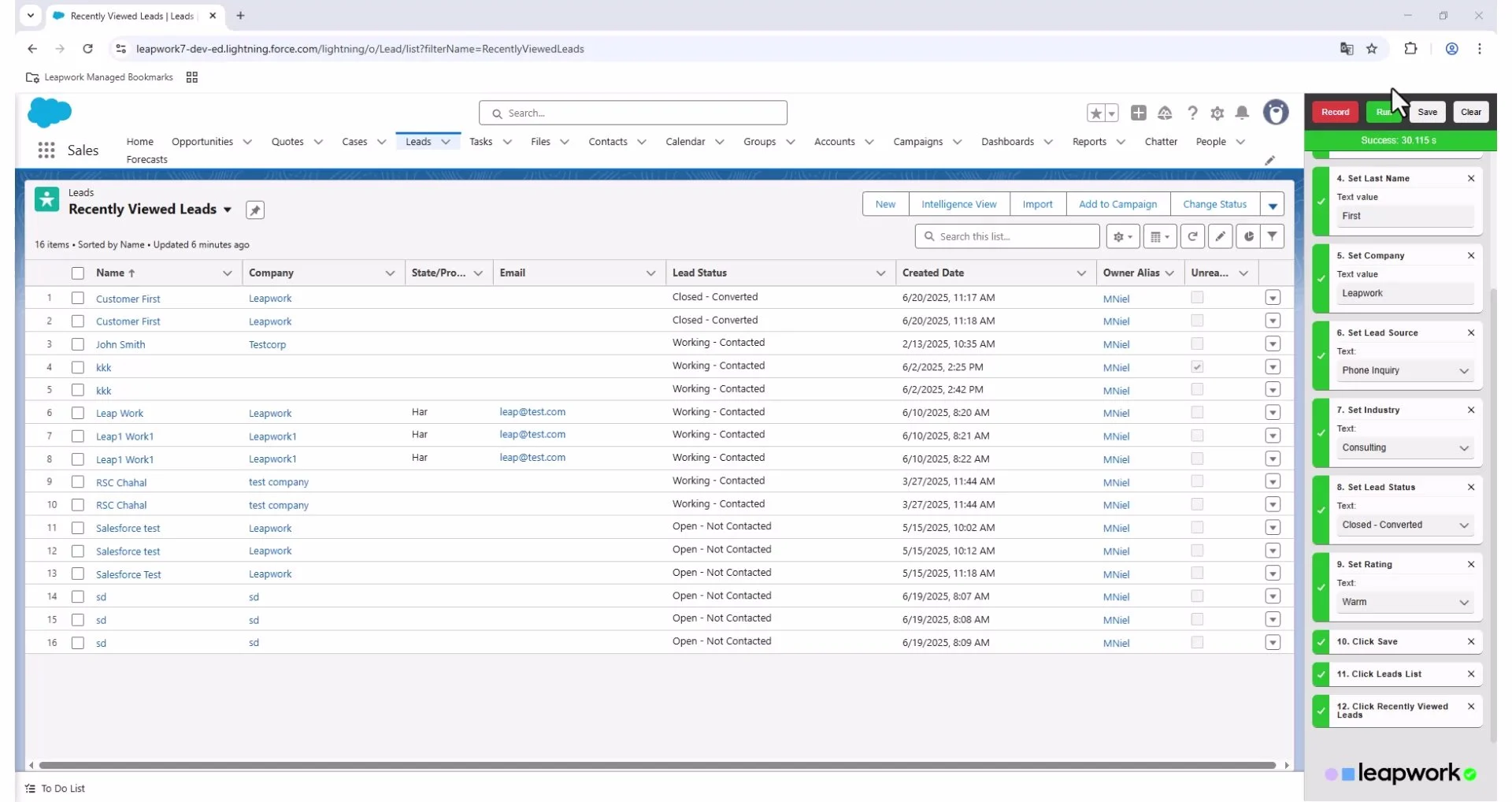
Once the desired actions have been captured, you simply have to click Save in the recorder widget. Leapwork will return focus to the Flow interface, and the newly created flow will appear on the canvas as individual building blocks.
Each block includes editable fields where you can refine details such as text input, toggle state, or selected value. These modifications can be made without re-recording the entire flow.
The Salesforce Fusion Recorder also includes features that improve flow authoring:
-
Dynamic block labels: Each block shows the actual name of the captured element.
-
Inline editing: Dropdowns, inputs, and other fields retain real values and can be edited on the fly.
-
Visual execution feedback: Run blocks live and view results before saving.
-
Flow continuation: Reopen the recorder mid-flow to continue recording from any point.
Clearing the Recording
To reset the recorder, click the Clear button in the widget.
This removes all captured steps and allows you to start over without saving anything.
Await DOM Change and Await Requests
Await DOM Change and Await Requests
Fusion blocks support Await DOM Change and Await Requests properties. These properties give you finer-grained control over synchronization during flow execution, reducing test flakiness caused by inconsistent page loading and background network activity. Instead of adding manual Wait blocks to individual steps, you can enable these properties at the flow level so that all Fusion blocks in the flow automatically wait for the page to stabilize before executing their action.
For full details on configuration, timeouts, precedence, exclusions, and known limitations, see Await DOM Change and Await Requests in Fusion Blocks.