
The Azure DevOps (ADO) Connections section allows administrators to link ADO projects with specific Leapwork teams and define which custom fields should be completed when creating bugs in ADO from Leapwork.
This section lists all Azure DevOps (ADO) projects by each configured ADO connection.
Note: If no ADO connections exist, this section will not show projects.
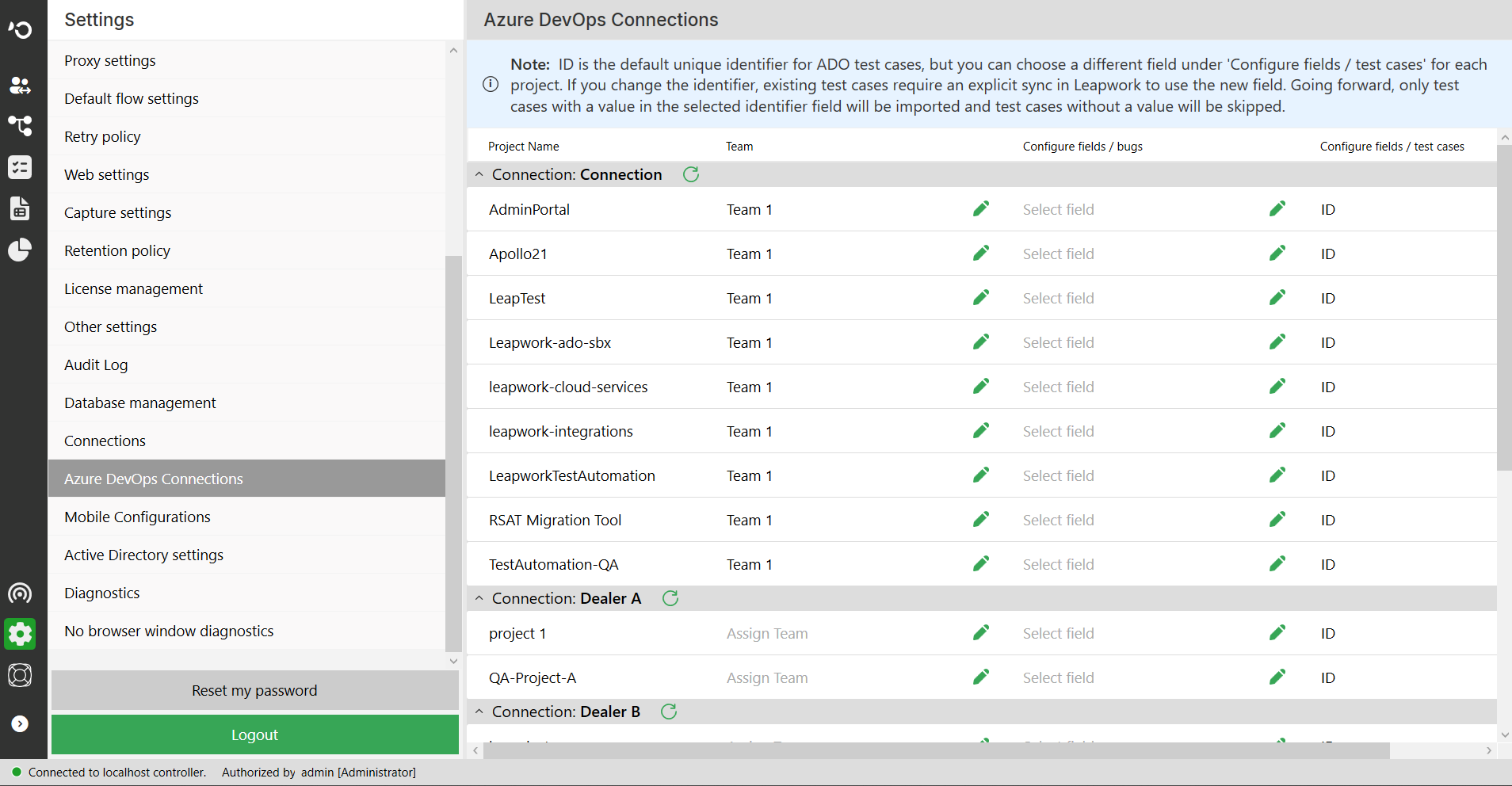
Note: ID is the default unique identifier for ADO test cases, but you can choose a different field under Configure fields / test cases for each project. If you change the identifier, existing test cases require an explicit sync in Leapwork to use the new field. Going forward, only test cases with a value in the selected identifier field will be imported, and test cases without a value will be skipped.
The Azure DevOps Connections table is grouped by connection and shows each ADO project available under that connection. Use the pencil icons in the editable columns to configure project-level access and field mapping.
|
Column |
Description |
|---|---|
|
Project Name |
Displays the Azure DevOps project name for the selected connection. |
|
Team |
Shows the Leapwork team assigned to the project. If no team is assigned, the column shows Assign Team. Click the pencil icon to choose which Leapwork teams can use that ADO project. |
|
Configure fields / bugs |
Defines which Azure DevOps fields are available when creating bugs from Leapwork. Click the pencil icon to open the Select custom fields dialog and select the fields to include. |
|
Configure fields / test cases |
Defines which Azure DevOps field Leapwork uses as the unique identifier for imported ADO test cases. The default value is ID. Click the pencil icon to open the Configure field dialog and choose a different identifier field if required. |
Only users with the Administrator role can configure Azure DevOps project access and custom field settings in the Azure DevOps Connections section.
How to Assign Teams to an ADO Project
-
In the Team column, click the pencil icon for the project.
-
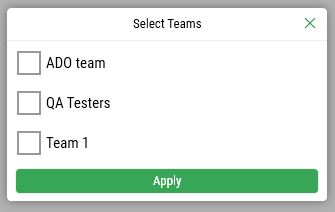
A modal window opens with a list of all Leapwork teams.
-
Check the boxes for teams that should access the specific ADO project.
-
Click Apply to save your selection.
Note: Only members of the assigned teams will be able to publish results and create bugs in that project from Leapwork.
How to Configure Fields for Bugs
-
In the Configure fields/bugs column, click the pencil icon for the project.
-
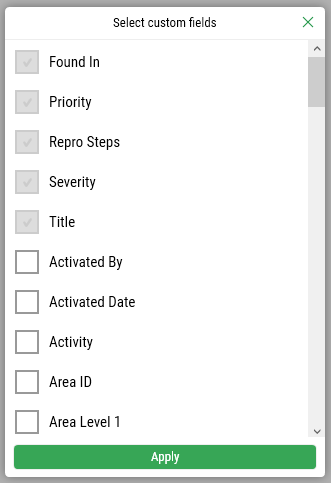
The Select custom fields dialog opens and displays the Azure DevOps fields available for bug creation. Some required fields, such as Found In, Priority, Repro Steps, Severity, and Title, may already be selected and disabled.
-
Select the fields that should be shown when users create ADO bugs from Leapwork.
-
Click Apply to save the selected bug fields for the project.
The selected fields will appear in the Create a bug in ADO dialog when submitting a bug from Leapwork.
How to Configure the Test Case Identifier Field
-
In the Configure fields/test cases column, click the pencil icon for the project.
-
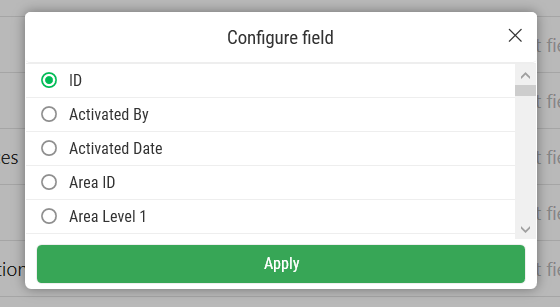
The Configure field dialog opens and lists the available Azure DevOps fields that can be used as the test case identifier.
-
Select the field Leapwork should use to identify imported ADO test cases. By default, ID is selected.
-
Click Apply to save the identifier field for the project.
Note: If you change the identifier field, existing test cases require an explicit sync in Leapwork to start using the new field. After the change, only test cases with a value in the selected identifier field will be imported; test cases without a value will be skipped.