
As we now have a Sequence, a Timeline, and know how to create data items to apply in sequences, let’s get into more advanced Sequence editing techniques.
This guide introduces the advanced editing functions available when working inside a sequence in Perofrmance. These tools give you control over branching, repetition, timing, grouping, and readability, allowing you to refine the behaviour of a recorded script before using it in a load test.
Right-click to open a context menu with multiple editing options
Inside any sequence, you can right-click on a step to open the extended menu of editing actions.
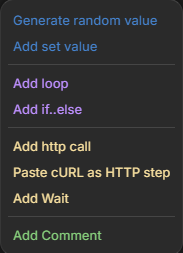
The first thing available is the ability for Perofrmance to generate a random value inside the Sequence. It could be a value, a name, a date, or something else, which helps you simulate thousands of varying POST requests of order confirmations, as one example. You can then also choose Set Value to initiate a variable to be given a name & value for you to refer to across calls.
Next is the ability to add a loop. When you insert a loop, Perofrmance places a loop block into the script. You can set how many times the steps inside the loop should run by entering the number of iterations. For example, specifying a value of 5 makes the enclosed steps repeat five times during execution.
You can also insert if-else statements. These allow you to create branching logic inside the sequence so that different actions can occur depending on the condition you define. This is useful when testing flows that vary based on responses, values, or system behaviour.
You can decide to manually add a http call, where you write out the necessary details. That way you don’t have to record it, if you already know all the details. Perfect for setting up a quick API test. You can also just past a cURL and Perofrmance handles the rest.
Another option is to add a delay by using the “Add Wait”. When you insert a delay, you specify how many seconds Perofrmance should pause before moving on to the next action. Delays can be useful when the system under test needs time to process or when you want the sequence to mimic realistic pacing. After entering the number of seconds, the delay step is inserted directly below your cursor position.
Comments can be added anywhere in the script. Insert a comment, double-click it, and type your note. Comments contain no actions and exist only to help you document the purpose of steps or leave guidance for collaborators. They stand out clearly in the sequence because they have no activity icon.
Editing, rearranging or grouping within your sequence
If you add a function by mistake or want to adjust the structure of the script, you can delete items the same way you added them. Select one or more lines, right-click, and choose Delete. Multi-selection works by holding down Shift to highlight a range of steps.
You can also skip individual steps. When a step is skipped, Perofrmance will ignore it during execution. The skipped line becomes indented and visually marked so you can clearly see which actions are excluded. You can skip several steps at once using multi-selection, which helps when testing alternate scenarios without permanently removing actions.
Finally, you can group actions together. Select a group of steps, right-click, and choose to group them. This collapses them under a single label. You can rename the group by double-clicking it. Grouping gives structure to longer sequences and makes it easier to navigate and understand which steps belong together. Perofrmance also forms automatic groups based on the flow of the recorded script, helping you interpret the captured behaviour.
These advanced tools allow you to shape a recorded sequence so it behaves exactly the way you intend during a load test, while also keeping your script clean, readable, and easy to maintain.