
Use JMX, Postman and HAR import to convert existing files into reusable sequences in Leapwork Performance. This helps you avoid building sequences manually.
Before you begin
-
Ensure you can create assets in the target workspace folder.
-
Prepare the
.jmxor.haror Postman collections JSON file on your computer. -
Ensure HAR files are 50 MB or smaller.
JMX import supports common elements such as If/Else, HTTP calls, Wait steps, For loop counters, and comments. Unsupported elements are added as comments in the sequence for review.
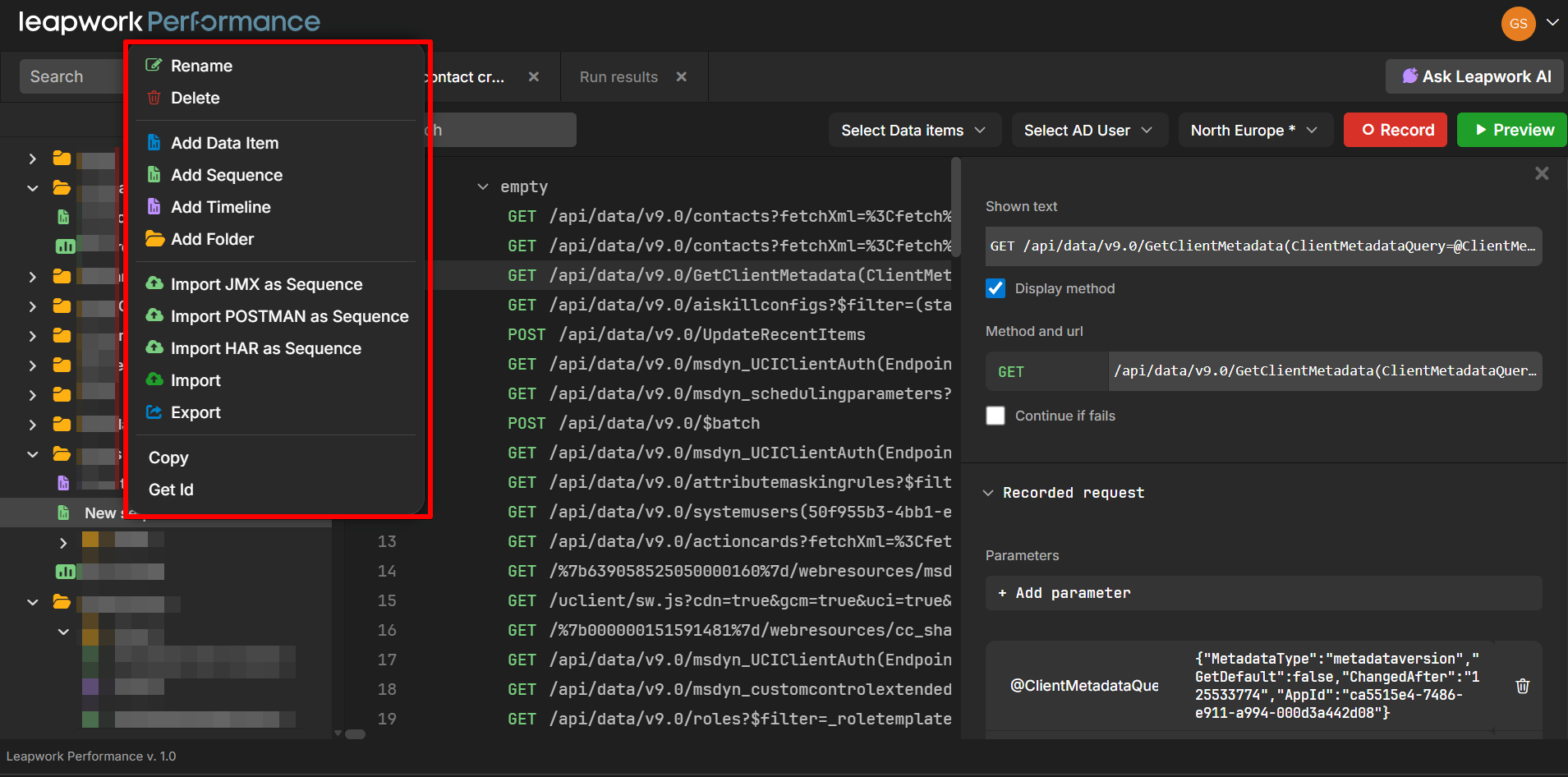
Import a JMX file
-
Open the Explorer in Leapwork Performance.
-
Right-click the folder where you want to create the sequence.
-
Select Import JMX as Sequence.
-
Select your
.jmxfile. -
Wait for the import to complete.
-
Open the generated sequence.
What Gets Imported
When a JMX file is imported, Leapwork Performance translates JMeter elements into equivalent Leapwork constructs:
-
HTTP Samplers → HTTP request steps with method, URL, parameters, and body
-
Headers → Request headers applied to the appropriate steps
-
JSONPostProcessor → Set Value steps that extract values from response bodies using JSON paths
-
CSVDataSetConfig → Table data items and Set Value steps for CSV-driven parameterization
JSON Post Processor Support
JMX imports recognize JSONPostProcessor elements from JMeter test plans. When a JMX file containing JSON Post Processors is imported, Leapwork Performance automatically creates Set Value steps that extract values from HTTP response bodies using JSON path expressions.
This means:
-
JSON path extraction logic from JMeter is preserved during import
-
Extracted values are assigned to variables and made available to subsequent steps
-
No manual configuration is needed to replicate JMeter's JSON extraction behavior
This is useful when migrating JMeter test plans that rely on JSON path extractors to pass dynamic values (such as IDs, tokens, or session data) between requests.
CSV Data Set Config Support
JMX imports recognize CSVDataSetConfig elements from JMeter test plans. During import, users are prompted to upload the corresponding .csv files referenced in the JMeter configuration.
Once uploaded, the system automatically:
-
Creates Table data items from the CSV file contents
-
Creates Set Value steps that populate request variables from the uploaded CSV data during execution
This is useful when migrating JMeter test plans that use CSV-driven parameterization (such as user credentials, test data sets, or environment-specific values) to feed dynamic data into requests.
Import a HAR file
-
Open the Explorer in Leapwork Performance.
-
Right-click the folder where you want to create the sequence.
-
Select Import HAR as Sequence.
-
Select your
.harfile. -
Wait for the import to complete.
-
Open the generated sequence.
Import POSTMAN as Sequence
Leapwork Performance supports importing Postman Collections directly as sequences. This allows teams already using Postman for API development and testing to migrate their collections into Leapwork Performance for load testing without manually recreating each request.
How to Import
-
Right-click on a project in the Project Explorer.
-
Select Import POSTMAN as Sequence from the context menu.
-
Drag & drop your Postman Collection JSON file into the upload area, or click Browse file to select it.
-
Click Import.
The system parses the Postman Collection and creates a sequence with corresponding HTTP request steps, including method, URL, headers, parameters, and request body.
Review the imported sequence
-
Confirm that the requests and flow match your expectations.
-
Review any comments added during JMX import.
-
Identify parts of the original file that were not converted.
-
Edit the sequence as needed.
-
Run a preview to validate the sequence.
Verify results
-
The sequence appears in the selected folder.
-
The sequence reflects the expected requests and structure.
-
The preview runs without errors.
Troubleshooting
Why does my HAR file not import?
The file may be larger than 50 MB.
Reduce the file size and import it again.
How do I exclude requests when importing a HAR file?
When importing a HAR file, use the Exclude requests options in the Import HAR dialog to exclude specific request types / rules (for example Images, CSS, JavaScript, Fonts, Media, HTML, or Ignore CORS preflight (OPTIONS)). You can also enter Patterns as comma-separated or regex patterns.
Why is my imported JMX sequence missing behavior?
Some elements in the JMX file are not supported.
Review the comments in the sequence to identify which parts were not converted.
Why does the imported result not match what I expected?
The source file may not contain the correct requests or traffic.
-
Check the original JMX or HAR file.
-
Export the file again with the required data.
-
Import the updated file.
How do I confirm the issue is resolved?
-
The imported sequence reflects the expected behavior.
-
The preview runs successfully.
What should I do if the issue persists?
Recheck the source file content and how it was exported.