The Audit Log contains information about all events that have occurred on the Leapwork Automation Platform. This includes editorial events as well as the running of flows using scheduling, the REST API or by any other method.
Note: Audit Log settings would be available if you are logged in as an administrator and are allowed to filter, search, and export log data.
The Audit Log can be used for internal as well as external audits and can serve as a tool to debug unusual events and scenarios.
Filtering and sorting
The Audit Log allows advanced filtering and sorting options. The basic filter is a From and To date, which per default is set to Today.
To change the dates, open the date pickers, and click Load. To go back to the default dates, click Reset.

The log can be sorted by clicking on the column headers:
-
Date of the event
-
IP address of the machine performing the activity
-
Hostname of the machine performing the activity
-
User/system ID performing the activity
-
Team
-
Event, for example “Create flow” or “Delete image”
-
Affected asset, for example the flow affected by the change or the image deleted.
-
Details
-
User comments
-
API Access key.
To filter the log based on a value in a given column, it is possible to add a Filter. To add a Filter, hover a column and click on the filter icon:

There are two types of Filters:
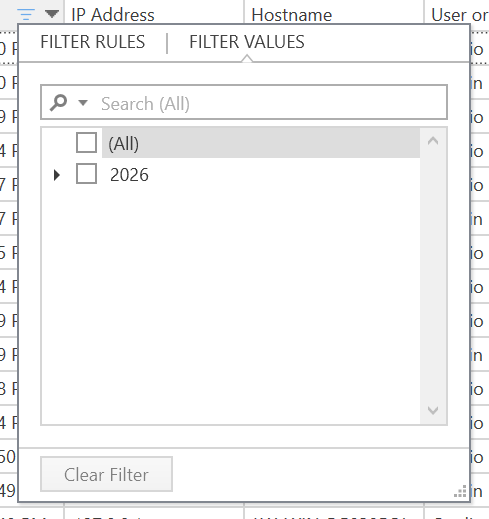
1. For rule-based filters:
-
Add a pattern that column values must match. For example, open the Filter dialog for the 'User or system' column.
-
Select 'Begins with' in the first dropdown, then enter "ad" in the second field. This filters the log to show entries where the user or system name starts with "ad".
-
For value-based filters, select one or more existing values from the column.
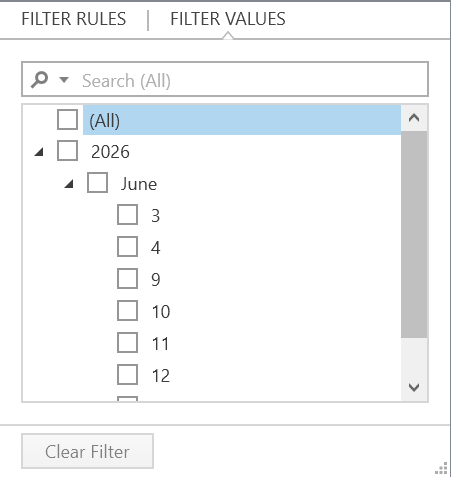
All added filters appear in a list at the bottom of the log, providing an overview and quick access to edit them using the Filter Editor.
To reset all filters, click Reset in the top menu, to just remove the column filters and keep the date selection.
Exporting the log
The audit log can be exported into Excel, HTML, or PDF format in case the data is needed outside Leapwork. Click Export to save the log data´, respecting any added filters, in one of the three formats.