
The Leapwork Controller is the central component in the Leapwork Automation Platform. Flow is depending on it to gain access to all the flows and related assets. The Controller also manages the Environments used for executing the automation flows.
Note: Controller settings are available only when you are logged in as an Administrator. Please note that each Controller requires a separate license (1 Controller = 1 License).
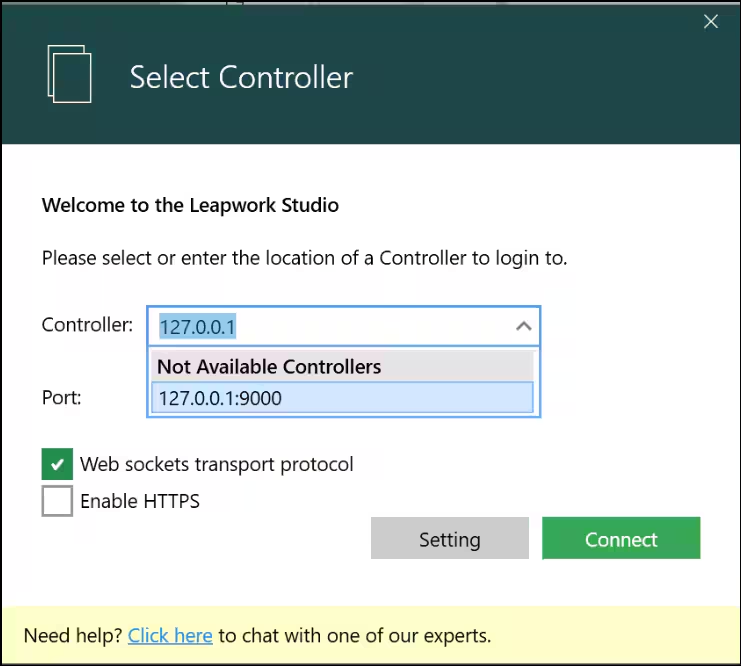
When you start Flow the first time, it will automatically show you the available Controller(s) and prompt you to select which Controller to connect to. Before you do this, you cannot use Leapwork.
Once connected to a Controller go to Controller Settings section inside Settings.
Here, you can see the available Leapwork Controllers and identify which one you’re currently connected to.

Depending on your license agreement, the number of Controllers available will vary. You will be able to see all available Controllers in this list.
Also, you can manually add a Controller by clicking on New:
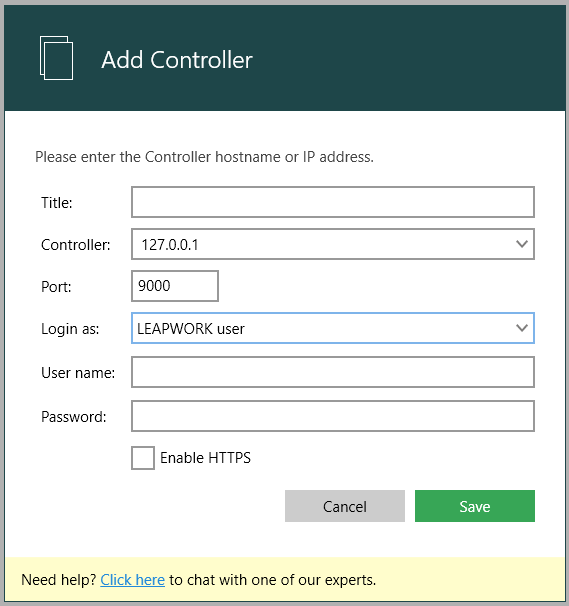
Each Controller operates independently and requires its own license (1 Controller = 1 License). Users and access levels are managed separately for each Controller, and you must have an account on a specific Controller to access it. For every configured Controller, you can:
-
Edit the Controller settings (e.g., configuration details).
-
Delete the Controller if it is no longer needed.
-
Connect or reconnect to the Controller.