
The Default Flow Settings define nine settings:
-
If video recordings are made while flows run.
-
The default timeout value to define for the entire flow.
-
The default OCR engine for all flows using Image Text and Recognition building blocks.
-
The default IE automation.
-
The default Chrome automation
-
The default Edge automation.
-
The default CoPilot Investigation Analysis setting for failed flows.
-
The SAP system logon.
-
The SAP solution manager.
-
The Green screen application.
Note: Default Flow settings would be available if you are logged in as an administrator.
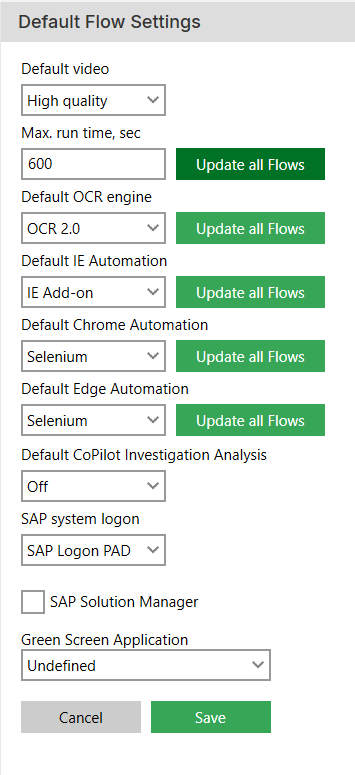
Note: The screenshots on this page use the Elegance Design, introduced in 2025.3. If you are using an earlier version, your layout may look different.
Default video
You can basically choose between video or no video of any the flow runs on the Leapwork Controller. It is best to avoid selecting “No video” unless necessary, such as for disk space reasons.
To manage the disk usage efficiently, please read the information about the Retention policy settings.
The video recordings of the flows take up approximately 9 MB of disk-space per minute.
Default timeout
This property defines the default value for the maximum execution time for a flow.
-
By default, this is set to 600 seconds, which means that all new flows will have the timeout value set to 600 seconds.
-
If many flows time out, increase this value to change the default for new flows.
-
Selecting the Update all Flows button updates the Max run time value across all flows.
Leapwork offers timeout at the building block level. Learn more about this in the Building Blocks documentation.
Default OCR Engine
This property sets the default OCR (Optical Character Recognition) engine for all test flows using the Image Text and Recognition approach. The three options in this category are OCR 1.0, OCR 2.0, and ABBYY.
Note: To apply it to all flows, select the default OCR engine from these three options, then press the update all flows button.
ABBYY is most advanced and separate license is required for this.
Default IE Automation
This property defines the default value for IE Add-on to be used across all the test flows which are using the IE browser in Start Web Browser building block.
-
The two available options in this property are IE Add-on and Selenium.
-
The Default IE Automation value can be selected from these three available options.
-
To reflect it across all flow, update all flows button should be selected.
Default Chrome Automation
This property defines that the default value is chrome extension. The two available options in this property are Chrome Extension and Selenium.
-
Chrome extensions are programs you can install in your Chrome browser to change its functionality.
-
Whereas Selenium is an open-source tool that automates web browsers.
Default Edge Automation
This property defines that the default value is edge extension. The two available options in this property are Edge Extension and Selenium.
-
Edge extensions help you to personalize the browser and be more productive.
-
Whereas Selenium is an open-source tool that automates web browsers.
SAP System Logon
This property defines that the default value is SAP Logon. The two available options in this property are SAP Logon PAD and Sap Logon.
-
SAP Logon is a standalone tool in the SAP GUI, which enables you to access, manage, and configure one or more SAP systems.
-
Whereas SAP Logon Pad behaves very similar to SAP Logon, but here the configuration options are very limited.
SAP Solution Manager
SAP Solution Manager enables you to manage the SAP and non-SAP application in better way.
The SAP Solution Manager checkbox enables you to enter your SAP Solman credentials and log in.
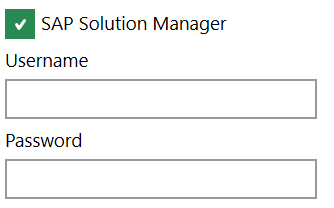
A Username and Password are required to authenticate.
Green Screen Application
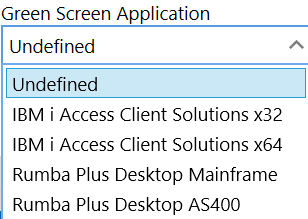
This property defines that the default value is Undefined. The five available options in this property are Undefined, IBM i Access Client Solutions x32, IBM i Access Client Solutions x64, Rumba Plus Desktop Mainframe and Ruma Plus Desktop AS400.
Default CoPilot Investigation Analysis
This setting defines whether AI-based root cause analysis should be triggered automatically for failed flows.
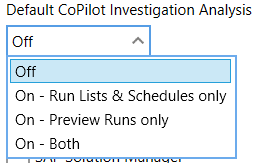
The available options are:
-
Off: CoPilot will not be available.
-
On-Run Lists & Schedules only: CoPilot Investigation Analysis runs automatically only during scheduled and batch executions.
-
On-Preview Runs only: CoPilot Investigation Analysis will run automatically only during flow previews.
-
On-Both: CoPilot Investigation Analysis will be available for both Preview Runs and scheduled runs.
-
If enabled, the analysis appears directly in the Activity Log after a failed run.
-
If disabled, you can still access it manually by clicking the CoPilot Analysis button.
The Save button saves all the provided details.