
As a Leapwork user, your license type (Trial, Platform, or Enterprise License) determines your access to the Leapwork Automation Platform.
Note: License Management settings are available if you are logged in as an administrator. For more information, please refer to licenses and deployment.
All licenses are installed on the Controller using Flow as the interface. For installation and activation details, see the Download and Installation Guides.
License Types:
-
Trial License: Short-term, limited feature access for evaluation.
-
Platform License: For teams needing to collaborate on designing, maintaining, and running automation flows.
-
Enterprise License: For large-scale deployments requiring all the features.
One controller will be associated with one license.
The active license configuration can be found in License Management under the Settings section.
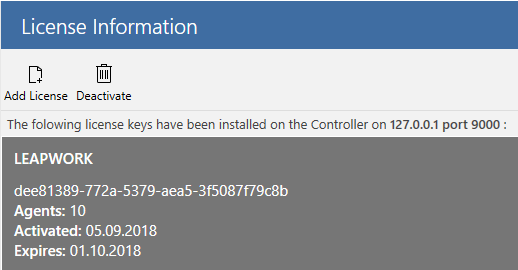
Add License
The Add a License button is disabled when the customer's license is active. When the current license expires, the button will be enabled, allowing the purchase of a new license.
This ensures a seamless transition and continuous use of the product without interruptions.
Refresh License
Refreshing the license updates changes such as adjustments to the number of users, agents, AI Blocks, or Cloud Blocks. This process grants access to important features, ensuring the correct configuration and optimal performance of your Leapwork platform.
To refresh:
-
Click the Refresh License button.
-
Click Refresh.
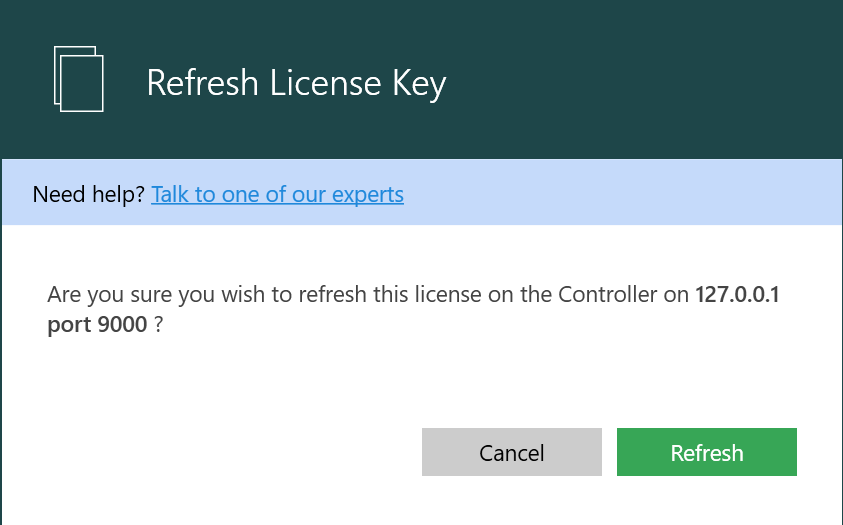
Note: When Customer Support requests a license refresh, it is essential to follow their instructions.
Deactivate License
You can deactivate a license to migrate the license to another Controller machine.
To deactivate:
-
Click the Deactivate License button.
-
Click Deactivate.
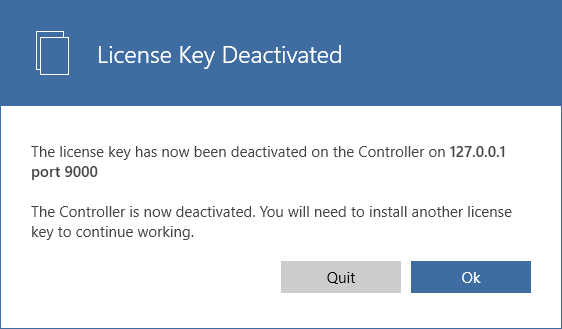
Note: If the last active license is removed from a Controller, you must add a new license before it becomes accessible.