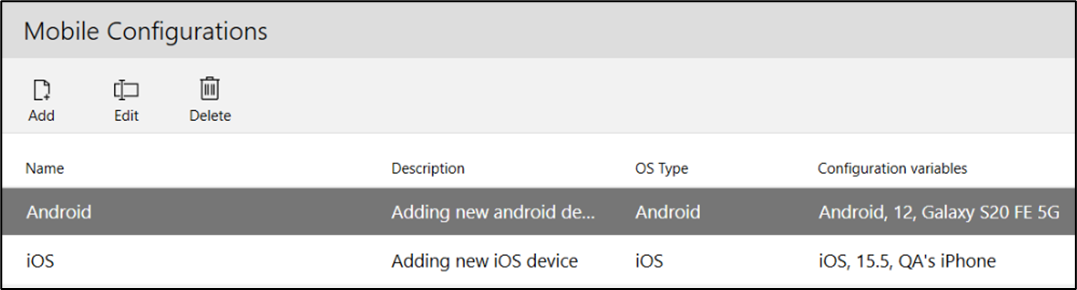
Once a connection is established, the Mobile Configurations tab allows administrators to add and manage mobile devices (phones, tablets, etc.) for automation.
Note: You must define a connection before adding any mobile devices. Only administrators can access Mobile Configuration settings.

Leapwork supports two mobile configuration types:
-
iOS Device
-
Android Device
Note: If you're using an Appium server connection, ensure all devices are also registered on the Appium server before adding them to Leapwork.
iOS Device Configuration:
-
In the Mobile Configurations tab, click Add.
-
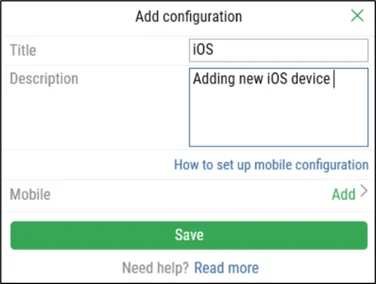
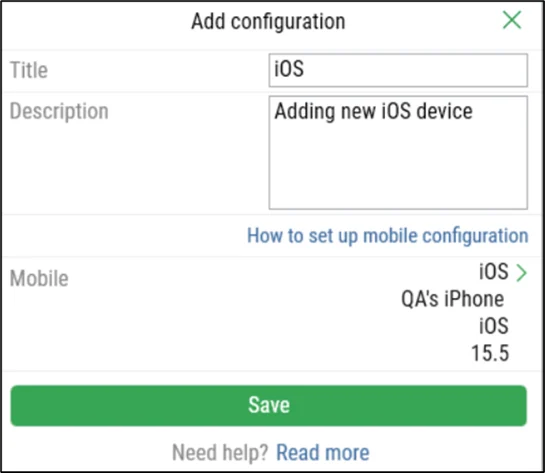
Enter a unique Title and a brief Description.
-
Click Add next to Mobile to open the configuration form.
-
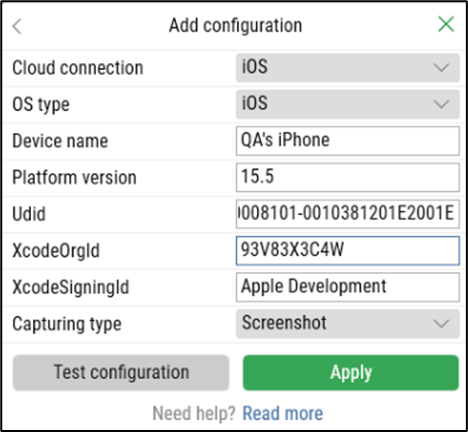
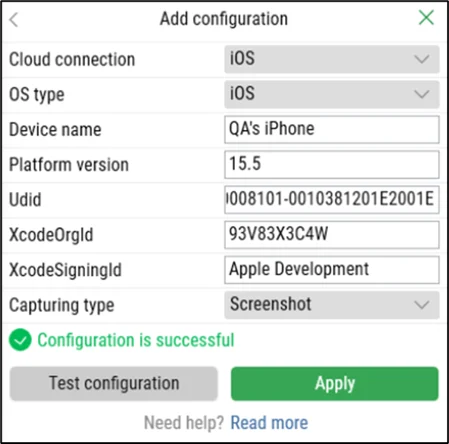
Fill in the fields:
-
Cloud connection: Select the desired connection.
-
OS type: Choose the operating system. This information is available on either the physical device or the HeadSpin device information.
-
Device name: Enter a name for the device.
-
Platform version: Specify the OS version. This information is available on either the physical device or the HeadSpin device information.
-
UDID: Enter the device's UDID.
-
XcodeOrgId and XcodeSigningId: Retrieve these from your Apple Developer account.
-
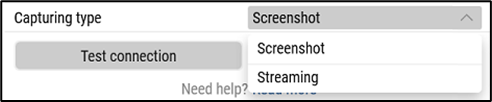
Capturing type:
-
Screenshot: Captures screenshots per block. Recommended for most use cases.
-
Streaming: Captures full-frame video. Requires more bandwidth and storage.
-
-
-
Click Test configuration to verify the setup.
-
Click Apply to register the changes.
-
Click Save.
A confirmation message appears and the new configuration is listed under Mobile.
Android Device Configuration
-
Open the Mobile Configurations tab and click Add.
-
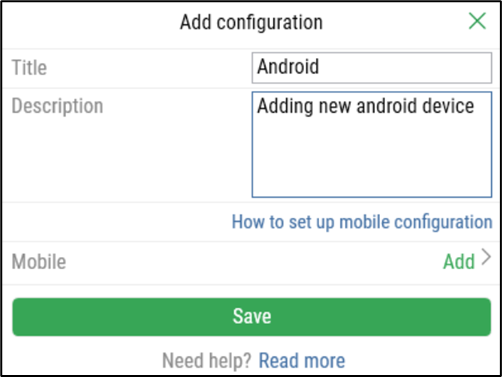
Provide a unique Title and a short Description.
-
Click Add next to Mobile to open the configuration form.
-
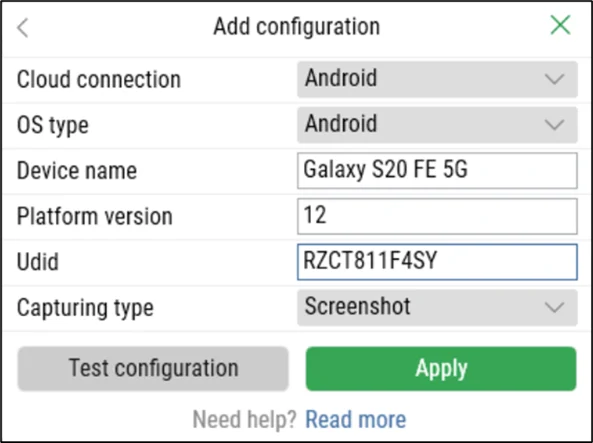
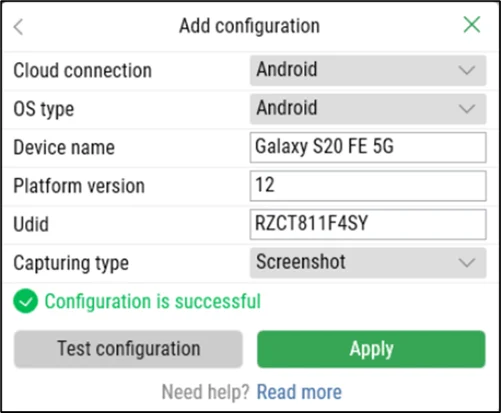
Fill in the fields:
-
Cloud connection: Select the desired connection.
-
OS type: Choose the operating system. This information is available on either the physical device or the HeadSpin device information.
-
Device name: Enter a name for the device.
-
Platform version: Specify the OS version. This information is available on either the physical device or the HeadSpin device information.
-
UDID:se the command
adb devicesin the terminal to retrieve it. -
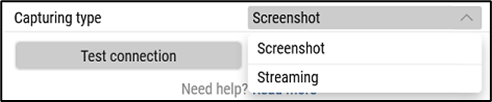
Capturing type:
-
Screenshot: Captures screenshots by block. Recommended for most cases.
-
Streaming: Captures full-frame video. Requires more bandwidth and storage.
-
-
-
Click Test configuration to verify the setup.
-
Click Apply to register the changes.
-
Click Save.
A confirmation message appears and the new configuration is listed under Mobile.
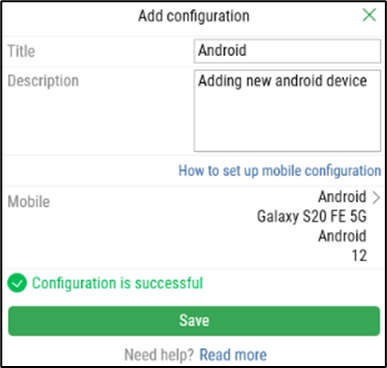
To edit or delete a configuration, use the Edit or Delete buttons beside the mobile device entry.