
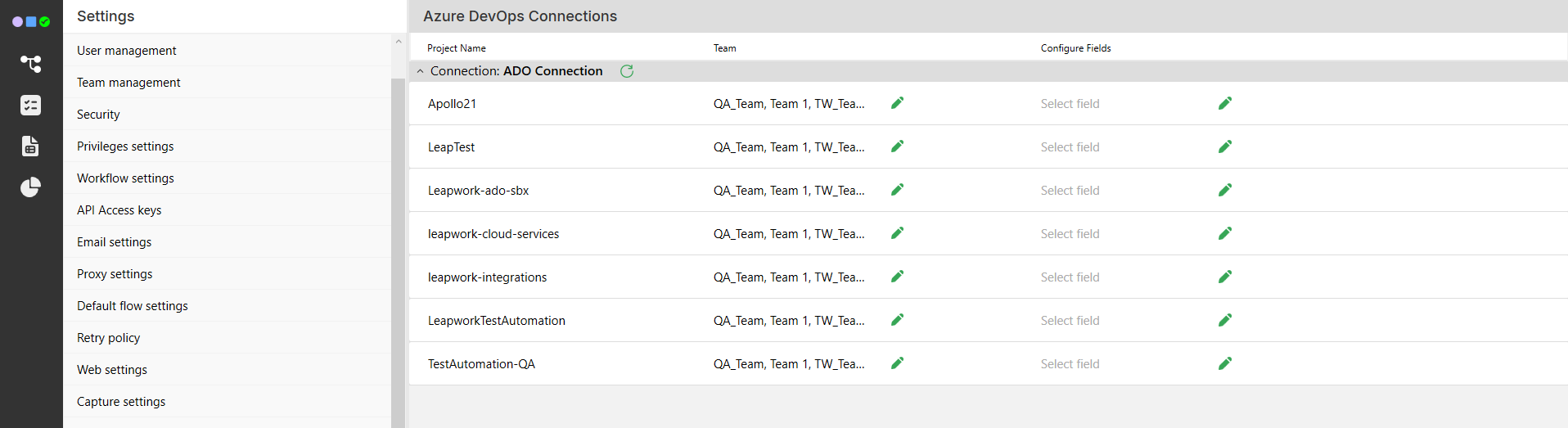
The Azure DevOps (ADO) Connections section allows administrators to link ADO projects with specific Leapwork teams and define which custom fields should be completed when creating bugs in ADO from Leapwork.
This section lists all Azure DevOps (ADO) projects by each configured ADO connection.
Note: If no ADO connections exist, this section will not show projects.
Note: The screenshots on this page use the Elegance Design, introduced in 2025.3. If you are using an earlier version, your layout may look different.
Each project row includes two editable columns:
-
Team: Assign Leapwork teams authorized to interact with the project.
-
Configure Fields: Select the custom fields to complete when reporting bugs.
Only users with the Administrator role can configure Azure DevOps project access and custom field settings in the Azure DevOps Connections section.
How to Assign Teams to an ADO Project
-
In the Team column, click the pencil icon for the project.
-
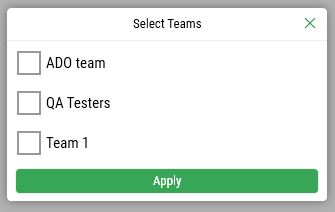
A modal window opens with a list of all Leapwork teams.
-
Check the boxes for teams that should access the specific ADO project.
-
Click Apply to save your selection.
Note: Only members of the assigned teams will be able to publish results and create bugs in that project from Leapwork.
How to Assign Custom Fields
-
In the Configure Fields, click the pencil icon next to the project.
-
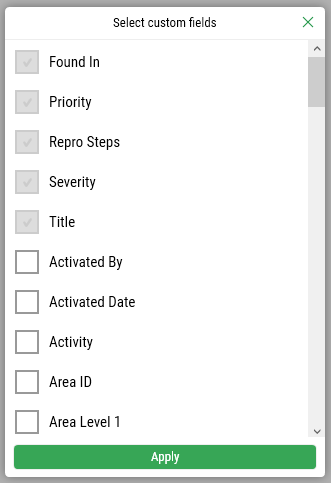
A modal opens displaying the custom fields registered in Azure DevOps.
-
Scroll down and check the fields you want to enable for bug creation.
-
Click Apply to confirm.
The selected fields will appear in the Create a bug in ADO dialog when submitting a bug from Leapwork.