
Cannot run because no agents are defined
When starting a flow from the Flows panel or the Scheduler, Leapwork shows this message because no Execution Agent is configured or assigned.
Note: Preview mode (Run from the Flow editor) uses your local display and does not require an agent.
Possible solutions
-
Quick check: Run in Preview mode to validate the flow locally.
-
Create an Execution Agent:
-
Go to Agents → New.
-
Set Title and Hostname (machine name/IP where Leapwork Agent is installed). Use
localhostif Agent and Studio are on the same machine.
-
-
Set a default agent (if your version supports it) to avoid selection prompts.
-
Select an agent before pressing Run in the Flows panel.
-
Bind an agent to each Schedule in the Scheduler settings.
-
If it still fails, check basics:
-
Agent service installed and running.
-
Correct Hostname/IP.
-
Network allows connectivity between Studio and Agent.
-
How to verify it’s fixed
-
Flows panel: pick the flow + agent → Run. The run should move Pending → Running → Passed/Failed with no error.
-
Scheduler: ensure the schedule has an agent → trigger ad-hoc → check Run history starts without the error.
-
Optional: In Agents, the agent shows Online/available.
If the issue persists, contact Priority Support with screenshots, how you launched the run (Flows panel or Scheduler), and timestamps.
“Unknown host” while running a test case
When starting a run, Leapwork shows “Unknown host.” This usually means either the hostname is unreachable or the hostname in the selected Environment/Agent settings is incorrect.
Possible solutions
-
Ping the hostname: From the Studio/Controller machine, run
ping <hostname>to confirm reachability. -
If unreachable: Contact your network/IT admin (or cloud provider) to resolve connectivity.
-
If reachable: Open your Environment/Agent settings and verify the Hostname value. Correct it if wrong and Test connection.
-
Access from both apps: Ensure the hostname is reachable from both Leapwork Studio and Controller (same name/IP).
How to verify it’s fixed
-
In Environment/Agent settings, click Test connection → it should succeed.
-
Re-run the test from the Flows panel/Scheduler → the run should start (Pending → Running) without the “Unknown host” error.
If the issue persists, contact Priority Support with your hostname, test time, and how you launched the run.
Could not connect on port 6777 when adding/testing an Environment
The Controller can’t reach the Agent on TCP 6777 (default Controller↔Agent port). Common causes: the Leapwork Agent service isn’t installed/running, firewall blocks 6777, the Agent machine is offline, or the port/host is misconfigured.
Possible solutions
-
Ensure the Agent service is installed and running
-
Win + R→ services.msc → find Leapwork Agent.
-
If missing: install the Agent (same version as Studio & Controller) from your Leapwork Account → Downloads.
-
If present: Start it (or Restart if already running).
-
-
Open network path on port 6777
-
Ask IT/cloud ops to allow inbound/outbound TCP 6777 between Controller and Agent (host firewalls, corporate firewall, security groups).
-
-
Verify the Agent host is reachable
-
ping <hostname-or-ip>. If unreachable, start the machine or correct the hostname.
-
-
Validate Environment settings
-
In Environments, check Hostname and Port (6777 by default).
-
Correct values and ensure Controller and Agent use the same port. Save and test connection.
-
How to verify it’s fixed
-
In Environment settings, click Test connection → it should succeed.
-
From the Controller machine, optionally run
Test-NetConnection <host> -Port 6777(ortelnet <host> 6777) → should report open. -
Run a small flow on that Agent → status moves Pending → Running without the 6777 error.
If the issue persists, contact Priority Support with screenshots, timestamps, and the affected Environment/host.
Your Remote Desktop Services session has ended
You see this message when:
-
Studio, Controller, and Agent run on the same machine and you connect via RDP.
-
You try to connect to the Agent using the same Windows user account already logged in via RDP. Only one active desktop session is allowed for the Agent, so the other session is dropped.
Result: you get a login screen instead of live video; Web tests may run, but Desktop UI and Image & Text Recognition tests fail.
Possible solutions
-
Use a different Windows user account
-
Create a new local/domain Windows user.
-
In Environments → New/Edit (Remote Agent), set the Agent hostname and credentials for the new user.
-
Test connection and log in with the new account.
-
-
Avoid sharing the same account
-
Ensure no one (including you via RDP) is connected to the Agent with the same user credentials.
-
-
Keep the Agent session active
-
Don’t log out or disconnect that user session while tests are running.
-
How to verify it’s fixed
-
In the Environment, click Test connection → it should succeed and stay connected.
-
Start a desktop test → you should see live video (no login screen).
-
Confirm Desktop UI and Image/Text Recognition cases execute without the RDS-ended error.
Leapwork Studio is not able to connect to Agent
After a Leapwork code-signing certificate update, some Windows machines, especially offline/firewalled ones, may fail to connect to Agents or show very slow Agent startup. Windows hasn’t refreshed certificate trust lists (CTLs), causing the handshake to stall.
Possible solutions
-
(Connected networks) Allow Windows to refresh certificates
-
Ensure the machine can reach Windows Update/CRL/OCSP endpoints → restart the Leapwork Agent service.
-
-
(Disconnected/firewalled networks) Disable network retrieval of CTLs via Group Policy
-
Open Local Group Policy Editor (
gpedit.msc). -
Computer Configuration → Windows Settings → Security Settings → Public Key Policies.
-
Certificate Path Validation Settings → Network Retrieval tab.
-
Define these policy settings → clear “Automatically update certificates in the Microsoft Root Certificate Program (recommended)”.
-
Apply/OK.
Apply this only to machines without Internet access.
-
-
Manually manage trust
-
Distribute the required root/intermediate certificates via GPO or MMC into Trusted Root / Intermediate Certification Authorities.
-
-
General checks
-
Ensure Agent, Controller, and Studio are the same version.
-
Restart the Leapwork Agent service (and Controller if needed).
-
How to verify it’s fixed
-
Restart the Leapwork Agent → it should start promptly (no long delay).
-
In Studio → Environments, click Test connection → Success.
-
Run a small flow → status moves Pending → Running without connection errors.
If the issue persists, contact Priority Support with screenshots, timestamps, and affected machine details.
Black screen / “Agent Failed State - Could not connect to Remote agent”
On VMs or PCs with switchable graphics (Intel + NVIDIA/AMD), the Agent may fail to connect from Environments. You might see a black screen on Test connection or a popup saying “Could not connect on port 6777. Agent Failed State.”
Possible solutions
-
Use Intel graphics for LEAPWORK.Win.Agent.exe in the NVIDIA Control Panel or AMD Radeon Settings.
-
Restart the Remote Agent service.
-
Try the connection again from Leapwork → Environments.
How to verify it’s fixed
-
Test connection shows live video and the Agent status is Online/Connected.
-
A small desktop flow runs without Agent Failed State or 6777 errors.
Desktop UI - Virtual Desktop case fails on Windows Server / Windows 10 N / Windows 7
Desktop UI or Virtual Desktop runs fail immediately with Failed entries in action logs. This typically happens when Windows components required for desktop automation are missing or disabled.
Possible solutions
Windows Server
-
Sign in to the server.
-
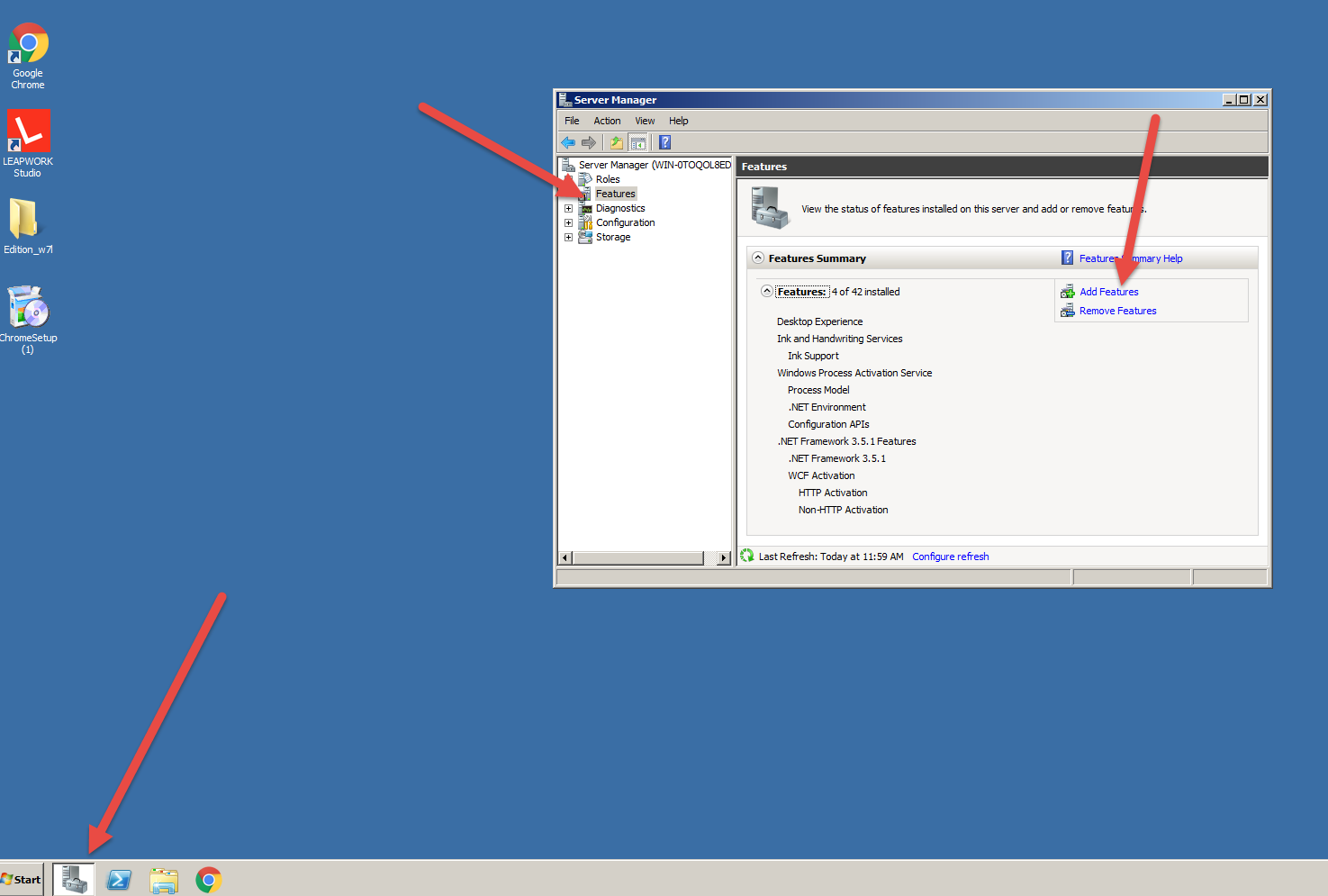
Press Win+R → type ServerManager → Enter.
-
Features → Add Features.
-
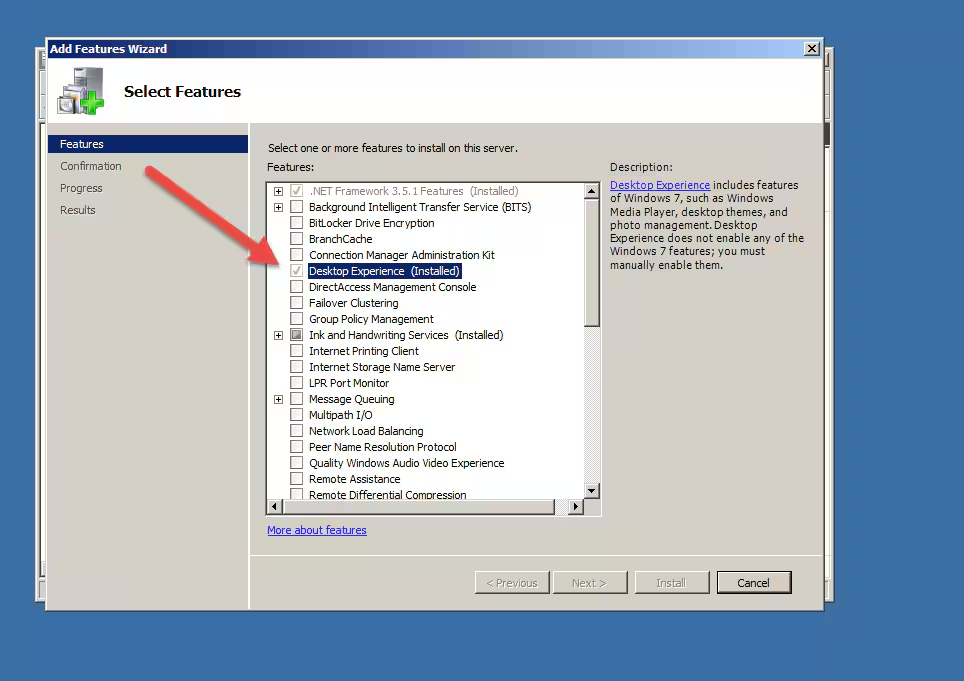
Find Desktop Experience and enable it.
-
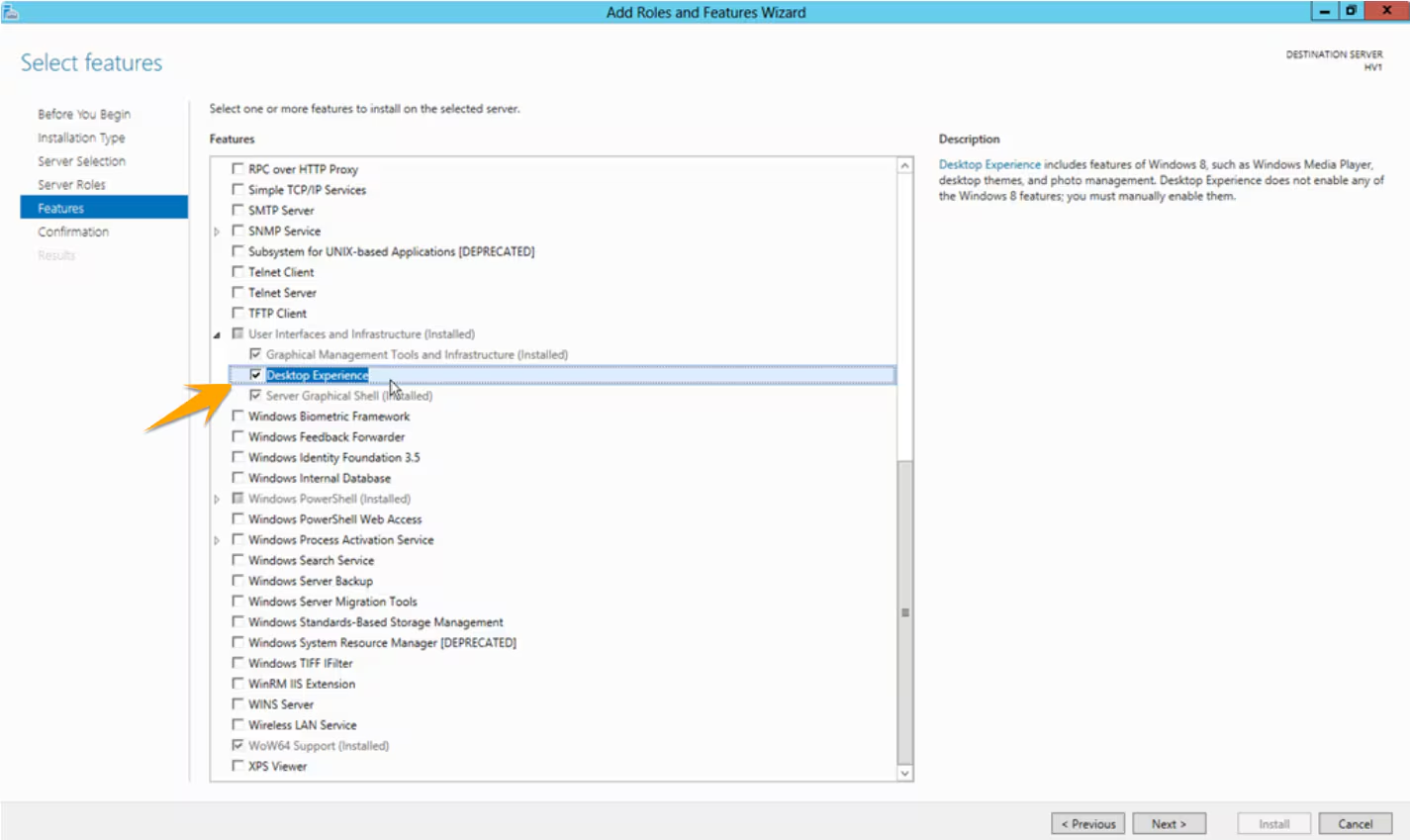
On Windows Server 2012, go to Features → User Interfaces and Infrastructure → enable Desktop Experience.
-
-
Complete setup and reboot if prompted.
Windows 7
-
Run Windows Update and install the latest updates.
-
Reboot.
Windows 10 N
-
Determine your Windows 10 N version and install the matching Media Feature Pack (for example, KB4057437 for version 1709).
-
Reboot.
-
If required in your setup, enable Desktop Experience–related components as in the Windows Server steps.
How to verify it’s fixed
-
Open Leapwork and run a small Desktop UI/Virtual Desktop case.
-
You should see the desktop video feed; steps should execute instead of failing immediately.
-
Action logs should show steps progressing to Passed/Failed without missing-component errors.
If the issue persists, contact Priority Support.
Incorrect password / wrong keys typed on Agent connection
You can log in to the Agent machine via RDP, but Leapwork shows “incorrect password.” The likely cause is a keyboard layout mismatch: your local layout differs from the Agent machine’s system layout, so characters entered at the login screen are mapped differently.
Possible solutions
-
Apply the correct input method to system accounts on the Agent machine:
-
Log in via RDP.
-
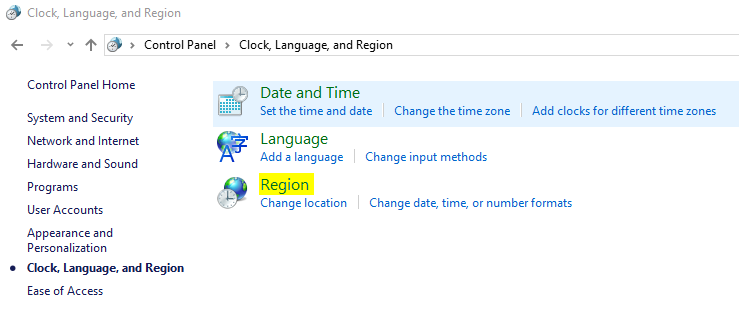
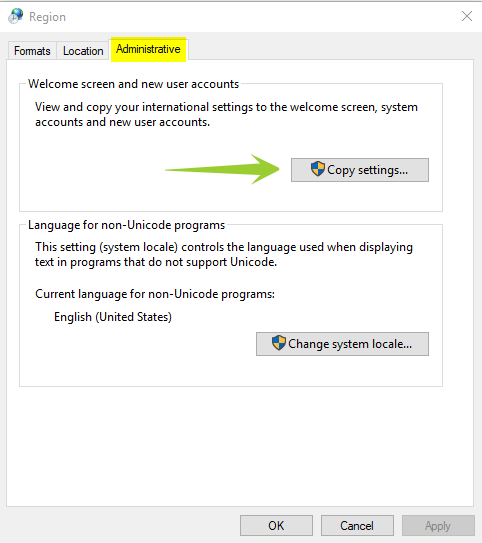
Open Control Panel → Region.
-
Go to the Administrative tab → Copy settings.
-
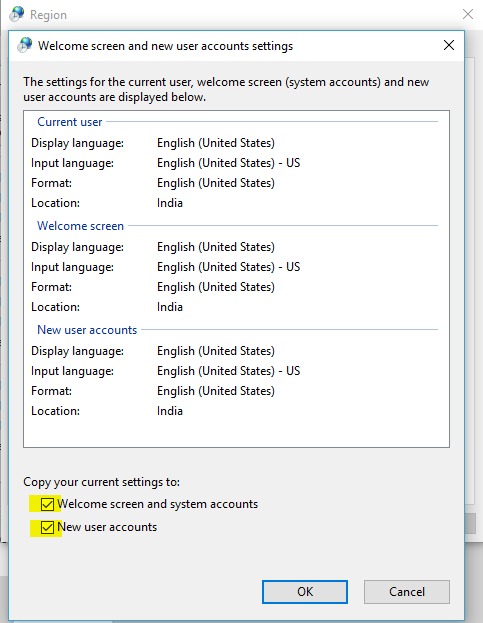
Ensure your current user has the correct language/keyboard as Default.
-
Check:
-
Welcome screen and system accounts
-
New user accounts
-
-
Click OK and restart the Agent machine.
-
-
After reboot, ensure only the intended keyboard layout remains enabled for that machine.
How to verify it’s fixed
-
Connect from Leapwork again using the same credentials.
-
The login should succeed and the session should start (no “incorrect password” message).
Infinite mirrors when Preview points to Local Agent
While capturing images, the screen shows a hall-of-mirrors effect and the actual app isn’t captured. This happens because, with Local Agent, Leapwork becomes the active window during capture.
Possible solutions
-
Use Local (Display 1) for design/preview
-
In Studio, set the preview target to Local (Display 1) instead of Local Agent.
-
Studio auto-minimizes during capture so the target app is captured, not Studio.
-
-
Use a Remote Agent to capture
-
Capture images on the Remote Agent.
-
This keeps design and runtime resolutions identical and improves stability.
-
How to verify it’s fixed
-
Capture a test image: the thumbnail should show the target app (no mirrors).
-
Run the case in preview: no mirror effect; steps execute against the captured UI.
-
If using Remote Agent, run the case on that Agent and confirm images match and actions pass.
Seeing a login screen when testing connection to my local Agent on a VM
On a VM where Studio, Controller, and Agent are installed, testing the Environment can show a login screen (and sometimes “Your Remote Desktop Services session has ended”). This happens when the same Windows user account is used both for your RDP session and for the Agent session; only one active desktop session is allowed.
Possible solutions
-
Create another Windows user account. See how to do that here.
-
Create a Remote Agent environment, filling in the hostname of the remote machine (with the Agent) and other relevant data.
-
Click Test connection. You will see a choice of user accounts. Select the one you have just created and log in.
How to verify it’s fixed
-
Test connection shows the live desktop (no login screen).
-
Run a small Desktop UI/Image & Text Recognition case; it executes normally without dropping the session.
Not getting all display resolution options on the Remote Agent
When connecting to a Leapwork Remote Agent (often on VMs like VMware, Citrix, Hyper-V), fewer display resolutions are shown than in Remote Desktop. RDP and Leapwork use different technologies; the Agent can only offer resolutions exposed by the VM’s virtual display/driver.
Possible solutions
-
Ask your VM administrator to enable the required resolutions in the hypervisor settings for that VM.
-
Examples (VMware): increase video memory, allow higher max resolution/number of displays, enable 3D acceleration, ensure VMware Tools are installed; add custom resolutions if needed. See vendor guides such as:
-
-
On the Agent machine, install/update the VM guest tools or display drivers (e.g., VMware Tools, Citrix VDA, Hyper-V guest services).
-
Restart Windows on the Agent VM, then restart the Leapwork Agent service.
-
Reopen the Environment editor and refresh the resolutions list.
How to verify it’s fixed
-
In the Agent configuration page, the expected resolutions are now listed.
-
Design a small Desktop UI case at one of the newly available resolutions and run it on that Agent; the run video and action logs should reflect the chosen resolution and execute normally.
If you still can’t see the required resolutions on the Agent, contact your VM administrators—this is an environment configuration issue rather than a Leapwork issue.
Error when connecting to local Agent using localhost
When connecting to the Local Agent with the hostname "localhost," the connection may fail. This typically happens if the Leapwork Agent service is not running, or if localhost name resolution is not working correctly on the machine.
Possible solutions
-
Check Leapwork Agent service
-
Press Win+R → type
services.msc→ Enter. -
Find Leapwork Agent in the list.
-
If status is not Running, right-click → Start.
-
If access is denied, contact your IT administrator to enable the service.
-
-
Test localhost resolution
-
If name resolution fails, replace "localhost" with
127.0.0.1in the Environment settings.
-
How to verify it’s fixed
-
In Leapwork Studio, go to Environments and click Test connection.
-
The connection should succeed without error.
-
Run a small flow on the Local Agent and confirm it starts and executes normally.
If the issue persists, contact Priority Support with details about the machine and the error message.
Can’t schedule tests on my local Agent after switching to Windows authentication
From Leapwork version 2020.1 onwards, when Studio, Controller, and Agent are installed on the same machine, test scheduling fails if you rely on Windows authentication. This happens because Windows only allows one active user session per machine. When Studio is running under your active session, the Agent cannot start a second one for scheduled execution.
Possible solutions
-
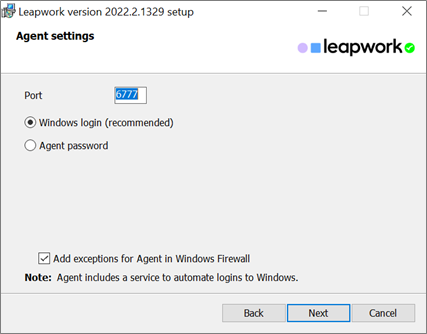
Reinstall Leapwork with Agent password authentication
-
Uninstall the current installation.
-
Reinstall and, during setup, choose the option to configure the Agent with a dedicated password.
-
This allows scheduling because the Agent can authenticate without requiring your active Windows session.
-
-
Use a separate machine for the Agent
-
Set up a virtual, physical, or cloud machine and install the Leapwork Agent on it.
-
Connect your Studio/Controller to this remote Agent and schedule tests there.
-
This avoids the one-session limitation on your local machine.
-
How to verify it’s fixed
-
In Studio, open the Scheduler, select a flow, and assign it to the Agent.
-
Start the schedule or wait for its trigger.
-
The run should proceed to Running and complete without showing connection or authentication errors.
If the problem persists after reinstalling with Agent password authentication or configuring a remote Agent, contact Priority Support with details of your installation and authentication settings.
What’s the impact if the Agent screen is locked?
When the Agent machine’s screen is locked during execution, the test outcome depends on the application type being automated. The lock interrupts video capture and, in some cases, the actual automation steps.
Possible outcomes
-
Web applications
-
The test continues to run even if the screen is locked.
-
The video recording only shows the locked screen.
-
-
Desktop applications
-
The test starts, but fails shortly after the application opens.
-
No video recording is available.
-
-
Virtual applications
-
The test does not run at all.
-
No video recording is available.
-
Possible solutions
-
Update the Agent configuration file to prevent the machine from locking while the Agent is active.
-
Create a custom building block that logs into the remote machine before starting the test, ensuring the session stays active.
How to verify it’s fixed
-
Lock prevention in the Agent config: run a test with the screen idle; the session should stay awake and the test should execute.
-
Custom login block: schedule a test that starts with the login step; the test should log into the machine, then proceed with the intended case steps without failing.
If the issue continues, contact Priority Support for further assistance.