
How to fix Error Code 2753 that appear while upgrading Leapwork?
To resolve Error Code 2753 during a Leapwork upgrade, follow the steps below:
-
Back up all automation flows.
-
Uninstall the current Leapwork version from the Control Panel.
-
Restart the system.
-
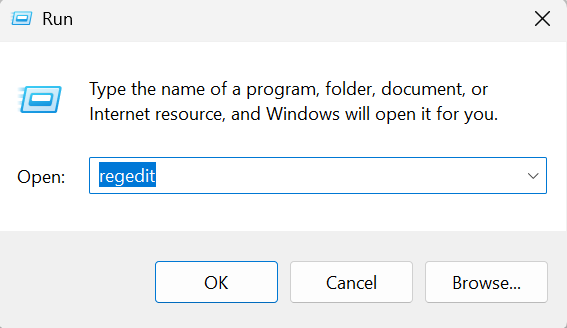
Open the Windows Registry by navigating to Start > Run.
-
Type regedit in the Run dialog.
-
Select OK to proceed.
Note: Before deleting a registry key, ensure to take a backup of the registry key as deleting a registry key could cause inconsistencies on the machine.
-
Open the Registry Editor.
-
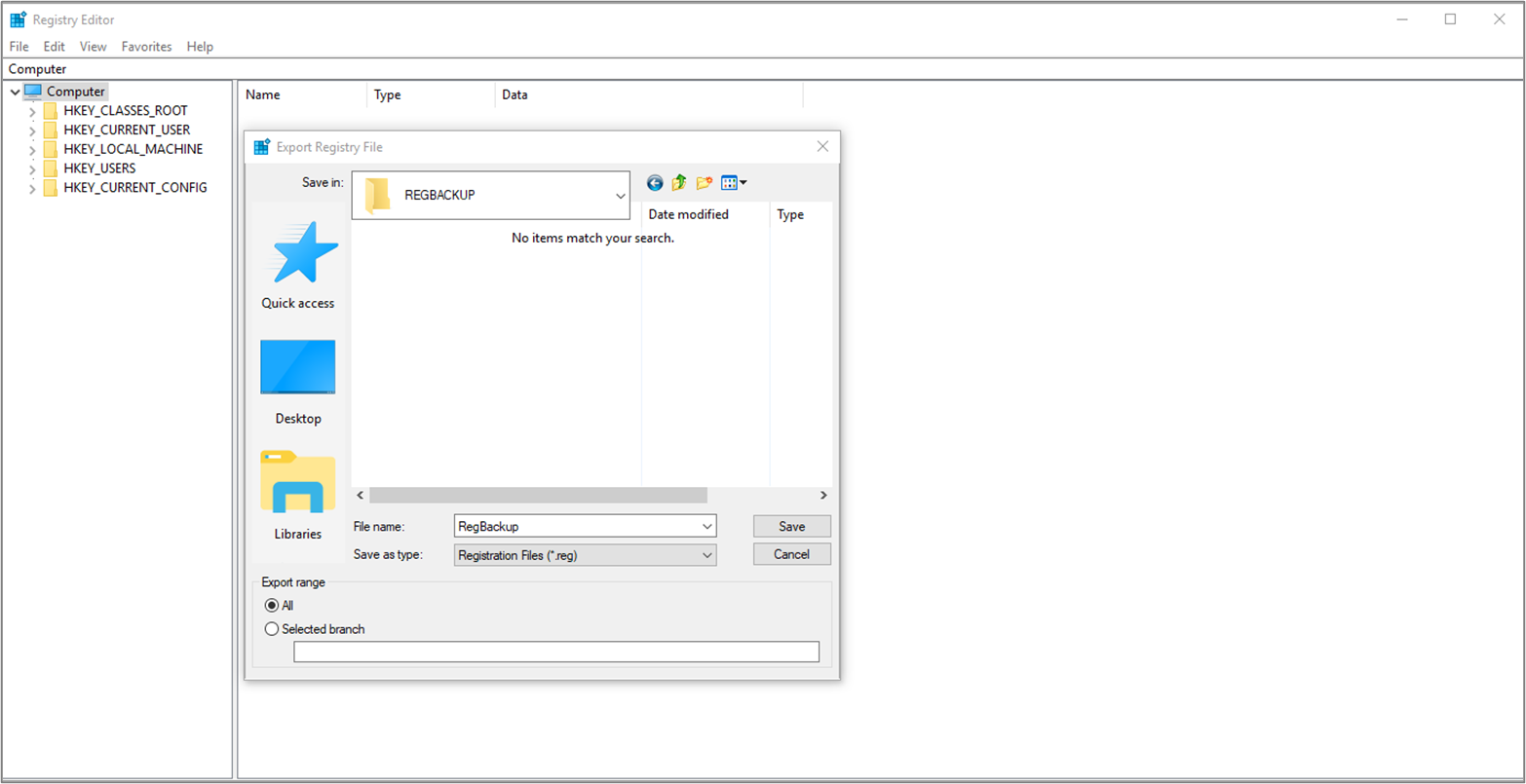
Go to File > Export.
-
Enter a file name and save the backup as a .reg file.
-
Browse to the following path:
HKEY_CLASSES_ROOT\Installer\Products\
-
Search for the keyword 'Leapwork'.
-
Delete the Leapwork entries that appear, but make sure you take a backup before removing anything.
Note: The GUID varies for each Leapwork version, so be sure to search using the keyword mentioned above.
-
Close the Registry Editor and then retry the Leapwork installation.
What does the “Port 9000 is already in use” error mean during installation?
"Port 9000 is already in use” error message is shown due to below reasons.
-
An earlier version of Leapwork is using port 9000.
-
Another program/application is using port 9000.
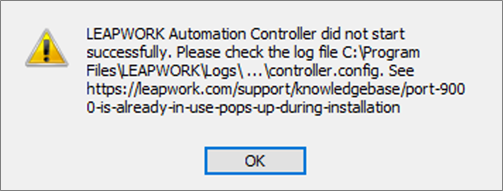
The following popup appears during installation when the port is already in use.
The issue can be resolved in the following ways:
What does the error “This installation package could not be opened” mean and how to fix?
Usually, it happens when we try to install 32-bit msi on or 64-bit system or vice versa.
You can fix this issue by following below steps:
-
Check whether your operating system is 32-bit or 64-bit, by navigating to: Control Panel > System and Security > System.
-
Now, download the same version of msi (32-bit or 64-bit as found above) from https://account.leapwork.com/downloads and install it.
What does the “Could not access network location” error mean when upgrading Leapwork?
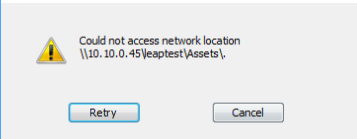
This issue may occur if there is an incorrect setting in one of the following registry subkeys:
HKEY_CURRENT_USER\Software\Microsoft\Windows\CurrentVersion\Explorer\User Shell Folders
HKEY_LOCAL_MACHINE\Software\Microsoft\Windows\CurrentVersion\Explorer\User Shell Folders
Important: The following steps involve modifying the Windows Registry. Incorrect changes can cause system issues, so proceed carefully. For safety, create a backup of the registry before making any changes. This will allow you to restore it if anything goes wrong.
-
Take a backup of all automation cases.
-
Completely uninstall the old Leapwork version from the control panel.
-
Restart your system in the case of Windows 7 or 2008.
-
Launch the windows registry, to do it, from the Start menu, type regedit.exe in the search box, and then press Enter. If you are prompted for an administrator password or for confirmation, type the password or provide confirmation.
Note: Always back up a registry key before deleting it to prevent problems.
-
Once the Registry Editor is open, take a backup of the registry from File - Export - Enter File Name - Save (Save as .reg).
-
Locate and then click the following registry subkey:
HKEY_CURRENT_USER\Software\Microsoft\Windows\CurrentVersion\Explorer\User Shell Folders
-
In the right pane, confirm that the values match the table. If they do, proceed to step 11.
For Windows XP and for Windows Server 2003
|
Value Name |
Type |
Value Data |
|---|---|---|
|
AppData |
REG_EXPAND_SZ |
%USERPROFILE%\Application Data |
|
Cache |
REG_EXPAND_SZ |
%USERPROFILE%\Local Settings\Temporary Internet Files |
|
Cookies |
REG_EXPAND_SZ |
%USERPROFILE%\Cookies |
|
Desktop |
REG_EXPAND_SZ |
%USERPROFILE%\Desktop |
|
Favorites |
REG_EXPAND_SZ |
%USERPROFILE%\Favorites |
|
History |
REG_EXPAND_SZ |
%USERPROFILE%\Local Settings\History |
|
Local AppData |
REG_EXPAND_SZ |
%USERPROFILE%\Local Settings\Application Data |
|
Local Settings |
REG_EXPAND_SZ |
%USERPROFILE%\Local Settings |
|
My Pictures |
REG_EXPAND_SZ |
%USERPROFILE%\My Documents\My Pictures |
|
NetHood |
REG_EXPAND_SZ |
%USERPROFILE%\NetHood |
|
Personal |
REG_EXPAND_SZ |
%USERPROFILE%\My Documents |
|
PrintHood |
REG_EXPAND_SZ |
%USERPROFILE%\PrintHood |
|
Programs |
REG_EXPAND_SZ |
%USERPROFILE%\Start Menu\Programs |
|
Recent |
REG_EXPAND_SZ |
%USERPROFILE%\Recent |
|
SendTo |
REG_EXPAND_SZ |
%USERPROFILE%\SendTo |
|
Start Menu |
REG_EXPAND_SZ |
%USERPROFILE%\Start Menu |
|
Startup |
REG_EXPAND_SZ |
%USERPROFILE%\Start Menu\programs\Startup |
|
Templates |
REG_EXPAND_SZ |
%USERPROFILE%\Templates |
For Windows Vista, Windows 7, and Windows Server 2008
|
Value Name |
Type |
Value Data |
|---|---|---|
|
{374DE290-123F-4565-9164-39C4925E467B} |
REG_EXPAND_SZ |
%USERPROFILE%\Downloads |
|
AppData |
REG_EXPAND_SZ |
%USERPROFILE%\AppData\Roaming |
|
Cache |
REG_EXPAND_SZ |
%USERPROFILE%\AppData\Local\Microsoft\Windows\Temporary Internet Files |
|
Cookies |
REG_EXPAND_SZ |
%USERPROFILE%\AppData\Roaming\Microsoft\Windows\Cookies |
|
Desktop |
REG_EXPAND_SZ |
%USERPROFILE%\Desktop |
|
Favorites |
REG_EXPAND_SZ |
%USERPROFILE%\Favorites |
|
History |
REG_EXPAND_SZ |
%USERPROFILE%\AppData\Local\Microsoft\Windows\History |
|
LocalAppData |
REG_EXPAND_SZ |
%USERPROFILE%\AppData\Local |
|
My Pictures |
REG_EXPAND_SZ |
%USERPROFILE%\Pictures |
|
My Music |
REG_EXPAND_SZ |
%USERPROFILE%\Music |
|
My Video |
REG_EXPAND_SZ |
%USERPROFILE%\Videos |
|
NetHood |
REG_EXPAND_SZ |
%USERPROFILE%\AppData\Roaming\Microsoft\Windows\Network Shortcuts |
|
Personal |
REG_EXPAND_SZ |
%USERPROFILE%\Documents |
|
PrintHood |
REG_EXPAND_SZ |
%USERPROFILE%\AppData\Roaming\Microsoft\Windows\Printer Shortcuts |
|
Programs |
REG_EXPAND_SZ |
%USERPROFILE%\AppData\Roaming\Microsoft\Windows\Start Menu\Programs |
|
Recent |
REG_EXPAND_SZ |
%USERPROFILE%\AppData\Roaming\Microsoft\Windows\Recent |
|
SendTo |
REG_EXPAND_SZ |
%USERPROFILE%\AppData\Roaming\Microsoft\Windows\SendTo |
|
Start Menu |
REG_EXPAND_SZ |
%USERPROFILE%\AppData\Roaming\Microsoft\Windows\Start Menu |
|
Startup |
REG_EXPAND_SZ |
%USERPROFILE%\AppData\Roaming\Microsoft\Windows\Start Menu\Programs\Startup |
|
Templates |
REG_EXPAND_SZ |
%USERPROFILE%\AppData\Roaming\Microsoft\Windows\Templates |
For Windows 10
|
Value Name |
Type |
Value Data |
|---|---|---|
|
{374DE290-123F-4565-9164-39C4925E467B} |
REG_EXPAND_SZ |
%USERPROFILE%\Downloads |
|
AppData |
REG_EXPAND_SZ |
%USERPROFILE%\AppData\Roaming |
|
Cache |
REG_EXPAND_SZ |
%USERPROFILE%\AppData\Local\Microsoft\Windows\INetCache |
|
Cookies |
REG_EXPAND_SZ |
%USERPROFILE%\AppData\Local\Microsoft\Windows\INetCookies |
|
Desktop |
REG_EXPAND_SZ |
%USERPROFILE%\Desktop |
|
Favorites |
REG_EXPAND_SZ |
%USERPROFILE%\Favorites |
|
History |
REG_EXPAND_SZ |
%USERPROFILE%\AppData\Local\Microsoft\Windows\History |
|
LocalAppData |
REG_EXPAND_SZ |
%USERPROFILE%\AppData\Local |
|
My Pictures |
REG_EXPAND_SZ |
%USERPROFILE%\Pictures |
|
My Music |
REG_EXPAND_SZ |
%USERPROFILE%\Music |
|
My Video |
REG_EXPAND_SZ |
%USERPROFILE%\Videos |
|
NetHood |
REG_EXPAND_SZ |
%USERPROFILE%\AppData\Roaming\Microsoft\Windows\Network Shortcuts |
|
Personal |
REG_EXPAND_SZ |
%USERPROFILE%\Documents |
|
PrintHood |
REG_EXPAND_SZ |
%USERPROFILE%\AppData\Roaming\Microsoft\Windows\Printer Shortcuts |
|
Programs |
REG_EXPAND_SZ |
%USERPROFILE%\AppData\Roaming\Microsoft\Windows\Start Menu\Programs |
|
Recent |
REG_EXPAND_SZ |
%USERPROFILE%\AppData\Roaming\Microsoft\Windows\Recent |
|
SendTo |
REG_EXPAND_SZ |
%USERPROFILE%\AppData\Roaming\Microsoft\Windows\SendTo |
|
Start Menu |
REG_EXPAND_SZ |
%USERPROFILE%\AppData\Roaming\Microsoft\Windows\Start Menu |
|
Startup |
REG_EXPAND_SZ |
%USERPROFILE%\AppData\Roaming\Microsoft\Windows\Start Menu\Programs\Startup |
|
Templates |
REG_EXPAND_SZ |
%USERPROFILE%\AppData\Roaming\Microsoft\Windows\Templates |
-
If any Name, Type, or Value does not match the table in step 7, right-click the Value name, and then click Delete.
-
In the left pane, right-click User Shell Folders, point to New, click Expandable String Value, type the Name value that you want from the table in step 7, and then press ENTER.
-
Right-click the value that you created in step 5, click
Modify, type the value in the Value data box for the Value name, and then click OK. -
Locate and then click the following registry subkey:
HKEY_LOCAL_MACHINE\Software\Microsoft\Windows\CurrentVersion\Explorer\User Shell Folders -
In the right pane, verify that the values are the same as the values in the following table. If each value matches the table, go to step 16.
For Windows XP and for Windows Server 2003
|
Value name |
Type |
Value data |
|---|---|---|
|
Common AppData |
REG_EXPAND_SZ |
%ALLUSERSPROFILE%\Application Data |
|
Common Desktop |
REG_EXPAND_SZ |
%ALLUSERSPROFILE%\Desktop |
|
Common Documents |
REG_EXPAND_SZ |
%ALLUSERSPROFILE%\Documents |
|
Common Favorites |
REG_EXPAND_SZ |
%ALLUSERSPROFILE%\Favorites |
|
Common Programs |
REG_EXPAND_SZ |
%ALLUSERSPROFILE%\Start Menu\Programs |
|
Common Start Menu |
REG_EXPAND_SZ |
%ALLUSERSPROFILE%\Start menu |
|
Common Startup |
REG_EXPAND_SZ |
%ALLUSERSPROFILE%\Start Menu\Programs\Startup |
|
Common templates |
REG_EXPAND_SZ |
%ALLUSERSPROFILE%\Templates |
For Windows Vista, Windows 7, Windows Server 2008 and Windows 10
|
Value name |
Type |
Value data |
|---|---|---|
|
{3D644C9B-1FB8-4f30-9B45-F670235F79C0} |
REG_EXPAND_SZ |
%PUBLIC%\Downloads |
|
Common AppData |
REG_EXPAND_SZ |
%ProgramData% |
|
Common Desktop |
REG_EXPAND_SZ |
%PUBLIC%\Desktop |
|
Common Documents |
REG_EXPAND_SZ |
%PUBLIC%\Documents |
|
Common Programs |
REG_EXPAND_SZ |
%ProgramData%\Microsoft\Windows\Start Menu\Programs |
|
Common Start Menu |
REG_EXPAND_SZ |
%ProgramData%\Microsoft\Windows\Start Menu |
|
Common Startup |
REG_EXPAND_SZ |
%ProgramData%\Microsoft\Windows\Start Menu\Programs\Startup |
|
Common templates |
REG_EXPAND_SZ |
%ProgramData%\Microsoft\Windows\Templates |
|
CommonMusic |
REG_EXPAND_SZ |
%PUBLIC%\Music |
|
CommonPictures |
REG_EXPAND_SZ |
%PUBLIC%\Pictures |
|
CommonVideo |
REG_EXPAND_SZ |
%PUBLIC%\Videos |
-
If any Name, Type, or Value doesn’t match step 8, right-click the value and select Delete.
-
In the left pane, right-click User Shell Folders > New > Expandable String Value, and enter the required Name from step 8.
-
Right-click the value you created, select Modify, enter the correct Value data, and click OK.
-
Close Registry Editor and restart the computer.
After the restart, you can proceed with installing Leapwork.
What does the error “LEAPWORK_CONTROLLER failed to start” mean during installation?
When installing the Leapwork Controller, you may see the error:
“Service 'LEAPWORK_CONTROLLER' failed to start. Verify that you have sufficient privileges to start system services.”
This usually means the installation wasn’t run with full administrator rights, so first ensure your user account has the required permissions.
However, this error can still appear even with admin rights. It often occurs due to antivirus tools, Windows Defender/firewall settings, or domain policies. In many cases, the Controller service simply times out before it can start.
To fix this, you need to increase the Windows wait time for starting services by updating the ServicesPipeTimeout registry value. Windows uses 30 seconds by default, and increasing this value gives the service enough time to start. This change is safe and does not impact Windows security.
Follow the steps below if this error appears during installation, even with administrator rights:
-
Open Run (Start > Run) and type
regedit. -
Go to
HKEY_LOCAL_MACHINE\SYSTEM\CurrentControlSet\Control. -
Right-click the right pane and select New > DWORD Value.
-
Name it
ServicesPipeTimeout. -
Right-click it, choose Modify, select Decimal, enter
180000, and click OK.
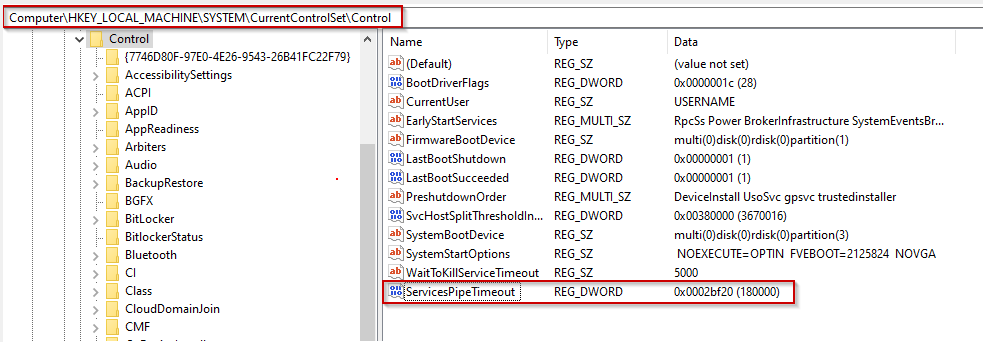
Note: The switch option only changes how you enter the value; it is always stored in Hex, with the Decimal value shown in brackets for convenience.
Selecting either option would have absolutely no effect on the program accessing the value and is the same either way.
-
Restart the computer.
-
Open 'Services' and check Leapwork Controller service should be up and running.