
The SharePoint Connection feature allows Leapwork administrators to configure and authenticate a connection to a SharePoint site. This integration allows you to automatically read from and write to Excel files stored in SharePoint, directly within your automation workflows.
Note: This feature will be available starting from Release 2025.1.
Add Connection
To add a connection:
-
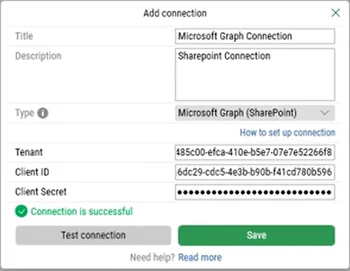
Click the Add button and the following pop-up appears:
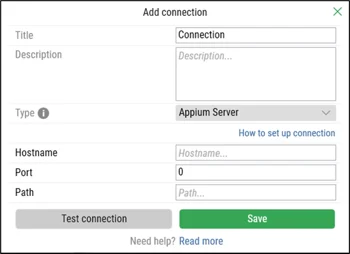
In the Add Connection pop-up window:
-
Enter the title in the Title field. It should be unique.
-
Enter the description in the Description field.
-
From the Type drop-down, select the Microsoft Graph (SharePoint) option:
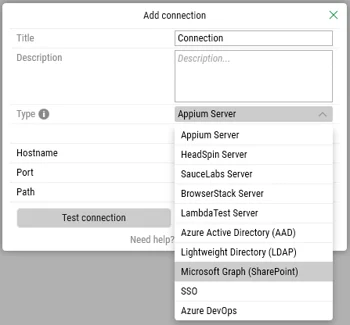
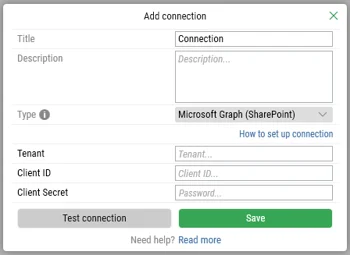
The following new fields appear:
-
Enter the tenant in the Tenant field.
-
Enter the client ID in the Client ID field.
Note: To obtain the Client ID, you must register the SharePoint application in Azure Active Directory (AAD). Refer to our Knowledge Base guide on app registration for step-by-step instructions. -
Enter the client secret in the Password field.
Note: To obtain the Password, you must register the SharePoint application in Azure Active Directory (AAD). Refer to our Knowledge Base guide on app registration for step-by-step instructions.
-
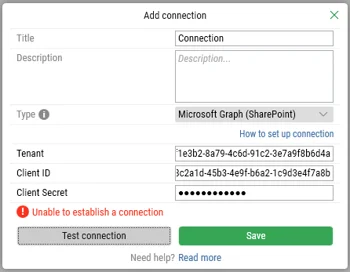
Click the Test Connection button to validate the credentials.
Leapwork will generate a temporary authentication token (valid for one hour).
The following events will happen based on connection status:
-
If the connection failed, an error message will be displayed.
-
If the connection is successful, a confirmation message will be displayed.
To modify or remove the connection, you can use the Edit or Delete buttons next to the Add button.
Once configured, this connection lets Leapwork automation read and write Excel files on the SharePoint site.
SharePoint Site URL & Document Library Handling
When configuring a Microsoft Graph SharePoint Connection, ensure you provide only the base SharePoint Site URL.
Site URL Format
-
Supported format:
<https://<tenant>>.sharepoint.com/sites/<SiteName> -
Do not include Document Library names in the Site URL:
-
❌ Incorrect:
<https://<tenant>>.sharepoint.com/sites/<SiteName>/Shared Documents -
❌ Incorrect:
<https://<tenant>>.sharepoint.com/sites/<SiteName>/Document
-
How Leapwork Interacts with Document Libraries
Automatic Library Iteration: Leapwork automatically iterates through all Document Libraries (drives) present within the specified SharePoint site to locate the requested file. You do not need to configure or specify individual document libraries.
Handling Identical File Names: If a file with the exact same name exists in multiple document libraries without folder differentiation, Leapwork will access the first matching instance it encounters. To target a specific file, organize it within a distinct folder structure.