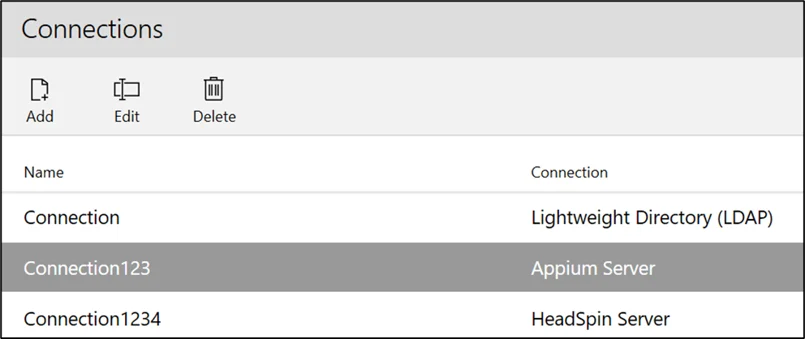
The Azure DevOps (ADO) connection allows you to integrate Leapwork with ADO for automated testing. With this integration, you can automate your Leapwork test cases and execute them as often as needed. Test execution reports and results are automatically available in Azure DevOps (ADO), giving you full visibility and control.
Note: This feature can be accessed by Leapwork Admin only.
Add Connection
For importing a test case, create connection using ADO URL and personal access token.
To add a connection:
-
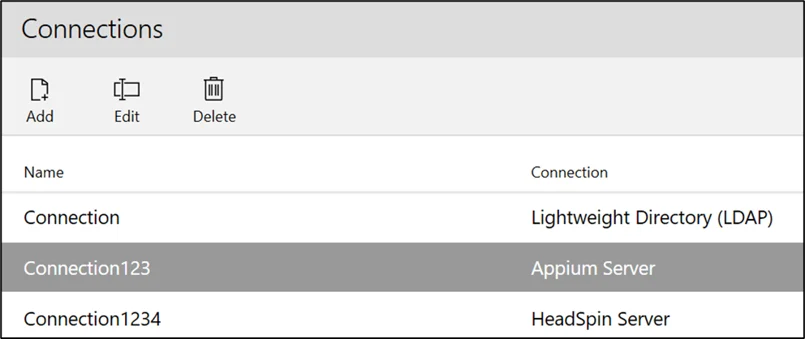
Click the Add button and the following pop-up appears:
-
On the Add Connection pop-up window:
-
Enter the title in the Title field. It should be unique.
-
Enter the description in the Description field.
-
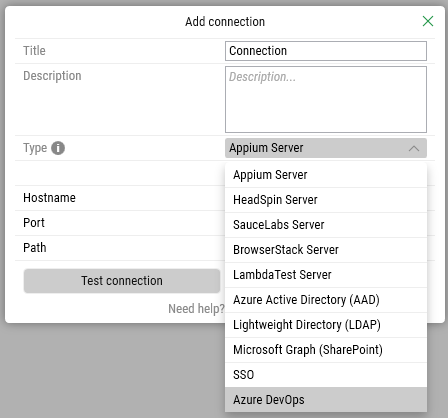
From the Type drop-down, select the Azure DevOps option:
-
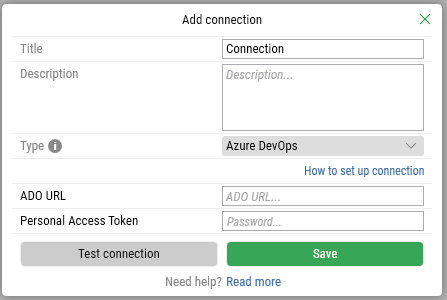
Select Azure DevOps and the following new fields appear:
-
Navigate to ADO User Settings > Personal Access Tokens.
Note: Currently, it supports only a single ADO connection. The ADO connection type will not appear if you have already configured an ADO connection in the settings.
-
Click Create Token and configure the following access permissions:
-
Work item: Read and write
-
Test management: Read and write.
-
-
Click the Test connection button to test the connection.
-
Click the Save button to save the details.
Once your connection is saved, a success message confirms it.
To modify or remove the connection, you can use the Edit or Delete buttons located next to the Add button.