
With HeadSpin Server, you don’t need to worry about setting up or maintaining physical mobile devices yourself. It’s a cloud-based automation framework that lets you test your Android and iOS apps on real devices hosted in the cloud. Using WebDriver, you can interact with those devices just like you would locally, except without the overhead of managing a local Appium server. This makes mobile testing simpler, faster to scale, and much easier to maintain.
Notes:
-
A separate HeadSpin subscription is required.
-
Only Leapwork Admins can configure HeadSpin connections.
Add a HeadSpin Connection
To add a connection in Leapwork Flow:
-
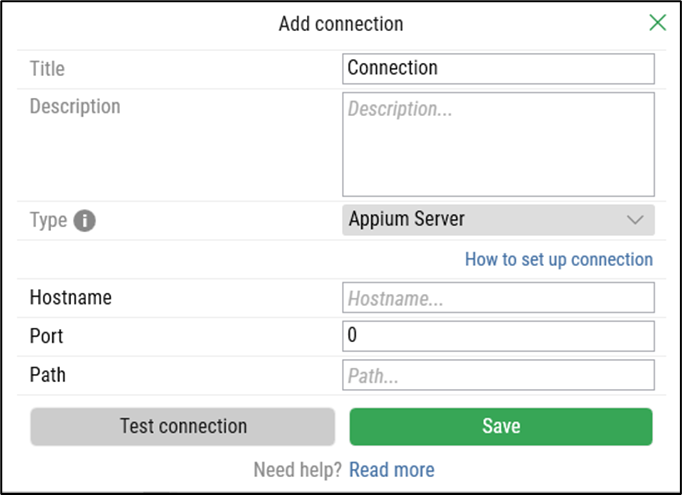
Click the Add button.
-
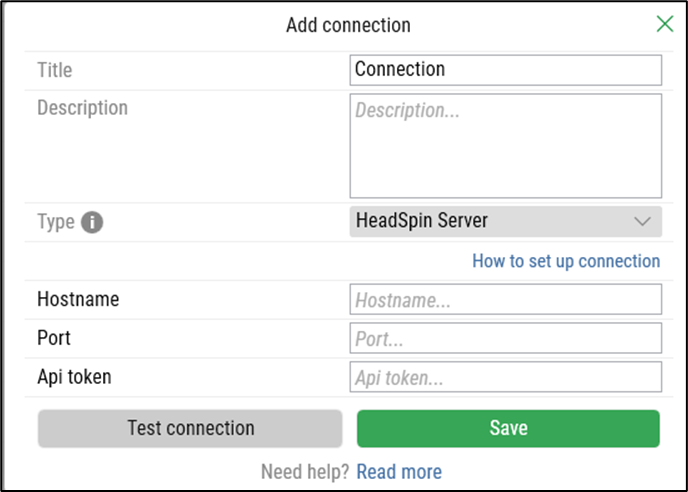
In the Add Connection pop-up window, fill in the following fields:
-
Title: Enter a unique name.
-
Description: Provide a short description.
-
Type: Select HeadSpin Server.
-
Hostname: Enter the hostname provided by HeadSpin.
-
Port: Enter the port number configured in HeadSpin.
-
API Token: Enter your HeadSpin API token.
-
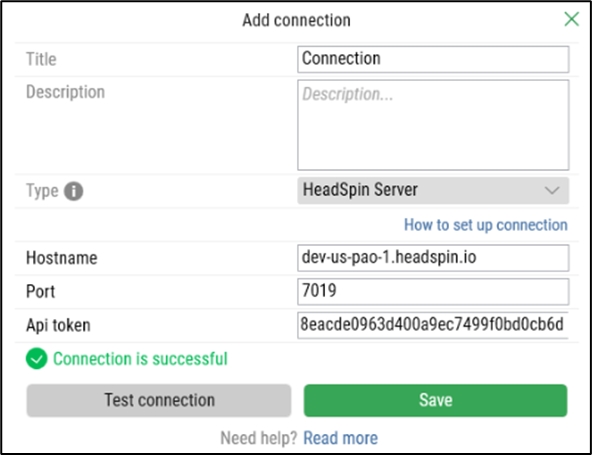
Click Test connection to verify.
-
Click Save to confirm.
-
Click Test connection to verify the connection established.
A success message appears when the connection is active.
To update or remove a connection, you can use the Edit or Delete buttons.
Where to Find Hostname, Port, and API Token in HeadSpin
If you’re not familiar with HeadSpin, here’s how to retrieve the required details:
-
Hostname & Port:
-
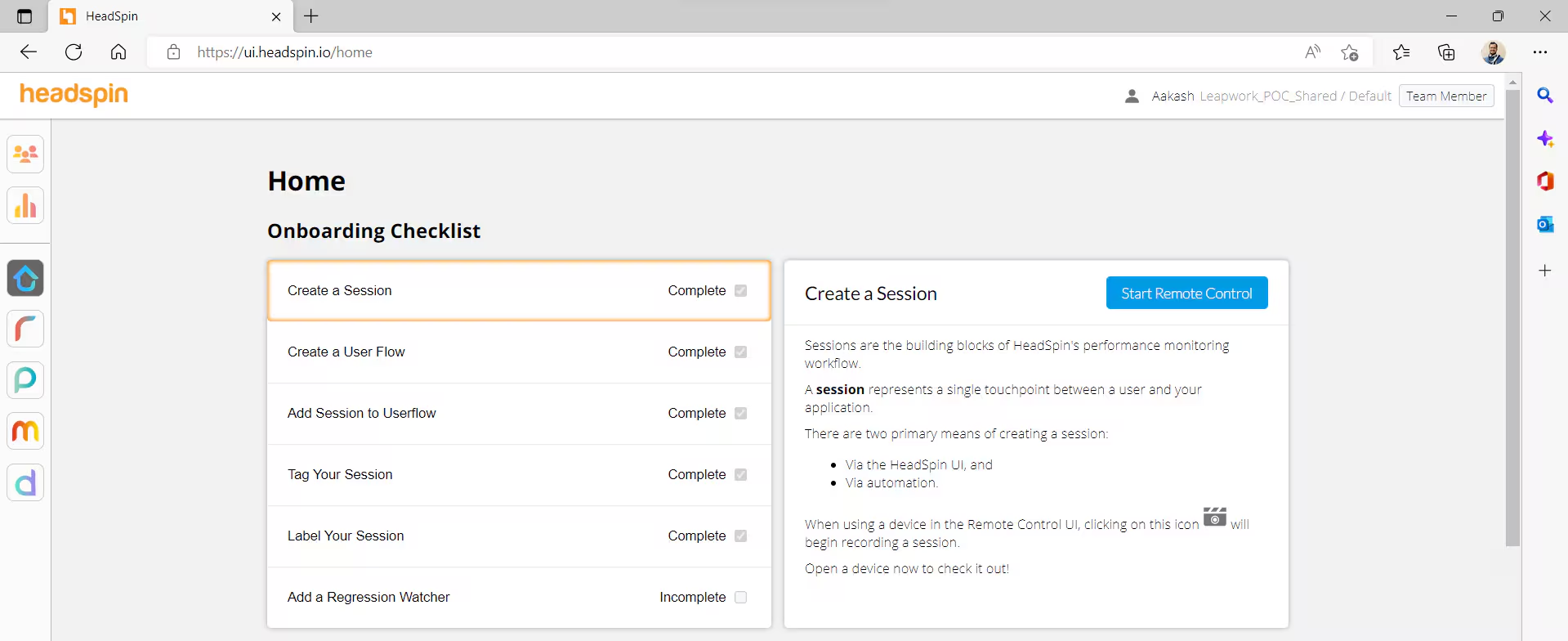
Log in to HeadSpin.
-
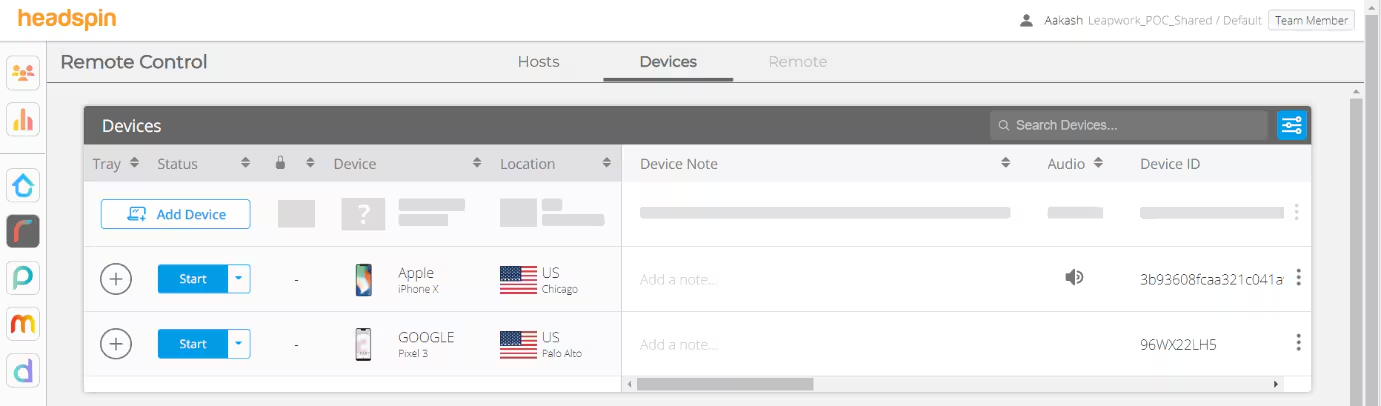
Go to the Remote-Control page.
-
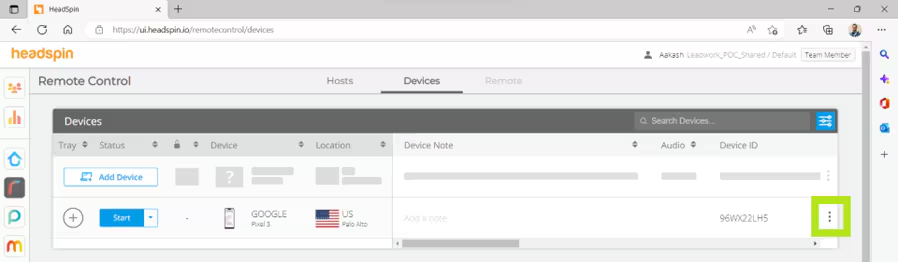
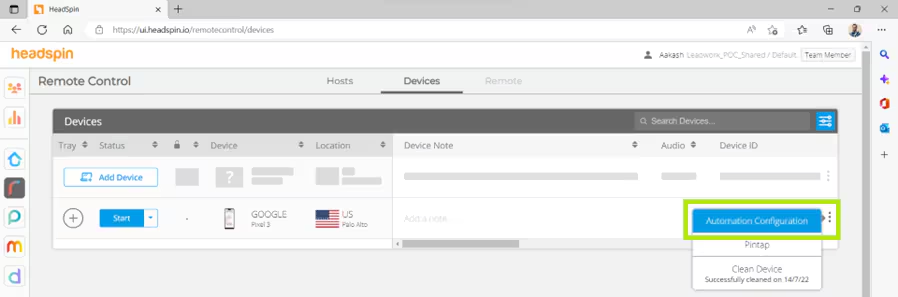
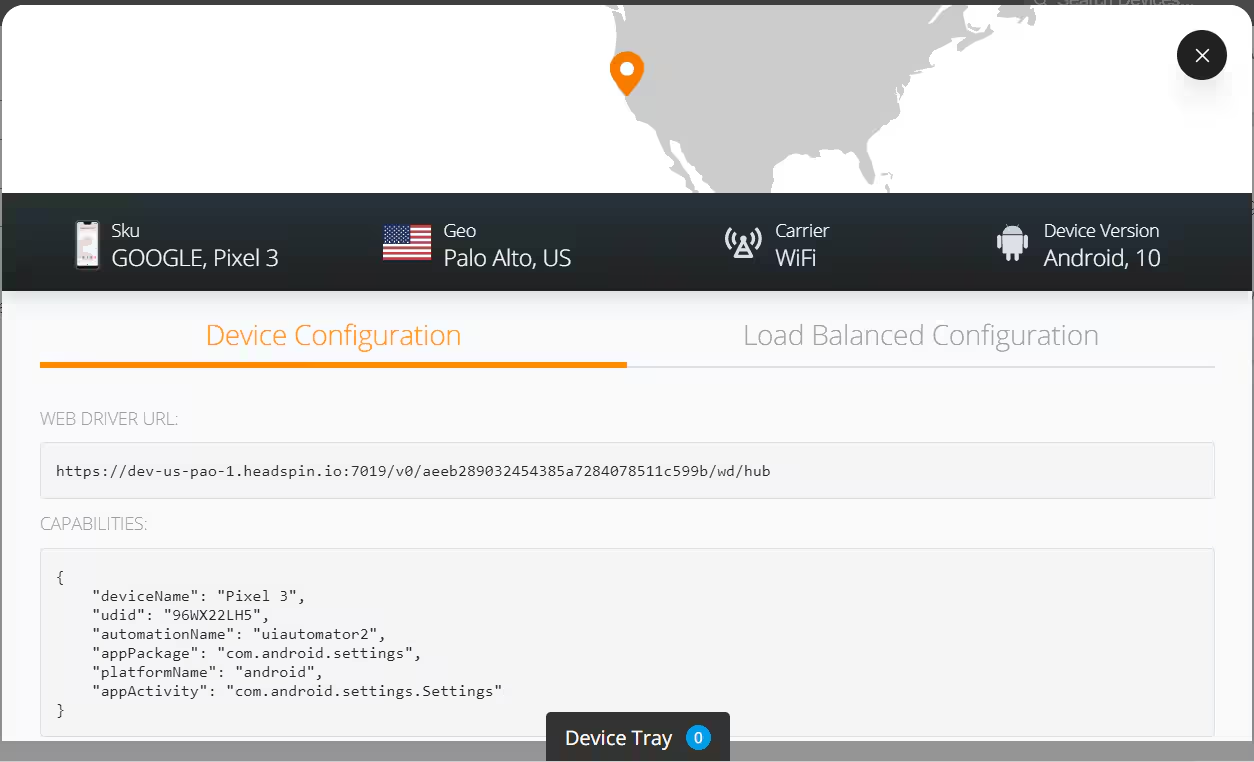
Open More Actions (⋮) → Automation Configuration for your device.
-
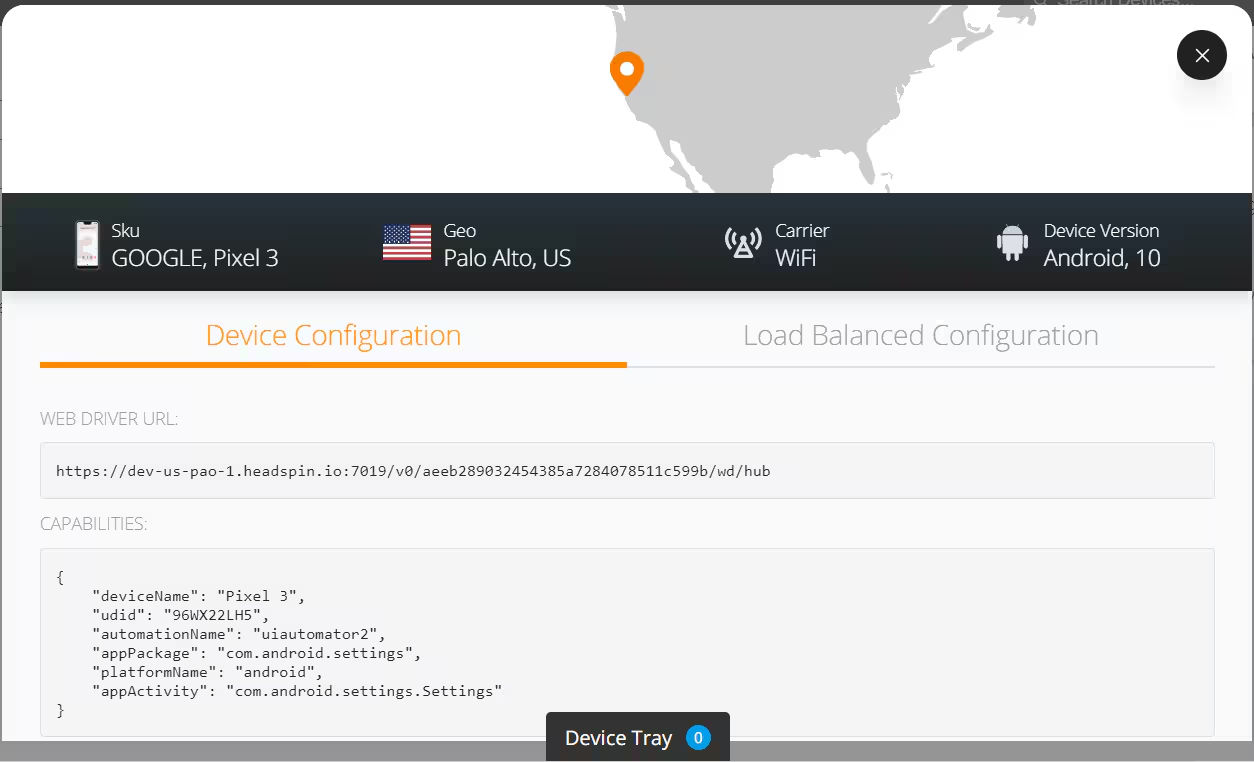
In the WebDriver URL, you’ll find:
-
Hostname (e.g.,
dev-us-pao-1.headspin.io) -
Port (e.g.,
7019)
-
-
-
API Token:
-
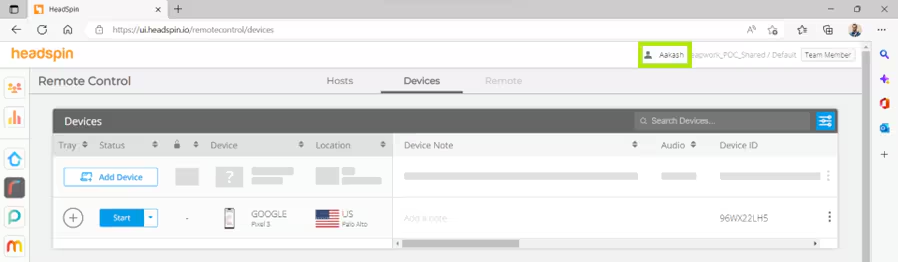
Click your profile name in the top-left of HeadSpin.
-
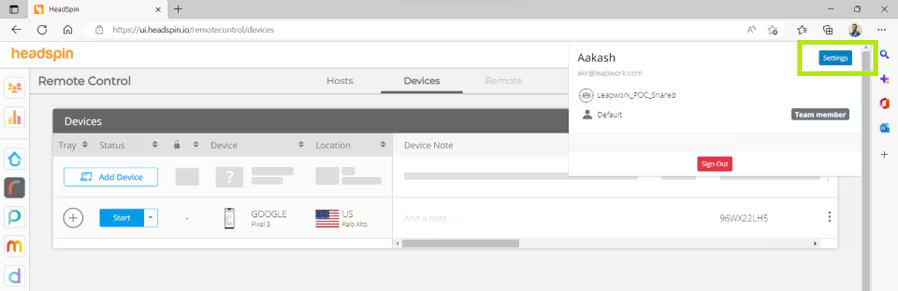
Go to Settings.
-
Click + New Token to generate a token.

-
-
Device details (Name, Platform version, UDID):
-
Available under Automation Configuration → Device.
-