
The Log message block writes a text message to the case run log. It is typically used during debugging or maintenance to record checkpoints, variable values, or other contextual information while a case is running.aintained.
See the Drive data with Excel lesson for an example of how to use the Log message block.
Fully expanded, the Log Message block shows the following properties:
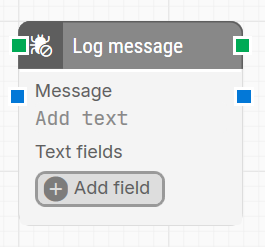
Note: The screenshot on this page uses the Elegance Design, introduced in 2025.3. If you are using an earlier version, your layout may look different.
Quick-start
-
Drag Log message onto the canvas.
-
Connect the block in the flow and set the Message text (required). Optionally add Text fields and insert them as tokens into the message.
-
Run the flow when it’s ready.
Building block parameters
Resources
|
Topic |
Description |
|---|---|
|
Common questions about creating, running, and managing flows in Leapwork. |
|
|
Guidelines and solutions for identifying and fixing issues that occur when building or running flows in Leapwork. |