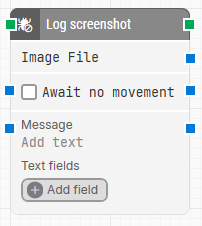
The Log screenshot block saves a screenshot of the current screen to the case run log. It is typically used during debugging or maintenance to document what was shown on screen at a specific point in the flow.
The captured image is stored in PNG format and can also be passed to other blocks that support screenshots, for example to attach it in an email or process it further.
Note: The screenshot on this page uses the Elegance Design, introduced in 2025.3. If you are using an earlier version, your layout may look different.
Quick-start
Drag Log screenshot onto the canvas.
If necessary, specify the basic parameters required for this block to operate: Await no movement, Await Timeout, Message, Text fields, and connect its input and output between the surrounding blocks in the flow.
Run the flow when it’s ready.
Building block parameters
Parameters
Block header: The block header shows the current name of the Log screenshot block. You can rename it at any time by double-clicking the header and typing a new title, which helps keep flows readable and organized.
Image File: The Image File parameter provides an output containing the screenshot captured by the block in PNG format. You can connect this output to other blocks that accept images, for example to send the screenshot by email or to use it in further visual checks.
Await no movement:The Await no movement parameter controls whether the block should wait for the screen to be visually stable before taking the screenshot.
When this option is selected, the capture is delayed until there has been no movement on the screen for the period defined in Await Timeout (for example, two seconds).
Await Timeout: The Await Timeout parameter specifies, in seconds, how long the screen must remain still before the screenshot is taken when Await no movement is enabled. This value defines the period of inactivity that must be observed on the screen prior to capturing the image.
Message: The Message parameter lets you add a text note that is stored together with the screenshot in the case run log. You can use it to describe what is being verified or why the screenshot was taken at that point.
Dynamic values can also be included in this message by inserting data coming from Text fields.
Text fields: The Text fields section allows you to add custom key–value pairs that are saved alongside the screenshot and message in the log. These fields can contain additional context such as IDs, usernames, or environment details. Their values can be used dynamically in the Message and other supported fields, making it easier to inject run-time data into the information stored with each screenshot.