
What Windows authentication types does the Remote Agent support?
Leapwork supports three Windows authentication methods to connect to a VM running the Remote Agent service:
-
Windows login: Requires a Windows username and password. Use
whoamiin Command Prompt to find the username. Add a Login block in your automation flow to simulate logging in. -
Windows login – Auto: Automatically logs in with credentials set in the Agent Connection settings. No Login block is needed in your flow.
-
Password: Uses the password set during agent installation. No username required.
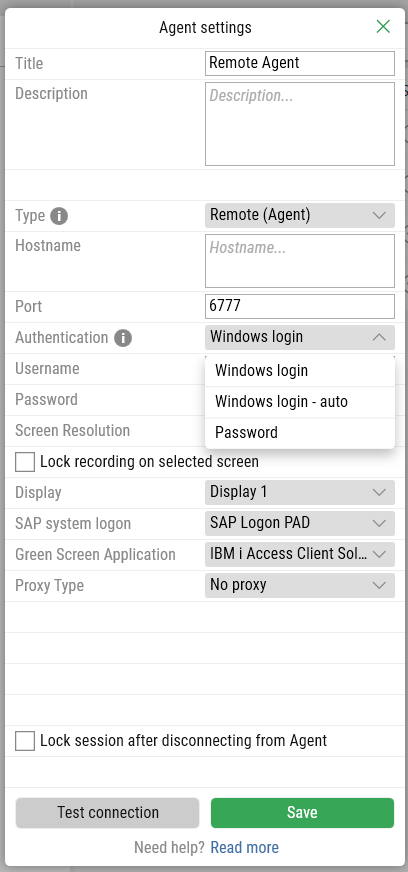
All three methods work on VMs without an active user session, starting from Windows 7 SP1. This simplifies automation on virtual machines and SSO testing.
Note: This feature uses Windows' built-in credential provider and does not bypass any security layers.
Granting local log-in rights to a non-admin user
If a non-admin user needs access to the agent machine, grant them Allow log on locally rights:
-
Open the Run dialog (
Windows + R), typegpedit.msc, and press Enter. -
Navigate to:
Local Computer Policy > Computer Configuration > Windows Settings > Security Settings > Local Policies > User Rights Assignment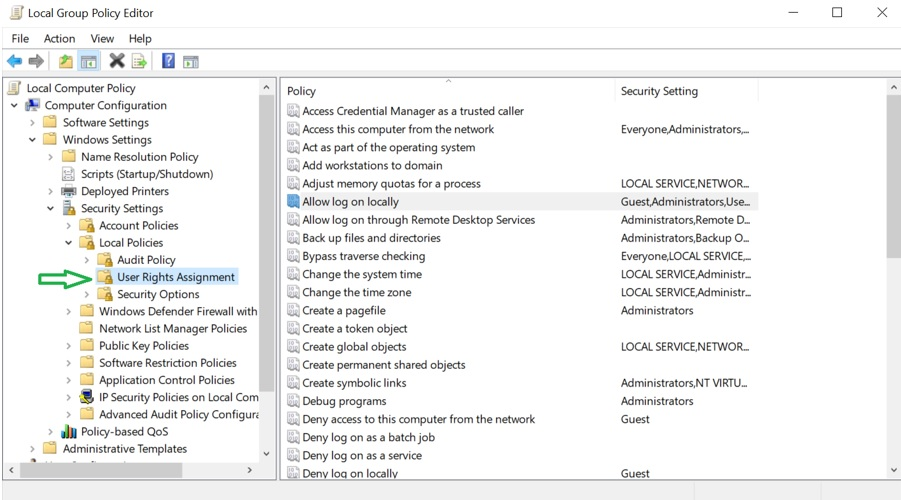
-
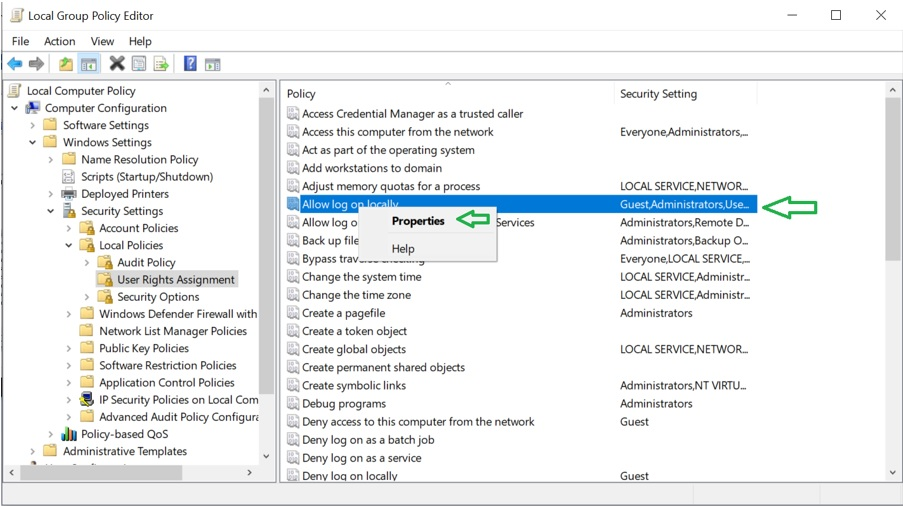
Right-click Allow log on locally and select Properties.
-
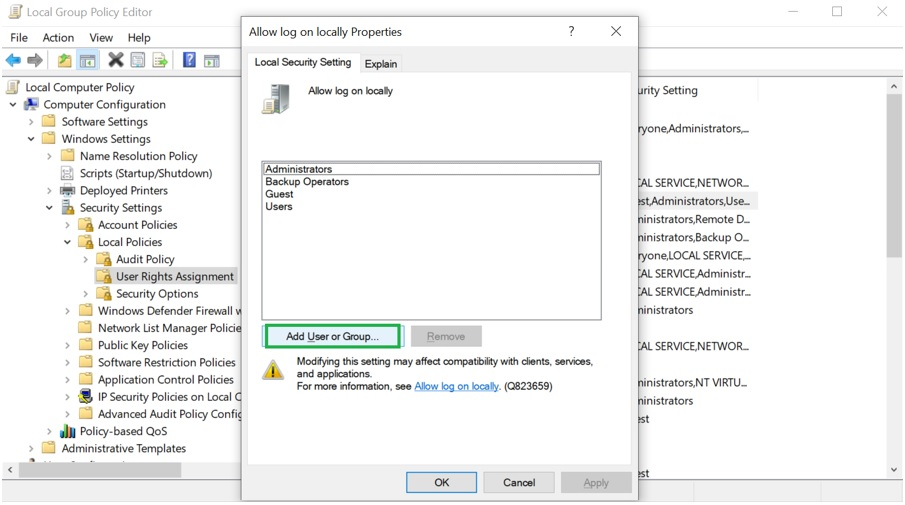
Click Add User or Group, add the user, and apply the changes.
-
Restart the machine.
How do I run test cases on a remote computer?
To run tests remotely, install the Leapwork Agent on one or more dedicated machines. This offloads test execution from your local computer and allows for parallel test runs across multiple machines.
-
Before installing, review the Leapwork Architecture Overview. Then follow the steps in Agent Installation on Windows.
After installation, register the agent in the Environment section so the Controller can manage it.
How do I set up Selenium Grid (general)?
Selenium Grid lets you run tests in parallel across different browsers and operating systems, speeding up execution and supporting multi-browser environments.
1. Download and Prepare Files
-
Download the latest Selenium Server JAR from Selenium HQ.
-
Download and extract Grid_Setup.zip, and move the folder to
C:\Grid Setup. -
Copy the downloaded
.jarfile into theC:\Grid Setupfolder.
2. Set Up the Hub
-
Edit
hub.batto ensure the.jarfilename matches the one you downloaded.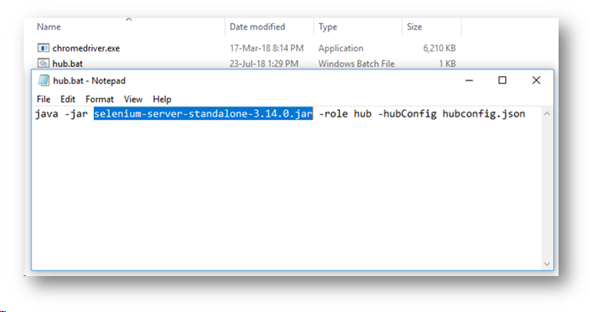
-
The hub uses
hubconfig.jsonto load default configurations.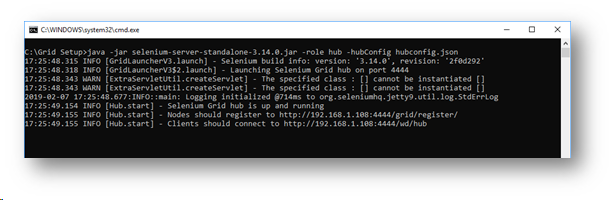
-
Run
hub.bat. Verify the hub is running by visiting:
http://localhost:4444/grid/console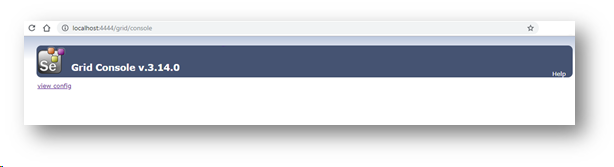
3. Set Up the Node
-
You can use the same or a separate machine.
-
Update driver files in
C:\Grid Setupwith the latest versions for Chrome, Firefox, Edge, and IE.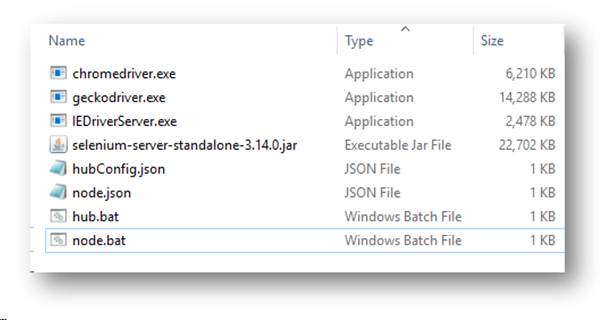
-
Edit
node.jsonto define:-
"browserName"(e.g."chrome") -
"maxInstances" -
"hub"URL (uselocalhost:4444or hub IP if remote)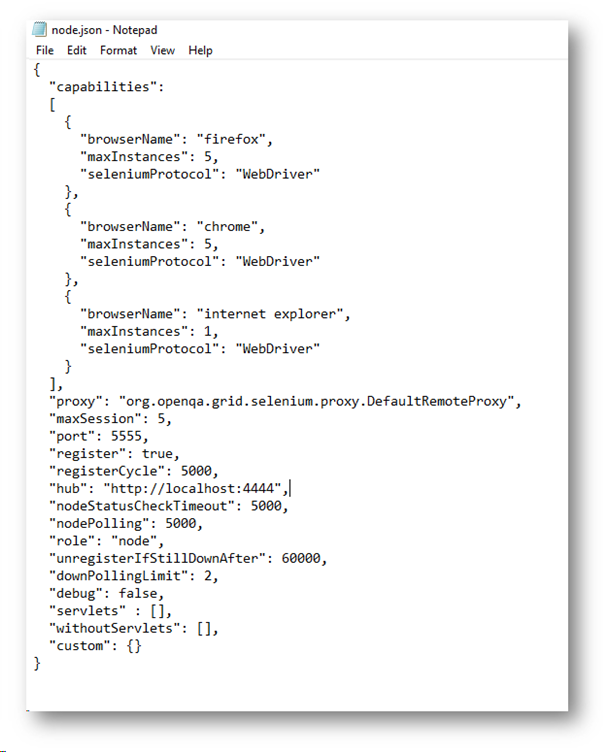
-
-
Edit
node.batto reflect the correct.jarfile name.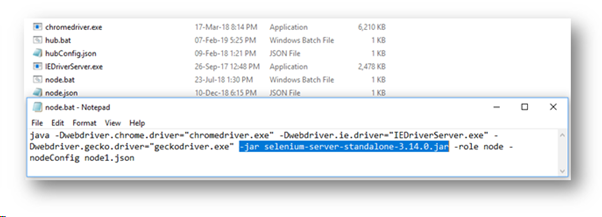
-
Run
node.bat. Once the node connects, it appears in the Grid Console.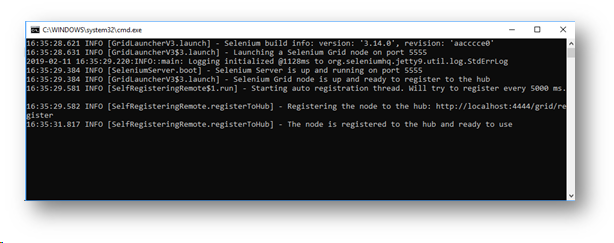
4. Connect Leapwork
Configure Leapwork to run tests on your grid using the integration article. You can scale by adding more nodes on different machines.
How do I configure Selenium Grid on macOS (Safari/Chrome/Firefox)?
Selenium Grid allows you to run tests in parallel across multiple browsers and OSs, helping reduce test execution time.
1. Download Required Files
-
Download Selenium Server JAR from Selenium HQ.
-
Download latest ChromeDriver and GeckoDriver (for Firefox).
-
Safari's driver is pre-installed at
/usr/bin/safaridriver(macOS 10+).
2. Driver Configuration
Move the drivers to /usr/local/bin:
mv chromedriver /usr/local/bin
mv geckodriver /usr/local/bin
3. Safari Setup
-
Enable Develop menu via Safari Preferences > Advanced.
-
From the Develop menu, enable Allow Remote Automation.
-
Run once to authorise:
safaridriver --enable
4. Set Up Selenium Grid
-
Download and extract SeleniumGrid.zip to your Desktop.
-
Rename your
.jarfile toselenium-server-standalone.jarand place it in the folder. -
Make the script executable:
chmod u+x ~/Desktop/Selenium\ Grid/gridSetup.command
-
Double-click
gridSetup.commandto launch both Hub and Node.
Verify the grid at: http://localhost:4444/grid/console
5. Connect to Leapwork
Once the grid is running, configure Leapwork to run your tests using the related setup article.
How do I connect Leapwork with the Gridlastic cloud agent (Selenium 4)?
Leapwork integrates with cloud providers like Gridlastic, which offers on-demand Selenium Grid infrastructure. This allows you to run Leapwork flows across different devices, browsers, and operating systems.
Follow these steps to connect Leapwork:
-
Log in to your Gridlastic dashboard.
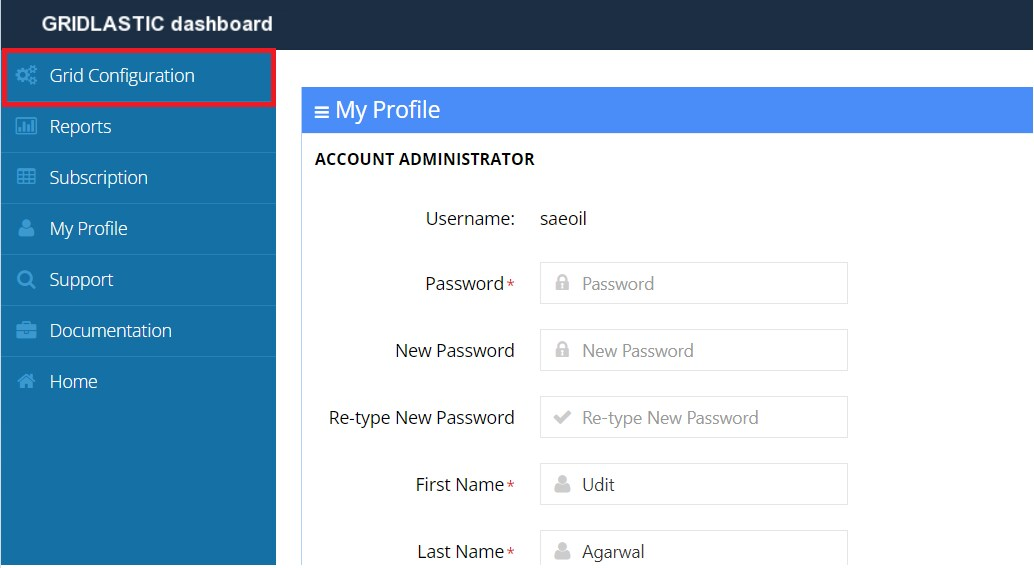
-
Go to Grid Configurations in the left panel.
-
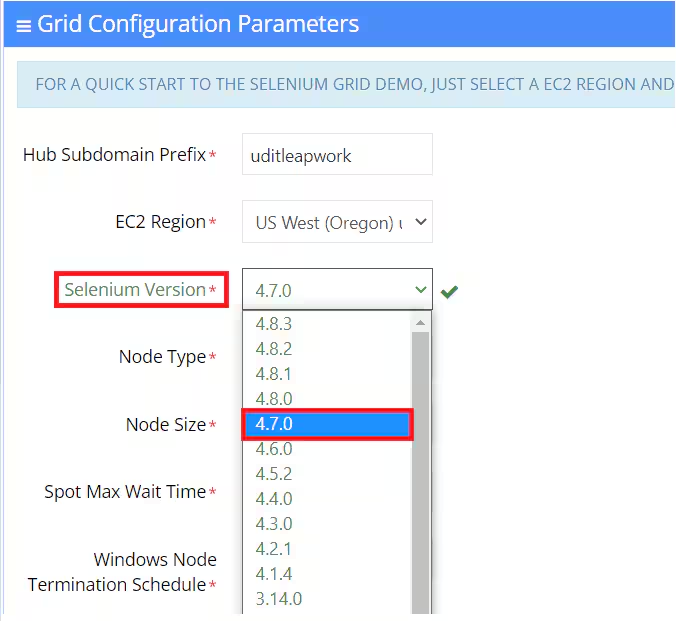
From the Selenium Version dropdown, select 4.7.0.
-
Click Launch Grid. The grid will generate:
-
Subdomain
-
Username
-
Password / Access Key
-
-
In Leapwork Agent settings, create a new Gridlastic agent using these details.
How do I change the Agent port?
By default, the Leapwork Agent uses port 6777. If another application is using it, the Agent service may fail to start. You can manually change the port without reinstalling:
-
Stop the Agent service
-
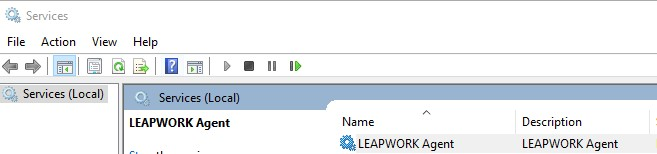
Press Win+R, type
services.msc, and press Enter. -
Find Leapwork Agent, right-click, and select Stop.
-
-
Edit the configuration
-
Go to
C:\Program Files\Leapwork\Agent. -
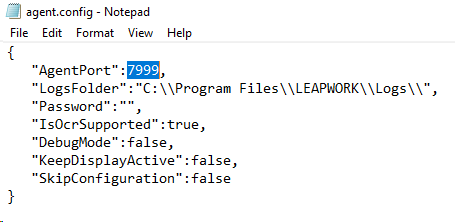
Open agent.config as Administrator.
-
Change the value of AgentPort, save, and close.
-
-
Restart the Agent service
-
Return to Services, right-click Leapwork Agent, and select Start.
-
-
Update your firewall
-
Allow inbound traffic on the new TCP port.
-
-
Test connection
-
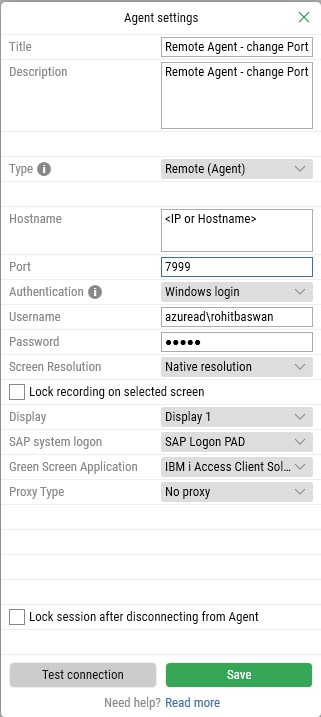
Use Leapwork Studio to confirm the Agent is reachable.
-
How can I keep the Agent’s display resolution consistent?
Running tests at a fixed resolution can fail if the Agent’s display settings change. To keep resolution stable, follow these practices:
-
Use a dedicated service account
-
Avoid connecting multiple users to the same Agent.
-
Remote desktop sessions can change resolution or disrupt tests if closed mid-run.
-
-
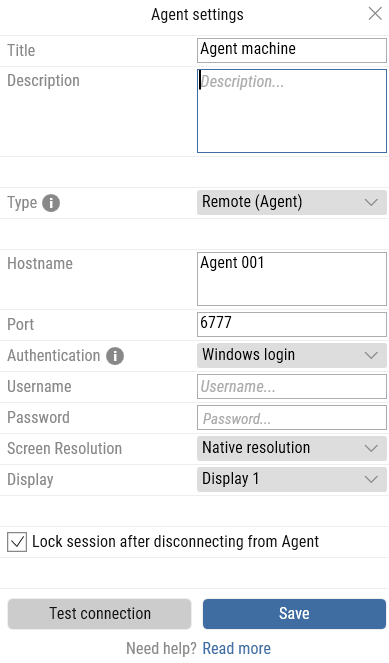
Align resolution in Leapwork Studio
-
In Environment settings, ensure all users configure the same resolution (Native or a chosen fixed value).
-
-
Set resolution manually on the Agent machine
-
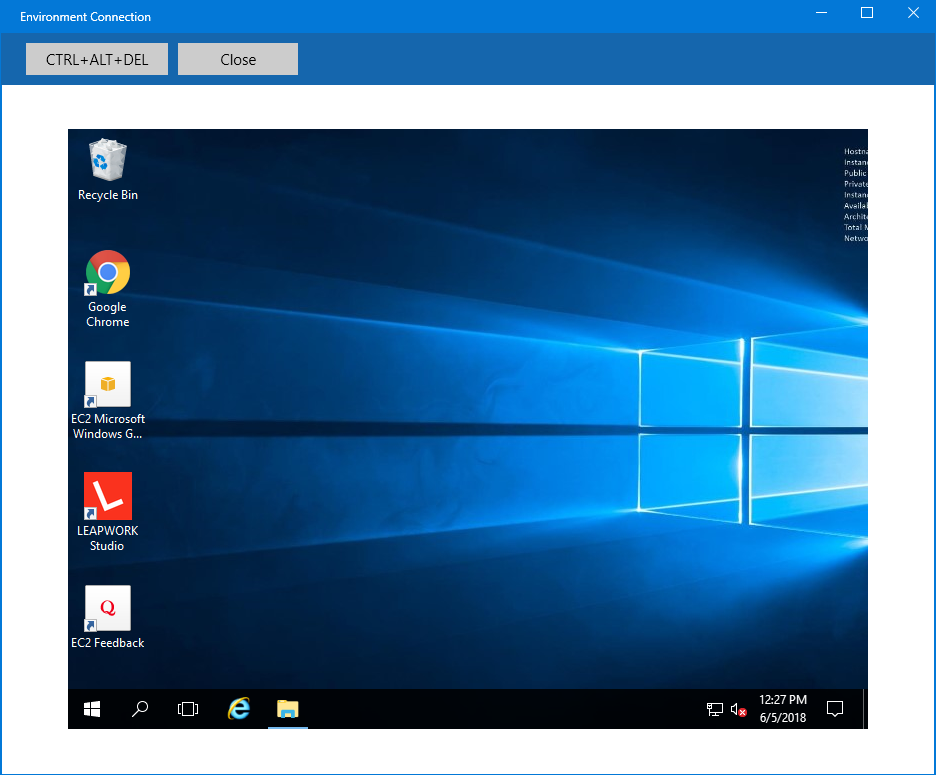
From Leapwork Environments, keep Screen Resolution as Native, then click Test connection.
-
On the Agent desktop:
-
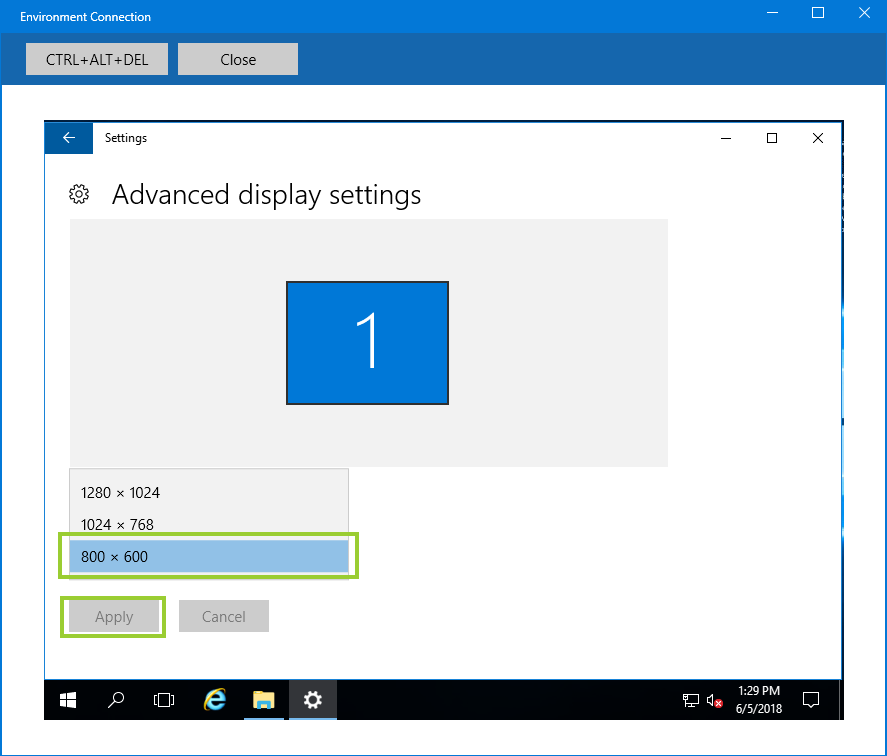
Right-click → Display settings → Advanced display settings.
-
Select the required resolution → Apply → Confirm.
-
-
By following these steps and keeping accounts and configurations consistent, the Agent will run tests at a stable resolution.
How do I prevent the Agent machine from logging out or sleeping?
By default, Windows locks or sleeps after a set time. To keep the Agent active, follow these two steps:
1. Disable Power & Sleep Settings
Ensure the machine never locks or sleeps automatically:
If your organisation restricts these changes, host the Agent on a VM and adjust settings there.
2. Update Agent Configuration
Modify the Agent config file to keep the display active:
-
Stop Leapwork Agent from
services.msc. -
Open
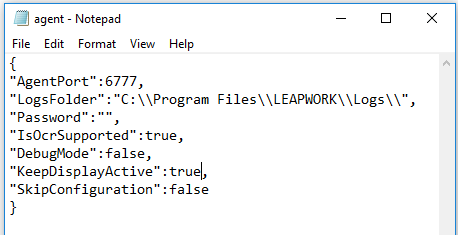
C:\Program Files\Leapwork\Agent\agent.configin Notepad (as Administrator). -
Add:
"KeepDisplayActive": true,
-
Save the file and restart the Agent service.
-
In Leapwork Studio, refresh Controller settings to apply changes.
With these adjustments, the Agent machine will stay awake and maintain its session for test execution.
Can Leapwork log in/out when the Agent’s screen is locked?
Leapwork supports two ways to log in and out of a locked Agent machine:
1. Windows Credential Provider
-
Leapwork can log in on behalf of the user and support SSO testing.
-
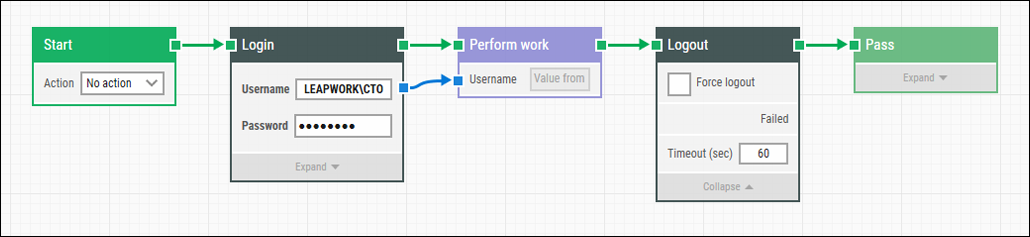
Add Login, Logout, or Lock blocks to your flows. For example, use a Login block at the start and a Logout block at the end of automation.
-
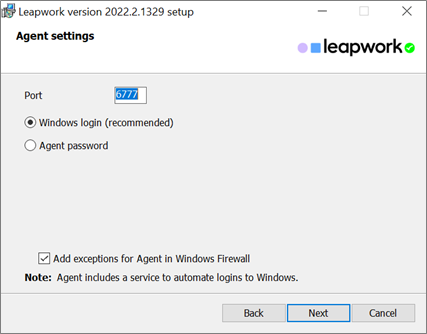
Agent settings let you log in automatically or manually with a Windows account, and optionally lock the session after disconnect.
-
Preconditions:
-
Install the latest Leapwork with Windows Credential Provider.
-
Select Windows login during Agent installation.
-
No one should be connected via Remote Desktop.
-
Restart the machine after installation.
-
-
Works from Windows 7 SP1 onwards, even after reboot, without prior sessions.
2. Custom Blocks with Images and Text
-
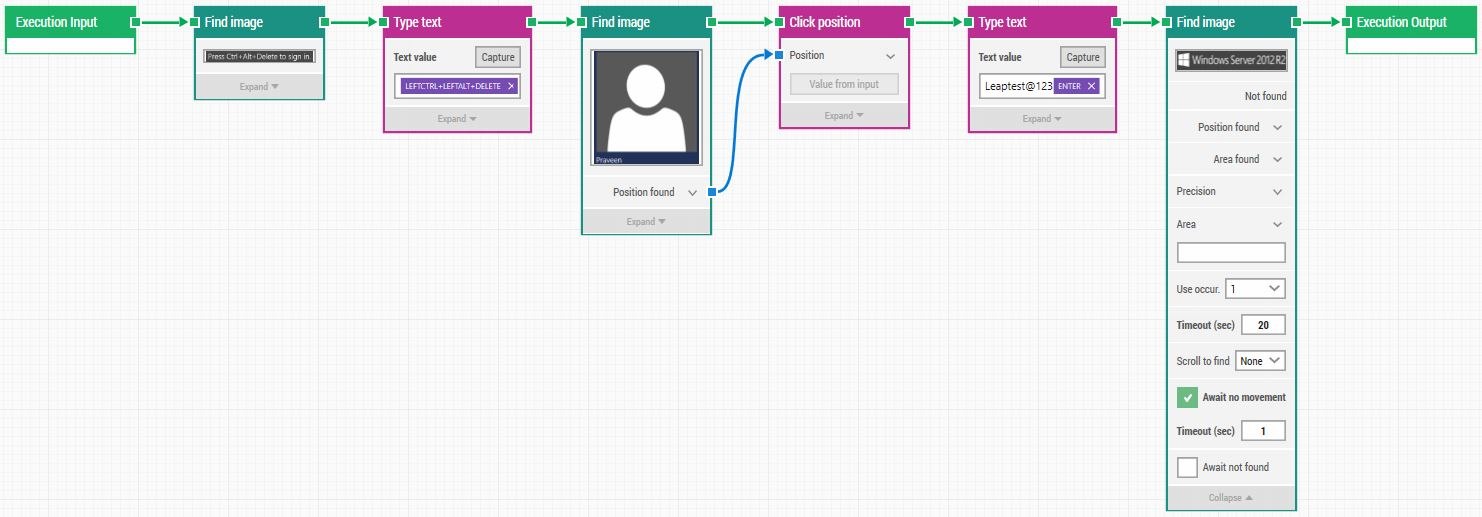
Create a Custom Remote Login Block:
-
Lock the Agent machine.
-
Capture a static element of the lock screen (e.g. Press Ctrl+Alt+Delete).
-
Use a Type Text block to send
Ctrl+Alt+Delete. -
Use Find Image + Click Position to select the user account.
-
Type password and press Enter to log in.
-
-
Add a similar Logout flow as the final step or case in your run list.
-
The scheduler runs cases in order (top to bottom); reorder by drag and drop.
Why is the Preview environment empty over RDP on Windows 7/Server 2008 R2?
On Windows 7 SP1 and Windows Server 2008 R2, limitations in desktop duplication technology prevent Leapwork Studio features from working over Remote Desktop Connection. As a result, the preview environment appears blank.
-
You can still run Leapwork Agent on these systems as a System Under Test, but Leapwork Studio cannot be used via RDP.
-
Studio works under these conditions:
-
Windows 7 SP1 / Server 2008 R2 on a physical machine with a physical display.
-
Windows 7 SP1 / Server 2008 R2 with Leapwork Agent only as System Under Test.
-
Windows 8 or later: fully functional, including RDP.
-
How can we reset the Leapwork Agent password?
When installing the Leapwork Agent, you’re prompted to set a password for configuration security. If you later forget this password, you have three options:
-
Reinstall the Agent component and set a new password during installation.
-
Check Windows Registry (
HKLM\\SOFTWARE\\LEAPWORK → AgentPassword). If the value is visible (not encrypted), you can retrieve it. If encrypted, this approach won’t work.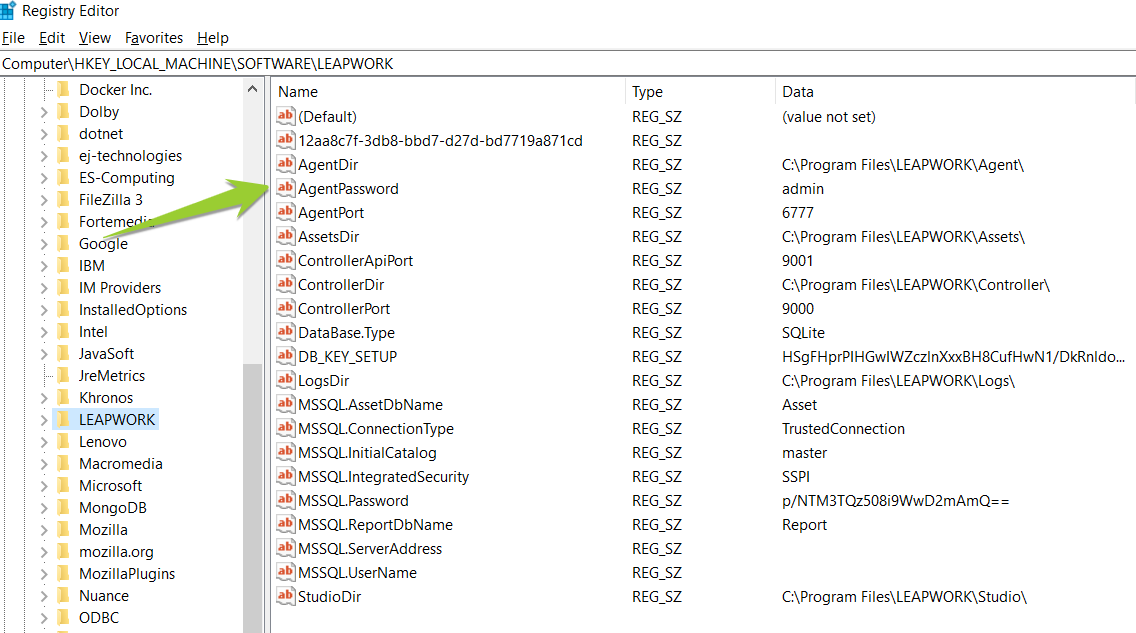
-
Clear the password in agent.config:
-
Stop the LEAPWORK Agent service.
-
Navigate to
C:\Program Files\LEAPWORK\Agentand back up agent.config. -
Remove the encrypted value under the
Passwordfield.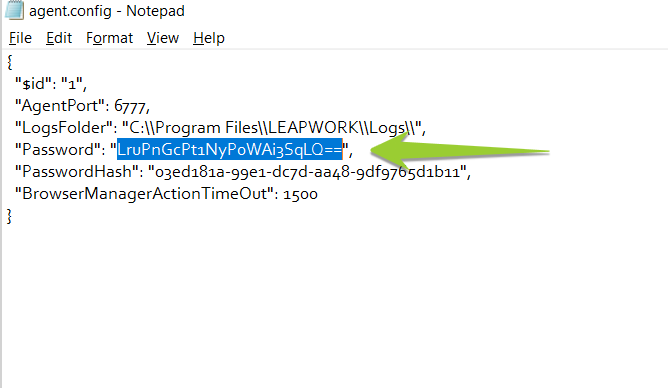
-
Save, restart the Agent service, then configure in Studio with a blank password.
-
If none of these work (for example, if the registry value is encrypted), reinstalling is the only supported way to reset the password. For special cases, contact Priority Support.