
How to check Release Notes?
Leapwork Release notes provide information on the features, major releases and bugfixes and improvements in each release. Leapwork publish its release notes along with each release version and they are accessible over the internet.
To access your release notes, simply follow the steps below:
-
Navigate to Leapwork’s website.
-
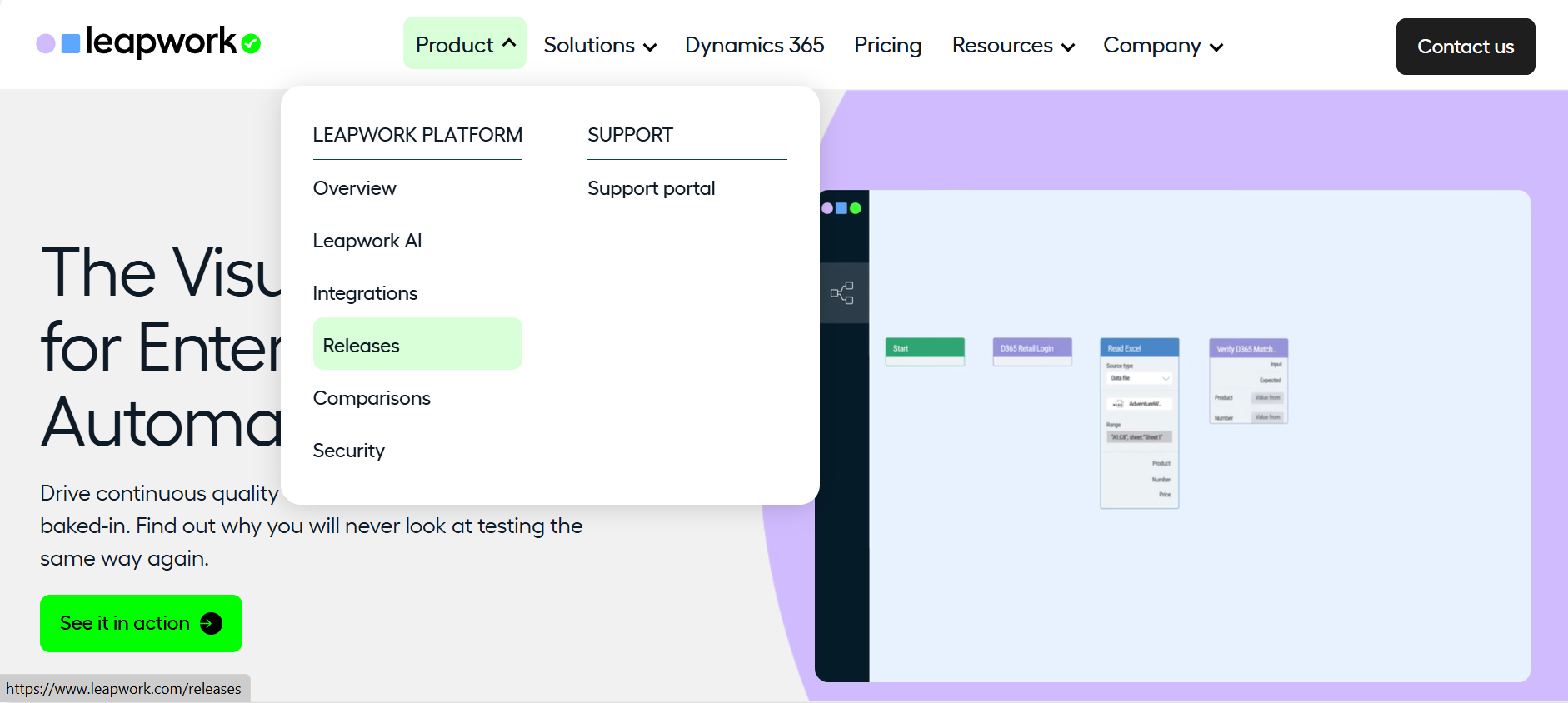
Hover over the Product menu in the top navigation bar.
-
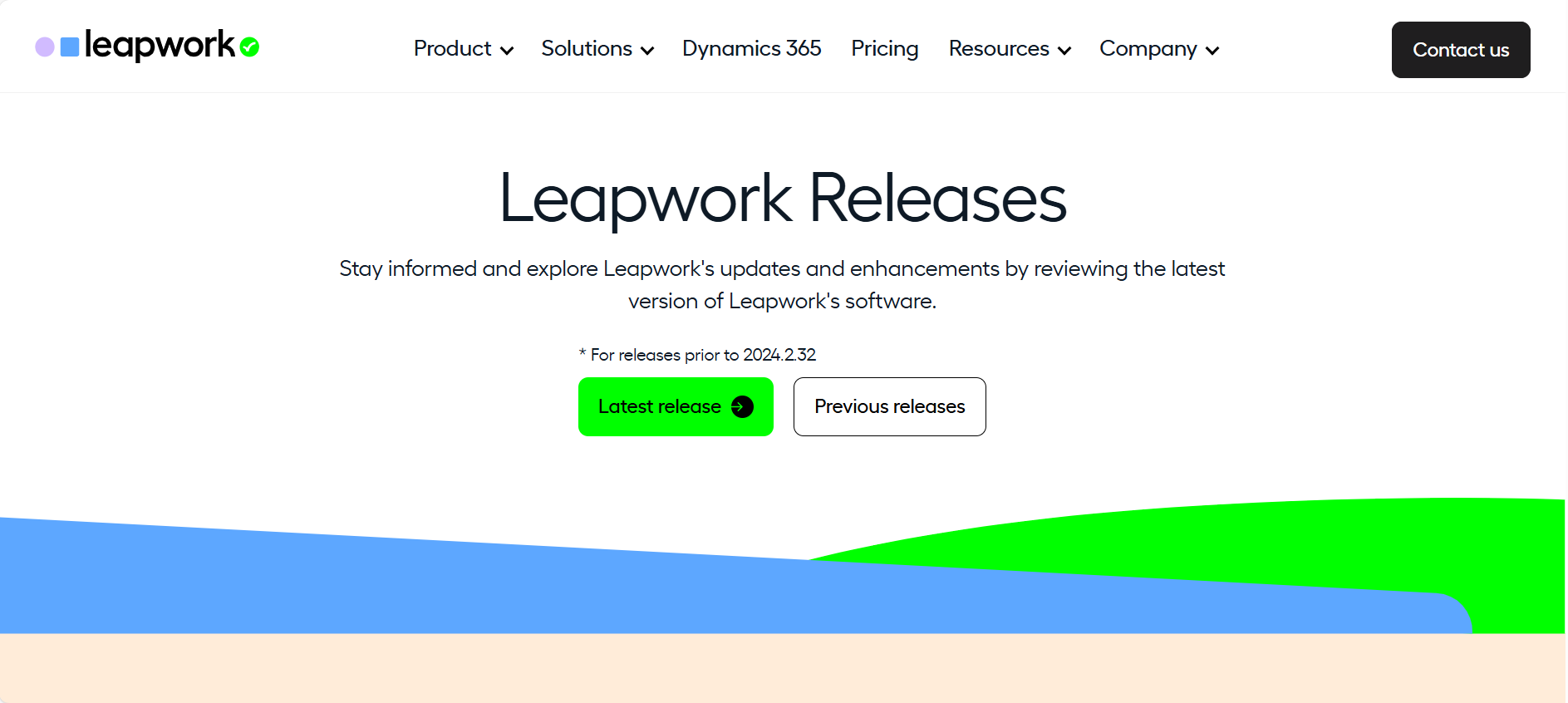
From the dropdown, select Releases. You will then be redirected to the Releases page.
-
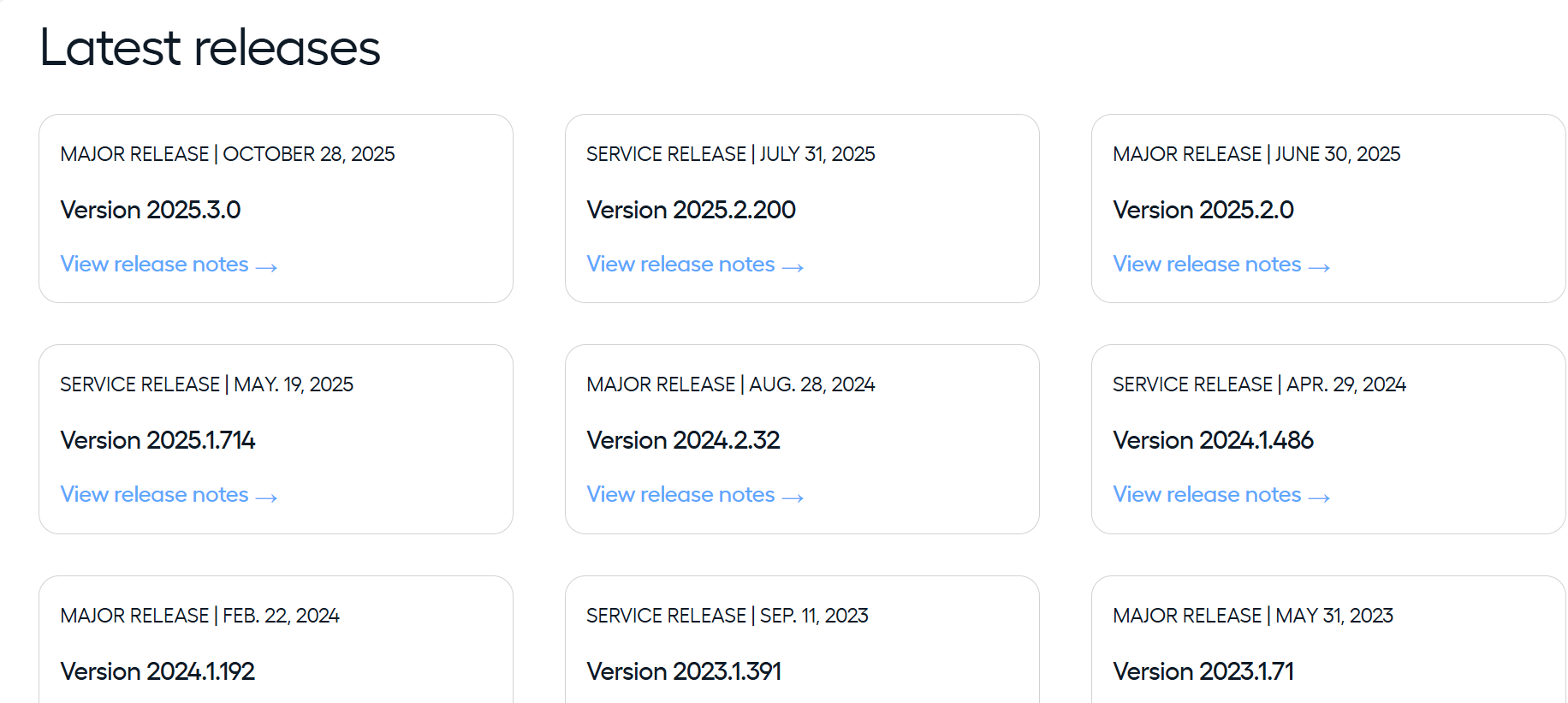
Scroll down the page to view all the latest listed releases.
-
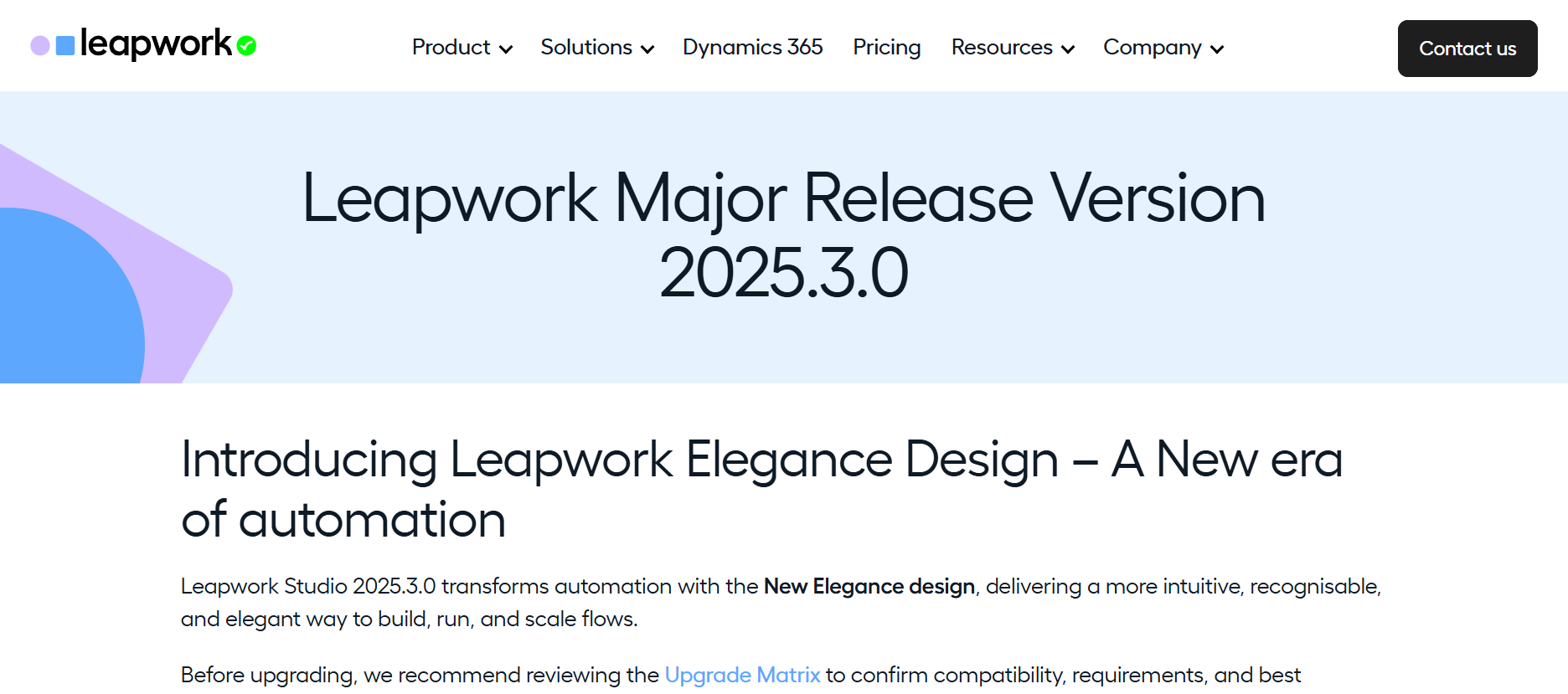
To view the release notes, click View Release Notes. You will be redirected to the corresponding release details page.
.jpg?cb=622221728c49a6ba9acb900ca6c9f558)
-
Scroll down to view the Release Notes.
Note: We do not provide release notes for unstable/experimental builds.
What to do if the Leapwork installation changes the Windows theme and disables Aero?
In Windows 7 SP1, the graphical features are managed entirely by the graphics card and aren’t accessible to the operating system. To make sure Leapwork can accurately capture everything displayed on your screen, you need to turn off the Windows theme and Aero features. This will optimize image and text recognition within Leapwork for better automation accuracy.
Can Leapwork work in secure and restricted Intranet, and is my data safe?
Yes, it can. If your company operates in sectors like Banking, Insurance, Security, or Telecom, where internet access is restricted due to sensitive client data, Leapwork fully supports those environments.
Leapwork runs entirely within your intranet and does not connect to the internet, ensuring that all your data remains safely within your secure network.
In which Windows directory should Leapwork be installed?
The trusted folders are:
C:\Windows\ and C:\Program Files\
These locations are recognized by Windows as secure and suitable for running applications like Leapwork.
The reason this is important is that User Account Control (UAC) actively protects the operating system. Leapwork interacts with Windows in various ways, and if its binaries are installed in an untrusted folder, UAC may restrict essential actions. For example, certain keyboard combinationssuch as ALT+TAB may not work if Leapwork isn’t in a trusted location.
By installing Leapwork in a Windows-trusted directory, you ensure proper functionality, system compatibility, and a smooth user experience.
How to use Leapwork's Database recovery tool?
You can recover your SQLite database files using the attached recovery tool. Please follow the below steps to recover:
-
Start Leapwork's Recovery Tool.exe.
-
Enter the encryption key.
-
Open database for recovery using Restore button.
-
If the database is malformed, it will be automatically restored by the tool (the restored database will replace the original, and the original database will be renamed to “original name” _backup.sqlite). Here, “original name” refers to Leapwork.AutomationRun as an example.
-
If a database is not malformed than the tool shows the message “The database is not malformed” and won’t allow to recover it.
Once the recovery is finished, your Leapwork environment will work as expected.
Note: Please create a backup of the assets folder before moving forward.
Attachments:
Leapwork_Recovery_Tool_v1.0.1.zip
How do I upgrade from the Trial version to the Platform Edition?
Leapwork’s Trial version includes all features of the licensed editions. When the trial period ends and you want to upgrade to the Platform Edition while keeping your trial-created assets.
Because the Trial and Platform editions use different database structures, a direct upgrade isn’t possible. However, migration from the Trial to the Enterprise Edition is supported.
As an alternative, you can export your desired flows from the Trial version and import them into the Platform version to retain the flows created during the trial period.
All Flows and Sub-Flows created on the Trial version can be migrated. Whereas, Run lists, Schedules, Execution results (Reporting), Dashboards, to name a few cannot be migrated.
Note: SAP flows from the Trial version cannot be used in the Platform Edition because SAP automation is available only in the Enterprise Edition.
Steps to transfer your flows to the Platform edition:
-
Open Studio and Export all flow (excluding the SAP flows/or the flows that contain SAP blocks).
-
Navigate to the controller settings on the studio.
-
Right-click.
-
Copy the DB Encryption and close the Studio.
-
Press the Win + R keys on your keyboard, to open the Run window.
-
Then, type "services.msc" and hit Enter or press OK.
-
The services app window will open.
-
Find the Leapwork Controller Service, stop the same, and take Backup of Database Assets .
-
Uninstall Leapwork.
-
Remove the database files from the Leapwork installation location (default location- C:\Program Files\Leapwork)
-
Launch the Windows registry.
-
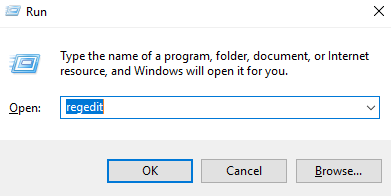
Click Start, click Run and enter regedit, click OK.
-
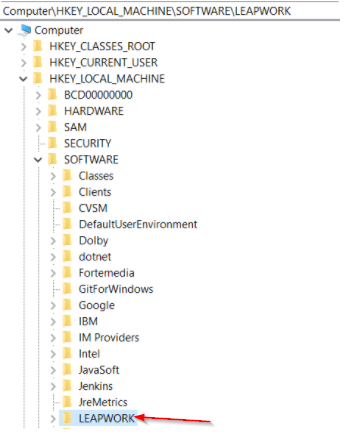
Navigate to the path:
Computer\HKEY_LOCAL_MACHINE\SOFTWARE\LEAPWORK.
-
Remove the Leapwork registry folder from the registry editor.
-
Install Leapwork and activate it using the Platform key.
-
Import the already exported flows.
-
The process is now completed.
How to Upgrade Leapwork from Trial to Enterprise Version?
Leapwork’s Trial version includes all paid-edition features. When the trial ends and you want to move to the Platform Edition while keeping your trial data, follow the steps below.
-
Take the backup of Assets folder.
-
Also, take a backup of the DB Encryption key and the Exported flows.
-
Perform a fresh installation, and after that, import the test flows.
Note: From the 2021 version onward, direct migration from Trial to Platform is not supported. A fresh installation is required, after which the flows must be imported.
How can I manage my Leapwork subscription and license?
To manage your subscription and license, simply visit the Leapwork Customer Portal.
Once you open the portal, you will be taken to the My Licenses section, where all your license information is displayed.
In the My Licenses section, you can view:
-
License Key ID
-
Machine Name
-
License Key
-
Product and Subscription type
-
Status (Active, Expired, Pending Activation)
-
Controllers, Seats, and Agents
-
Expiration Date
You can also perform the following actions:
-
Copy the License Key for activation
-
Send the License Key via email
-
Ensure your account email is up-to-date
-
-
Download the .lic file for offline activation
-
Request additional resources as needed
The Customer Portal provides full visibility and control over your license usage, making it easy to manage and optimize your Leapwork resources.
How to Force an MSI Package to Install Using Administrator Mode?
Sometimes it has been observed that when a user runs an MSI and is almost done with the process, the MSI complains that it needs admin privileges. When you need to install a program as an administrator, you can right-click on the .exe file and select Run as administrator. However, that option isn’t available for MSI packages. We will show you how to add an Install as administrator option for MSI packages.
-
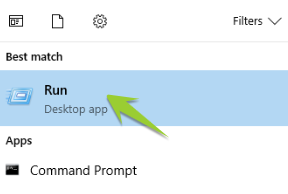
Right-click the Start button (in Windows 8.1).
-
Select Run from the command menu.
-
If you're using Windows 7 or earlier, open Run from the Start menu instead.
Note: You can also press Windows + R to open the Run dialog.
-
Type “regedit” in the Open field and click OK.
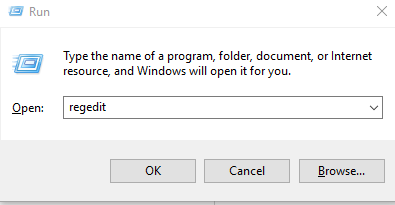
5. Navigate to the following key:
HKEY_CLASSES_ROOT\Msi.Package\shell
-
Right-click the shell key and choose New > Key from the menu.
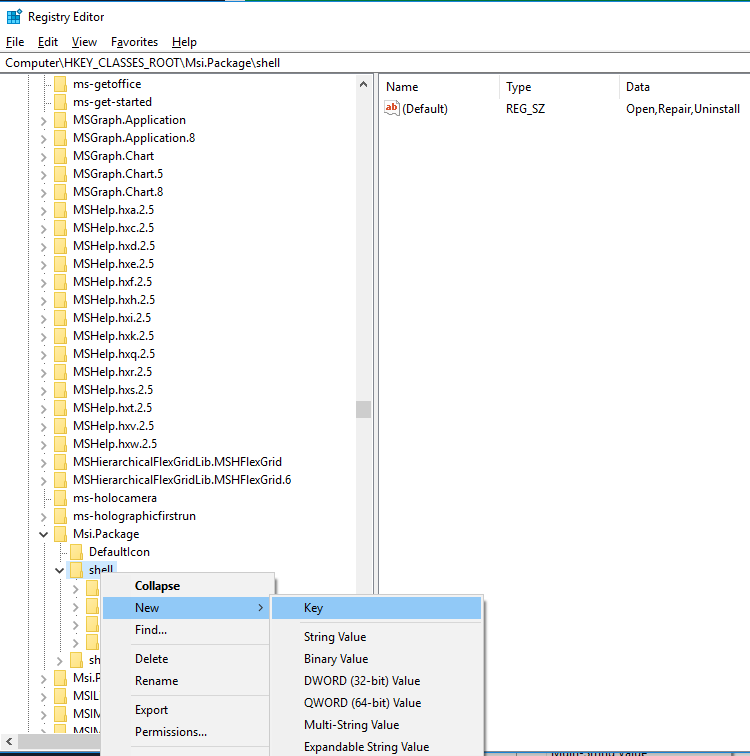
Note: If the User Account Control dialog box is displayed, click Yes to continue.
-
The new key is added as a sub-key under shell. Rename it to “runas” (without the quotes).
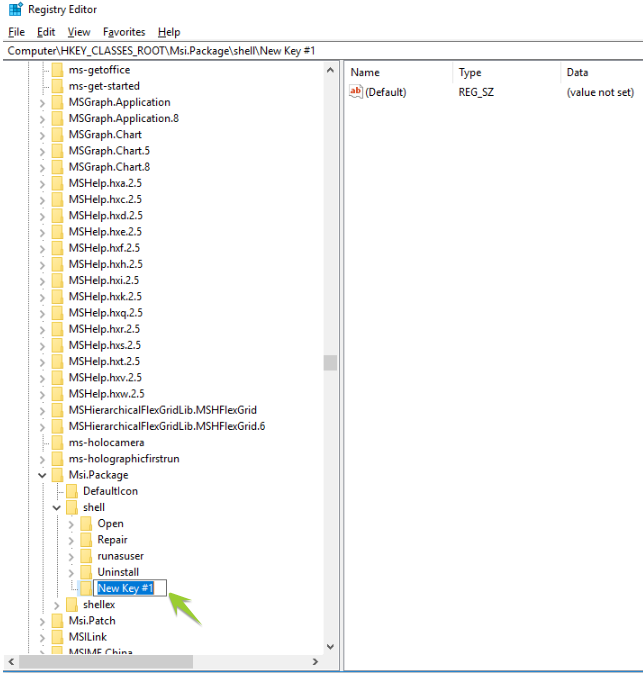
-
Right-click the Default value in the right panel.
-
Select Modify.
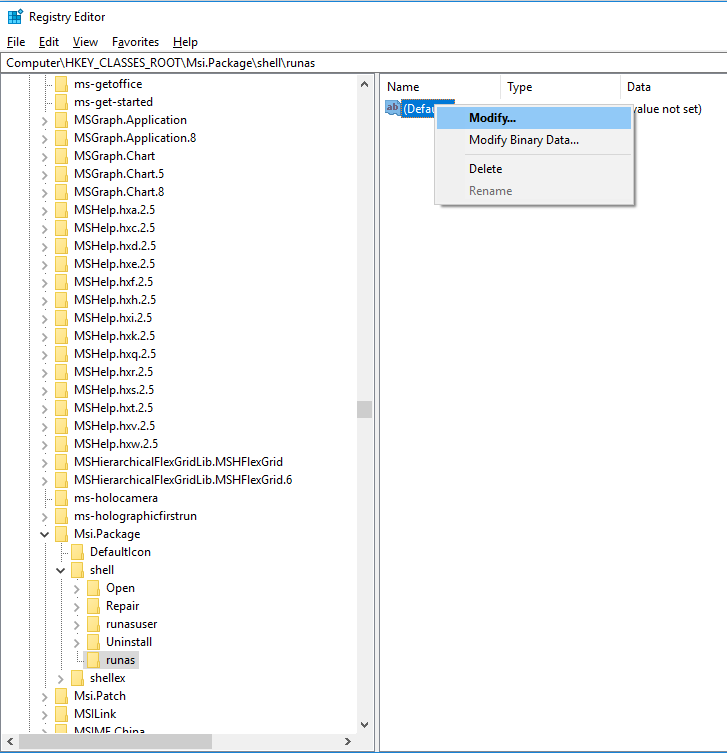
Note: You can also double-click on Default to edit its value.
-
In the Edit String dialog box, type “Install as &administrator” in the Value data field.
-
Click OK.
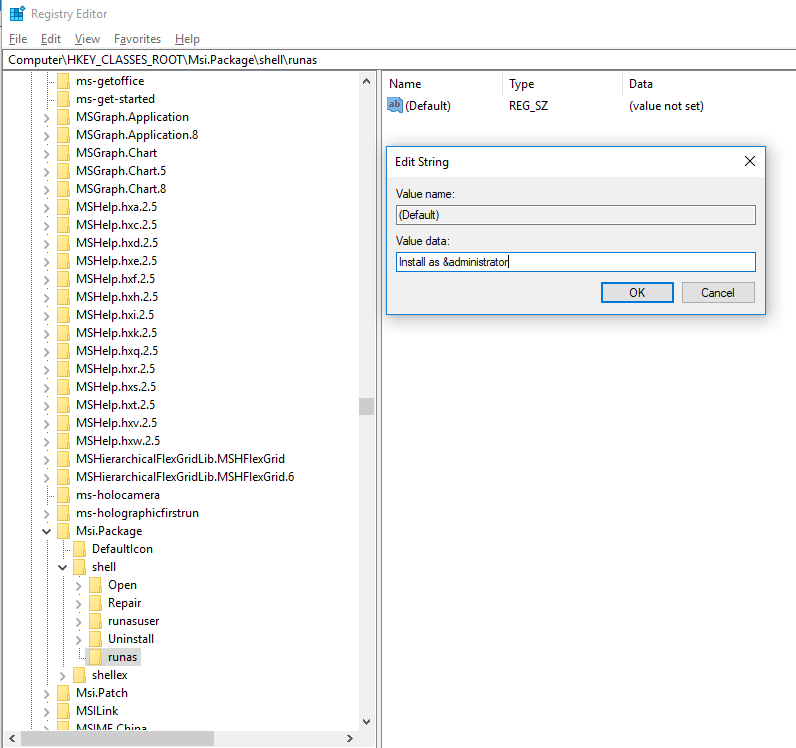
-
Right-click the runas key.
-
Select New > Key from the menu.
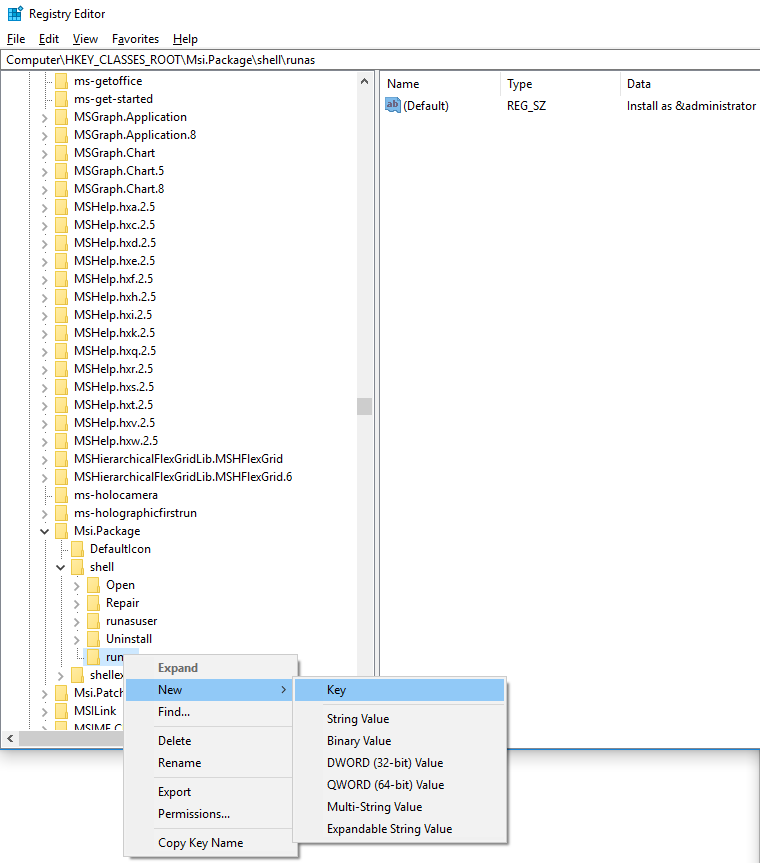
-
Rename the new sub-key to command.
-
Select the command sub-key and double-click Default in the right pane to edit its value. On the Edit String dialog box, enter the following in the Value data edit box:
msiexec /i “%1”
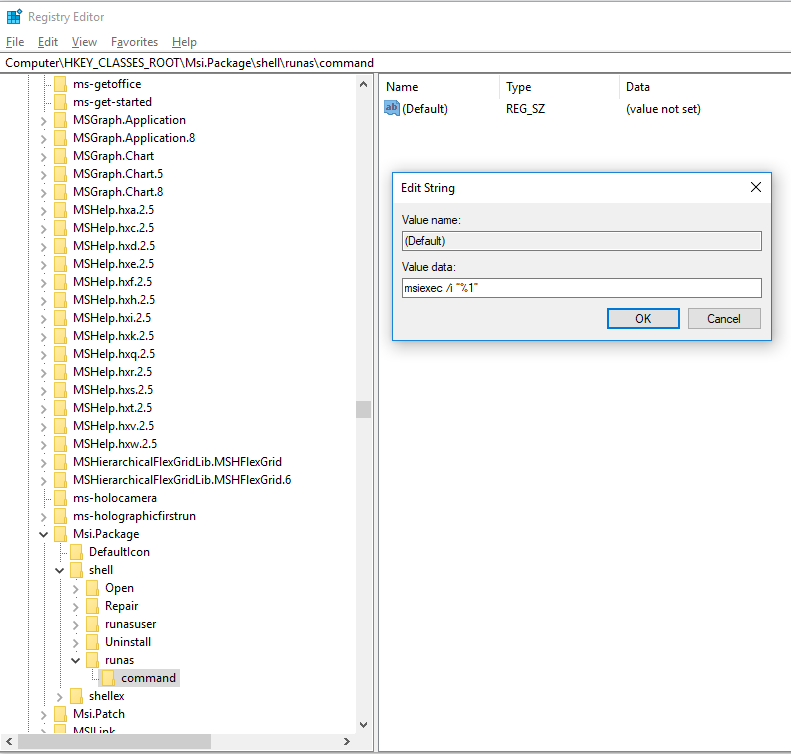
-
Click OK.
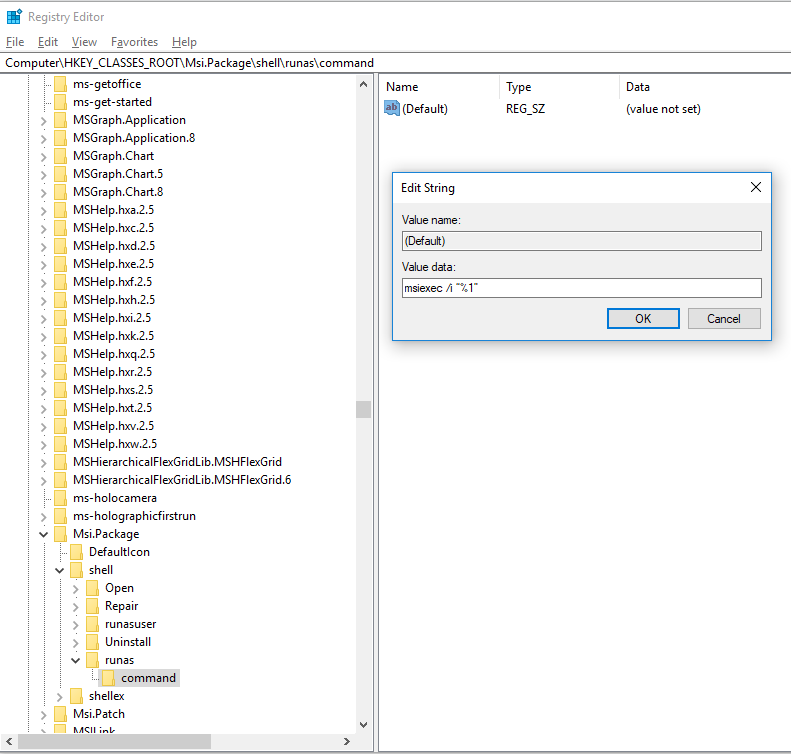
-
Select Exit from the file menu to close the Registry Editor.
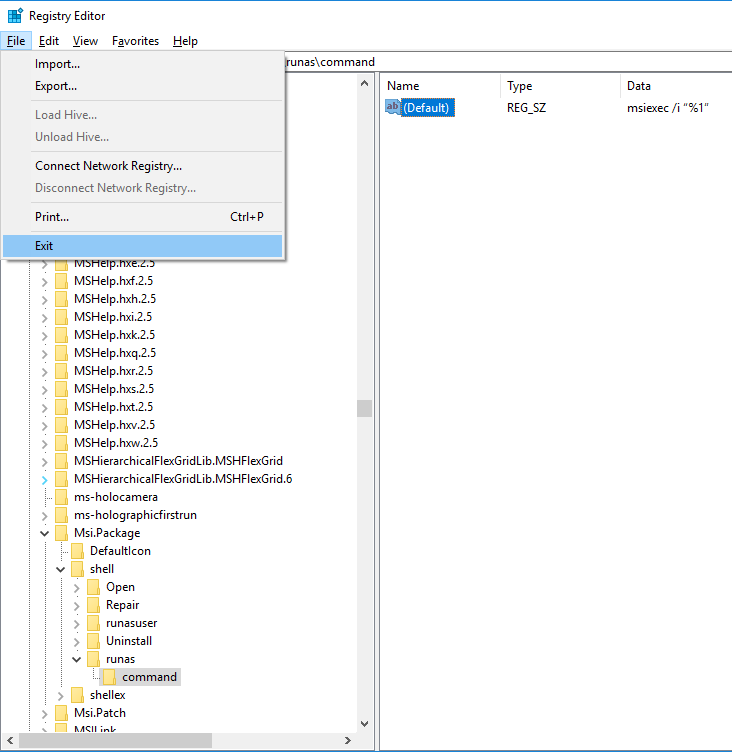
-
You will now see the Install as administrator option when you right-click any MSI installation package.
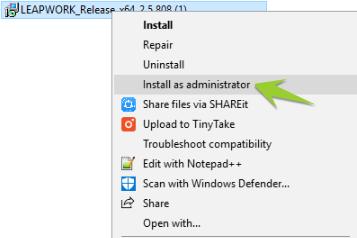
When you choose the Install as administrator option, the UAC prompt may appear depending on your system’s UAC settings.
How to downgrade Leapwork from higher to lower version
Here is the step-by-step process:
Step 1: Take Database key backup
Before starting downgrade users have to make sure that they have a Database encryption key with them, all data stored in Leapwork, Assets, are encrypted and stored in an embedded SQLite database. Here is how you take the backup of keys:
Getting the Decryption Key
-
Open your Leapwork Studio.
-
Go to Settings.
-
Click on Controller settings.
-
Right-click on the Controller instance you want to access.
-
Click option 'Show Database encryption key' will display the key needed to access the database files.
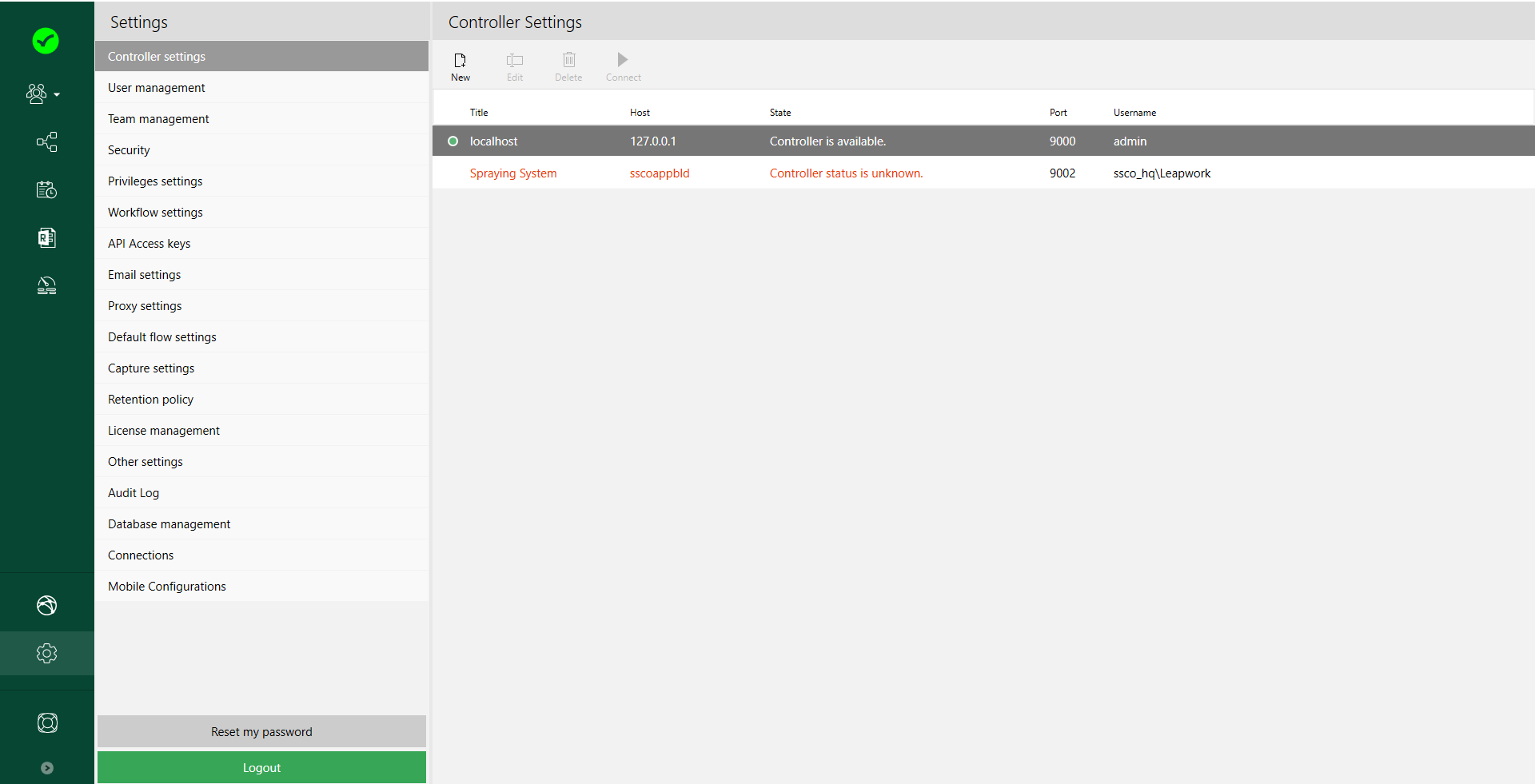
Note: The encryption key is generated and stored on your Controller instance only. Leapwork cannot retrieve it for you. Each Controller has its own unique key, so the steps must be repeated for every Controller in your environment.
Step 2: Database Backup
Here is how a user can take Leapwork backup manually:
-
Login to Controller machine.
-
Open Run (Win+R).
-
Type
services.mscand press Enter. -
Then stop the Leapwork Controller service.
-
Go to C:\Program Files\Leapwork folder.
-
Copy Assets folder.
-
Navigate to the Backup location.
-
Paste the Assets folder and wait till the file copy process is completed.
-
Press Win+R combination to open the Run dialog
-
Type ‘services.msc’ and press Enter to open the Services window
-
Find Leapwork Controller and start it using the right mouse button click and “Start” command.
Your Leapwork data backup is now completed.
Note: Some assets cannot be downgraded, so keeping a backup of the Leapwork database is essential to avoid data loss.
Step 3: Uninstall the Current version of Leapwork
To fully uninstall Leapwork from your computer, follow these steps.
-
Click Start, then open the Control Panel.
-
Under Programs, select Uninstall a program.
-
The Uninstall or Change a Program window will open.
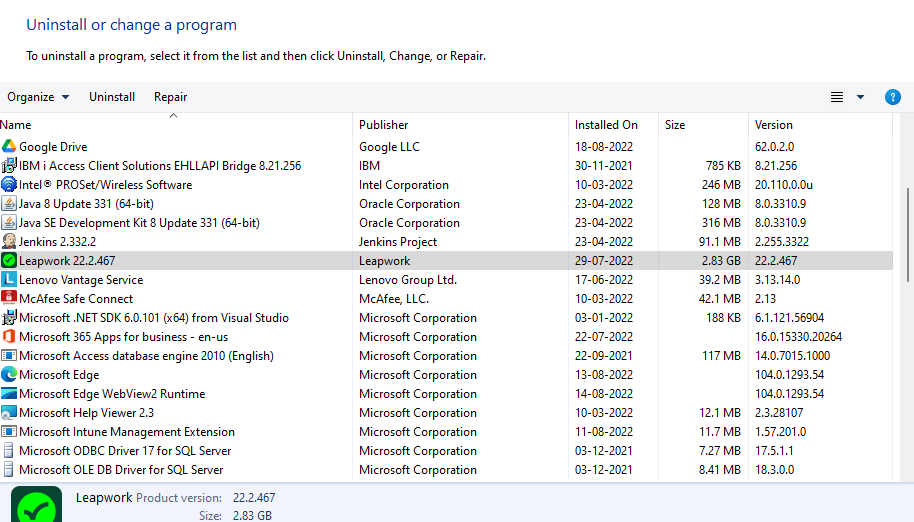
-
Select the program you want to remove.
-
Click Uninstall or Uninstall/Change at the top of the program list.
-
Read and respond to any messages that might open while the software is being removed from your computer.
Step 4: Download the old version of Leapwork
-
Go to LEAPWORK Download page https://account.leapwork.com/downloads?older=true
-
On the downloads page, click on the required version (32-bit or 64-bit) and download the MSI.
Step 5: Install the old version of Leapwork
-
Install Leapwork using the above downloaded Leapwork MSI.
Reinstallation typically doesn’t require entering license keys. If it does, please contact Priority Support.
After installation, open Studio to verify that all flows, data, and user details have been restored.
How to Migrate a Leapwork Controller to a New Machine (Leapwork 2018.1 and Later)
Before starting the data migration process, ensure that you have the database encryption key for all data stored in Leapwork, as assets are encrypted and saved in an embedded SQLite database.
When restoring a Leapwork system, you may need to set up a new Controller machine. For the new Controller to access and read the restored SQLite files, the decryption key is required. If Leapwork Studio has not previously connected to that Controller, you will be prompted to provide a valid encryption key to unlock all SQLite files. Because of this, it is essential to maintain a reliable backup and restore strategy to safeguard the SQLite decryption key files.
Access the Decryption Key:
-
Open Leapwork Studio.
-
Go to Settings.
-
Click on Controller Settings.
-
Right-click on the Controller instance that you want to access.
-
Click the option Show database encryption key and it will display the key needed to access the database files.
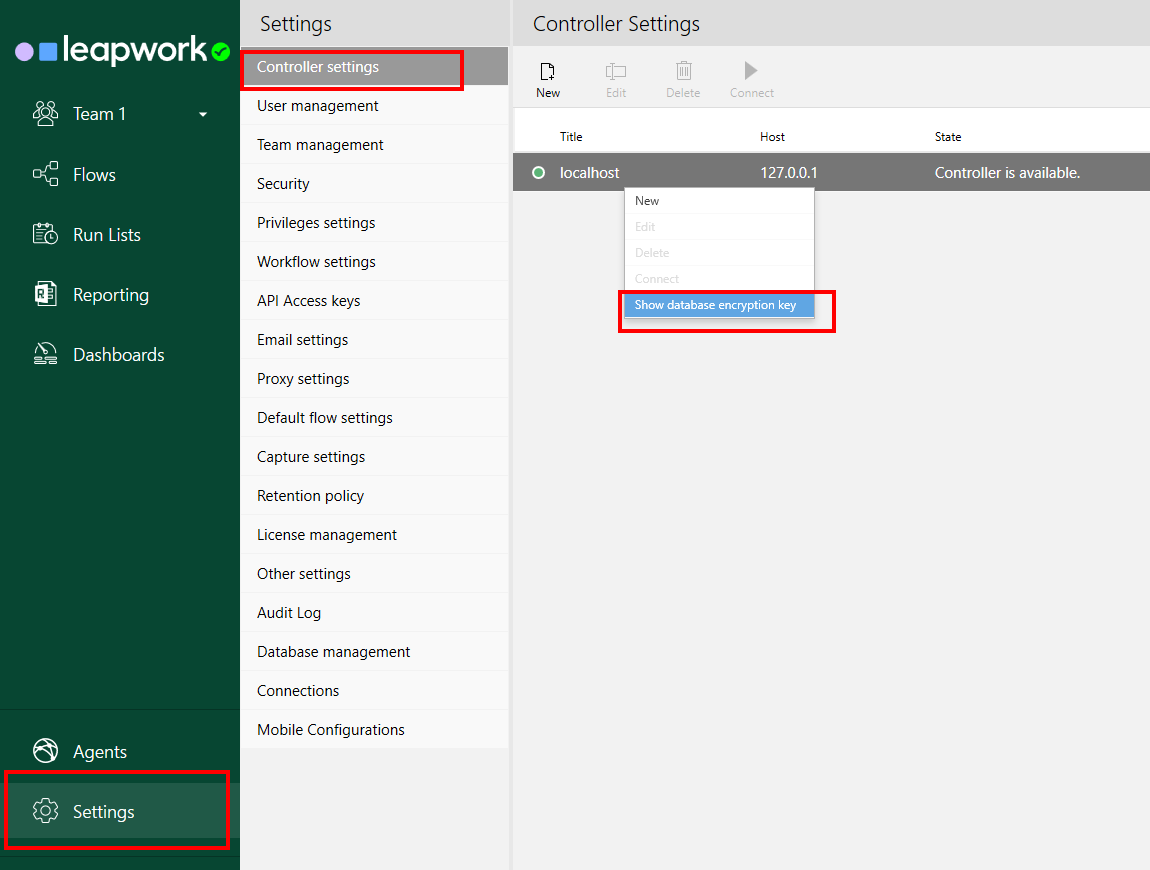
Note: The database encryption key is generated and stored locally on each Controller instance. It cannot be accessed or retrieved by Leapwork staff.
This key is unique to every Controller, so if you have multiple Controllers in your environment, you must repeat the retrieval steps for each one individually.
Migration of Controller
For example, Machine A is hosting an old Controller and Machine B will host a new Controller. The following procedures should be performed on both machines.
Machine A: Old Controller (2018.1 or above)
Before beginning with Controller migration, perform a backup of the latest data.
Prepare the backup:
-
Log in to a Controller machine.
-
Press the Win+R key combination to open the Run dialog.
-
Type services.msc and press OK to open the Services window.
-
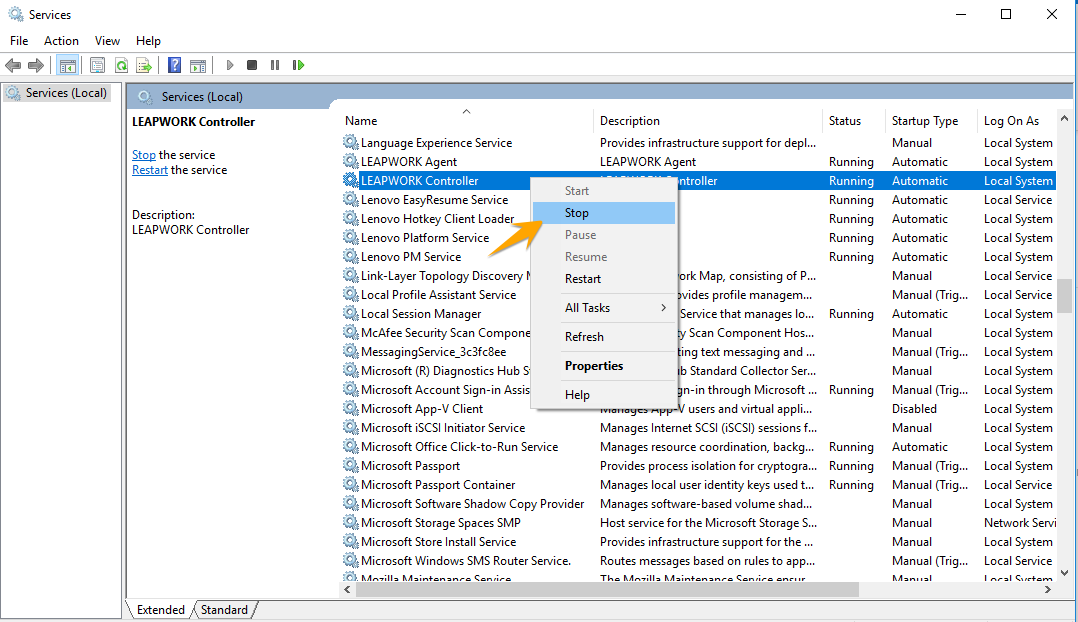
Find the Leapwork Controller and stop it by right clicking the mouse button and by clicking Stop.
-
Go to:
C:\Program Files\LEAPWORK folder
-
Copy the Assets folder.
-
Navigate to the backup location.
-
Paste the Assets folder and wait until the file copy process has completed.
Migrate to a new Controller
Once you have the database encryption key and database backup, you are ready for migration. Review the following steps: