How to set or get attributes in SAP elements using SAP blocks in Leapwork
You can get or set the attributes of SAP elements in Leapwork by using the SAP Action block.
The available attributes depend on the type of SAP element you capture.
Use Get Attribute to read a value from the element, and Set Attribute to write a value to it.
Common attributes include Name, Type, Id and Text.
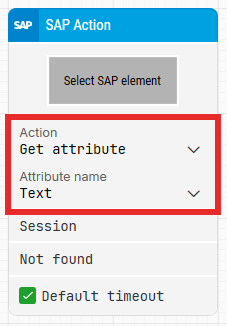
Getting attributes
To retrieve text from an SAP element:
-
Capture the element in an SAP Action block.
-
Select Get Attribute as the action.
-
Choose Text in the Attribute Name dropdown.
-
Use the Value connector to pass the retrieved text to other blocks.
Setting attributes
To set a value, such as text:
-
Capture the SAP element in an SAP Action block.
-
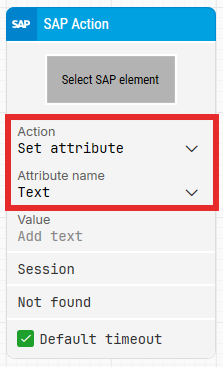
Select Set Attribute.
-
If the element supports text, Text will appear in the Attribute Name list.
-
Enter the value you want to set in the field provided.
How to perform SAP data validation using SAP building blocks
In Leapwork, you may need to validate data across SAP transactions. For example, checking that a created sales order number matches the expected value. This can be done using two blocks:
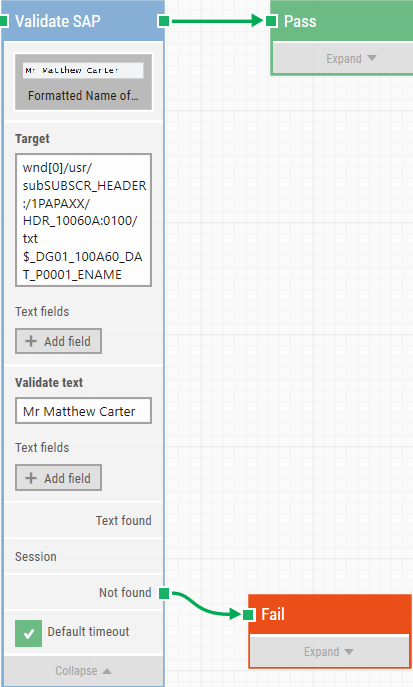
Validate SAP block
The Validate SAP block allows you to compare the text captured from an SAP element with the text specified in the block’s Validate text field.
This is useful for simple equal-to validations.
SAP Action block
The SAP Action block can retrieve values using Get Attribute.
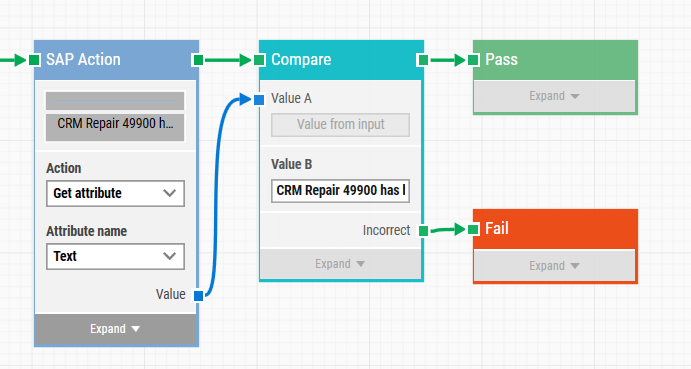
You can pass the retrieved value to a Compare block to perform more advanced validations, such as:
-
A contains B
-
A is greater than B
-
A is less than B
-
Other logical comparisons
This method offers more flexibility than the Validate SAP block.
How to handle drop-downs in SAP
Leapwork can select SAP dropdown values in two ways:
Select by Args
This method selects a dropdown value using the Args attribute.
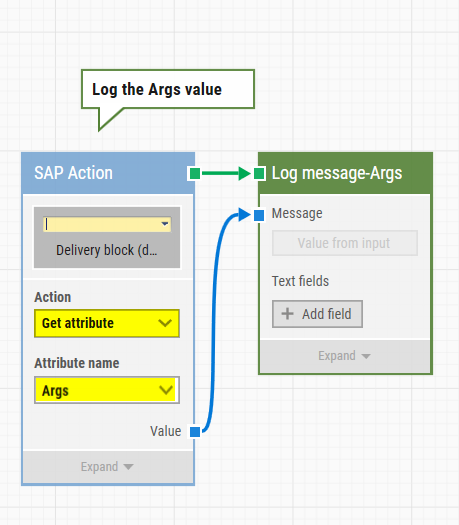
Get the Args value
-
Add an SAP Action block.
-
Capture the dropdown element.
-
Choose Get Attribute as the action.
-
Select Args as the attribute name.
Set the dropdown using Args
-
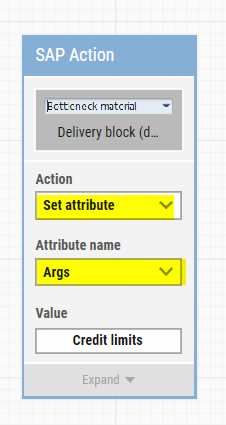
Add another SAP Action block.
-
Choose Set Attribute.
-
Select Args as the attribute name.
-
Enter the Args value you want to select.
Select by Key
SAP dropdowns often show only descriptions, while each option also has a Key value.
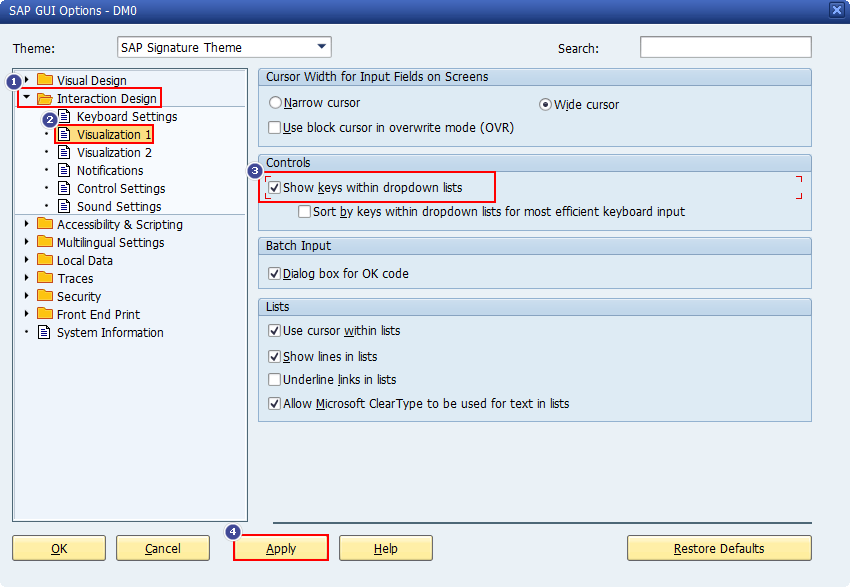
If keys are not visible, enable them:
-
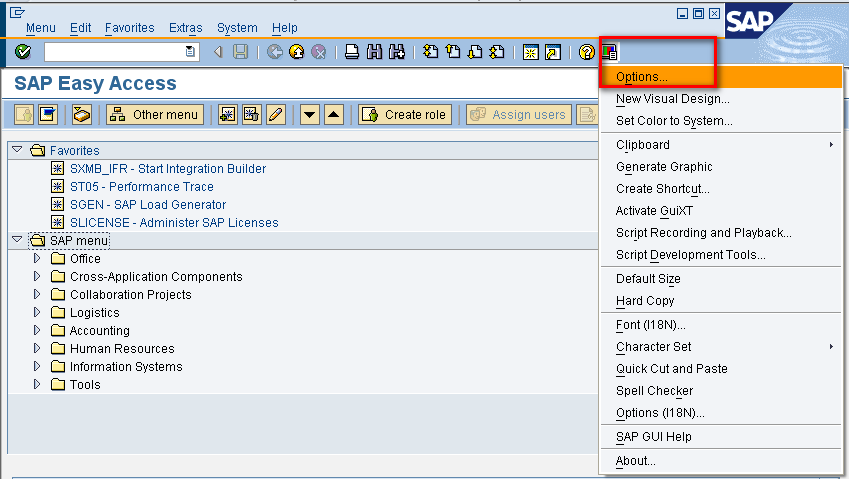
In SAP GUI, click Customize Local Layout or press ALT + F12.
-
Go to Interaction Design > Visualization 1.
-
Enable Show keys within dropdown lists.
-
Click Apply.
Get the Key value
-
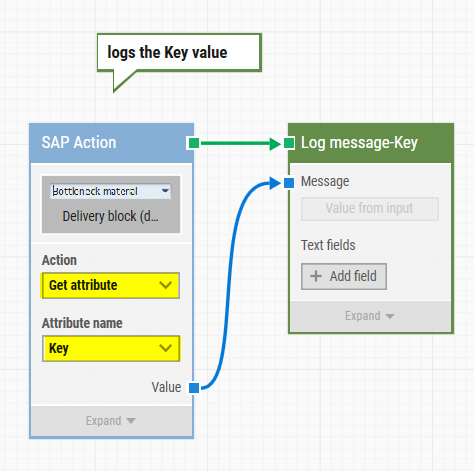
Use an SAP Action block.
-
Capture the dropdown element.
-
Select Get Attribute.
-
Choose Key as the attribute.
Set the dropdown using Key
-
Add an SAP Action block.
-
Select Set Attribute.
-
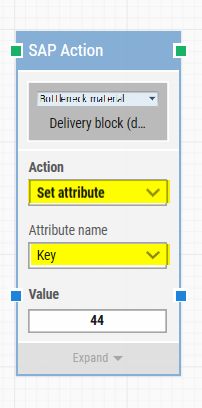
Choose Key as the attribute.
-
Enter the key you want (for example 44).