
How to check the state of a radio button in a desktop application
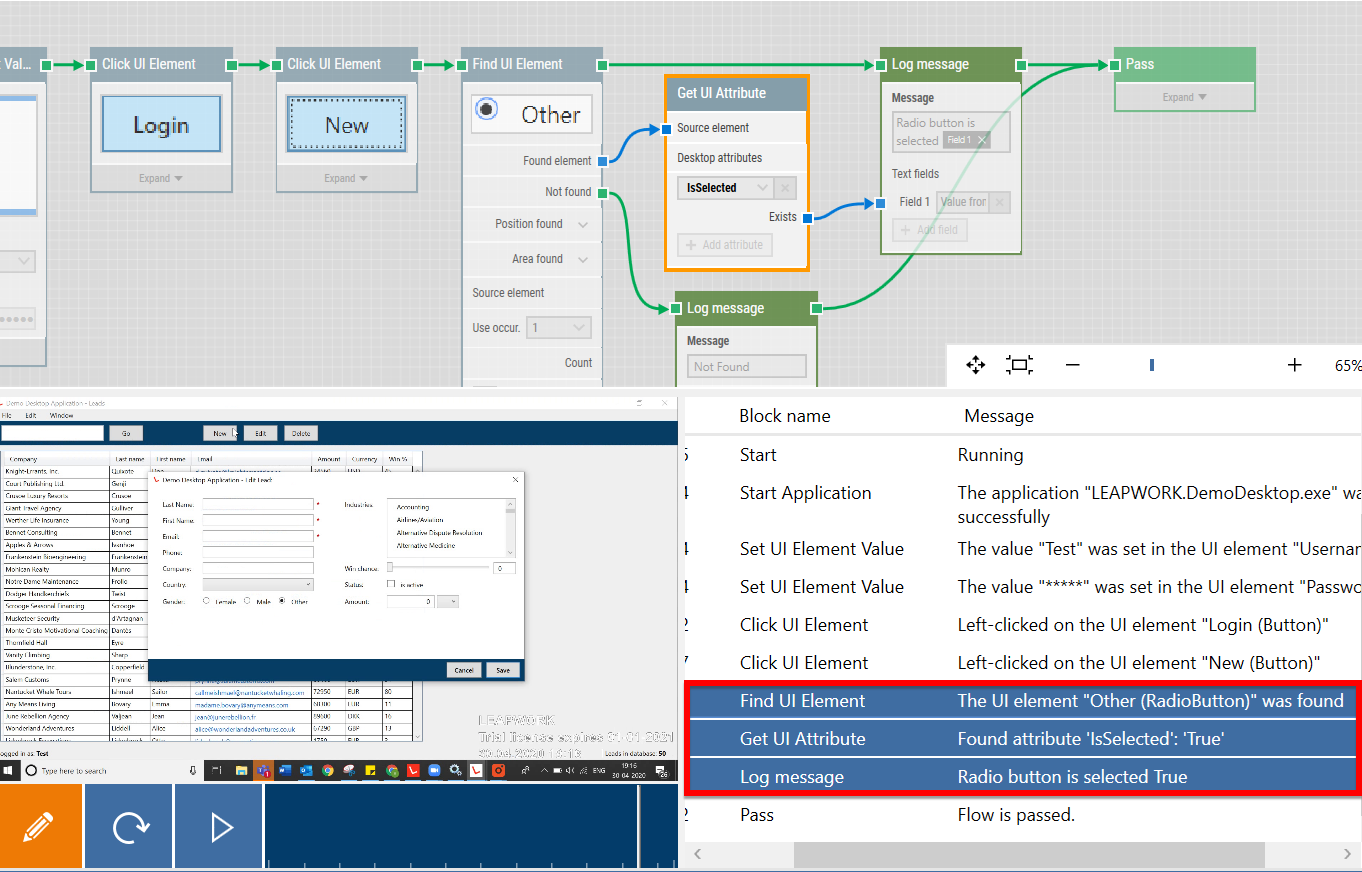
You can verify whether a radio button is selected or not by using the IsSelected property in Leapwork’s Strategy Editor.
Steps
-
Capture the radio button
Use a Find UI Element block to capture the radio button element.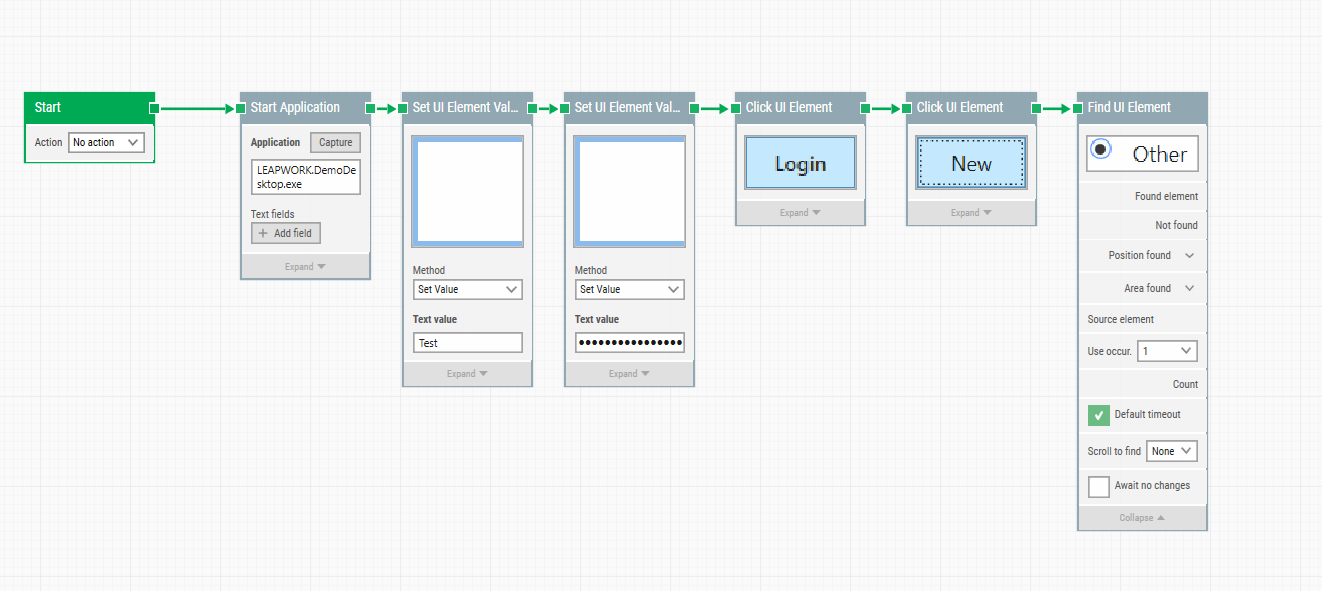
-
Open the Strategy Editor
Right-click the captured element and select Edit UI Element to open the editor.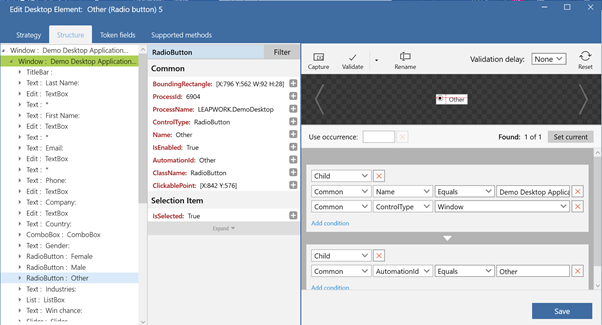
-
Add the IsSelected property
In the Structure tab, click the + icon to add a property named IsSelected, then validate and save.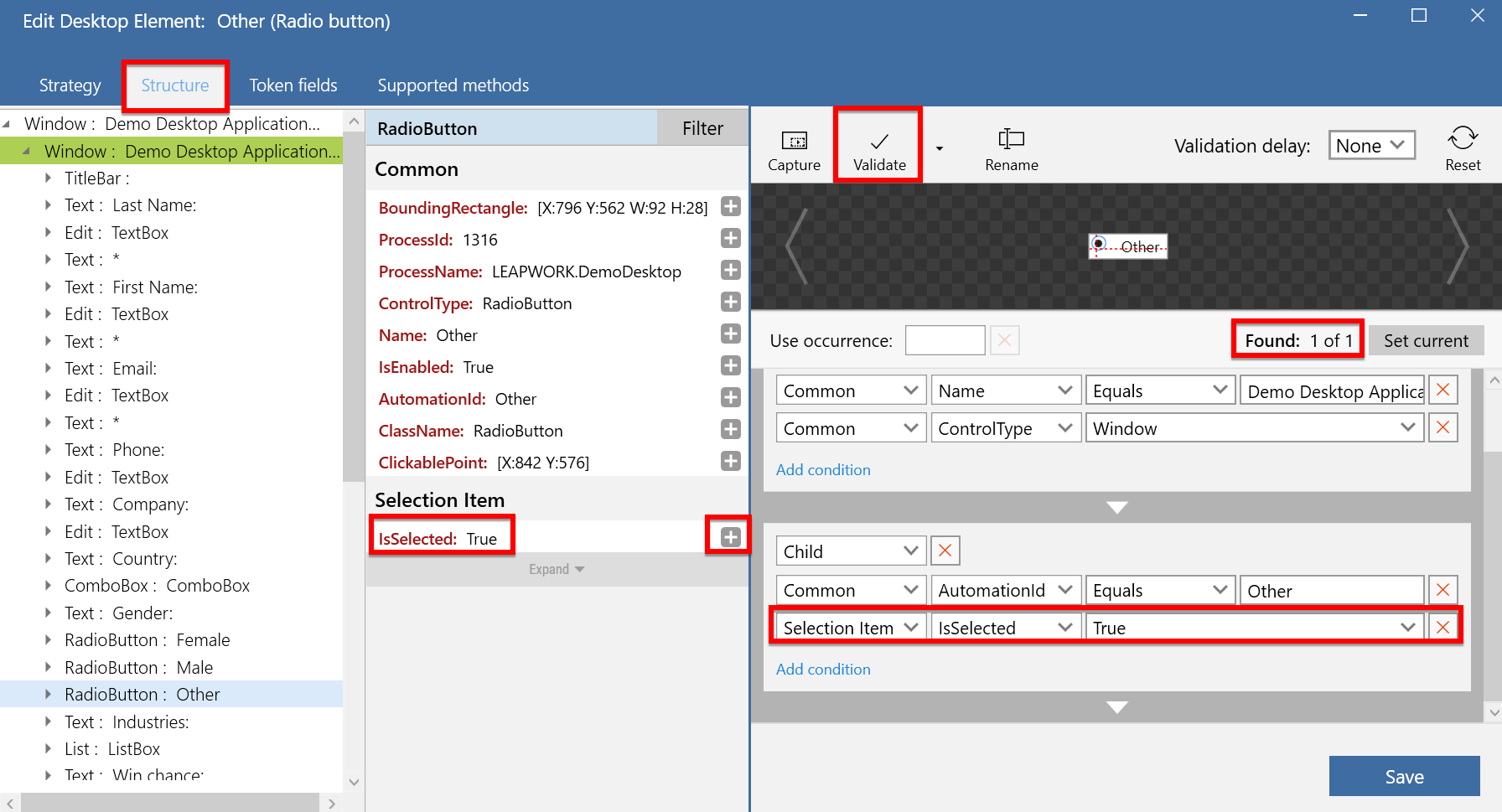
-
Use Get UI Attribute
Add a Get UI Attribute block and choose IsSelected under Desktop Attributes.
Connect a Log Message block to display the value (True or False).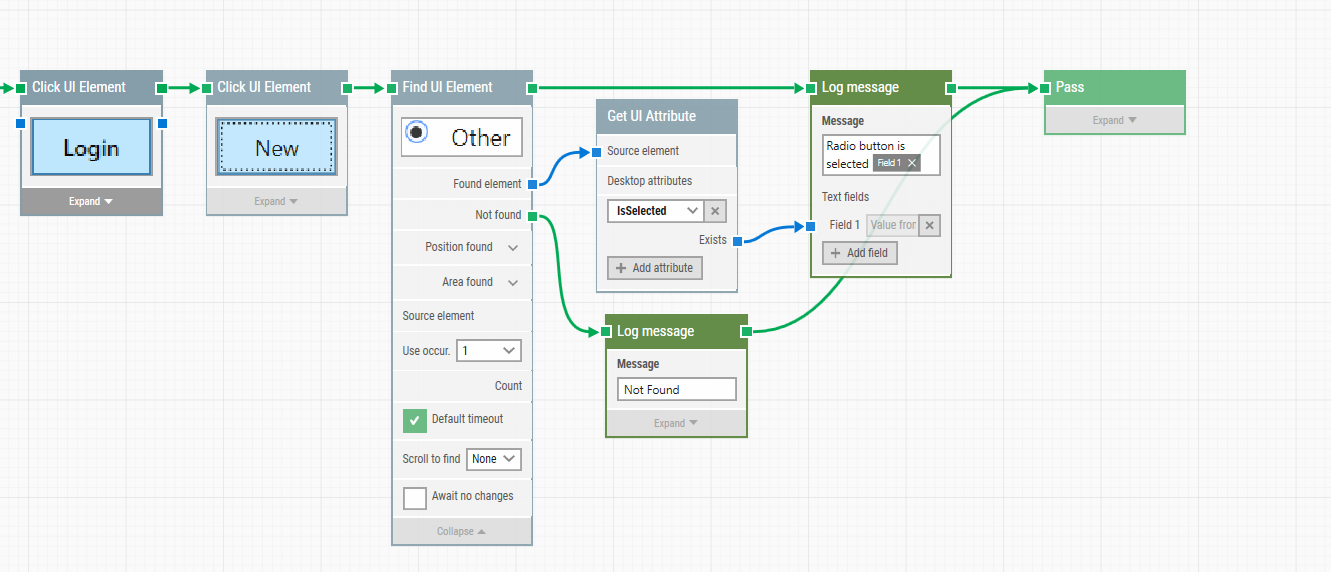
-
Run the flow
When executed, the result will show:-
IsSelected = True → Radio button is selected
-
IsSelected = False → Radio button is not selected
-
What if Leapwork is not able to click on a web element?
Clicking is an essential task when performing automation on web applications.
Even when Leapwork is able to validate a web element, sometimes it is unable to click on specific elements due to heavy DOM or complications with iframes. When Leapwork is unable to click, the action will not be completed on the web page.
We can recommend many strategies to resolve this issue.
Methods:
Method 1
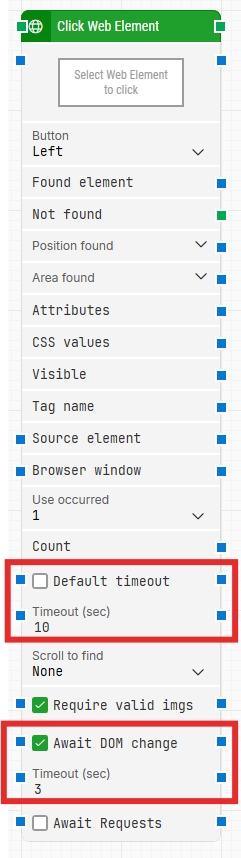
Increase the Default timeout and check "Await DOM change" in the Click Web Element block.
Method 2
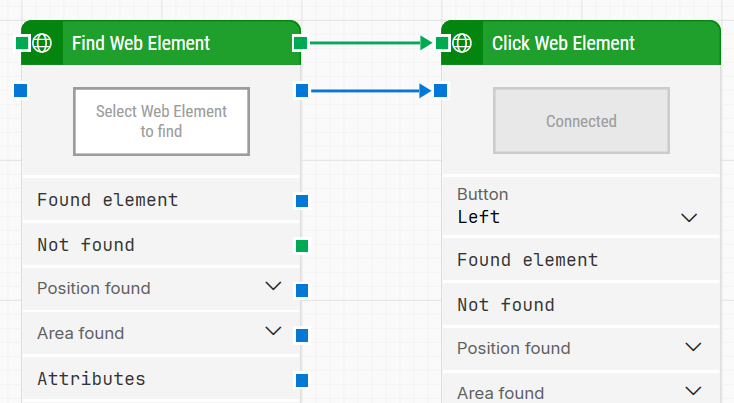
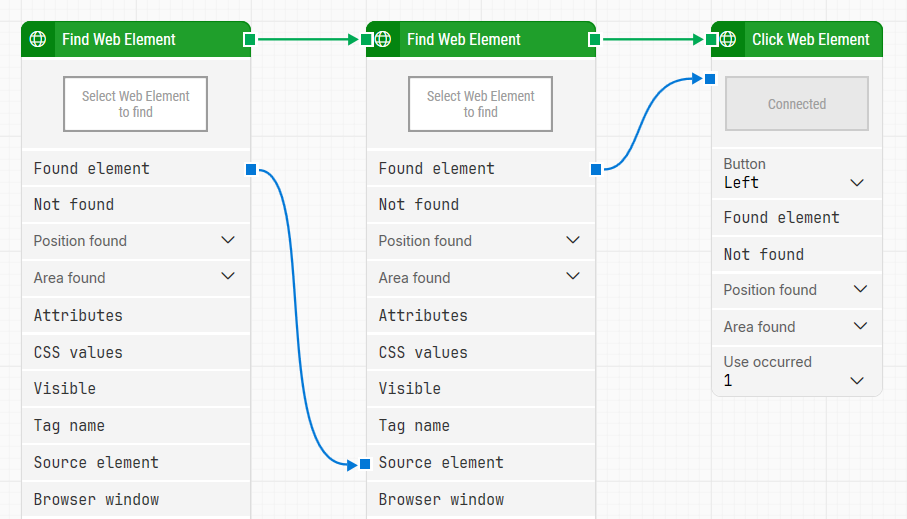
Use the Find Web element with different strategies, preferably the "Root Descended Child" strategy, before the Click Web Element block.
Method 3
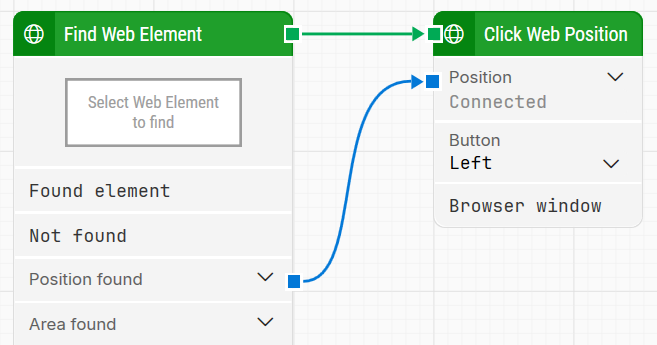
Use Find Web Element and then Click Web Position block.
Method 4
Use more than one Find Web Element and then click web element, if the DOM is heavy. Suppose the strategy is like this.
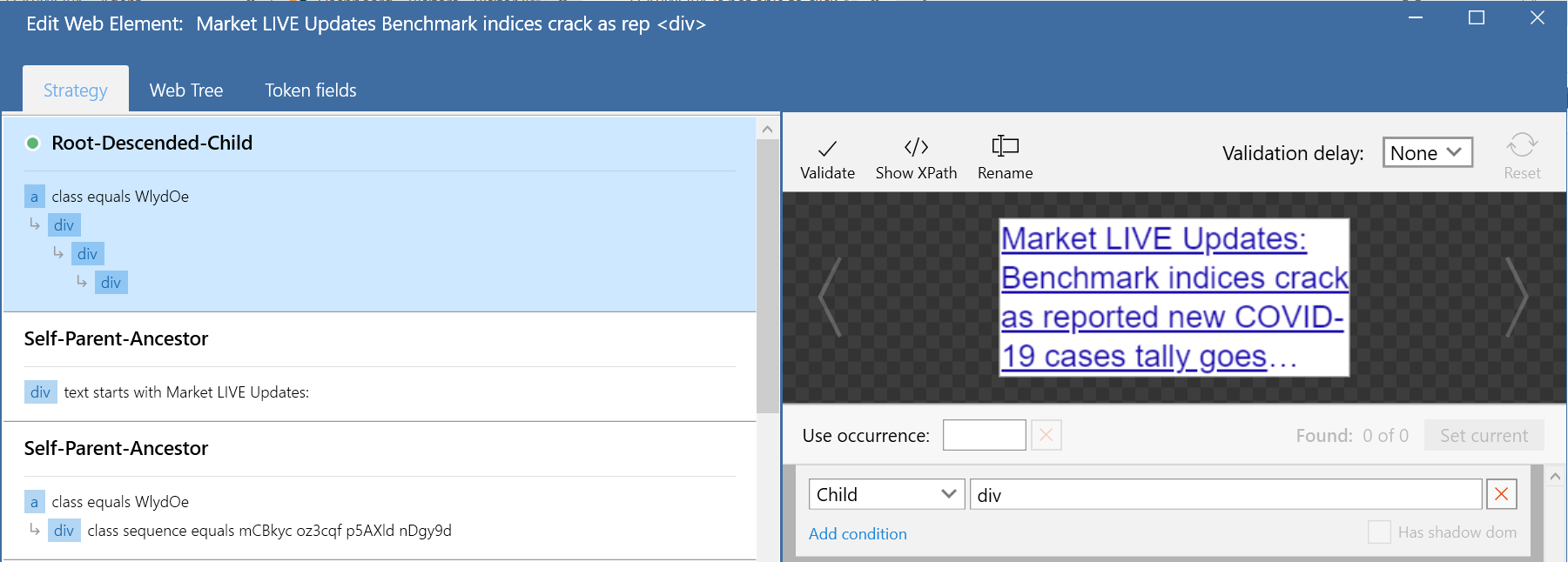
Now we can split elements into two different Find Web element blocks. Like 'a' and 'div' in first and last, last two 'div' in the other Find Web Element block.
Method 5
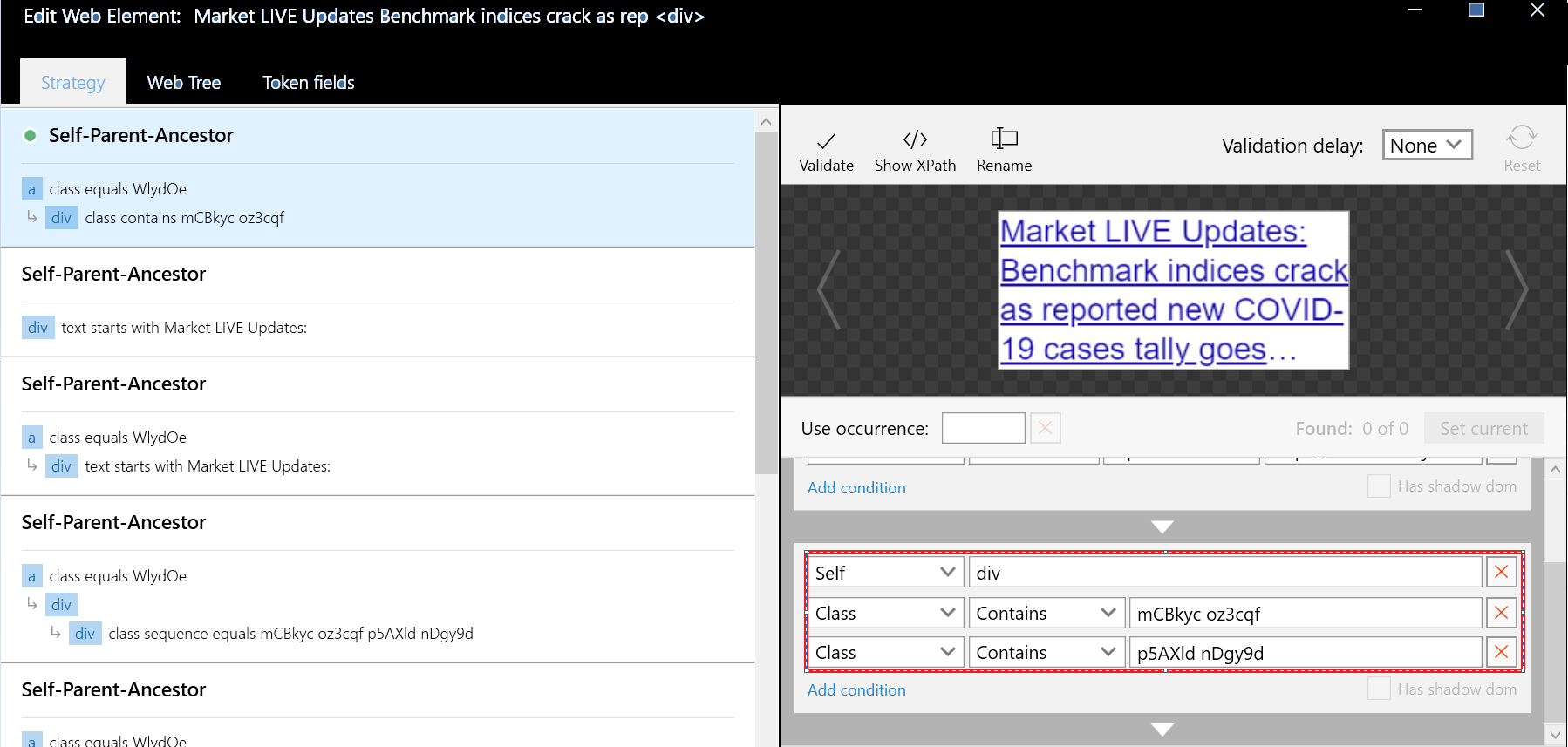
Try to split the class attribute of the web element.
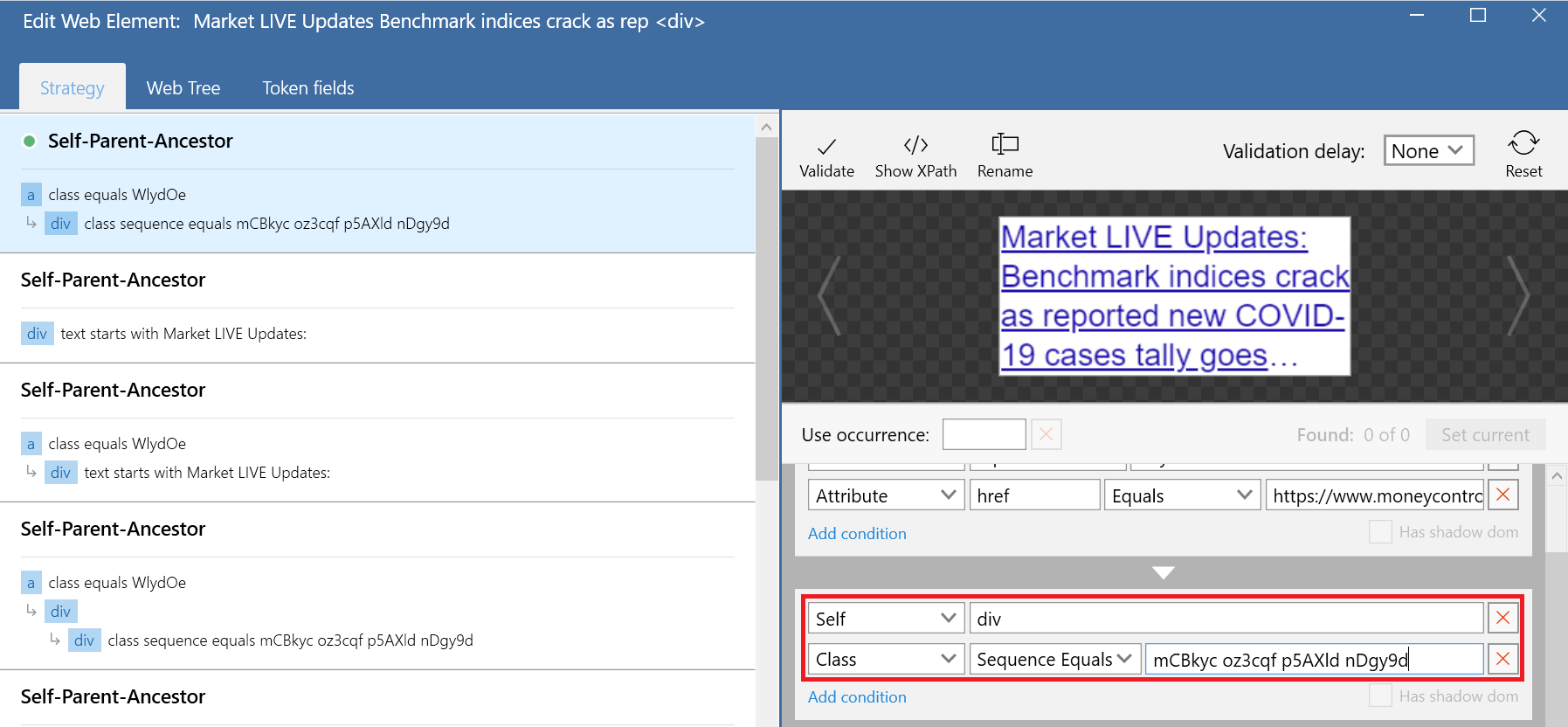
If the class attribute is big, then we can split that into two conditions.
Method 6
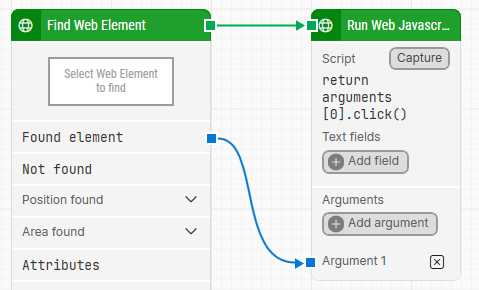
Use Run Web JavaScript block to click. Use code return arguments[0].click()
I am not able to set my dropdown using the Set Web Dropdown block
The Set Web Dropdown block only works with dropdowns that use a standard HTML <select> element.
If it is not working, your application likely uses a custom dropdown implementation.
You can check this by pressing F12 in your browser to open the Developer Tools, then inspecting the dropdown element.
If you do not see an <option> tag, it means the dropdown is custom-built.
Resolution:
For custom dropdowns, you can use the Click Web Element block instead.
Follow these steps:
-
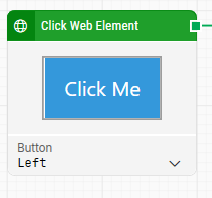
Add a Click Web Element block and click Capture new web element to select the dropdown field.
-
Add another Click Web Element block for the dropdown options.
-
To capture the options:
-
Press Escape to exit capture mode.
-
Open the dropdown manually.
-
Press Ctrl + F1 to re-enable capture mode.
-
Select the desired option.
-
-
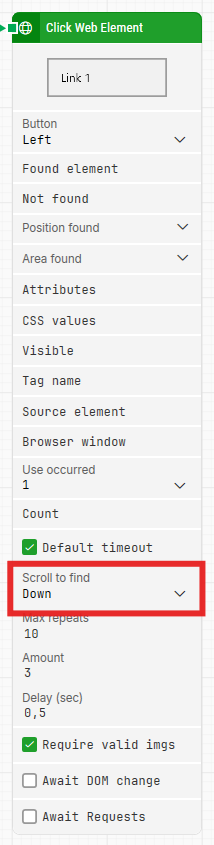
If your dropdown requires scrolling, enable Scroll to find in the block settings.
Dynamic dropdown selection
You can make dropdown selection dynamic by using a token in your locator strategy.
For example, if your options use an <a> tag with a CSS attribute, you can replace the value with a token to select it dynamically at runtime.
How to perform keyboard shortcuts in Leapwork flows
When building flows in Leapwork, you may need keyboard shortcuts to trigger actions quickly. Shortcuts help replace multiple blocks with a single keystroke sequence, which simplifies flows and improves execution speed.
Leapwork includes Mouse and Keyboard blocks for sending keyboard input. These include Type Text, Press Key and Release Key, and you can use them to perform any required shortcut.
Type Text block
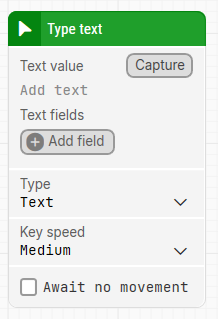
The Type Text block lets you type text and also capture shortcut combinations.
Click Capture to record keystrokes, including special keys such as CTRL+C, CTRL+S, ENTER or any other keyboard combination.
Press Key block
The Press Key block is used to press and hold a key.
This is helpful when you need to hold a modifier key such as CTRL while performing another action, for example dragging an item with the mouse.
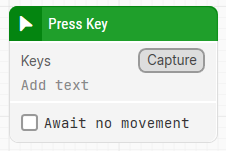
It is normally used together with the Release Key block.
Shortcuts can be captured by clicking Capture and pressing the required keys.
Type Web Text block
The Type Web Text block types text and keystrokes directly into a web browser.
It works the same way as Type Text but is designed specifically for web applications, targeting the element captured in the block.

How to use loops in Leapwork
Loops let you repeat actions in a flow either a fixed number of times or until a condition is met. In Leapwork, you can do this in two ways:
Option 1. Use Use Occurrence = All
Many blocks in Web Automation, Desktop UI, and Image and Text support Use Occurrence. If an element is found multiple times, you can choose which instance to use.
-
Select a single occurrence when you want one element only
-
Select All when you want to iterate through every matching element
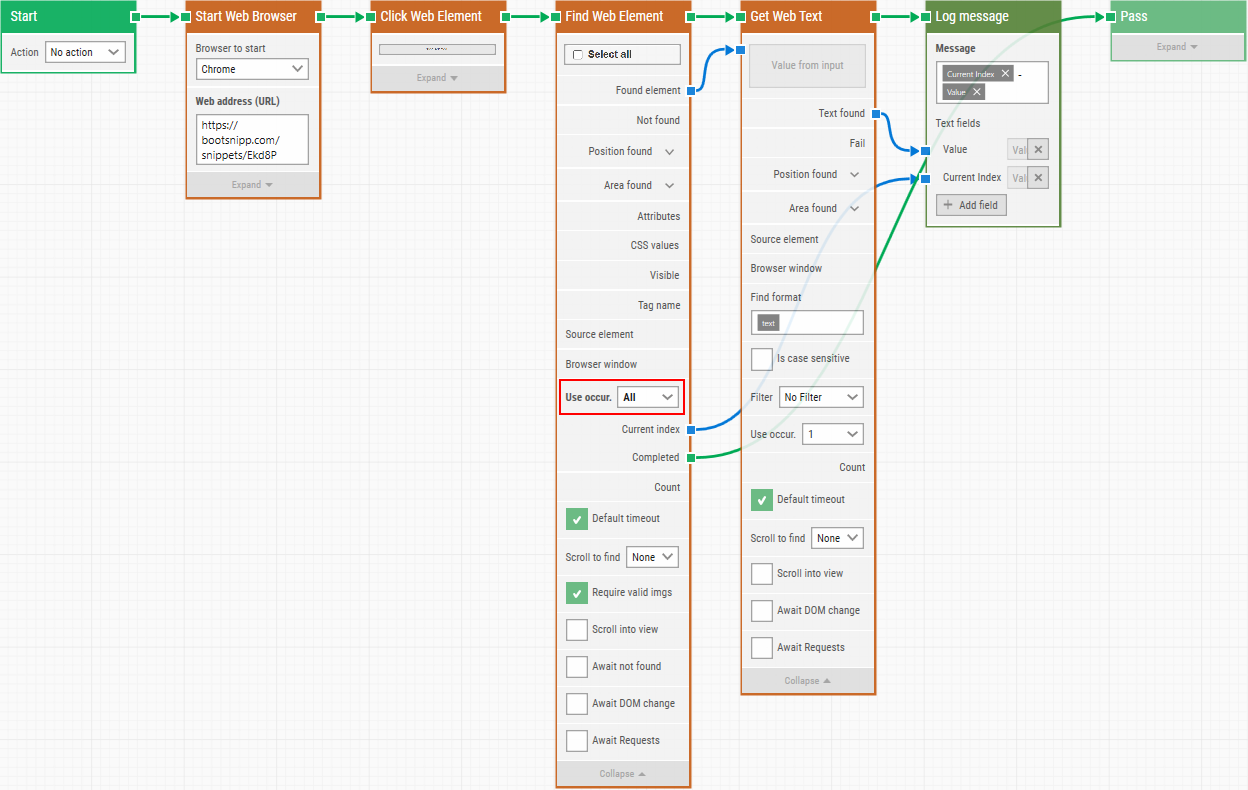
When you set Use Occurrence to All, two extra properties appear:
-
Current index
Shows which element is currently being processed. For example, if three matches are found, it will go from 1 to 3. -
Completed output
The green output connector triggers when all occurrences have been processed.
Example use case: reading all values from a dropdown.
Create a dynamic strategy that matches all items, set Use Occurrence to All, then use a block like Get Web Text to read each item.
Option 2. Use the Loop building block
You can also loop by using the Loop block directly. This is useful when you want full control over the number of iterations and the logic inside each iteration.
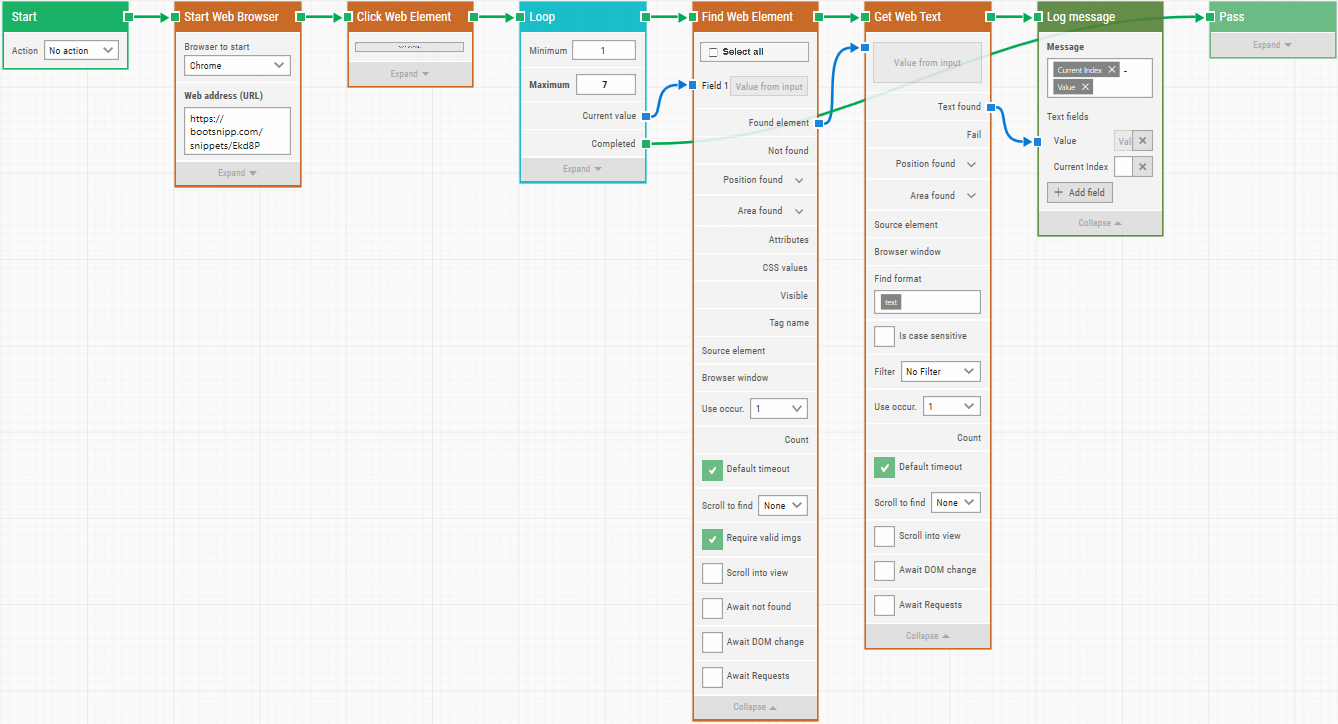
Typical setup:
-
Add a Loop block.
-
Use the current Loop value as an index.
-
Pass that value into the element strategy (for example, into Use Occurrence in a Find Web Element strategy).
This allows Leapwork to select the correct menu item at runtime, one item per loop iter
.NET Compiler Upgrade for C# Code Blocks starting release Leapwork 2025.3.0
This article will support in configuring C# block dependencies as per new update in Leapwork .Net framework 8 implemented in Leapwork release 2025.3.0.
Compilation and execution changes:
Previously all C# code in C# code block has been compiled using .NET Framework C# compiler. In .NET newest compiler is used instead of .NET Framework one. It means:
-
That the code will be compiled and executed as .NET library.
-
.NET Framework dependencies, libs and assemblies cannot be used anymore.
-
GAC is no more accessible.
-
Users / Customers will have to adjust their existing scripts in blocks, including referencing all required .NET libs and their dependencies, replacing previous .NET Framework ones.
-
Users / Customers may have to correct “usings“ in their scripts.
-
Users / Customers will have access to newest C# features and syntax.
Global Assembly Cache (GAC) Support Change in .NET 8:
With the introduction of GAC (Global Assembly Cache) NO support in .NET 8 builds, we are now disabling the ‘From GAC' option in the C# code editor window. Moving forward, assemblies can only be referenced using the 'From File' option.
Reason: GAC is Windows specific .NET Framework-based technology, meanwhile .NET is targeting to be cross-platform, and that’s why GAC is no more supported. Instead, nuget-package approach is used in .NET.
How to enable flow branching using Switch block?
In Leapwork, you often need to run different actions depending on a condition or input value.
The Switch block lets you create this kind of branching in a simple way.
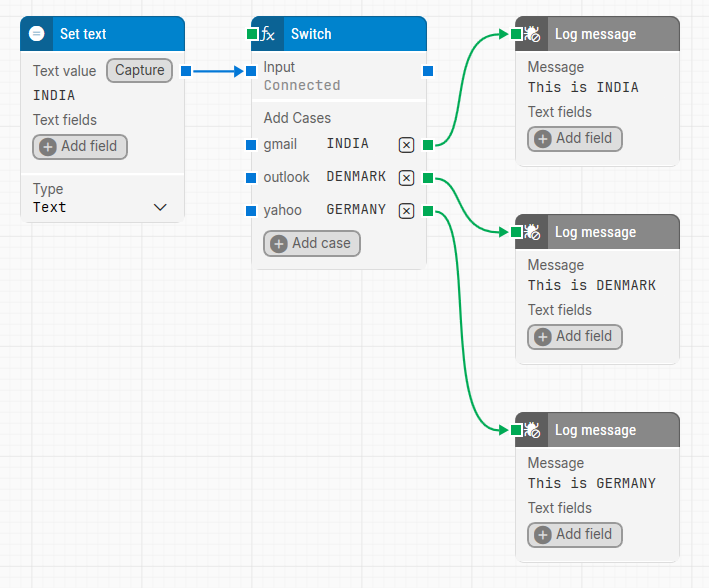
The Switch block works by comparing an Input value with one or more case values.
When a match is found, the flow continues through that specific branch.
By default, the comparison method is Equal, and the comparison type is Input as value.
Use the Switch block when you want one flow to handle multiple scenarios without building separate flows.
Is there a building block for IF statements?
Leapwork does not use a traditional IF statement, but most interaction blocks already include IF-ELSE logic.
Blocks such as Find Web Element, Click UI Element, Find Image, and others have:
-
One input connector
-
Two output connectors
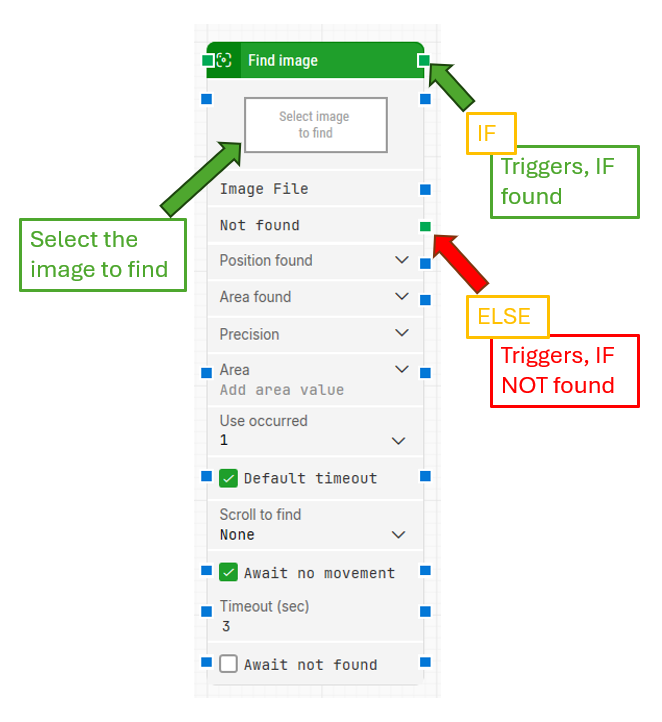
If the action succeeds, the top green connector is triggered.
If the action fails, the Not found connector is triggered.
For example, when using Find Image, the flow continues through the success path if the image is found. If it is not found, the flow follows the failure path.
This same logic applies to blocks used in Web, Desktop, and Virtual Desktop automation.
In addition, Leapwork provides Compare and Switch blocks, which can be used as direct alternatives to traditional IF statements when more explicit condition handling is needed.
Why is my mouse jumping when I capture elements in a virtual desktop?
When automating in virtual desktop environments such as VMware or Citrix, the system may not provide reliable offset information. This can cause sudden mouse jumps while capturing or interacting with elements.
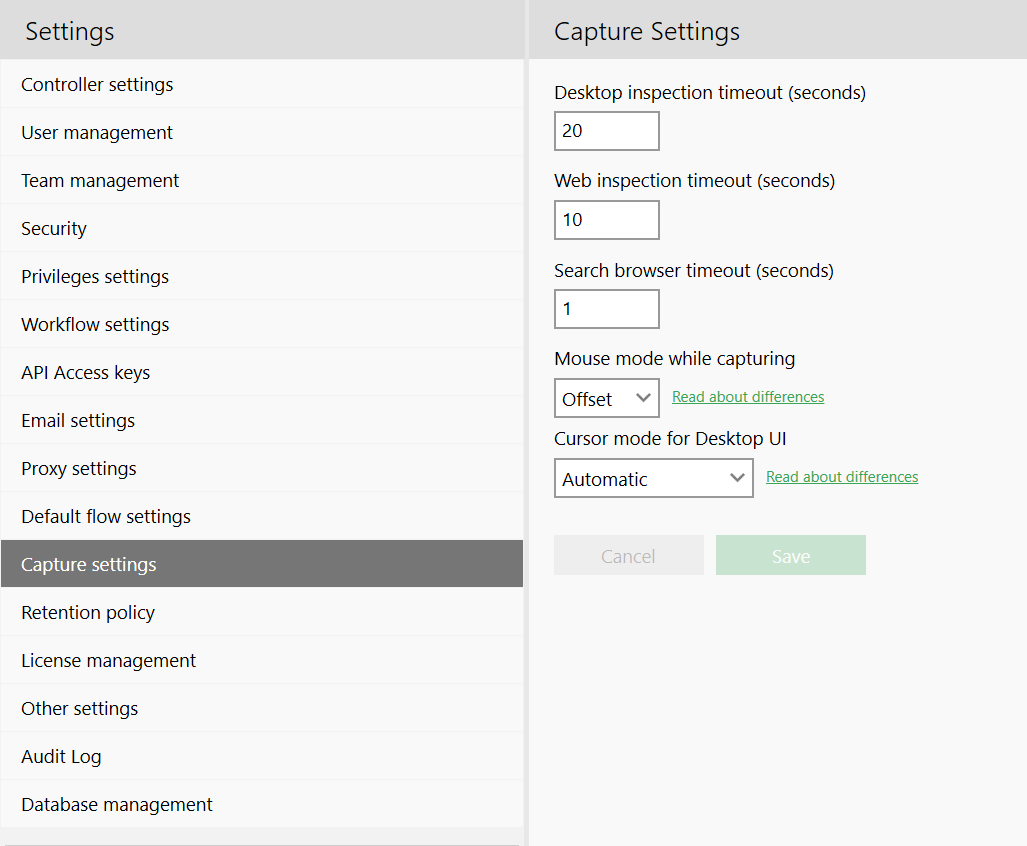
Leapwork offers two capture modes for web elements:
-
Offset (default): Uses mouse offset information when you hover over the screen to capture elements. This works well in non-virtual environments.
-
Position:Uses the element’s absolute screen position. This is recommended for virtual desktops, where offset data can be missing or inaccurate.
Resolution
-
If you are working in VMware or Citrix, select Position mode to ensure Leapwork captures the correct element location and avoids mouse jumps.
-
In non-virtual setups, Offset usually works fine.
Additional fix for VMware
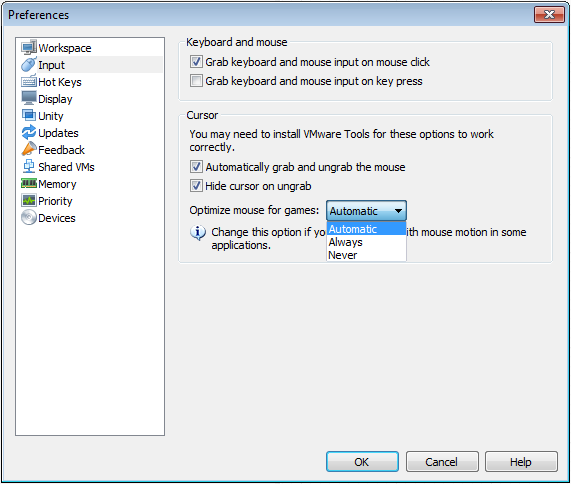
In VMware, you can also reduce mouse jump issues by enabling the mouse optimization setting:
Go to mouse settings and enable Optimize mouse for games, then select Automatic or Always.
Can I re-format DateTime values using building blocks?
Yes. By default, Leapwork uses the system’s localization settings to format DateTime values. You can change this by using the Generate Date/Time building block.
When you expand the block, you get access to individual fields such as Year, Month, Day, and Time. You can then combine these values in any format you need using Set Text or Type Text blocks. This approach also works well when you create a reusable custom building block for date formatting.
Common use cases
-
Formatting a DateTime captured from a web page
If you capture a date from a web page and need it in a different format, extract the individual date parts and rebuild the format using text blocks.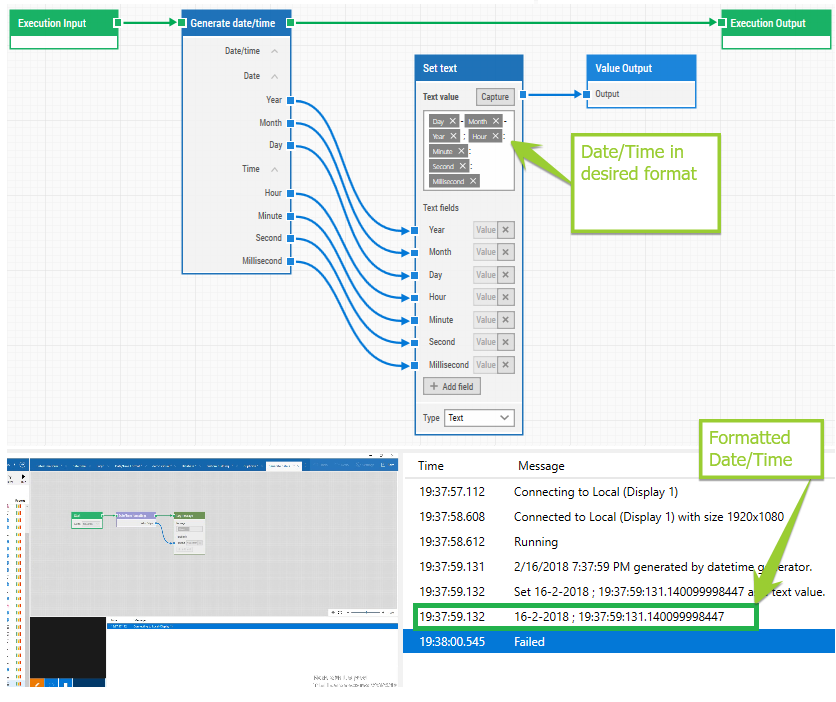
-
Calculating an offset date or time
If you need a future or past date based on a captured DateTime, use the Offset Date/Time block.
Enter the number of days, months, or years to offset and Leapwork will calculate the new DateTime value.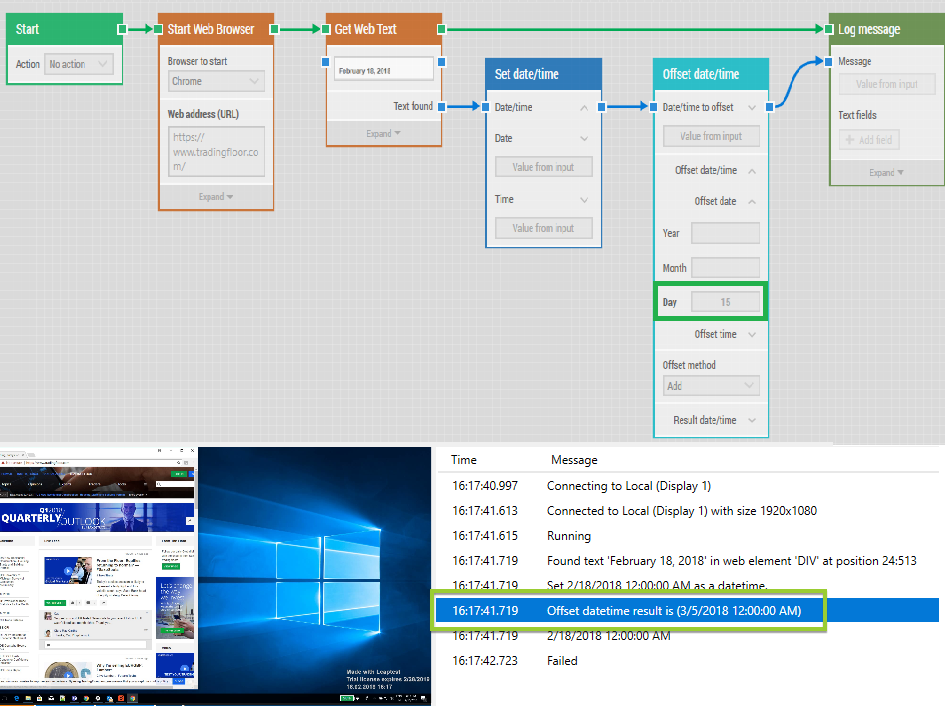
Example: Calculate the date and time 15 days after 02/18/2018 12:00:00 AM.