
How to set up an Appium Server
Appium acts as the automation bridge between Leapwork and mobile devices.
To install locally:
-
Install Node.js (LTS version).
-
Run:
npm install -g appium npm install -g appium-doctor -
Verify with
appium-doctor --androidand fix any missing components (e.g., SDK tools, Java). -
Start Appium:
appiumIt will listen on port
4723by default. -
Note the URL (e.g.,
http://127.0.0.1:4723/wd/hub) — you’ll use it in Leapwork’s Mobile Device Connection.
You can also host Appium remotely or through services like HeadSpin or BrowserStack.
How to set up the Android Native Environment
To prepare your Android environment for Leapwork automation:
-
Install Java (JDK): Make sure JDK 8 or higher is installed. Add the Java
binfolder to your systemPATH. -
Install Android Studio and SDK Tools:Download Android Studio, which includes the SDK Manager.
-
Install SDK Platform Tools and SDK Build Tools.
-
-
Set Environment Variables:
-
ANDROID_HOME→ path to your Android SDK (e.g.,C:\Users\<user>\AppData\Local\Android\Sdk). -
Add
%ANDROID_HOME%\platform-toolsand%ANDROID_HOME%\toolstoPATH.
-
-
Verify Setup:
-
Run
adb devicesin a terminal to confirm that Android Debug Bridge (ADB) works.
-
-
Optional: Install Node.js and Appium if you’ll be running mobile tests locally.
Your environment is now ready to connect with Leapwork for Android automation.
How to integrate Android Device with Leapwork
Minimum Requirements
-
Appium Server installed and running on the local machine.
-
Android Native Environment set up (Java SDK, Android SDK, environment variables).
-
Android device connected to the same machine via USB cable.
How to Do It
-
Prepare the Android Device
-
Open your phone’s Settings.
-
Go to About Phone and note the Device Name and Android Version.
-
If you don’t see Android Version and Build Number directly, open Software Information.
-
Tap the Build Number seven times to enable Developer Mode.
-
Go to Settings → System → Developer Options and ensure Developer Options are enabled.
-
In the Developer Options, enable USB Debugging under the Debugging section.
-
-
Verify Device Connection
-
Connect the Android phone to your machine with a USB cable.
-
Open a command prompt and run:
adb devices -
Confirm that your device ID appears in the list as device.
-
If prompted on your phone, accept the Allow USB debugging permission.
-
-
Set Up a Mobile Connection in Leapwork.
-
Set Up Mobile Configuration in Leapwork.
Results
-
Your Android device is now fully integrated with Leapwork.
-
The device can be used to run mobile automation flows directly through the Appium connection.
-
Once configured, the setup remains reusable for all your Android test cases.
How to automate Android native app using Leapwork on real Android Device
Minimum Requirements
-
Appium Server installed and running on your local machine.
-
Android Native Environment set up (Java SDK, Android SDK, environment variables).
-
Android device integrated with Leapwork and connected via USB cable.
-
Device unlocked before recording the test case.
How to Do It
-
Start the Recorder:
-
In Leapwork Studio, select your mobile configuration from the dropdown.

-
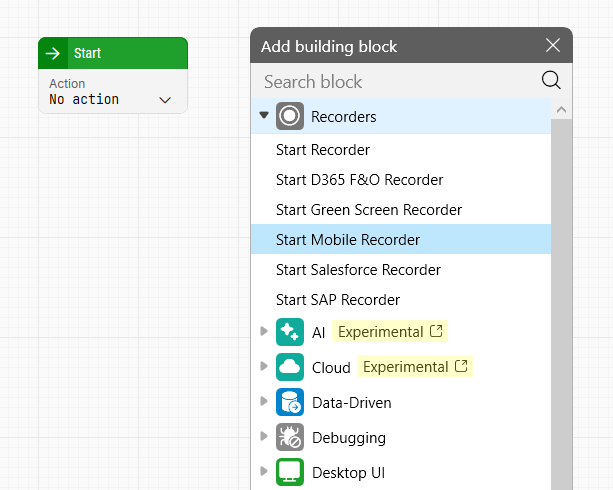
Create a new flow, right-click the canvas, and choose Add Building Block → Start Mobile Recorder.
-
Your device screen will appear on your computer. Hovering over it highlights elements.
-
-
Open the App Drawer:
-
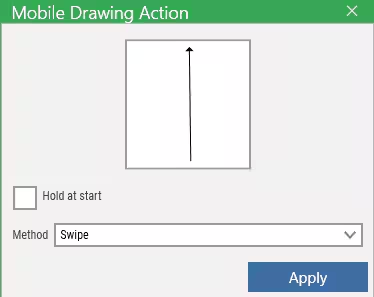
Perform a swipe gesture: click at the bottom of the screen, drag upward, and release.
-
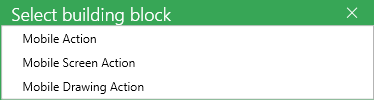
Choose Mobile Drawing Action when prompted and click Apply.
-
The swipe executes on your physical device.
-
-
Launch the Outlook App:
-
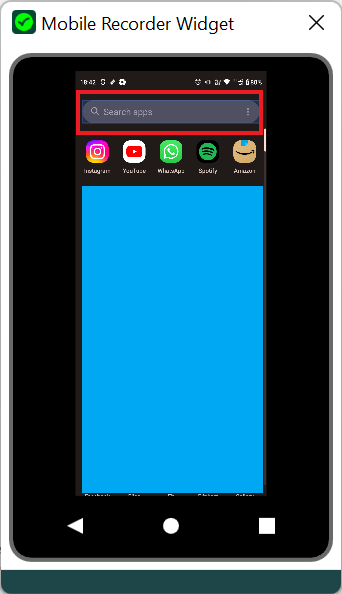
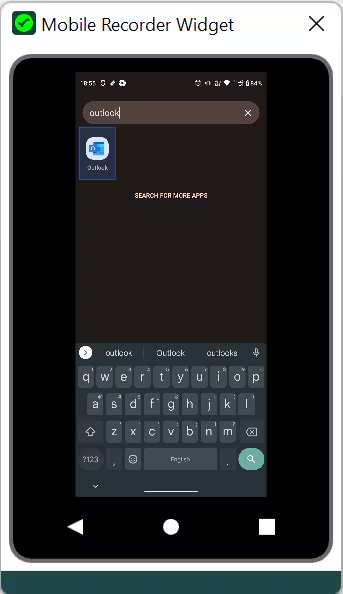
Tap the search bar using a Mobile Action (Tap) block.
-
Use Set Mobile Text to type Outlook.ç
-
When the app appears, tap it again to open it.
-
-
Compose and Send the Email:
-
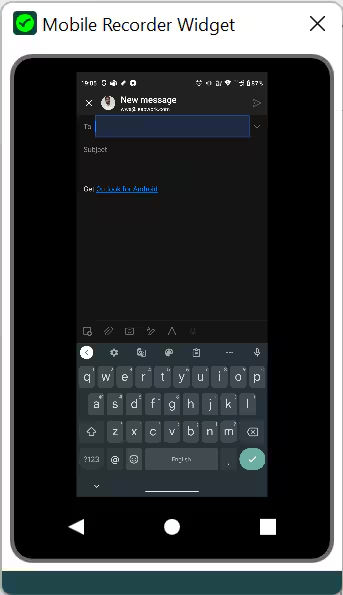
Inside Outlook, use Mobile Action (Tap) and Set Mobile Text blocks to fill in fields: To, Subject, and Body.
-
Tap the Send button using another Mobile Action (Tap) block.
-
-
Save the recording:
-
Hover over the bottom-left corner of the mirrored screen and click the ✓ icon to stop recording.
-
Select Save and Close Recorder to generate the flow automatically.
-
Results
-
Leapwork creates a complete flow that sends an email through Outlook (or any similar app).
-
The flow can be executed, edited, or expanded, for instance, by adding a Read Excel block to send multiple emails automatically.
-
The entire process takes less than five minutes and runs directly on the connected device.
How to set up the Android Native Environment
Minimum Requirements
-
Windows machine with admin rights.
-
Stable internet connection to download JDK, Android SDK, and Android Studio.
-
At least 10 GB free disk space.
How to Do It
-
Install the Java Development Kit (JDK):
-
Download and install the latest JDK (e.g., JDK 18) from Oracle.
-
Default installation path:
C:\Program Files\Java\jdk-18.0.1. -
Set up the environment variable:
-
Go to System Properties → Advanced → Environment Variables.
-
Create a new system variable:
-
Name:
JAVA_HOME -
Value: path to your JDK folder (e.g.,
C:\Program Files\Java\jdk-18.0.1).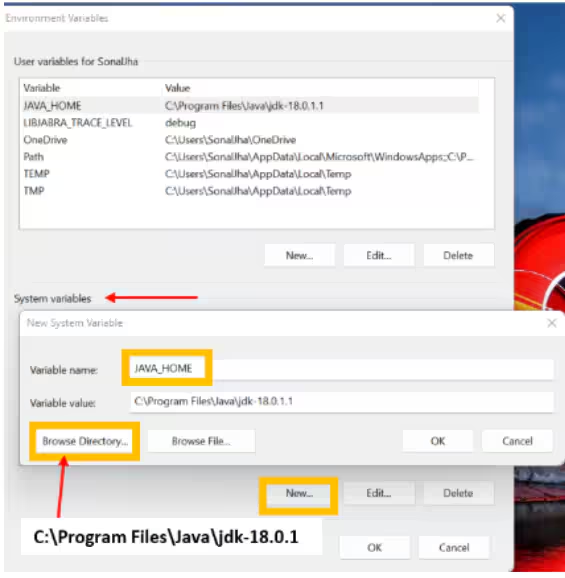
-
-
Edit the
Pathvariable and add%JAVA_HOME%\bin.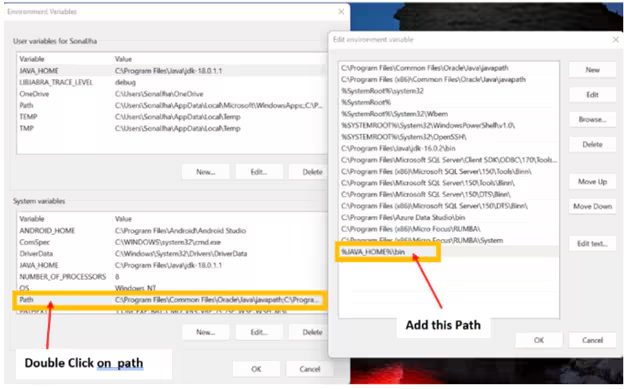
-
-
This ensures Java is globally accessible from the command line.
-
-
Install Android SDK (Command Line Tools):
-
Create a folder:
C:\Android. -
Download the Android Command Line Tools for Windows from Google’s developer site.
-
Extract them to
C:\Android\cmdline-tools. -
Inside that folder, create a new subfolder called
latestand move all extracted files into it. -
Open Command Prompt and navigate to:
cd C:\Android\cmdline-tools\latest\bin -
Run:
sdkmanager.bat --list -
Then install the core Android tools, build utilities, and the USB driver for device communication:
sdkmanager "platform-tools"
sdkmanager "build-tools;33.0.0"
sdkmanager "extras;google;usb_driver"
-
-
Install Android Studio:
-
Download Android Studio from the official Android Developer site.
-
Run the installer and follow these options:
-
Select Android Studio component only.
-
Use the default installation path:
C:\Program Files\Android\Android Studio.
-
-
After installation:
-
Copy the folders
build-tools,cmdline-tools, andplatform-toolsfromC:\AndroidintoC:\Program Files\Android\Android Studio. -
Inside
build-tools\33.0.0\lib, copy theapksignerJRE file into the same directory inside Android Studio if it’s missing.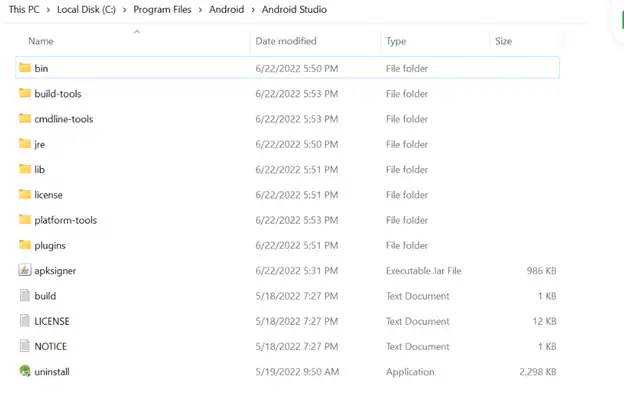
-
-
-
Set Android Environment Variables:
-
Go to System Properties → Advanced → Environment Variables again.
-
Add a new variable:
-
Name:
ANDROID_HOME -
Value:
C:\Program Files\Android\Android Studio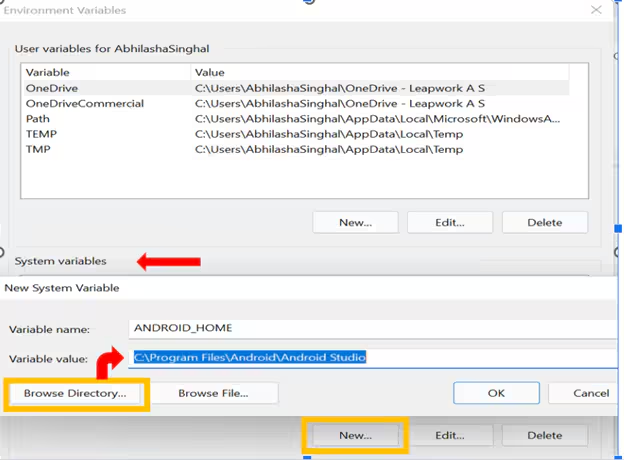
-
-
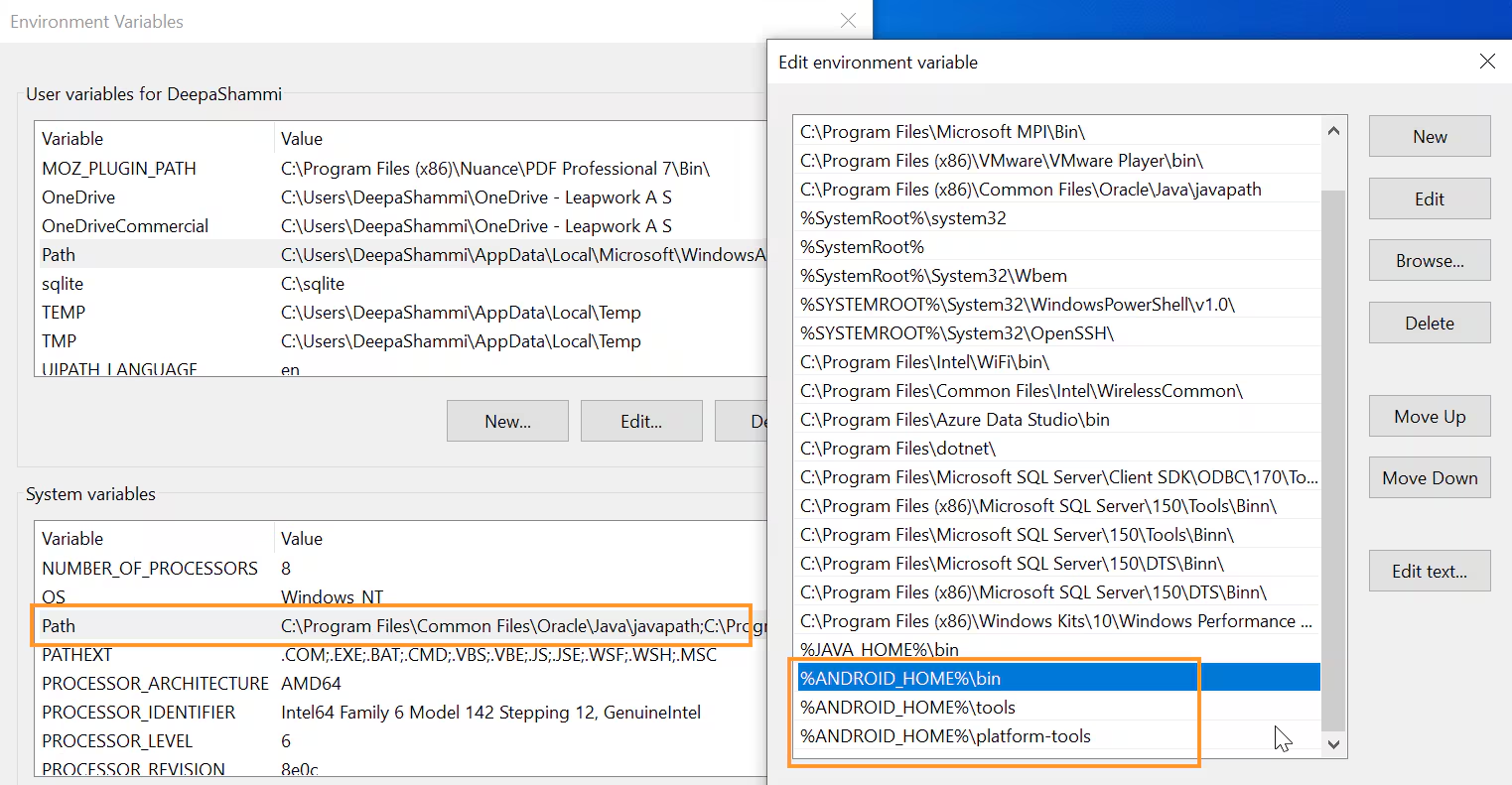
Edit the system
Pathand add these entries:%ANDROID_HOME%\bin %ANDROID_HOME%\tools %ANDROID_HOME%\platform-tools -
Click OK to apply changes.
-
-
Verify the Setup
-
Open Command Prompt and run:
adb devices-
If a list of devices or “List of devices attached” appears, your setup is working.
-
-
You can now connect an Android device or emulator and use Leapwork with Appium for automation.
-
Results
-
Your Windows environment is now ready for Android mobile automation with Leapwork.
-
All key components (JDK, Android SDK, Android Studio) are correctly installed and globally accessible.
-
You can proceed to set up Appium and integrate your Android device to start building and running tests.
How to automate Native, Hybrid and Mobile Web Applications in Leapwork?
With Leapwork’s no-code automation platform, you can easily test native and mobile web applications across different devices.
Many organizations rely on mobile apps for critical operations but still struggle to automate testing for native iOS and Android apps on real devices. Leapwork makes this process simple and visual.
Automating mobile web applications
To automate a mobile web app on Android or iPhone:
-
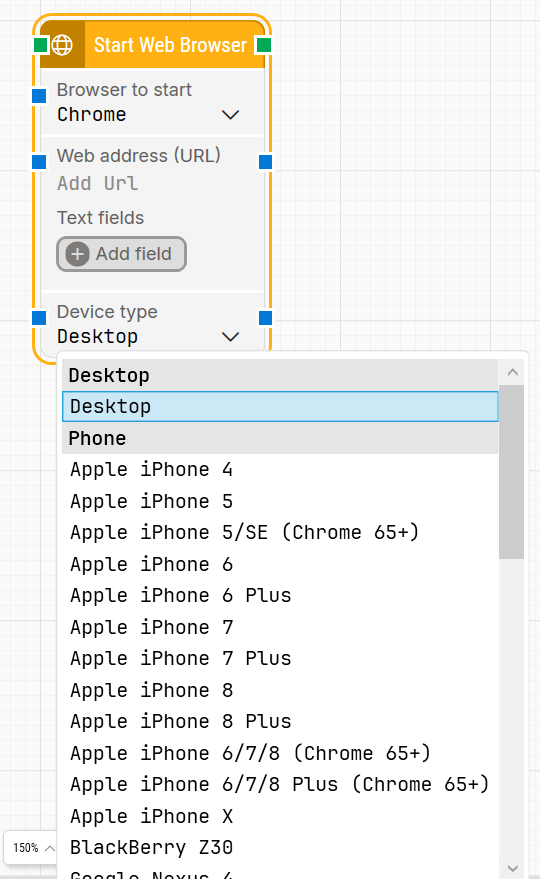
In the Start Web Browser block, open the Device Type dropdown.
-
Select the device you want to test on, such as Apple iPhone4.
-
Capture elements and build your flow just as you would with any regular web page.
(Example: elements on the simulated iPhone can be captured like standard web elements.)
Automating native and hybrid mobile apps
Leapwork also supports testing native and hybrid mobile applications on real devices.
You can use BrowserStack App Live or Sauce Labs to access real mobile devices and run tests through Leapwork.
Steps:
-
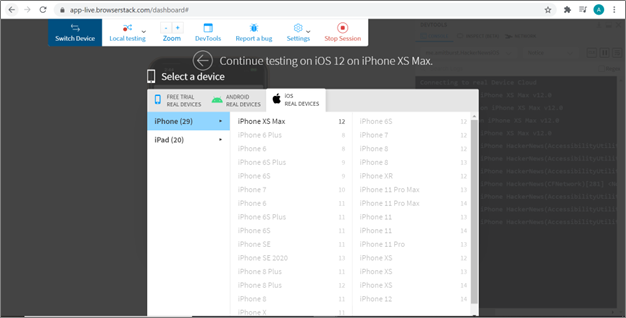
Open BrowserStack App Live (or Sauce Labs) and select a device.
-
Launch the mobile app you want to test.
-
Use Leapwork’s Image and Text Recognition blocks to automate interactions with the app interface.
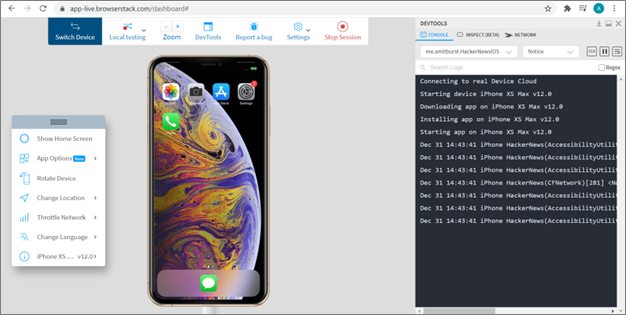
(Example: these blocks can recognize and interact with buttons, icons, and text on the screen.)