-
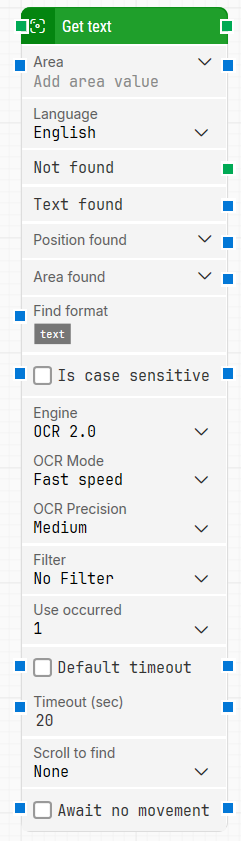
Block header: Shows the current name of the Get text block. You can rename it at any time by double-clicking the header and typing a new title to keep flows readable and organized.
-
Area: Defines the region of the screen in which text will be searched, as X, Y, Width, Height coordinates starting from the upper-left pixel. The top-left corner of the screen is position 0, 0.
-
If no area is set, the entire screen is searched.
-
You can right-click and choose Capture area to draw the region.
-
Use the expand control to work with X, Y, Width, Height individually.
-
Language: Selects the language the OCR engine should use when reading text. Choosing the correct language improves accuracy, especially for accented characters and language-specific glyphs.
-
Text found: Returns the text that was retrieved from the screen, after applying any configured Find format and Filter rules. You can connect this output to other blocks (for example, assignments, decisions, or logging).
-
Not found: Triggers when no text matching the current settings (area, format, filter, etc.) is found before Timeout expires. This output is typically used to branch the flow or explicitly fail a case by connecting it to a Fail block.
-
Position found: Returns the screen position where the text was found as X, Y coordinates. The coordinates represent the center of the retrieved text, not the upper-left corner. The top-left of the screen is 0, 0. You can expand this property to access X and Y separately.
-
Area found: Returns the screen region where the text was found as X, Y, Width, Height coordinates, starting from the upper-left pixel of the text. The top-left of the screen is 0, 0. Expanding this property lets you work with position and size values individually.
-
Find format: Defines a text pattern that the OCR result must match to be returned. For example, using Status: [TEXT] today means only text found inside phrases such as Status: Green Mode today will be captured, with [TEXT] representing the dynamic part.
-
Is case sensitive: Controls whether text recognition and matching should consider letter case:
-
When checked, comparisons are case-sensitive.
-
When cleared (default), comparisons ignore case differences.
-
Engine:Selects the OCR engine used for recognition. Options include:
-
OCR 1.0: Leapwork’s original OCR engine.
-
OCR 2.0: an updated Leapwork OCR engine with improved recognition.
-
ABBYY: uses an ABBYY OCR engine instead of the built-in engines (requires separate setup via Leapwork).
-
OCR Mode (input): Configures how thoroughly the engine scans the area:
-
Full mode: performs four recognition attempts in parallel using different color modes (normal and inverted), providing the most robust result.
-
Fast speed: performs two recognition attempts (normal and inverted), favouring speed over exhaustive scanning.
-
OCR Precision: Sets the minimum confidence level required for characters to be accepted. Higher precision means fewer but more reliable matches; lower precision finds more characters but with lower certainty. Available levels are:
-
High: confidence threshold around 70; very strict, best when text is clear and well-defined.
-
Medium: threshold around 50; balanced default for many scenarios.
-
Low: threshold around 30; more permissive, can help when text quality is poorer.
-
Very Low: threshold around 20; most permissive built-in option, useful when text is hard to read.
-
Custom: lets you specify any confidence value from 0–100.
-
Filter: Applies a second-level filter to the recognized text. You can define rules such as “Starts with”, “Ends with” or similar conditions (as provided by the UI) so that only text matching these rules is returned.
-
Filter value: Provides the value used by Filter. For example, with a filter such as “Starts with”, you might set Filter value to Green to only keep text that begins with “Green”.
-
Use Occurrence: Determines which occurrence of matching text to use when more than one match is found:
-
Specific index: returns one particular occurrence (for example, the first match).
-
All: iterates through all occurrences. When All is selected, the Current index property and Completed output are available, and the main execution path triggers once per occurrence.
-
Current index (output): Shows the index of the occurrence currently being processed when Use Occurrence = All. For example, if three matches are found, this value will be 1, then 2, then 3 as the block iterates.
-
Completed: Triggers when iteration through all occurrences has finished while Use Occurrence = All.
-
Default timeout: Controls how the timeout for this block is derived:
-
When the checkbox is not selected, the block uses a timeout of 20 seconds unless you override it via Timeout (sec).
-
When the checkbox is selected, the block uses the Default timeout value defined in the flow settings.
-
Timeout (sec): Sets the maximum time spent searching for matching text before giving up and triggering the Not found output. The default value is 20 seconds. This timeout applies only to this block. Each case also has a separate global timeout configured in the Settings panel; if the case runs longer than the global timeout, it is cancelled regardless of this block’s timeout.
-
Scroll to find: Indicates whether scrolling should be used while searching for the text. When you select a value other than None, the block scrolls through scrollable content (such as pages or documents) as part of the search.
-
Max repeats: Defines the maximum number of scroll attempts performed when Scroll to find is enabled. If text is not found after this number of scrolls, the search stops.
-
Amount: Specifies how far the screen should scroll in each scroll attempt when Scroll to find is enabled.
-
Delay (sec): Sets the delay, in seconds, between scroll attempts when Scroll to find is enabled.
-
Await no movement: When enabled, delays the search until there has been no visible movement on the screen for the period defined in Await Timeout. This is useful when waiting for a screen update, such as a page load or animation, to finish. Regardless of this setting, the search will still start after a maximum wait of 30 seconds.
-
Await Timeout: Specifies, in seconds, how long the screen must remain without detected movement before the block proceeds when Await no movement is enabled.