
Ask AI is an in-product assistant that helps you understand, navigate, and work more effectively with performance, load, and API testing in Performance. You can ask questions in natural language and get immediate guidance without leaving your current workflow.
The AI assistant is available anywhere in Performance and opens as a side panel, allowing you to keep working while getting help.
Opening Ask AI
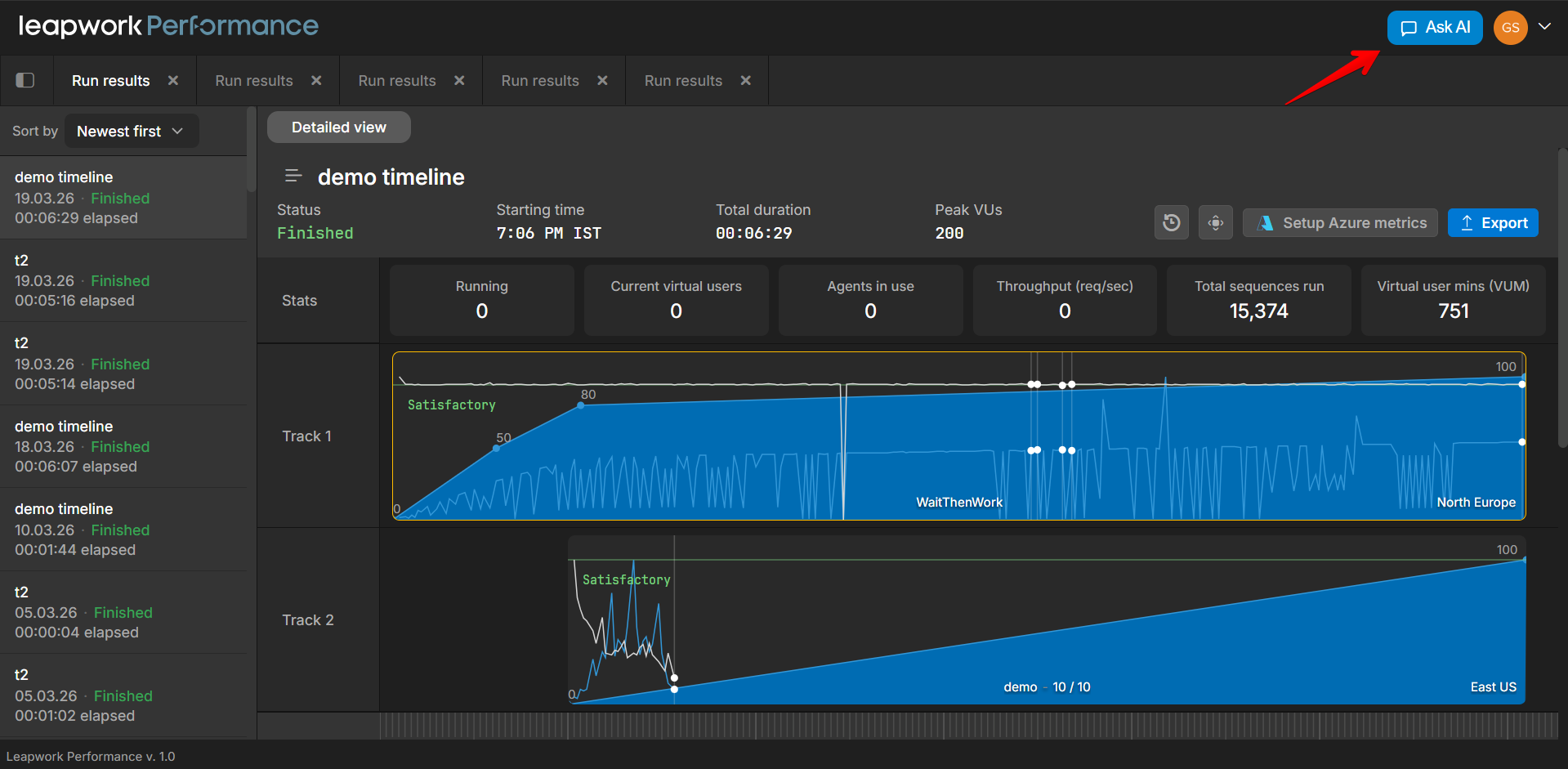
To open the AI assistant, click Ask AI in the application header.
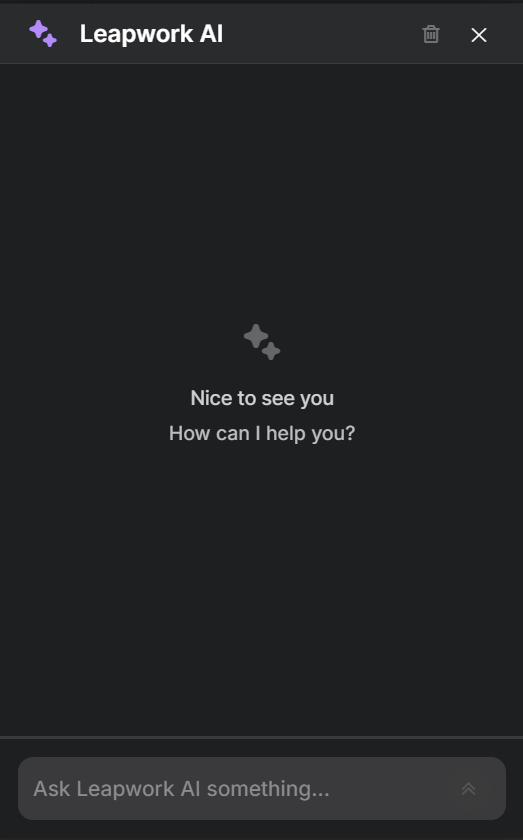
The Ask AI panel opens on the right side of the screen and adjusts the main content area to remain visible.
You can open Ask AI while working with:
-
Sequences
-
Timelines
-
Request/response panels
Asking questions
To ask a question:
-
Type your question in the input field at the bottom of the Ask AI panel.
-
When text is entered, the send icon turns green.
-
Click the send icon or press Enter to submit.
While your message is being processed:
-
The send icon turns dark grey.
-
The input is temporarily disabled to prevent duplicate submissions.
-
When messages exceed the height of the panel, a scroll bar appears.
Ask AI can help with:
-
Understanding performance and load test results
-
Clarifying Performance concepts (sequences, timelines, VUs, VUMs)
-
Explaining UI elements and workflows
-
General guidance on how Performance works
Clearing a conversation
To clear the current conversation, click the trash can icon in the Ask AI header. Clearing the chat removes the full conversation and resets the assistant to its initial state.
The Clear chat action is disabled until at least one message has been sent.
Closing Ask AI
To close the AI panel, click the X icon in the Ask AI header. Closing the panel does not clear the conversation. When reopened, the previous conversation is still visible unless it has been cleared manually.