
This guide introduces you to the Data Item in Leapwork Performance. Data items help keep your test data organised and allow you to reuse it across different parts of your projects.
You can use this guide to:
-
Keep your test data in tables
-
Use the same data in various sequences and timelines
-
Make changes to your data or bring it in from other files
What is a Data Item?
A data item is a reusable table of values that your sequences can reference during test execution. Instead of placing values directly inside sequence steps, you store them in a structured table and reference them when needed. Typical uses include product IDs or SKUs for an e-commerce flow, user accounts and credentials, and IDs, payload fragments, or parameters for API calls.
Instead of hard-coding values in every step, you can:
-
Create a data item
-
Add rows and columns of data
-
Link the data item to a sequence or timeline
-
Reference its columns inside the sequence steps
This approach improves maintainability and makes it easier to scale tests with large or changing datasets.
Data item types
When you open a data item, what you see in the editor depends on the type of data item. Each type has its own layout and fields that match how the data will be used.
Available data item types include:
-
Table: Shows a familiar grid with rows and columns that you can edit directly. Use this for structured, tabular test data such as product lists, accounts, or IDs.
-
AD Users: Shows rows of test users with fields such as username, password, MFA secret, and role. Use this to store and reuse Active Directory users in your journeys.
-
JSON: Shows a text editor for JSON content, often with multiple lines. Use this for payloads, configuration blocks, or any data that needs to stay in JSON format.
-
Dictionary: Shows a simple list of keys and values, one entry per row. Use this for lookups like headers, configuration values, or short mapping tables.
-
String: Shows a single text field for one value. Use this when you need to store and reuse a single piece of text, such as a token, base URL, or identifier.
-
Auth Script: Shows a script editor for Playwright‑based authentication flows, with a place to define inputs such as email, password, or TOTP secret. Use this when your tests need to run a login step and reuse the resulting tokens or cookies.
-
Script: Stores a JavaScript code snippet that can be executed at runtime. It sits alongside other data item types and provides a way to generate computed values using custom logic. The script has access to all sequence variables and scoped data-item tokens, and its return value can be assigned to a target variable via a Set Value step.
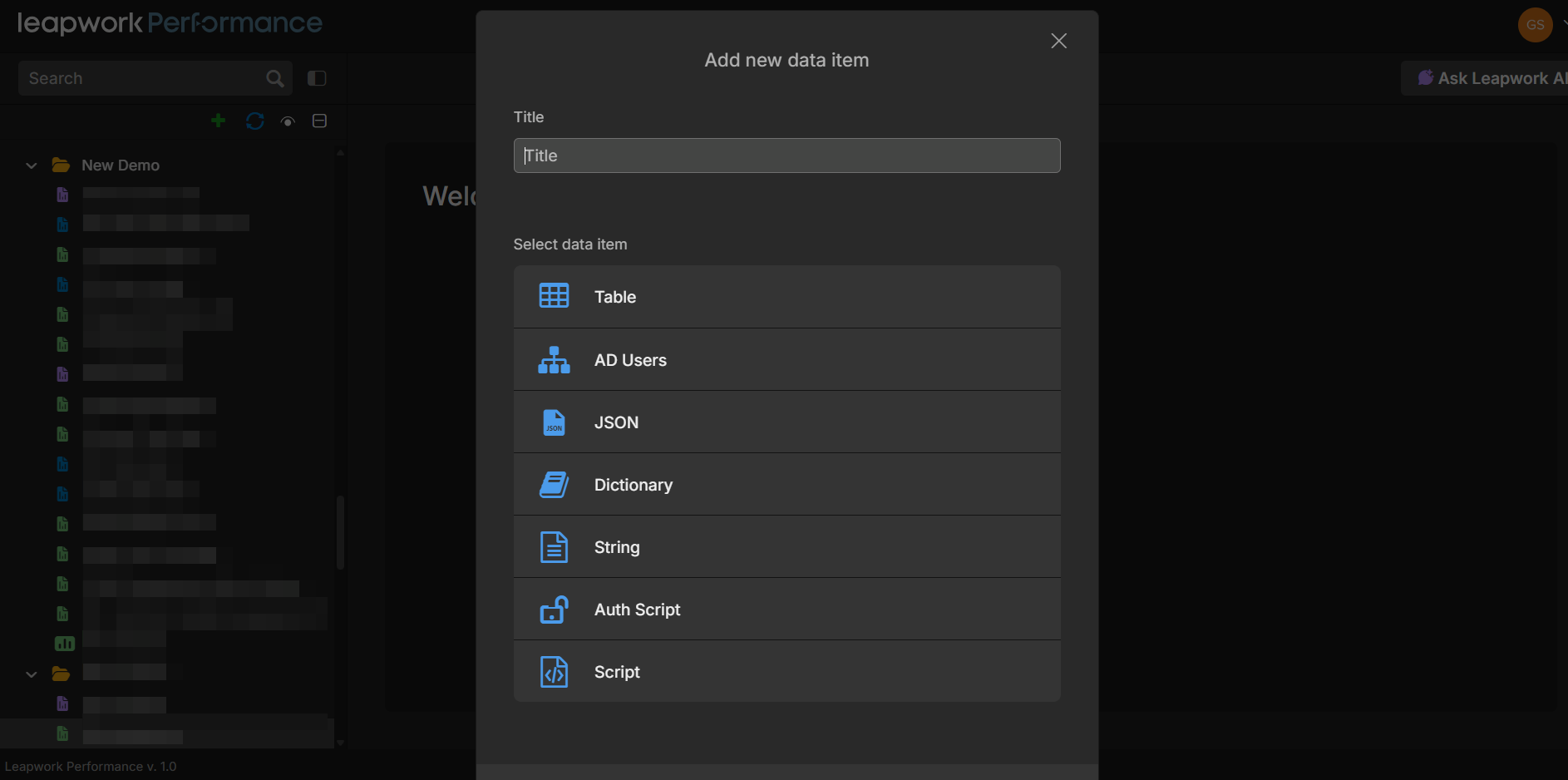
Overview of the data item workspace
If you’re new to Leapwork Performance, start with the Overview of the Performance workspace for a tour of the user interface:
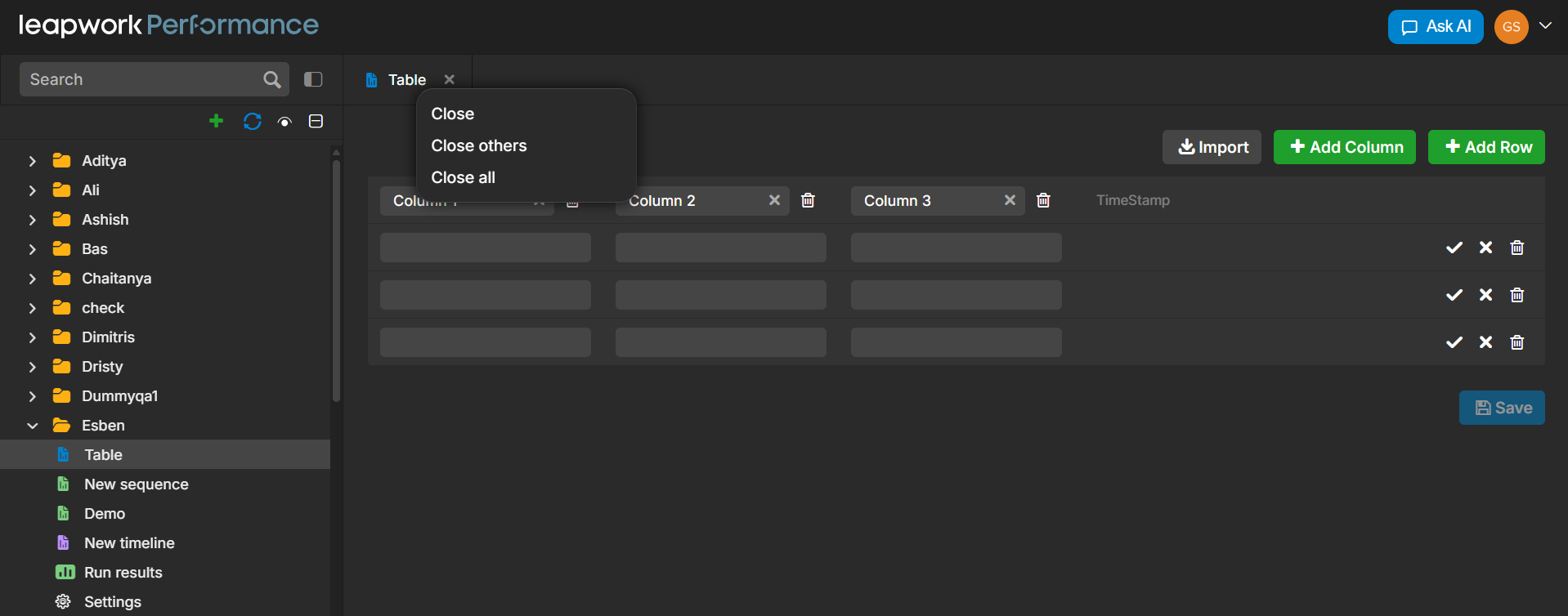
When you open a Data Item, the workspace shows specific information inside that same layout:
-
Project Explorer: shows where the items are stored together with related assets (data items, timelines, etc.).
-
Data item Tab: shows the data item name and provides actions such as Close and Refresh for that data item.
-
Data item Editor: The centre of the editor adapts to the type of data item. It displays the contents of a specific data item, which varies by item.
Data item Tab
At the top of the workspace, the tab bar shows all open assets. Each asset appears as a separate tab, which allows you to switch between editing different items.

Data item Editor
When you open a data item, the center of the workspace shows the main editor along with a small toolbar for actions. The layout and available actions depend on the type of data item you are working with, but each type is designed to help you manage and reuse test data efficiently.
Table
For Table data items, the editor displays a grid with column headers at the top and rows of data beneath. Each row represents a data record, and each column represents a field that sequences can reference during execution.
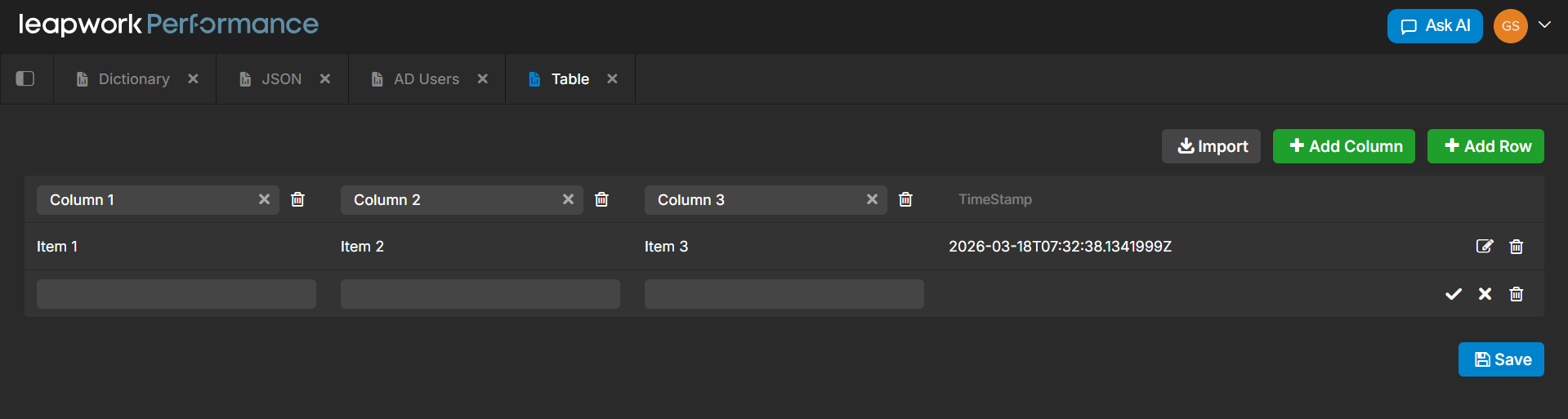
You use this format to build structured datasets that can evolve with your test scenarios.
Common actions include:
-
Adding, removing, or renaming columns
-
Adding new rows for additional records
-
Editing values directly in the cells
-
Updating or replacing existing data when needed
The toolbar supports tasks such as importing data from a CSV file, adding rows or columns, and saving changes. This layout makes it easy to maintain structured test data and reuse it across different journeys.
AD Users
For AD Users data items, the editor shows a table-like view focused on user information and credentials. This helps you manage accounts used in authenticated flows.
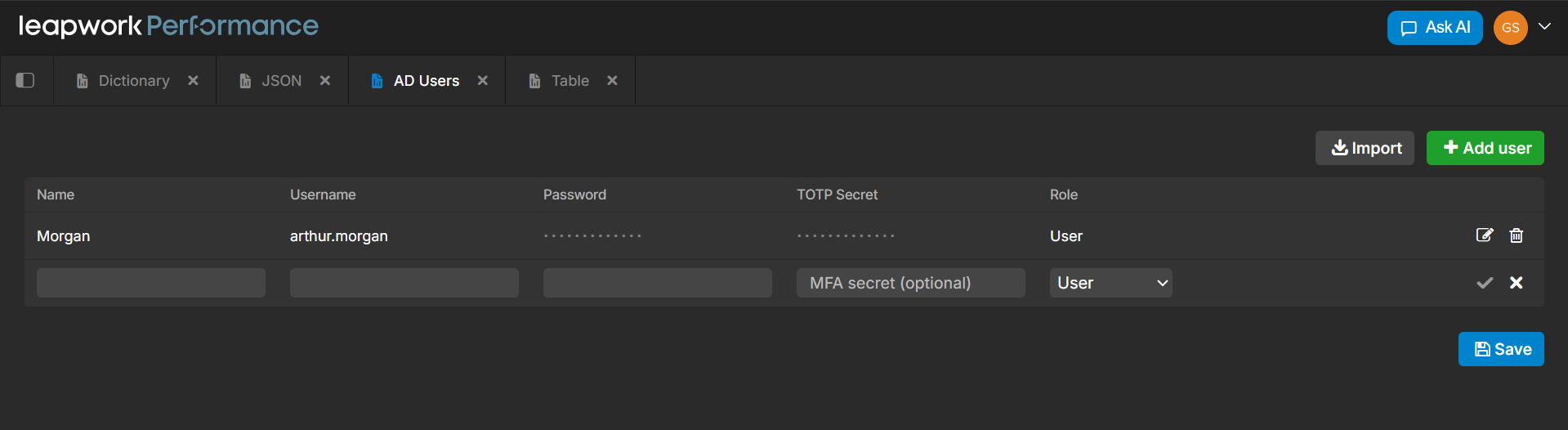
Typical fields include:
-
Email or username
-
Password
-
MFA or TOTP secret
-
Role or other user attributes
You can manage users directly in this view by adding new entries, updating credentials, or removing users that are no longer needed.
The toolbar allows you to import users, add or delete entries, and save updates. This gives you a clear overview of your test accounts and how they are configured.
JSON
For JSON data items, the editor displays a text area where you work directly with raw JSON. Instead of a grid, you see the full JSON structure and edit it as needed.
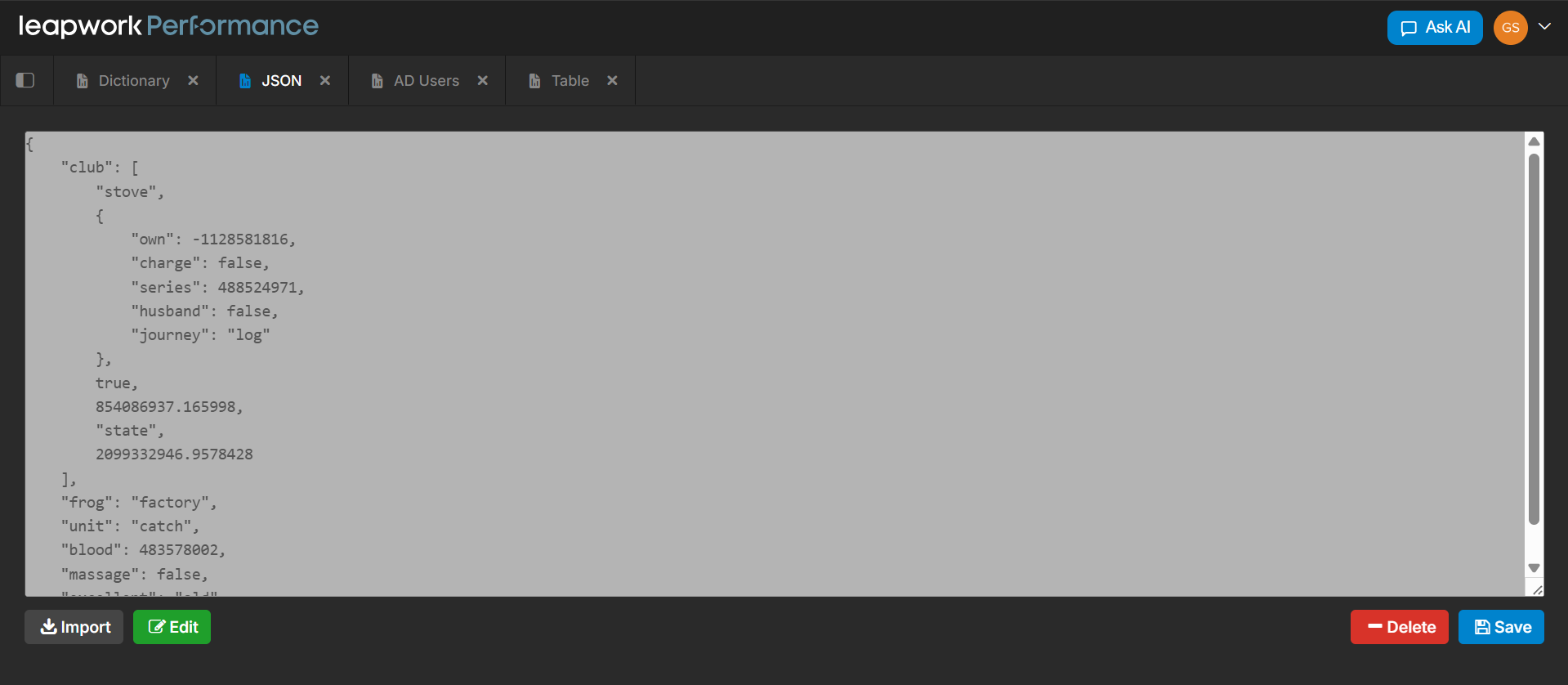
This type is useful when you need to manage complete payloads or configuration blocks. You can:
-
Paste or write JSON content
-
Update specific fields
-
Replace the entire structure when required
The toolbar typically includes options to import JSON and save changes, ensuring the latest version is used wherever the data item is referenced.
Dictionary
For Dictionary data items, the editor shows a simple two-column list of keys and values. Each row represents one key–value pair.
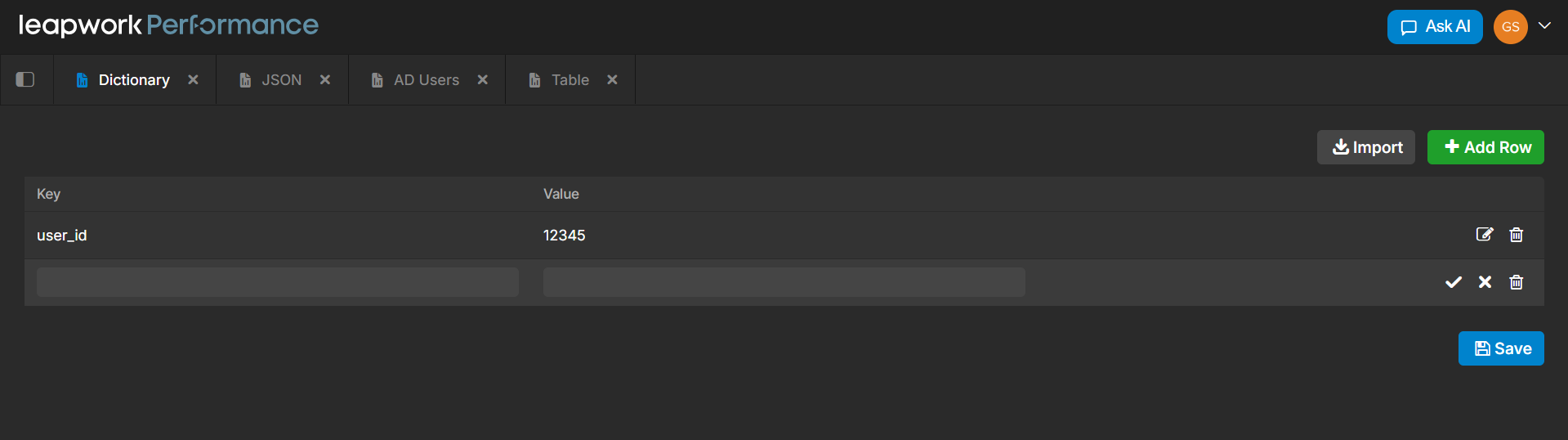
This format works well for small datasets such as configuration values, mappings, or headers.
You can:
-
Add new key–value pairs
-
Edit existing entries
-
Remove entries that are no longer needed
The toolbar supports adding or deleting rows, importing data, and saving updates so the latest values are available during test execution.
String
For String data items, the editor provides a single text field in the center of the workspace. You work with one value at a time.
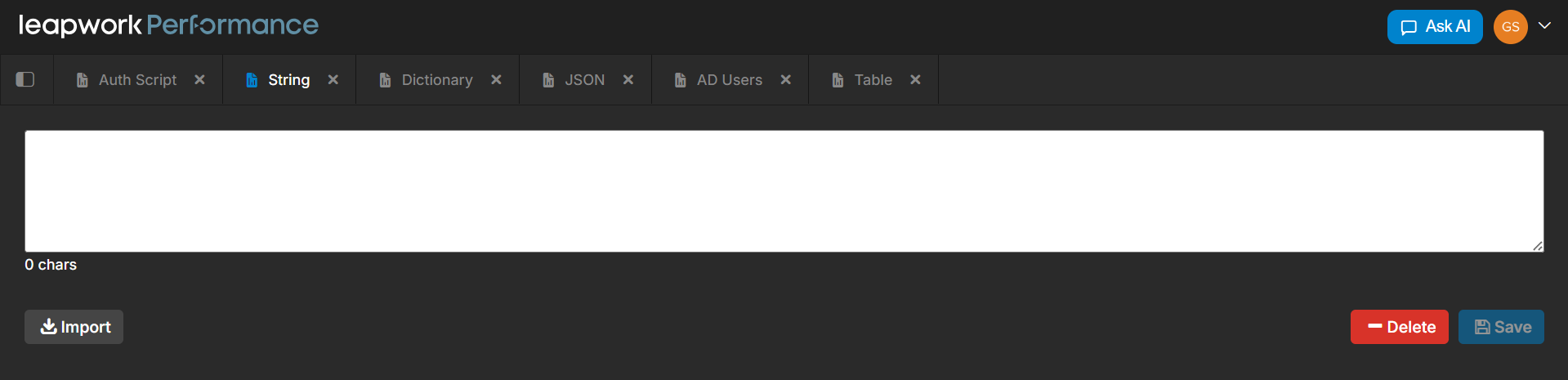
This type is useful when you need to store and reuse a single piece of data, such as a token, base URL, or identifier.
You can:
-
Enter or update the value as needed
The toolbar is minimal and focuses mainly on saving the value. In some cases, you can also clear or reset the text.
Auth Script
For Auth Script data items, the editor opens a script view used for authentication flows. You see the script along with fields for defining inputs and outputs.
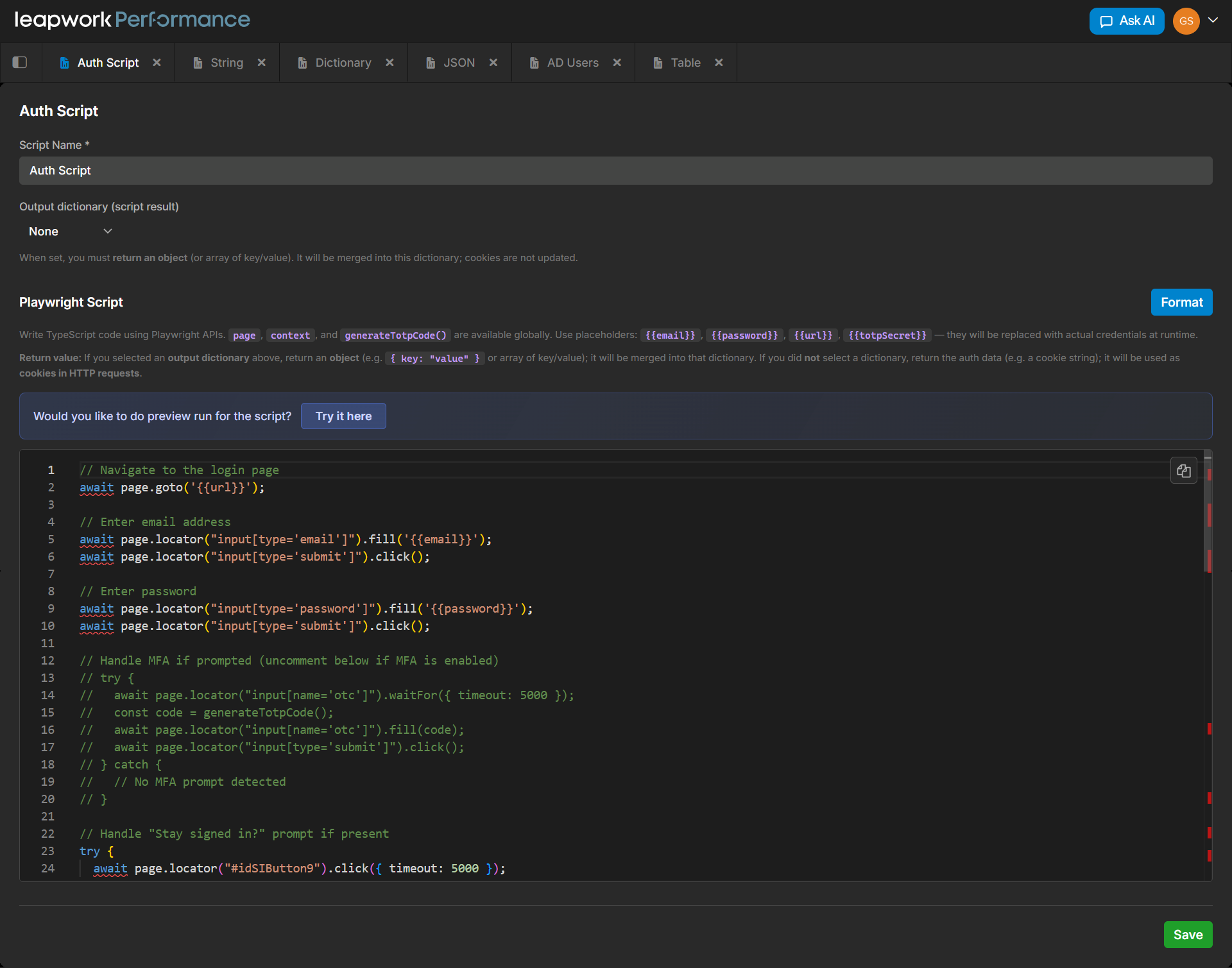
Typical elements include:
-
Inputs such as email, password, URL, or TOTP secret
-
Outputs such as cookies, tokens, or headers
You can update the script when authentication flows change, adjust input fields, and define what values the script should return.
Script
For Script data items, the editor opens a JavaScript code editor in the center of the workspace. You write plain JavaScript that has access to all sequence variables through the variables object.
This type is useful when you need to compute a dynamic value at runtime such as combining variables, formatting strings, or performing calculations and assign the result to a target variable via a Set Value step.
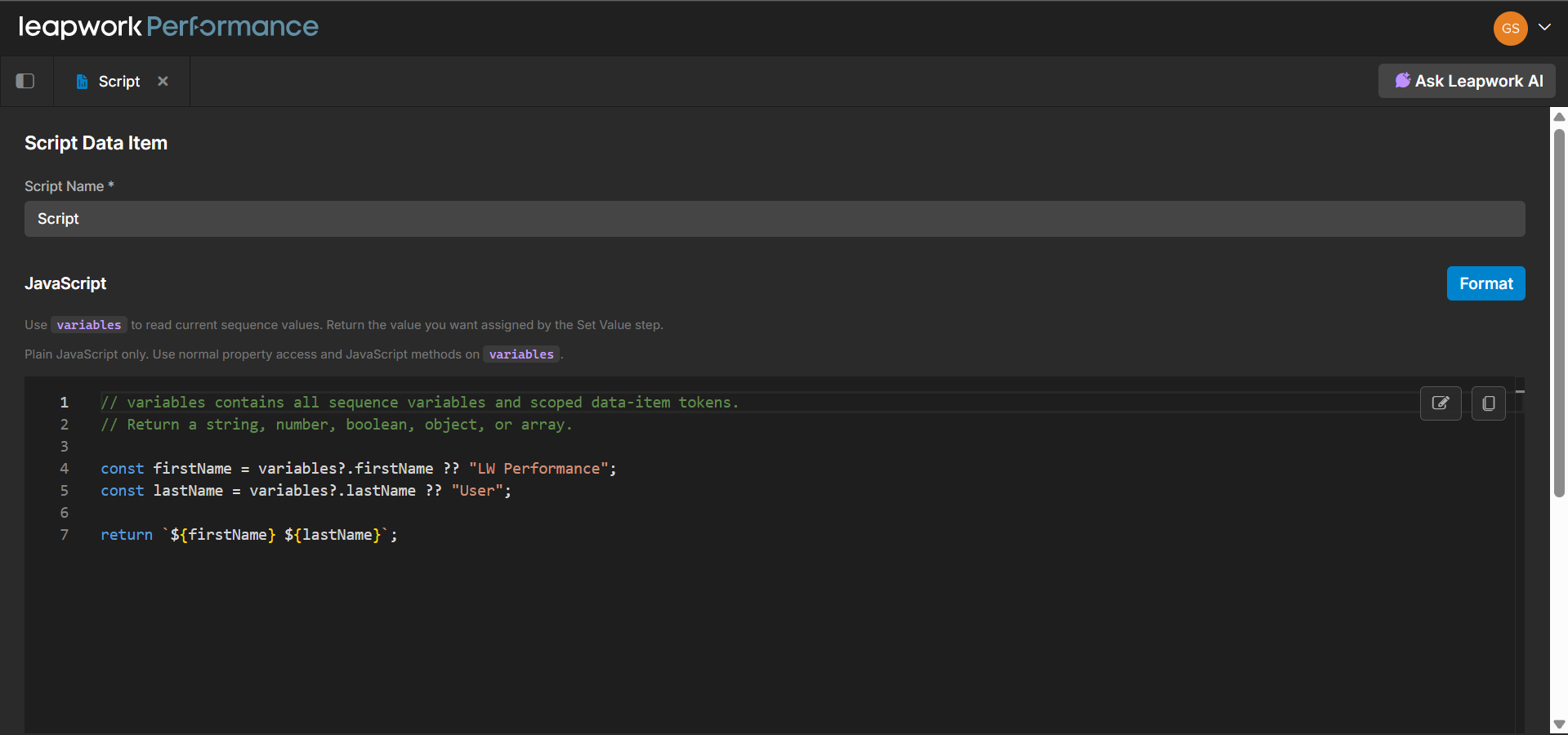
You can:
-
Write and edit JavaScript logic in the built-in editor
-
Use
variablesto read current sequence values -
Return the value you want assigned by the Set Value step
-
Click Format to auto-format your code
-
Preview the script output using editable sample variables
The toolbar includes options to format, edit, and copy the script. A preview panel lets you test your logic with mock variable values before using it in a sequence run.
Use a data item in sequences and timelines
After you prepare your data item, you can connect it to sequences and timelines so they can use the stored values.
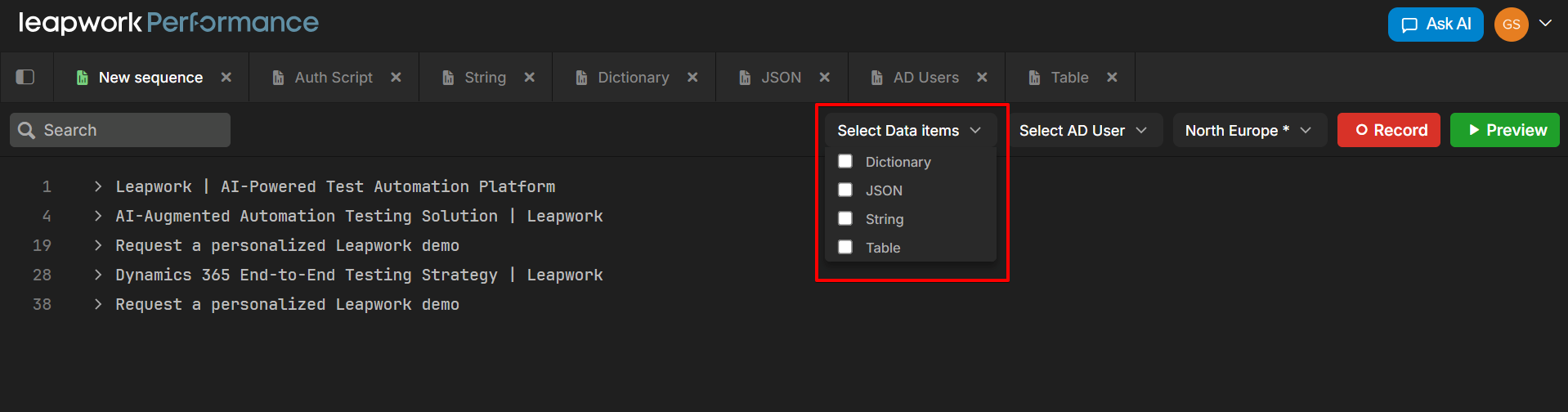
In a Sequence, select Data items at the top of the sequence canvas and choose the data item (for example, product table). Inside sequence steps, reference the columns from the data item instead of hard-coding values.
In a Timeline, sequences attached to tracks automatically use the data items linked to those sequences. This allows the same journey to run with many different data records during a load test.
By using Data Items, you can run realistic tests with varied data while keeping sequences easier to maintain.