
In 2025.5, we are introducing data import and enhanced parameterization.
Security enhancement for Performance
Your security and privacy is our top priority. To make sure you only send the intended data to Performance, we have configured the proxy in such a way that the browser with the proxy installed will see traffic blocked if no Recording is active in Performance.
This of course only applies when the proxy is connected. Once the proxy is disconnected, your browser works as normal.
Import & apply data tables
New data item: Table
Parameterization and comprehensive, data driven testing is now fully feasible and supported via the new data item called Table.
This data item allows you to create full tables as data objects. And yes, we also support you create these tables based on file import. We support CSV and Excel.
Find the Table via right clicking in your project folder, Add Data Item à Table. Provide it with a name and click Create, and you are ready to go. Importing from a file source is available once you have created the Table data item – look for the button in the top right corner.
Applying data from a Table data item
We have made it easier to apply any data item inside the sequence. The “Set value” now includes the data source configuration – so the “Set value” is now fully capable of applying any preferred data source in one go.
Specifically for the table item, we support that you can either apply a specific record, a random one – or iterate through the dataset. Once specified, the resulting data is written into a variable of your choice as always.

In the above example:
-
Value source: Data item is selected
-
Table DI (Data item): Name of the data item, here ProductTable
-
Type (Across three lines):
-
Specific: Refer to column and row, e.g. C2 for Column 2 or R2 for Row 2.
-
Random: Simply referring to the column name, and then randomly picking from here.
-
Sequential: Iterating through the chosen column, here ProductName.
-
Improved parameterization of response bodies
We have added styling and formatting in the body presentation inside the headers making them much easier to navigate:
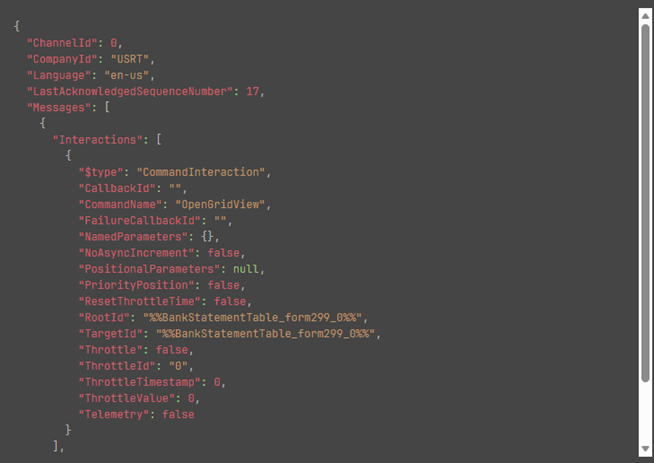
To apply parameterization, simply right click anywhere in the body text, and select the variable you wish insert. Performance will then present all options easily oversee-able:
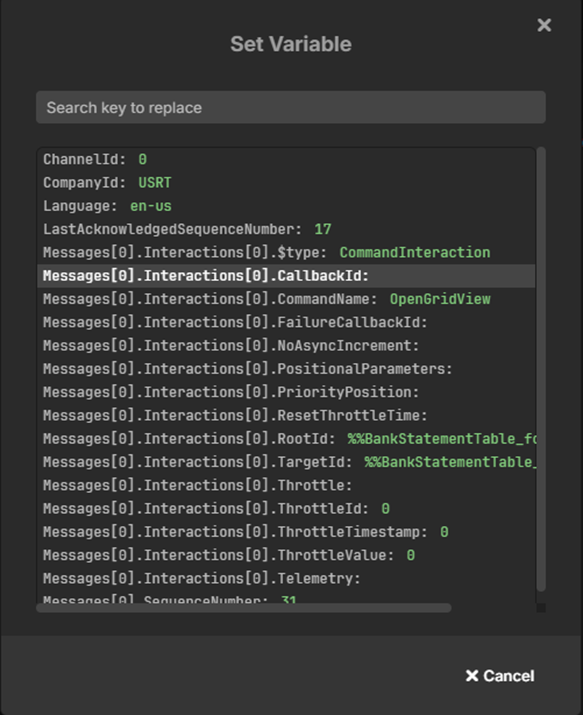
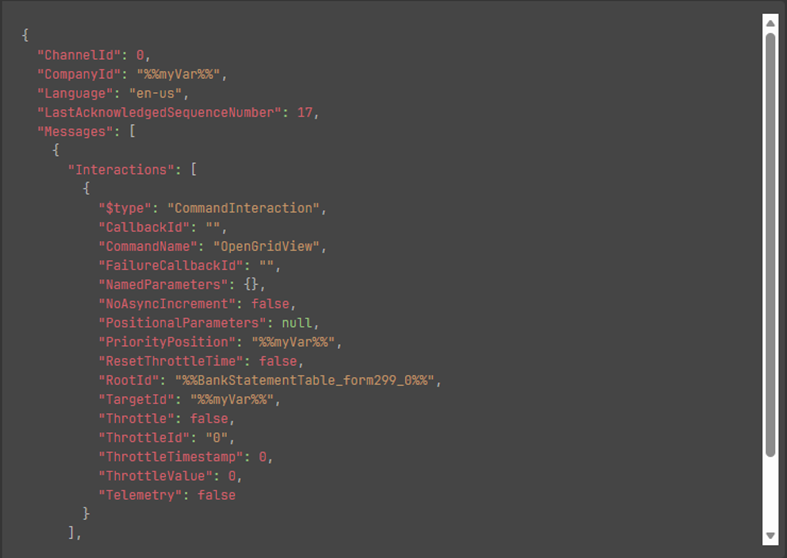
Now, from the list, choose which parameter to replace with the variable. In this example, I will use CompanyId. Performance then inserts the chosen variable in the required location as below:
New data generator: Date
Performance now allows an easy and comprehensible data generation. Inside the sequence, click and choose Generate random value. In the inserted line inside the sequence, you can now choose between two types: Random Number and Date.
Choose the date format you want, you can choose between:
-
YYYY-MM-DD
-
DD/MM/YYYY
-
MM/DD/YYYY
-
YYYY-MM-DD HH:MM:ss
-
Dd:hh:mm:ss
-
ISO 6801
-
RFC1123
-
Month, day, year
-
Short date/time
We welcome your feedback: These formats are the commonly used ones – but do you miss anything from this list?
User experience & collaboration enhancements
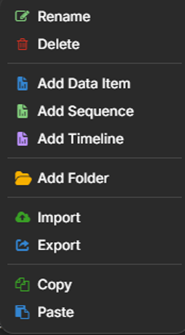
Added support for copying, importing and exporting items
It is now possible to import and export sequences, timelines and data items.
To Export, click on the desired item in the project and choose Export:
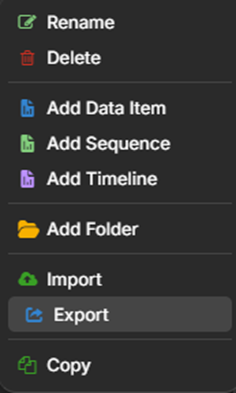
This causes a zip file to be downloaded by the browser.
To Import, right click in the destination Project folder and choose Import. A file select dialogue opens, choose the zip file and click OK. The item is then imported.
NOTE: When exporting sequences and timelines with configured AD Users, these are not exported. User configuration must be redone in the imported item.
The new Copy feature works in the same way. Right click to copy, go to the destination Project folder, right click again and this time choose Paste:
Support for locking items for other users while editing
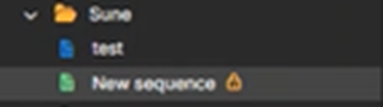
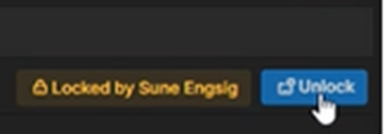
Performance now supports locking items edited by users. If User 1 has a sequence open, User 2 will be blocked from opening it. It will be possible to override. Look for any of these two indications:
In the projects tree:
And within the item itself:
Other improvements
-
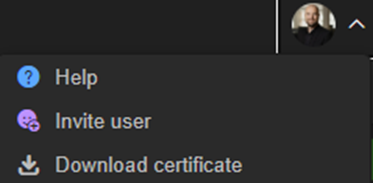
As part of setting up Performance for new users, the certificate is needed. It can now be downloaded from the Avatar in the top right corner:
-
Inside Dictionary data items, validation is now ensuring you have no duplicate keys.