
Get instant help with Ask AI
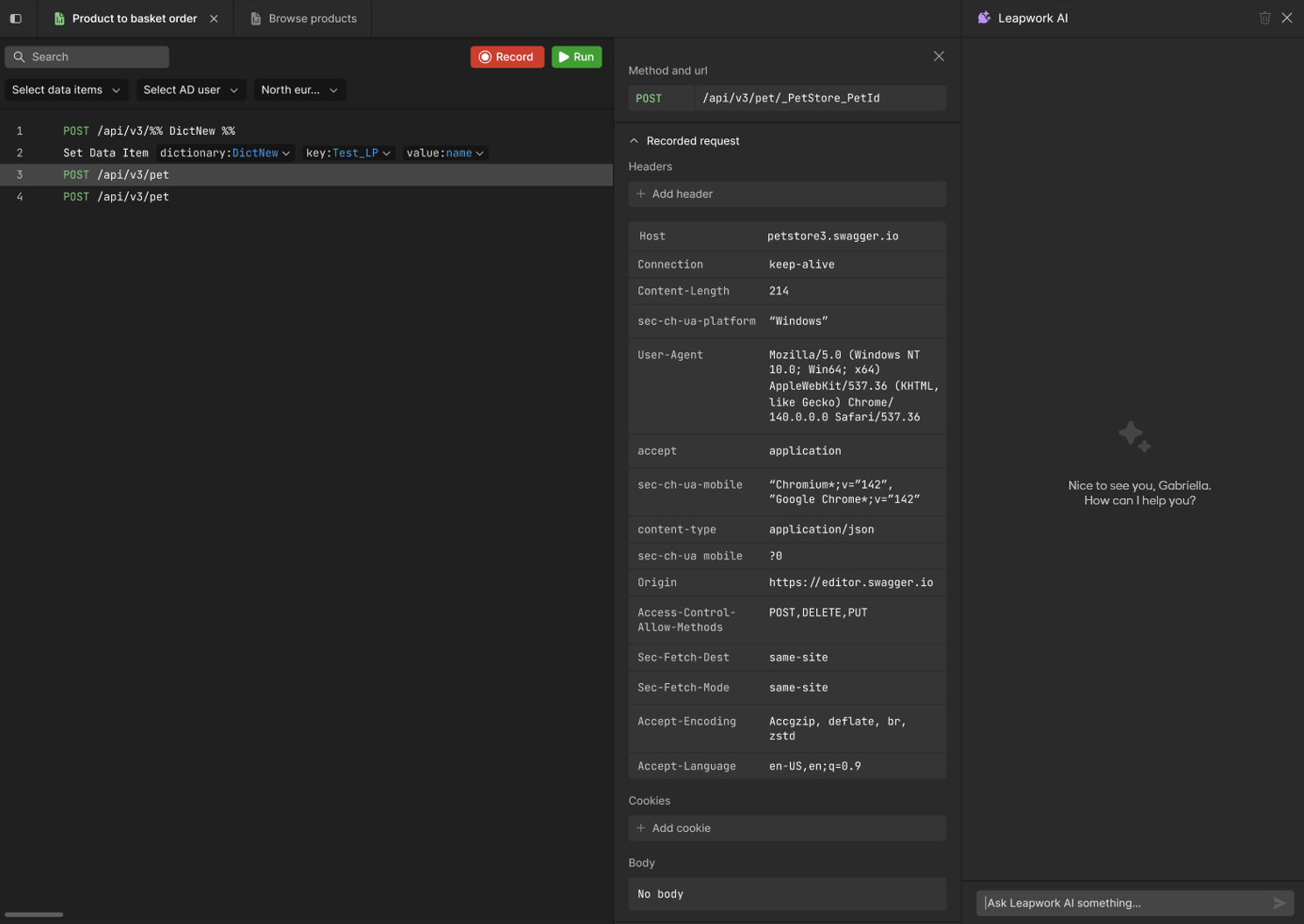
Ask AI in Performance introduces an in-product AI assistant designed to help users work more confidently with performance, load, and API testing. Accessible via the new Ask AI button in the header, the assistant opens as a side panel and provides contextual, conversational guidance without disrupting your workflow. You can ask questions at any time, get instant explanations, and continue working alongside sequences and request/response views. It is designed to make it easier to learn, troubleshoot, and move faster directly inside Performance.
Find more details about the feature here.
Enhanced in-sequence search
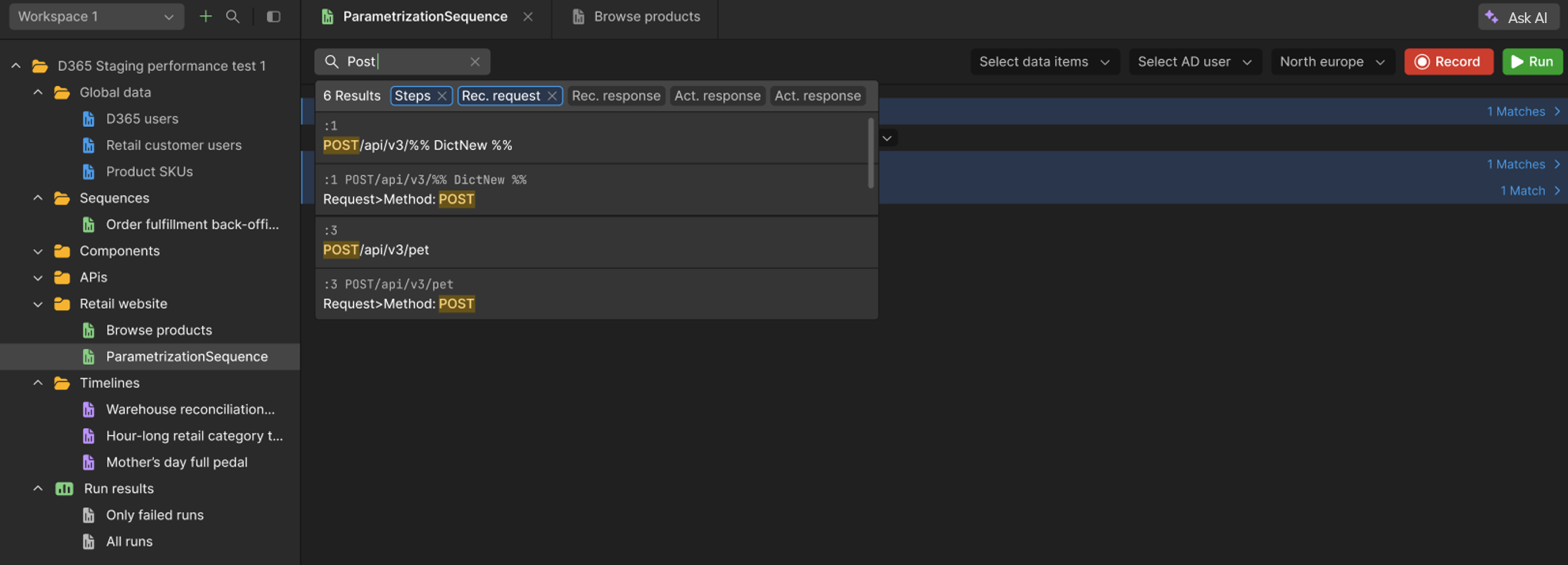
Finding content inside a sequence is now faster and more precise.
The new in-sequence search provides live results as you type, with clear highlighting across steps, recorded requests and responses, and actual request/response data.
Results are structured, filterable, and fully navigable. Clicking a match takes you directly to the relevant step or property. This makes it easier to work with large, complex, or highly parameterized sequences.
Try it by going to a sequence and press Ctrl+F to bring it up. Find more details about In-sequence search functionality.
UI & Usability improvements
We’ve also shipped several important UI fixes and refinements to improve stability and usability when working with complex sequences:
-
Preview Run Log scrolling fixed
The preview run log is now fully scrollable, ensuring all steps and entries remain accessible, also for long sequences. Users can reliably scroll to the last log entry and review the full execution output. -
Filters on recording window stability improved
The recording popup no longer breaks when all exclude request filters are selected. The dropdown UI now behaves correctly regardless of filter combinations. -
Consistent layout for variable-length steps
The sequence view now renders consistently for steps of different lengths. Search results, step rows, and match indicators remain properly aligned and readable, preventing distorted layouts in longer or more complex steps. -
Step numbers added to Preview Run Logs
Preview run logs now include step numbers, making it easier to correlate log entries with specific steps in the sequence. This improves traceability when debugging preview runs and reviewing execution behavior. -
Stop Preview Run at any time
A Stop button is now shown while a preview run is in progress, allowing you to stop the run at any time. During preview execution, the Reset button is hidden and replaced by Stop; the Stop action behaves the same as Reset, immediately terminating the preview run. -
Extended date format support in random data generator
The random data generator can now generate date values in Day–Hour–Minute–Second format, enabling more precise and realistic timestamp generation for time-sensitive APIs and workflows. -
Improved access control for Active Recording
Access control for active recording has been tightened based on Performance domain validation and proxy header password behavior. This improves security and ensures recording access is handled predictably.
Bug fixes
-
Fixed an issue where the screen flickered when stopping a preview run, ensuring a smooth and stable stop experience.
-
Prevented negative values from being entered in performance level threshold fields.
-
Added proper limits to maximum values in performance level thresholds, avoiding UI breakage when entering very large numbers.
-
Corrected inline error message placement so validation errors now appear on the correct field being edited.
-
Fixed validation for row and column names in table data items, preventing invalid alphanumeric input.
-
Resolved an issue where If/Else steps were duplicated when copied and pasted using keyboard shortcuts.
-
Disabled sequence header dropdowns during preview runs to prevent unintended changes while execution is in progress.