
The Artifical Intelligence Vision Validate block automates the validation of visual elements within an application interface, ensuring that key UI components are correctly displayed across different screens, environments, and devices.
It can be used to confirm the presence of UI elements (e.g., buttons, labels, forms) or detect discrepancies when expected elements are missing or incorrectly rendered.
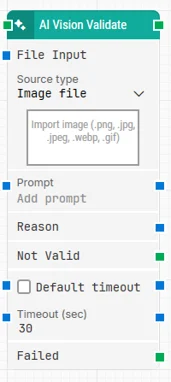
Notes:
-
The screenshot on this page uses the Elegance Design, introduced in 2025.3. If you are using an earlier version, your layout may look different.
-
To use this block, cloud blocks must be activated for your tenant in the add-ons section of Customer Portal. Make sure this is enabled before adding the block to your flows.
-
AI accuracy is not guaranteed, as it relies on probabilities and the daily performance of OpenAI’s technology. Occasional inaccuracies may occur due to inherent limitations of the technology. For more details, please refer to OpenAI’s documentation.
Quick-start
-
Drag AI Vision Validate onto the canvas.
-
Choose a Source type (Image File or Local Path).
-
Provide an image in File Input (supported formats: .png, .jpg, .jpeg, .webp, .gif).
-
Enter an Action Prompt describing what UI elements should be validated (e.g., “Check if the login button is visible”).
-
Connect the green input and output connectors (and optionally Not Valid and Failed for branching).
-
Run the flow when it’s ready.
Building block parameters
Resources
|
Topic |
Description |
|---|---|
|
Common questions about creating, running, and managing flows in Leapwork. |
|
|
Guidelines and solutions for identifying and fixing issues that occur when building or running flows in Leapwork. |
|
|
Customer portal section to activate your cloud blocks. |
|
|
Common guidelines for prompting, generating, validating, extracting, and transforming AI-driven test data in Leapwork’s AI Blocks. |