Convert to PDF

Experimental Feature

This feature is Experimental and may change based on user feedback and testing. Share your thoughts via our chatbot to help us improve it.

The Convert to PDF block converts supported files into PDF format, helping standardize documents for sharing, storage, or downstream processing in automation flows (for example, converting a Word document to PDF before emailing it as an attachment).

To download the resulting PDF file generated by the Convert to PDF block, use the Save file block to save the output locally.

This feature is available from 2025.1 onward.

Note:

  • To use this block, cloud blocks must be activated for your tenant in the add-ons section of Customer Portal. Make sure this is enabled before adding the block to your flows.

  • The screenshot on this page uses the Elegance Design, introduced in 2025.3. If you are using an earlier version, your layout may look different.
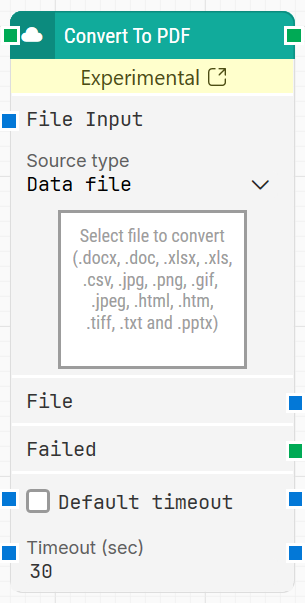
image-20260204-171341.png

Quick-start

  1. Drag Convert to PDF onto the canvas.

  2. Connect the block in the flow and specify Source type, then provide the file in File Input.

  3. Run the flow when it’s ready.

Building block parameters

Parameters
  • Block header: The green input connector triggers the block to start executing. The green output connector triggers when the file has been successfully converted to PDF. You can rename the block by double-clicking the header text and typing a new title.

  • File Input: Defines the file that will be converted to PDF.

    • Source type: Selects where the input file comes from. The block recognizes the file type once the file is provided.

      • Data file: Converts a file stored in Leapwork as a Data File.

      • Local path: Converts a file referenced from a specified local path.

        • Path to file: Specifies the local path to the file to convert. This field is used when Source type is set to Local path.

        • Text fields: Stores key–value pairs that can be inserted as dynamic tokens into Path to file via Insert token.

  • Select file to convert: The file picker/drop area used to provide the input file (for example .docx, .doc, .xlsx, .xls, .csv, .jpg, .png, .gif, .jpeg, .html, .htm, .tiff, .txt, .pptx).

  • File: Outputs the converted PDF file. The blue output connector triggers once the file has been successfully converted, so it can be used as input in subsequent blocks.

  • Failed: Triggers if the file cannot be converted (for example due to unsupported format, file corruption, inaccessible paths, or timeout).

  • Default timeout: Controls whether the block uses the default timeout from the flow settings or a custom timeout value.

  • Timeout (sec): Sets the maximum time spent converting the file before the block gives up and triggers Failed. This field is used when Default timeout is not selected.
    Note: All cases have a global timeout configured in the Settings panel. This is unrelated to the timeout of a single building block. However, a running case will automatically be cancelled if it runs for longer than the global timeout.

Resources

Topic

Description

Flows FAQ

Common questions about creating, running, and managing flows in Leapwork.

Flows Troubleshooting

Guidelines and solutions for identifying and fixing issues that occur when building or running flows in Leapwork.

Customer Portal Add-ons

Customer portal section to activate your cloud blocks.