This feature is Experimental and may change based on user feedback and testing. Share your thoughts via our chatbot to help us improve it.
The Convert To Text block converts supported document types into plain text so you can reuse the extracted content elsewhere in your automation flows. It works with common formats such as .pdf, .docx, .doc, .xlsx, .xls, and .pptx.
Note:
To use this block, cloud blocks must be activated for your tenant in the add-ons section of Customer Portal. Make sure this is enabled before adding the block to your flows.
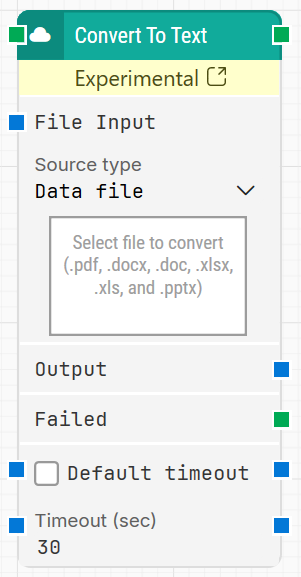
The screenshot on this page uses the Elegance Design, introduced in 2025.3. If you are using an earlier version, your layout may look different.
Quick-start
Drag Convert To Text onto the canvas.
In File Input, choose the Source type (Data file or Local path), select the file to convert, and optionally adjust Timeout (sec) or Default timeout.
Run the flow when it’s ready and use the Output text in subsequent blocks (for example, to search, validate, or store the converted content).
Building block parameters
Parameters
Block header: Shows the current name of the Convert To Text block. You can rename it by double-clicking the header and typing a new title. In current versions, an Experimental banner below the header indicates that this feature is in preview.
File Input: Represents the input-document section of the block. The file to convert is configured here using Source type and Select file to convert.
Source type: Defines where the input file comes from:
Data file: the file is stored inside Leapwork as a data file.
Local path: the file is referenced from a path on disk or a network share.
Once a file is specified, the block automatically detects its type if it is one of the supported formats.
Select file to convert: The file selector where you choose the document to be converted to text (for example, .pdf, .docx, .doc, .xlsx, .xls, .pptx).
You can drag and drop a file onto this field or browse to it, depending on the selected Source type.
The file content can also be provided dynamically from other blocks, if supported by your flow design.
Output: Contains the plain-text result of the conversion.
The blue connector can be used to pass this text into other blocks, such as those that search, parse, or store the extracted content.
Failed / Not converted: Triggers if the file cannot be converted within the configured timeout or if the conversion service returns an error.
Use this output to branch the flow, for example to log an error, retry with a different file, or explicitly fail the case.
In some earlier documentation this output may be referred to as Not converted; in the UI it appears as Failed.
Default timeout: Controls how the timeout for this block is derived:
When the checkbox is not selected, the block uses a fixed timeout of 10 seconds unless you change Timeout (sec) manually.
When the checkbox is selected, the block uses the Default timeout value defined in the flow settings.
Timeout (sec): Sets the maximum time allowed for the conversion before the Failed output is triggered.
The documented default is 10 seconds, though the initial value shown in the UI may differ depending on version or template.
This timeout applies only to the Convert To Text block. Each case also has a separate global timeout configured in the Settings panel; if the overall case exceeds that time, it is cancelled regardless of this block’s timeout.
Download / saving result: To download the converted text as a file, connect the Output property to a Save file block and configure that block to write the text to a local file (for example, a .txt document).