
The Save File block allows you to store files generated during test execution in a fixed location. This ensures that file-based output (such as logs, reports, or exports) can be reused, analyzed, or retrieved by other parts of the automation flow.
This block supports common formats like .txt, .csv, .json, .pdf, .xlsx, and .xml, and does not require a manual file path. Content is passed dynamically and saved in the Leapwork database and file system.
Example: A test case generates a JSON report containing API response data. Using the Save File block, this report is saved in a predefined storage location, allowing subsequent test cases to retrieve and analyze it.
When fully expanded, the following is an example of the Save File block with sample data:
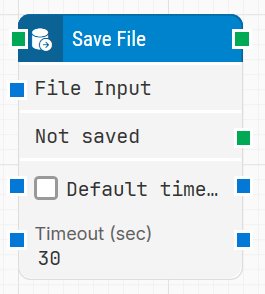
Note: The screenshot on this page uses the Elegance Design, introduced in 2025.3. If you are using an earlier version, your layout may look different.
Quick Start
-
Drag Save File onto the canvas.
-
Connect File Input to the output of a block that provides file content (e.g., a block that generates or returns a file).
-
Run the flow when it’s ready.
Building block parameters
Additional behavior
-
Successful execution
When the Save File block completes successfully, the file is stored and the run log will display the message:
"File {file name.ext} saved successfully."
The filename is automatically generated to ensure uniqueness. This confirms that the file content was written and stored as expected. -
Download option
After execution, the saved file can be downloaded directly from the Keyframes panel by selecting the block and accessing the file under Media.
The same download option is available in test reports for completed runs, making it easy to retrieve generated files even after execution has finished. -
Storage path
Files are saved automatically to the following default directory on the agent machine:
C:\Program Files\Leapwork\Assets\AutomationRunMedia\SomeFolder\SomeFolder\Files\
The exact subfolders depend on the run context, but Leapwork manages the full path internally. No manual path configuration is required.
Resources
|
Topic |
Description |
|---|---|
|
Common questions about creating, running, and managing flows in Leapwork. |
|
|
Guidelines and solutions for identifying and fixing issues that occur when building or running flows in Leapwork. |