
The Read Excel block is used to read an Excel file, select a range of data and then use that data to drive an automation case.
See the Drive data with Excel lesson to get an example of how to use the Read Excel block.
When fully expanded, the following is an example of the Read Excel block:
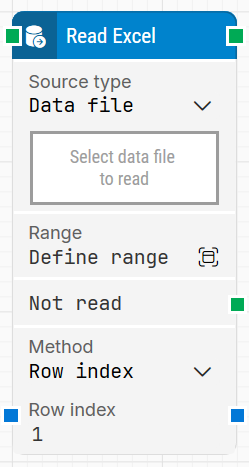
Note: The screenshot on this page uses the Elegance Design, introduced in 2025.3. If you are using an earlier version, your layout may look different.
Quick-start
-
Drag Read Excel onto the canvas.
-
Choose a Source type (Data File, Local Path, or Cloud File).
-
Upload / point to the Excel file for that Source type.
-
Select the sheet and cell range you want the block to read.
-
Pick a Method, depending on how you want rows returned.
-
Run the flow when it’s ready.
Building block parameters
Parameters
-
Block header: The left green input connector is used to trigger the block to execute. The right green output connector triggers when a row has been read. If Method is set to Iterate, this output connector triggers on each iteration until all rows in the selected range have been iterated through. You can rename the block title by double-clicking it and typing a new title.
-
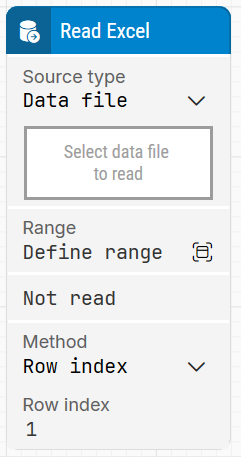
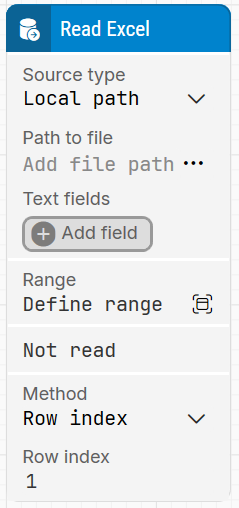
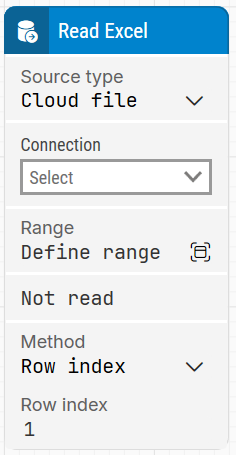
Source Type: Defines where the Excel file is read from:
-
Data File: The file is uploaded and saved inside Leapwork.
-
Local Path: The file is referenced from a specified path.
-
Cloud file: The file is accessed from SharePoint via a configured connection. Available from Release 2025.1.173 onward (local and remote agents) and from Release 2025.3.0 onward for cloud agents.
-
|
|
|
-
Select Data File to read: Used when Source Type is Data File. Selecting a file uploads it and saves it inside Leapwork. If the file content changes, the file must be re-uploaded.
-
Path to file: Used when Source Type is Local Path. Selecting it opens a file dialog where you choose a file path (which can be a shared network path).
The file is not saved inside Leapwork; it is referenced from the path. If the file is updated and rows/columns have been added, you must define the Range again, otherwise the updated content from a previously defined range will be used. -
Text fields: Stores key–value fields that enable the use of external values (dynamic data) in Path to file. To use a field value, right-click the text field below Path to file, select Insert token, and insert the field’s name. Fields can be renamed by double-clicking them, and tokens update their visual appearance accordingly.
-
Connection: Used when Source Type is Cloud file to select a configured connection. Currently, the available option is SharePoint Connection. A SharePoint connection must be configured in advance (available from Release 2025.1.173 onward).
-
Site URL: Specifies the SharePoint site URL where the Excel file is stored. When Source Type is Cloud file, this field is mandatory and must be filled in before proceeding.
-
File Name: Specifies the exact Excel file name (including extension such as .xls or .xlsx) to access from the SharePoint site.
The file must exist and you must have read access. If the same name exists in multiple folders, include the folder path (for example,Finance/Quarterly_Report.xlsx). -
Range: Lets you select the sheet and the data range in a popup window. You can select from any sheet, but only one range can be selected per Read Excel block. If you enable Use first row as header when selecting the range, the first row’s column values become the field names.
-
Not read: Triggers if the block is not able to read the Excel file or if the file is not found. This can be used to branch the execution flow based on failure to read the data.
-
Fields (named or columns): After the Excel file is loaded and a Range is selected, each row’s column values are exposed as fields that can be used in the flow.
-
Method: Controls how rows are selected from the chosen range. Options are First row (always reads the first row in the range), Row index (reads a specific row), and Iterate (reads all rows; the top connector triggers for each row).
-
Row index: Used when Method is Row index to specify which row to read from the selected range.
-
Completed: Used with Method = Iterate. When all rows have been processed, the right green output connector triggers to indicate the iteration is complete.
Using SharePoint as the Excel Source
When reading Excel files stored on Microsoft SharePoint via a Microsoft Graph SharePoint Connection, follow these path formatting rules to prevent 404 Not Found or file resolution errors.
1. File Path Guidelines
-
Do NOT prepend the Document Library name to the file path. Because Leapwork automatically scans all document libraries in the site, including library names like
Shared Documents,Documenten, or custom library names will cause file lookup failures.
2. Path Syntax Examples
|
File Location |
How to Specify in Leapwork |
Example |
|---|---|---|
|
Root of any Document Library |
|
|
|
Inside a Folder / Subfolder |
|
|
|
With Library in Path (Incorrect) |
❌ Do not include library name |
❌ |
3. Duplicate File Name Resolution
If identically named files (e.g., Matrixborden.xlsx) exist at the root level of multiple Document Libraries on the same site:
-
Leapwork will read the first matching file it discovers during library iteration.
-
Best Practice: Place files in dedicated folders and specify the relative path (e.g.,
Financials/Matrixborden.xlsx) to ensure deterministic file selection.
Resources
|
Topic |
Description |
|---|---|
|
Common questions about creating, running, and managing flows in Leapwork. |
|
|
Guidelines and solutions for identifying and fixing issues that occur when building or running flows in Leapwork. |
|
|
Configuration and usage of the SharePoint connection in Leapwork to read from and write to Excel files stored in SharePoint. |